You've read the same email over and over because one word looks wrong. You swapped it for a word you're surer of, read it again, and sent it anyway, with a small wince as it went.
Dictation for dyslexia can make that email easier, for a simple reason: you say the words instead of spelling them. By dictation we mean voice typing, where you talk and your computer types. (Not the school exercise where a teacher reads words out for you to spell, which is more or less the opposite.) The word you can say perfectly but can never get past the red underline comes out spelled right.
Dictation brings its own kind of mistake, though: the right spelling of the wrong word. This guide is for adults who write emails and documents at work, with a short part for students. It ends with a quick check by ear that catches many of the wrong words spellcheck can't see.
Our view: saying a sentence is a shorter path to a first draft than spelling it, and for the speaking half, Amical is the app we'd pick. We make Amical and publish this blog, so read that pick knowing who's making it. The free tools already on your computer get a fair hearing too. And this is a guide to a writing tool, not medical or legal advice: dictation doesn't treat dyslexia. It gives you another way onto the page.
Why dictation helps with dyslexia, and what it doesn't fix
Dyslexia mostly makes reading and spelling hard. The International Dyslexia Association's 2025 definition opens: "Dyslexia is a specific learning disability characterized by difficulties in word reading and/or spelling." The NHS adds the line worth keeping in mind: dyslexia "does not affect intelligence."
That's the gap dictation fills. You know exactly what you want to say, and then you lose it while you work out how to spell "necessary". With dictation, spelling leaves the first draft. You say the sentence, and the software spells it.
The research is thin, and it's better to say so. The one peer-reviewed study we found, published in 2026, followed four students aged 10 to 12 with severe dyslexia through a seven-week program of writing with speech-to-text. Their texts had no conventional spelling errors, but the technology brought new ones: misrecognised words and words left out. It's a small study, and of children, not adults at work. At the University of Gothenburg, a project running since 2016 is asking whether, and how, dictation tools support writing. Researchers are still testing, and the project page reports no findings yet.
So treat dictation as a different route to the page, not a fix for spelling. It doesn't change how you spell "necessary".
It just stops "necessary" from standing between you and the end of the email.
The catch: wrong words that are spelled right
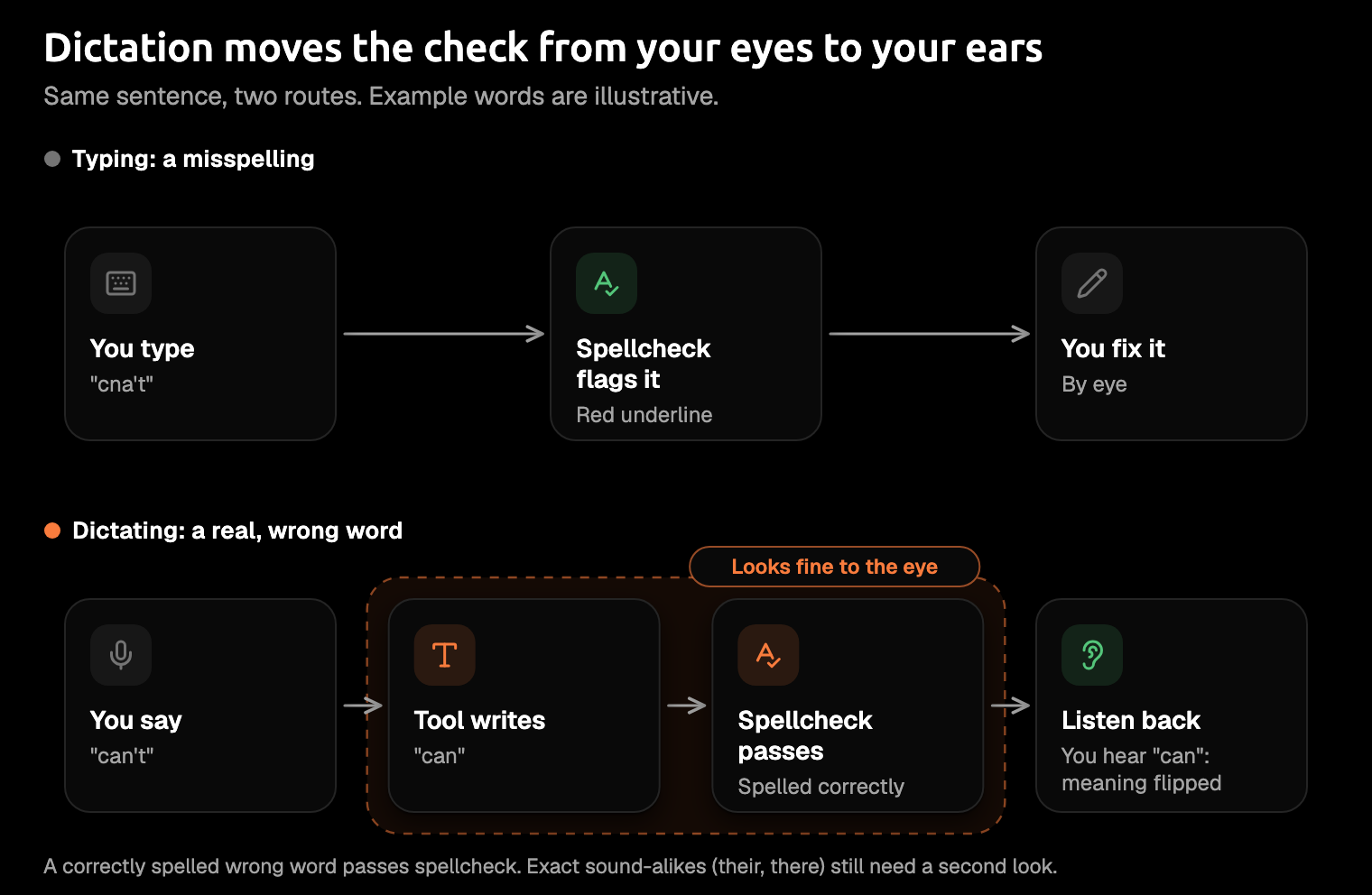
Dictation doesn't misspell; it mishears. You say "we can't meet on Thursday", and the email says "we can meet on Thursday". Every word is spelled right, so spellcheck has nothing to underline. It looks for words that don't exist and has no idea you meant a different one.
The 2026 study found three kinds of these new errors: words that sound the same or almost the same, wrong word endings, and compound words. Many of them come out as real words, spelled correctly, which is exactly what spellcheck lets through. VoiceDash, which makes a dictation app, puts it plainly in its own dyslexia guide: "a correctly spelled word can still be the wrong word."
The fix starts with your ears. VoiceDash and Wispr Flow both suggest having text-to-speech read your writing back, and VoiceDash says it helps catch missing words, repeated phrases, and sentences that sound unnatural. Hearing a robot voice say "we can meet" when you meant "we can't" can make the slip stand out, even after your eyes slid right past it.
Ears do have one blind spot: exact sound-alikes. Read aloud, "their" and "there" sound identical, so listening can't tell you which one landed. VoiceDash's guide gives sound-alikes a review step of their own, and the idea is worth borrowing. Keep a short list of the few pairs that always catch you, and give just those words a second look in anything important.
Listening back won't catch everything, but it takes less time than writing the apology.
Your options: built-in dictation or an AI dictation app
There are two kinds of tool. Built-in dictation types what you say. An AI dictation app types it, then tidies it into the message you meant.
Built-in dictation (free, already installed)
Every major platform has dictation built in, and you can try it today without installing anything.
| Tool | How to start | Worth knowing |
|---|---|---|
| macOS Dictation | Turn it on in System Settings > Keyboard > Dictation | Adds punctuation automatically in supported languages; newer Macs on macOS 27 also get capitals and formatting |
| Windows voice typing | Press Win+H | Needs an internet connection, except for the on-device "fluid dictation" in English on Copilot+ PCs; automatic punctuation is a toggle in its settings |
| Google Docs voice typing | Tools > Voice typing, in Chrome, Edge, or Safari | You say "period", "comma", or "new paragraph", and those commands work in English only |
| Word Dictate | The Dictate button in Microsoft 365 | Needs a microphone and a reliable internet connection |
| Android Gboard | Tap the microphone on the keyboard | Say "comma" or "period" for punctuation; not every language is covered |
Any of these is good enough to start with, and the newest are better than their reputation. As of October 2026, a Mac on macOS 27 with an M3 or later and 12 GB of memory handles capitals, punctuation, and formatting on the device. On a Copilot+ PC, fluid dictation tidies grammar, punctuation, and filler words.
Apple's new model doesn't shape the message for the app you're in, and none of the other tools' pages we read describes doing it either. An email doesn't get its greeting on its own line just because it's an email. The macOS 27 model also takes no custom vocabulary, so a colleague's unusual surname comes out however the model guesses it. In Google Docs and Gboard you say the punctuation out loud, and saying "comma" in an open-plan office gets old by lunchtime.
For someone with dyslexia, every fix you make by hand means more reading of your own text, which is the very job you were trying to hand off.
We've compared AI dictation with Mac dictation and with Windows voice typing in more depth. If Docs has gone quiet on you, here's how to fix Google Docs voice typing.
AI dictation apps
AI dictation apps work in two steps: they transcribe what you say, then rewrite it as a finished message for the app you're in. That second step is the difference. The same words come out as an email in your mail app and as a loose reply in a chat, so there's less of your own text to go back over.
Amical is our pick for what it takes off your hands:
- It does the layout. Amical's AI formatting adapts to the app you're in, across hundreds of apps. In an email, the greeting, body, and closing land on their own lines, and it fixes grammar as it formats.
- It learns your words. Add colleagues' names, product names, and work terms to a custom vocabulary, so the speech model knows how they're spelled.
- It waits while you think. Hold the key and it keeps listening through your pauses, so it won't cut you off mid-sentence.
- It writes from an instruction. With Amical Cloud, Draft turns a description of the message into text you check before it goes in.
- It's the same tool everywhere: Mac, Windows, iPhone, iPad, and Android.
- It's fast. By Amical's own figures, Amical Cloud has formatted text ready in under 300 ms for a short dictation and under 500 ms for a longer one. The sentence is on the screen while it's still in your head.
Amical has gaps, and none of them is a dead end:
- No read-back. Amical doesn't read text aloud. The read-aloud already on your device does, and step 5 below shows where.
- No promise on every word. No tool, Amical included, promises the right word every time. That's what listening back is for.
- Sign-in. The phone apps and Amical Cloud need an account, and the phone apps transcribe with Amical Cloud only. On the desktop, local mode needs no account.
- Older Macs and Linux. Local mode can use one of two speech models that run on your computer. Whisper needs macOS 15 or later and runs slower on Intel Macs. Parakeet runs on macOS 14 and on Intel Macs. There's no Linux version; of the apps below, Typeless has one.
Other dictation apps worth knowing, as of October 2026:
- Wispr Flow is free for 2,000 words a week on the desktop, and Pro is $15 a month, or $12 a month billed annually. It runs on Mac, Windows, iPhone, and Android, and lists SOC 2 Type II and HIPAA, which suits workplaces that need that paperwork. Amical vs Wispr Flow lays out the differences.
- Willow Voice Pro is $15 a month, or $12 a month billed annually. It runs on Mac, Windows, and iPhone, with Android marked "coming soon", so it suits you if your phone is an iPhone.
- Typeless Pro is $12 a month billed yearly, or $30 month to month. Of these apps, it's the one with a Linux version.
- Dragon is the veteran. A competing app's pricing guide lists Dragon Professional, the desktop version, for Windows only, and Nuance announced the end of Dragon for Mac in 2018. Willow Voice's dyslexia roundup points to Dragon's "Read That" command, which reads selected text aloud, so Dragon suits Windows users who want dictation and read-back in one tool. Here's how Amical compares with Dragon.
Amical's free plan includes unlimited local dictation and 2,000 cloud words a week. Premium is $10 a month or $84 a year for unlimited cloud words. Pricing has the details.
If the hard part is the fixing, choose a tool by how much of it you'd still be doing yourself.
Set it up before your next email
These steps use Amical as the example, with a note where a built-in tool works differently.
-
Install Amical. On a Mac or PC, the quick start walks you through it. On an iPhone or iPad (iOS or iPadOS 18.3 or later), or on Android, get the app and sign in; the iOS quick start and Android quick start show how.
-
On the desktop, choose where it runs. Local mode keeps your speech on your computer, and Amical Cloud is built for speed. The phone apps always use Amical Cloud.
- Local mode: your audio is transcribed on your computer, with no account, and it works offline once a model is downloaded. Your text leaves only if you pick a cloud provider for formatting.
- Amical Cloud: it receives your audio, your vocabulary settings, and some formatting context, such as the text near your cursor and the app name. Its stated policy is "No data retention" and "No training on your data".
Local AI models, Cloud AI models, and our guide to cloud vs local dictation go deeper.
-
Learn the two ways to talk. On a Mac, hold
Fnfor a quick line and let go when you're done. It keeps listening while you pause, as long as the key is down, which makes it the friendlier mode if you tend to stop and think mid-sentence. For longer messages, pressFn+Spaceto go hands-free; it stops by itself after 5 seconds of silence. On Windows, the quick start shows how to start talking and Shortcuts shows how to change your keys. On a phone, the iOS and Android quick starts cover it. AI dictation explains both modes. -
Add your words to the custom vocabulary. Put in your colleagues' names, your product names, and the work terms a speech model has never heard. Your manager's surname shouldn't be a weekly surprise. Custom vocabulary shows how, and our guide to speech to text with custom vocabulary explains why it works.
-
Turn on read-back on your device. This is the job of the read-aloud tool your device already has:
- Mac: turn on Speak selection in System Settings > Accessibility > Read & Speak, where you can also turn on word highlighting. Then select text and press
Option-Esc, the default shortcut. - Word on Windows: go to Review > Read Aloud, or press
Ctrl+Alt+Space. - Android: turn on Settings > Accessibility > Select to Speak.
- iPhone: look in Settings > Accessibility > Spoken Content.
- Mac: turn on Speak selection in System Settings > Accessibility > Read & Speak, where you can also turn on word highlighting. Then select text and press
Step 5 is the one people skip. Don't. A robot voice reading your email back is far less embarrassing than the reply-all.
Write a real email by voice
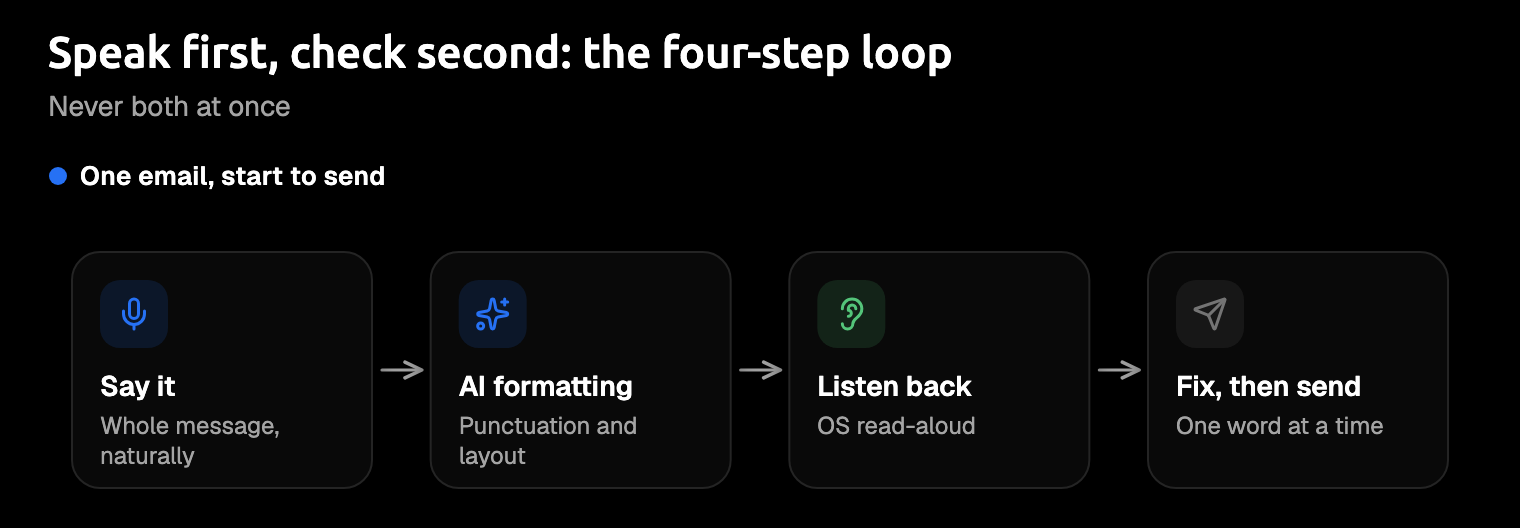
The routine has one rule: speak first, check second, and never both at once.
Say the whole message, greeting and sign-off included, the way you'd say it to a colleague across the desk. Don't stop to fix a word halfway through. That's how you lose the sentence, and the sentence was the hard part.
Amical's AI formatting turns what you said into an email: greeting, body, and closing on their own lines, and a short reply stays short. Here's an illustration of the idea, not a recorded result. You say:
hi sam thanks for sending the report over, I had a look and the budget part needs checking before it goes to the client, can we go through it tomorrow morning, thanks jo
And the email that lands looks like this:
Hi Sam,
Thanks for sending the report over. I had a look, and the budget part needs checking before it goes to the client. Can we go through it tomorrow morning?
Thanks, Jo
You can also skip the dictating and give an instruction. With Draft, which runs on Amical Cloud, you say "reply that Thursday works and ask for the agenda", and the reply is written out for you to review before it goes in.
Then listen. Select the email, press Option-Esc on a Mac (or use your device's read-aloud), and follow along. When a word sounds wrong, fix that one word with the keyboard, or delete the sentence and say it again. Then give your sound-alike pairs their second look.
On a Mac, if the text lands in the wrong window, Cmd+Ctrl+V pastes your last transcript where your cursor is now, and transcription history keeps past dictations on your computer. Our guide to dictating emails in Outlook and Gmail goes further on email.
Longer docs
A document works the same way, one paragraph or section at a time. One recording session runs up to 2 hours, so the split is for your ears, not the software: a short chunk is much easier to check by ear than a whole report read back in one go. Amical pastes wherever your cursor is, so it works in Google Docs and Word like anywhere else.
Think of a document as a run of short emails, not one long speech.
At school and at work
If you're a student, the same routine works for essays and notes: say a paragraph, listen to it, fix the word. In an essay, one dropped "not" can turn a sentence around, so listen for it. Our guide to speech to text for students covers the school side in full.
At work, the NHS says you can tell your employer about your dyslexia, lists screenreaders as an example of an adjustment, and points UK readers to Access to Work grants. That's general guidance, not legal advice, and the rules differ by country.
Asking for the tool you need is an ordinary request, and short enough to dictate. If IT has to approve new software, Amical's local mode is worth mentioning: it keeps your audio on your computer.
FAQ
Is dictation good for dyslexia?
It can make the first draft easier, because you say the words instead of spelling them. It isn't a treatment: the one peer-reviewed study we found is small, with four children, and researchers are still testing.
What's the best free speech to text for dyslexia?
The dictation built into your Mac, PC, or phone costs nothing and is a fine place to start. If you want the layout done for you and your work terms learned, Amical's free plan includes AI formatting, custom vocabulary, and unlimited local dictation.
Will dictation fix my spelling?
No. It walks around spelling rather than through it, and it brings its own errors: words spelled correctly that aren't the words you meant. Listen to your text before you send it.
Does Amical read text back to me?
No. Use the read-aloud built into your device: Speak selection on a Mac, Read Aloud in Word, Select to Speak on Android, or Spoken Content on iPhone.
Send one email you said out loud
Pick an email you'd otherwise type today. Download Amical, add the names you'd most hate to misspell to your vocabulary, and say the email instead. Then let your device read it back before you hit send. The free plan covers every step, and the only thing it asks of you is a few minutes of talking to your screen.