 Amical
AI dictation
How Amical turns your voice into text in any app.
You hold a key, talk, and the words paste into whatever has focus. That's it. Everything below is the knobs around that loop.
Two ways to dictate
- Push to talk — hold the shortcut (default Fn), talk, release. Amical pastes when you let go.
- Hands-free mode — press the shortcut (default Fn+Space) once to start, again to stop. Useful for longer passages or when you don't want to keep a key held.
Both are bound under Settings → Shortcuts. See Shortcuts for when to use which.
Settings that matter
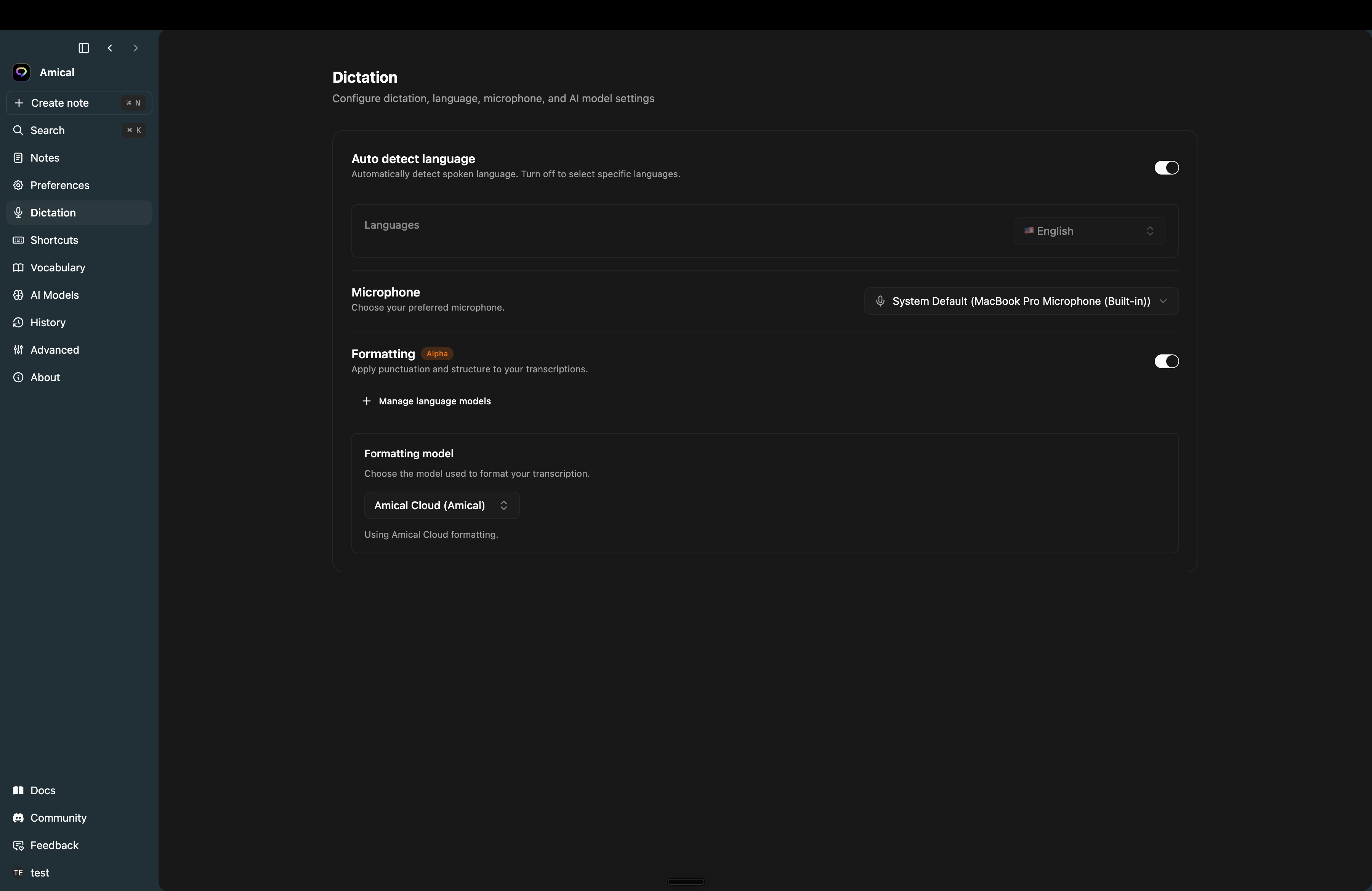
Open Settings → Dictation to find:
- Auto detect language — on by default. Amical figures out the language each time. Turn it off to lock to one language; the Languages picker below the toggle activates when you do.
- Microphone — pick the input device. Defaults to the system default. The list shows every audio input macOS or Windows reports.
- Formatting (marked Alpha) — runs your transcript through a language model to add punctuation and structure, and adapts the output to the app you're typing into. Needs a local language model or a signed-in Amical Cloud session. See AI formatting for the full picture, including per-app behaviour and the model picker.
Limits
- Single recording capped at 6 minutes (Amical warns at 5 and stops at 6).
- If Amical hears no audio for 5 seconds, it stops the recording.
- A push-to-talk press shorter than 500 ms is treated as a slip and discarded.
Pre-loading the model
Settings → Advanced → Preload Whisper Model keeps the local model warm in memory. First-press latency drops; idle RAM goes up. On by default.