A reply is due before your next meeting, so you decide to talk instead of type. You click Dictate in Outlook, and it types what you said, the way you said it, including the sentence you changed your mind about halfway through. Now you're editing a transcript.
Outlook has a Dictate button, and Gmail relies on your computer's or phone's own dictation. You'll find the steps to dictate emails in both, on Windows, Mac, the web, and your phone, then the route that writes the email for you: an AI dictation app, with Amical as the example.
The dictating was never the slow part. Fixing it afterwards is.
Amical publishes this blog, so you know where we stand. If you write email all day, an AI dictation app like Amical is our pick: it rewrites what you said as an email for the app you're in. For a quick two-line reply, the built-in options are fine, and you probably have one already.
The short answer
Use Outlook's Dictate button if you have Microsoft 365 and do most of your email in Outlook. In Gmail, use your computer's own dictation: Win+H on Windows, or Dictation on a Mac. On your phone, tap the mic on the keyboard. If email is most of your day, use an AI dictation app, which writes the email instead of typing the transcript.
| Outlook Dictate | Windows voice typing | Mac Dictation | Phone keyboard mic | AI dictation app (Amical) | |
|---|---|---|---|---|---|
| Works in | Outlook on the desktop and the web | Any text box, Outlook and Gmail included | Outlook for Mac, Gmail in the browser | The Outlook and Gmail apps | Outlook, Gmail in the browser, Apple Mail; apps for iPhone, iPad, and Android |
| Cost | Included with Microsoft 365 | Built into Windows | Built into macOS | Built into the keyboard | Free plan, or Premium for unlimited cloud words |
| Needs internet | Yes | Yes | Can run on the device on newer Macs | Varies by keyboard | Cloud: yes. Local: transcription works offline |
| Punctuation | Spoken, or automatic | Spoken, or automatic | Spoken, or automatic | Spoken | Added by AI formatting |
| Writes it as an email | No, it types a transcript | No; fluid dictation tidies fillers on Copilot+ PCs | No, it doesn't shape text for the app | No | Yes, on your computer, in Outlook, Gmail, and Apple Mail |
Outlook, Windows, and Mac dictation can all add punctuation for you. Otherwise you're saying "comma" out loud in an open-plan office, and your coworkers learn a lot about your sentence structure.
How to dictate in Outlook with the Dictate button
If you pay for Microsoft 365, Dictate is already in Outlook, with the same basic steps in the desktop apps and on the web. It's the right first thing to try. There's nothing to install, and the button is already in your toolbar.
New Outlook, Outlook on the web and classic Outlook for Windows
As of October 2026, Microsoft's help page gives the same basic steps for all three:
- Start a new email, or open a reply.
- Click in the message body.
- On the Message tab, select Dictate.
- Wait for it to turn on, then start talking.
In new Outlook, if dictation pauses, press Alt+` or select the mic icon in the ribbon to pick up again.
Outlook for Mac
The steps are the same on a Mac: click in the body, choose Dictate on the Message tab, and talk. The shortcut is Option+F1.
Punctuation and settings
Dictate types punctuation when you say its name: "period", "comma", "question mark", "colon", "new line", and a few more. If your language supports it, turn on auto punctuation and skip most of that.
Without it, you'll find yourself saying "new line" twice to get a gap between paragraphs, like dictating to a very literal typist.
The gear icon opens the settings: spoken language, microphone, auto punctuation, and a profanity filter. The default language is English (US). By our count of Microsoft's list, about 15 languages are fully supported and about three dozen more are in preview, with lower accuracy and limited punctuation.
Dictate button missing or greyed out
Work through these before you restart anything:
- Subscription. Dictate is only for Microsoft 365 subscribers, so check which account Outlook is signed in to.
- Sign-in. Classic Outlook and Outlook for Mac need you signed in to Microsoft 365.
- Connection. Dictate needs a reliable internet connection.
- Mic. Check that a microphone is connected and that your computer lets Outlook use it.
- Cursor. Click in the message body before you select Dictate.
Outlook on your phone
Outlook for iPhone and Android no longer has its own Dictate mic: Microsoft removed it from the compose toolbar in September 2024. If a guide tells you to tap an in-app Dictate mic, it's out of date, even though Microsoft's own mobile help page still describes it next to the retirement notice.
Tap the mic on your phone's keyboard instead, which is what Microsoft recommends.
How to dictate in Gmail
Gmail has no dictation button in its compose window, so you borrow the one on your computer or phone. Google's own voice typing lives in Google Docs and Slides. Even Gemini's Help me write in Gmail wants a typed prompt.
Gmail on Windows: Win+H
Windows voice typing works in any text box, Gmail in your browser included.
- Open a new email in Gmail and click in the body.
- Press
Win+H. - Speak, and say "new paragraph" when you want a break.
- Say "Stop listening" or press the mic button when you're done.
Voice typing needs an internet connection, because it runs on Microsoft's Azure Speech service. Auto punctuation is in the gear menu on the voice typing bar. "Delete that" removes what you just said.
On Copilot+ PCs, fluid dictation adds a cleanup step in English: on-device models fix grammar, punctuation, and filler words, and "Revert" undoes a fix you didn't want. Recognizing your speech still happens online, so you still need a connection. For a fuller comparison, see AI dictation vs Windows voice typing.
Gmail on a Mac: Dictation
Mac Dictation works in Gmail like any other text field once it's turned on.
- Open System Settings > Keyboard > Dictation and turn it on.
- Click in the body of a Gmail email.
- Press the Dictation shortcut shown in that same setting, and speak.
- Say "new paragraph" when you want a break.
Mac Dictation adds punctuation automatically in supported languages, has no length limit, and stops after 30 seconds of silence. It won't run while Voice Control is on.
macOS 27 brings an improved on-device model to Macs with M3 or later and 12 GB or more of memory, with better capitalization and punctuation. It still doesn't shape the text for the app you're in, so Gmail gets the same plain text a note would. For a fuller comparison, see AI dictation vs Mac Dictation.
The Google Docs detour
Some people dictate in Google Docs and paste the result into Gmail. In Docs, choose Tools > Voice typing, click the mic, and talk; it works in Chrome, Edge, or Safari. Spoken commands like "comma" and "new paragraph" work only in English, and "Stop listening" ends it.
It works, but it's two apps and a copy-paste for one email, which is a lot of ceremony for "sounds good, see you Thursday."
Gmail on your phone
Tap the mic on your keyboard, in the Gmail app or anywhere else. On Android, Gboard's mic sits at the top of the keyboard, and it understands "period", "comma", "question mark", "new line", and "new paragraph". Not every language supports those commands. If you're thinking about a smarter keyboard, see AI voice keyboard vs Gboard and AI voice keyboard vs iPhone dictation.
Where the built-ins stop: a transcript isn't an email
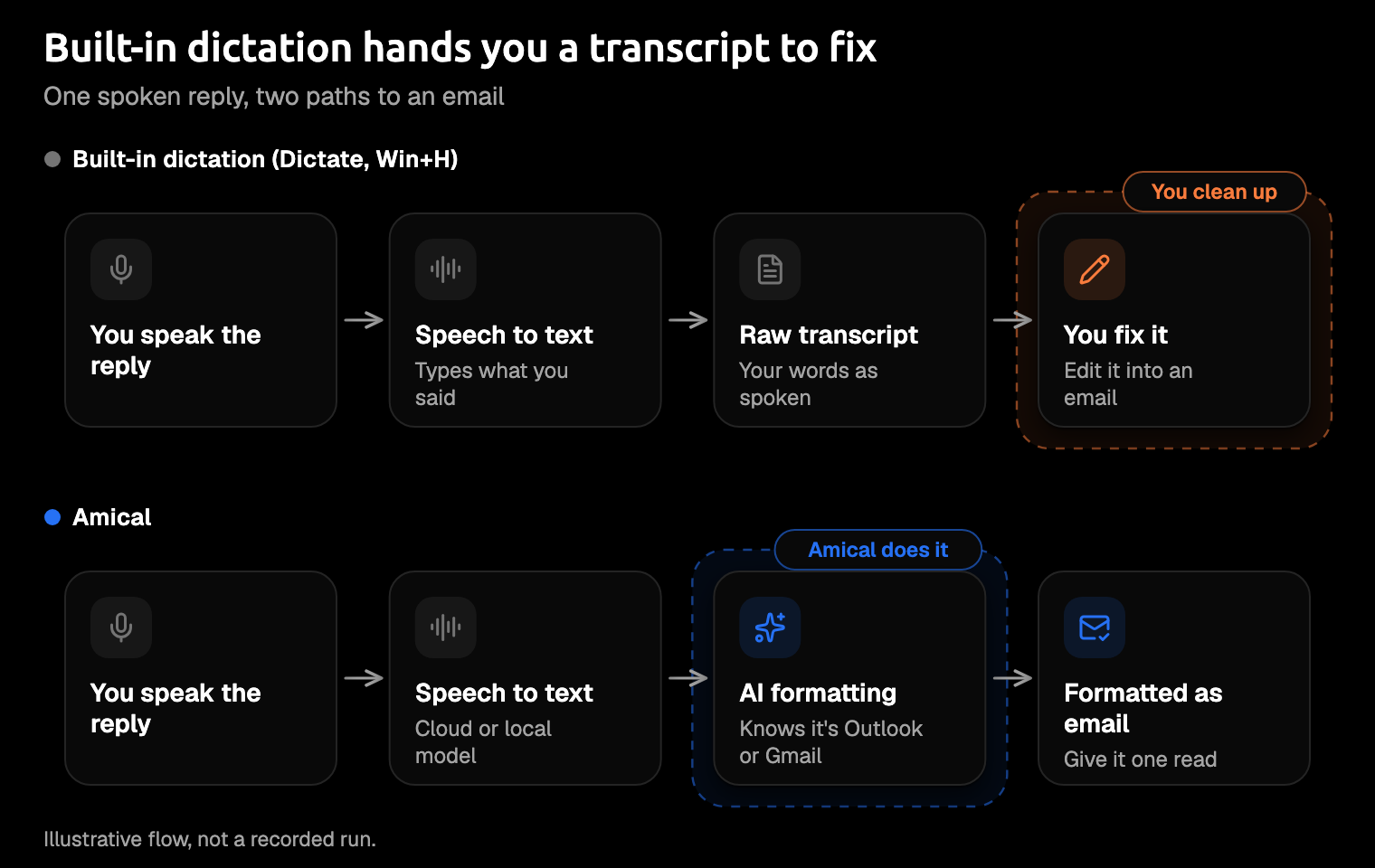
Every route above stops at the words you said. None of them writes the greeting, applies your "Thursday, no, Friday", or turns two asks into a list. The nearest thing is fluid dictation on Copilot+ PCs, which tidies grammar and fillers in English, plus the better punctuation in macOS 27.
That cleanup is where the time goes. It's also the job AI dictation apps are built to do.
If you've ever reread your own transcript and wondered who talks like that, you've met the problem. (Everyone does. Speech just isn't written English.)
How to dictate emails with Amical
AI dictation apps add a second step: after turning your speech into text, they rewrite it for the app you're in. Amical works this way. It notices when you're in Outlook or Gmail, on the desktop or the web, and formats what you said as an email. One shortcut works in Outlook, Gmail in your browser, and Apple Mail. On your phone, there's an Amical app for iPhone, iPad, and Android.
It's quick, too. With Amical Cloud, by Amical's own figures, finished and formatted text is ready in under 300 ms for a short dictation and under 500 ms for a longer one. So the email is there by the time you look up.
Set it up once
- Download Amical and install it; the quick start walks through it.
- Allow microphone access when your computer asks.
- Choose a speech model: Amical Cloud, which needs a sign-in (Cloud AI models), or Whisper or Parakeet, which run on your computer (Local AI models).
- Add the names you email often to custom vocabulary, so Amical knows "Siobhan" isn't spelled "Shivon".
Local Whisper needs macOS 15 or later and runs slower on Intel Macs. Parakeet runs on macOS 14 and on Intel Macs, and Amical Cloud has no OS limit.
Cost is a fair question, since Dictate comes with Microsoft 365 and the computer's own dictation is built in. As of October 2026, Amical's free plan covers unlimited local dictation plus 2,000 cloud words a week, and local dictation never counts toward those words. Premium removes the weekly cap for $10 a month, or $84 a year ($7 a month).
Dictate the email
- Click into the body of an email in Outlook (desktop or web), Gmail in your browser, or Apple Mail.
- On a Mac, hold
Fn. On Windows, hold your push-to-talk shortcut (set it under Shortcuts). - Say what you want the email to say, the way you'd explain it to a coworker.
- Let go. Amical pastes the text where your cursor is, rewritten as an email.
For a longer email on a Mac, press Fn+Space to dictate hands-free instead of holding the key. One recording session runs up to 2 hours, so the email will run out before the recording does. Hands-free stops after 5 seconds of silence, though, so if you pause to think, start a new recording for the next paragraph; holding Fn keeps listening until you let go.
Give the result one read before you send it. AI formatting rewrites your words rather than copying them, so check names, dates, and times first; that's where a slip would cost you most.
AI dictation covers both ways to record, AI formatting explains how each app gets its own style, and Amical for Gmail has more on Gmail.
The same email, two ways (illustrative)
This is an illustration of the idea, not a recorded run. Say you're replying to Dana about a vendor review, and this is what comes out of your mouth:
hi dana so the vendor review, can we do thursday, no, friday morning, and before then I need two things from you, the updated quote and the signed contract, thanks
A built-in dictation with auto punctuation on would type something like this:
Hi Dana, so the vendor review, can we do Thursday, no, Friday morning, and before then I need two things from you, the updated quote and the signed contract, thanks.
It has faithfully kept "Thursday, no, Friday" for Dana to enjoy.
In Outlook or Gmail, Amical's AI formatting rewrites that transcript as an email. The email you're aiming for looks something like this:
Hi Dana,
Could we move the vendor review to Friday morning?
Before then, I need two things from you:
- The updated quote
- The signed contract
Thanks
Your own result will differ in the details, which is one more reason for that one read.
Say the same words in Slack and you'd get a short chat reply instead, because Slack isn't email.
On your phone
On iPhone and iPad, Amical is a keyboard (iOS and iPadOS 18.3 or later), and there's an Android app too. Both transcribe with Amical Cloud only, and they need you to sign in. If you'd rather not have an account there, your phone's built-in keyboard mic is the honest alternative for short replies.
The iOS quick start and Android quick start cover setup.
Tips for replies, greetings and sign-offs
Dictated email tends to go wrong in the same few places. Each of these habits heads one off.
Start with the name and the ask
Open with who it's for and what you need: "Hi Dana, can we move the review to Friday." It's how a good email starts anyway, and your reader gets the point in the first line. If the greeting has to be exact ("Dear Professor Tanaka"), say it yourself instead of leaving it to the formatting.
Replies: dictate only the new part, or use Draft
In a reply, put the cursor at the top and dictate only what's new. The thread is already there; you don't need to recap it.
Or use Draft. Press Fn+Ctrl on a Mac, speak an instruction like "reply that Friday works and ask for the agenda," then review the result before it goes in. Draft needs Amical Cloud, and Draft has the details.
Names and sign-offs
Custom vocabulary teaches Amical the names, product terms, and acronyms you use, so it has the right spelling to work from. For a sign-off you use every time, save it as a snippet and say the short version. And if your email should sound more formal than your Slack, set the tone per app in Personalization.
Correct yourself out loud
Changed your mind mid-sentence? Say "no, Friday" and keep going; stopping to start over costs you the thought. Amical's AI formatting rewrites the whole transcript as an email rather than typing it word for word. The illustration above shows the result you're after, and your one read before sending is where you confirm it says Friday.
Write the subject line last
Dictate the body first, then write the subject once you know what the email actually says. It's easier to name something after it exists.
If English isn't your first language
Speak in your own words and let AI formatting rewrite them as an email. Amical Cloud covers 100+ languages and local Whisper covers 99, while Dictate fully supports about 15, with about three dozen more in preview. If you mix languages in one sentence, such as Japanese and English, use Amical Cloud. Dictation for non-native English speakers and multi-language support go into more detail.
For the fuller workflow, from sketching a skeleton first to dictating a short summary for a long thread, see how to dictate emails faster.
What leaves your computer
Most routes in this guide send your voice to a server to be turned into text. Pick by what's in the email, not by habit: the lunch plan can go anywhere, and the email about a colleague's salary deserves a second thought.
- Outlook Dictate sends your speech to Microsoft to get text back. Microsoft says it doesn't store the audio or the transcribed text.
- Windows voice typing sends your speech to Microsoft's Azure Speech service. On Copilot+ PCs, fluid dictation's cleanup step runs on the device, but recognizing your speech still happens online.
- Amical Cloud needs a sign-in and receives your audio, your language and custom-vocabulary settings, and context for formatting: selected text, up to 500 characters around your cursor, the app name, and the browser URL. Amical's stated policy is "No data retention" and "No training on your data."
- Amical in local mode transcribes your speech on your computer and needs no account. Transcription works offline once a model is downloaded. Your text leaves only if you choose a cloud provider for formatting. Ollama, an app that runs AI models on your own computer, keeps the formatting local too.
That context is the trade for Amical Cloud's speed and having nothing to set up. When it's the wrong trade for a particular email, switch to local mode for that one.
Cloud vs local dictation walks through the trade-off, and local dictation with AI cleanup covers keeping formatting on your machine as well.
Dictate one email you'd otherwise type
Pick an email that's waiting on you today and open it in Outlook or Gmail. Download Amical, dictate the reply, and see what lands in the compose box. Then try the same reply with Dictate or Win+H, and notice which version needs less fixing before you'd send it.
The free plan is enough for that test, and for plenty of inboxes after it.