You've got a full inbox and a Slack thread waiting on you, so you open a dictation app to talk your way through them. Before your first word, it wants an answer: should your voice go to a server in the cloud, or stay on your own computer?
That's the cloud vs local dictation choice. Cloud dictation sends your audio to a server. It's fast, there's nothing to install, and it works on your phone. Local dictation runs the speech model on your computer. It works offline, and your audio stays with you.
This guide is for people who write all day, in email, Slack, or prompts to an AI assistant, and for anyone who wants to know exactly where their audio goes.
Some apps answer the question for you by offering only one mode. You find out when you go looking for the switch and it isn't there.
Our view is that the choice should be per task, not per app. Amical's desktop app, on Mac and Windows, gives you both: Amical Cloud, our own speech model built for low latency, and local models that run offline. The iPhone, iPad, and Android apps use Amical Cloud. Our everyday advice is Amical Cloud for speed, and local mode for the plane or the sensitive file.
A word on where we stand: Amical publishes this blog, and the cloud half of this comparison is the half we charge for. Premium, which removes the weekly cap on cloud words, costs $10 a month or $84 a year. Local dictation is free and unlimited, and it never uses up your cloud words.
The short answer
Use cloud dictation when you want speed, no setup, and the same tool on your phone. Use local dictation when you're offline, or when you'd rather your audio didn't leave your computer.
| Cloud dictation | Local dictation | |
|---|---|---|
| Setup | Sign in and start talking | Download a speech model first (Whisper models are 78 MB to 3.1 GB) |
| Speed | Usually quick on big servers, but you wait on your connection | Depends on your computer's chip and the model's size |
| Accuracy | On public benchmarks, most commercial APIs beat Whisper, by the most on long recordings and other languages | Close behind on short, clear speech; bigger models do better |
| Works offline | No, it needs a connection | Yes, once the model is downloaded |
| What leaves your machine | Your audio, and often on-screen context for formatting | No audio; text only if formatting uses a cloud provider |
| Phones | Amical's iPhone, iPad and Android apps use it | Desktop only in Amical |
| Cost | Usually a subscription or a weekly word cap | Free and unlimited in Amical |
| In Amical | Amical Cloud: our own low-latency model, 100+ languages, sign-in | Whisper (99 languages) or Parakeet, no account |
Start with the cloud for everyday writing, and switch to local when the day calls for it: a flight, a client file you'd rather keep close, or the week you've used up your cloud words. In Amical's desktop app both modes sit on the same settings screen, so you choose per task, not per app.
What actually leaves your machine
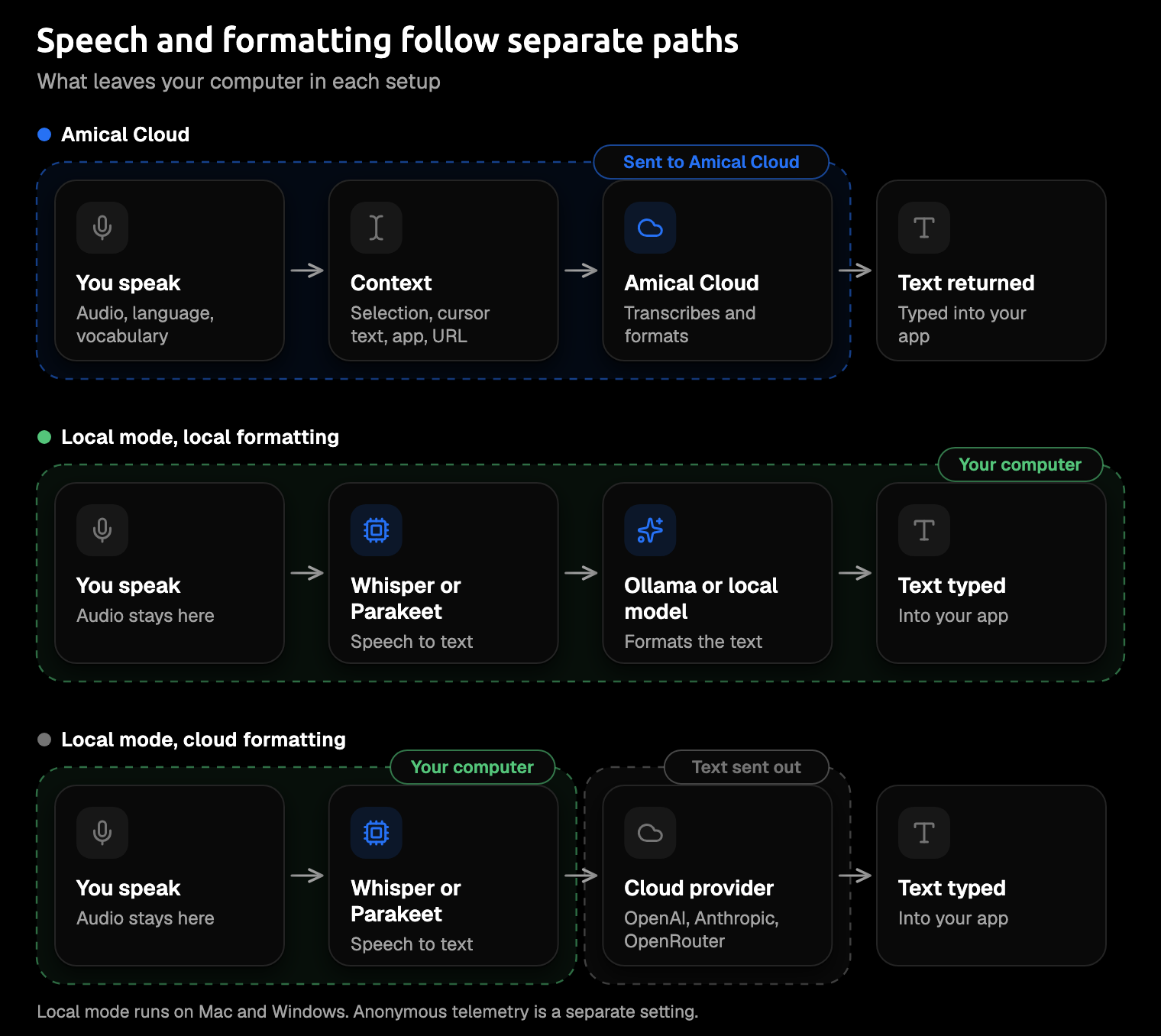
Most AI dictation apps do two jobs. They turn your speech into text, then rewrite that text for wherever you're typing. Cloud dictation sends your audio to a server for the first job, and often some on-screen context for the second, so an email comes out reading like an email.
Local dictation does the first job on your computer. The second job is the one people forget: an app can transcribe locally and still send your words to a cloud language model to tidy them up.
So "local" on the box can mean local speech, or local everything. The settings tell you which one you've got.
As of October 2026, Wispr Flow's privacy page says its transcription always happens in the cloud, so there's no offline mode to look for. Windows voice typing needs a connection too, except for on-device fluid dictation on Copilot+ PCs, in English.
With Amical Cloud
With Amical Cloud, your audio streams to Amical's hosted speech endpoint, along with your language and custom-vocabulary settings. For formatting, Amical also sends context: any text you've selected, the text around your cursor, the app name, and the browser URL.
That context is why the same words come out differently in two apps. Say "tell Sam the launch moved to Thursday" in Gmail and you'd get a short email with a greeting. Say it in Slack and you'd get one relaxed line. (That's an illustration, not a recorded result.)
Amical's stated policy for Amical Cloud is "No data retention" and "No training on your data."
Using Amical Cloud means signing in. Cloud AI models covers the setup, and AI formatting explains how Amical picks a style for each app.
In local mode
In local mode, Amical runs the speech model on your computer: Whisper (OpenAI's open speech model, through whisper.cpp) or Parakeet (NVIDIA's open speech model). You don't need an account, and once the model is downloaded, transcription keeps working with the Wi-Fi off.
Your formatting choice decides whether any text leaves. Use a local language model through Ollama (a tool for running AI models on your own computer) or another OpenAI-compatible server, or turn formatting off, and no audio or text leaves your computer, even offline. Pick a cloud provider such as OpenAI, Anthropic, or OpenRouter instead, and the audio still stays put, but the transcript goes to that provider, so formatting needs a connection.
History stays on your computer, whichever mode you dictate in. By default, Amical keeps your transcripts and the audio there; you can set the audio to clear after 1, 7, 14, or 28 days. Until you pick a period, every recording you haven't deleted stays on your disk. Transcription history shows the setting, and Local AI models covers the downloads.
Telemetry
Whichever mode you pick, Amical also sends anonymous usage data by default: errors, how long a transcription took, how long a model took to load. It never includes what you said. It's the app reporting on itself, not on you, and you can turn it off in Settings > Advanced.
The one exception is Report. Flag a transcript in your history, and Amical sends that recording's audio, transcript, and your feedback so the team can see what went wrong. It only works on cloud transcripts, and only while telemetry is on. Telemetry lists what's collected.
What "no retention, no training" covers
Cloud dictation apps tend to make two promises: they won't keep your audio, and they won't train their models on it. Those are promises about storage and training. They don't cover processing, because your audio has to reach the provider's servers and sit in memory while the model transcribes it.
A no-retention promise tells you what happens after the work is done, not during it.
That's not a reason to avoid the cloud. It's a reason to know what you've agreed to. With Amical Cloud, for example, the policy doesn't change the fact that formatting context travels with each request.
Other apps word their promises differently, as of October 2026:
- Wispr Flow deletes your audio once it's transcribed, unless you've turned on its cloud storage for dictation. Training is off and locked on its Growth and Enterprise plans; on other plans, check the training setting yourself.
- Typeless transcribes in the cloud and says your voice audio isn't stored or used for training.
- Apple Dictation on the Mac makes a different kind of promise: it asks before sharing your audio recordings with Apple, and choosing Not Now opts you out.
Read the settings, not the headline. The toggle names and plan defaults are where the real answer lives.
If you work in a regulated field, a privacy page isn't a compliance answer (and this isn't legal advice). If your team needs a SOC 2 report today (a security audit many IT teams ask for), Wispr Flow has one, along with dictation it calls HIPAA-ready for US healthcare work. Amical's SOC 2 is in progress, and its Enterprise plan adds private model hosting and single sign-on.
Speed: cloud is usually quicker
Cloud dictation is usually the quicker of the two, because the servers doing the work are much bigger than your laptop. The catch is that you wait on your connection. Local speed depends on your chip and the model you picked. Either way, what you feel is the pause between letting go of the key and seeing text.
Amical Cloud leads the category on speed: finished, formatted text is ready in under 300 ms for a short dictation and under 500 ms for a longer one. It pairs a speech model we built for low latency with formatting on a chain of models tuned for speed. The figures are Amical's own, with no public benchmark yet and no stated network conditions.
Picture it on a good connection: you let go of the key, look up, and the reply is already in Slack.
On a train with one bar of signal, that connection is the whole story. Any cloud dictation stalls on the network, and that's when local mode earns its place.
On a Mac, local speed comes down to the chip. On Apple Silicon, Amical runs Whisper on the Metal graphics backend; Intel Macs run without it and are slower. Superwhisper says the same of its own offline models.
Model size matters as well. OpenAI lists Whisper's tiny model at about 10 times the speed of large, and Turbo at about 8 times. Those come from a data-center GPU, not a laptop, so read them as a ranking, not a promise.
Tip: turn on Preload Whisper Model in Settings > Advanced. It keeps the model loaded, so your first dictation after a coffee break doesn't wait for it.
Accuracy: where cloud models are ahead
Local accuracy depends mostly on model size. In the original Whisper paper, on clean, read-aloud English, the tiny model got 7.6% of words wrong and the large model 2.7%. On harder recordings, those rose to 16.9% and 5.6%.
So on clear speech, local isn't the weak option. Whisper's authors describe its English accuracy as not perfect but very close to human level. Large v3, the version Amical offers, makes 10% to 20% fewer errors than the version before it.
Independent benchmarks show where the cloud pulls ahead, with one caveat: they score general-purpose speech APIs on raw transcripts, without formatting. None of them is Amical Cloud, and Amical hasn't published an accuracy figure yet.
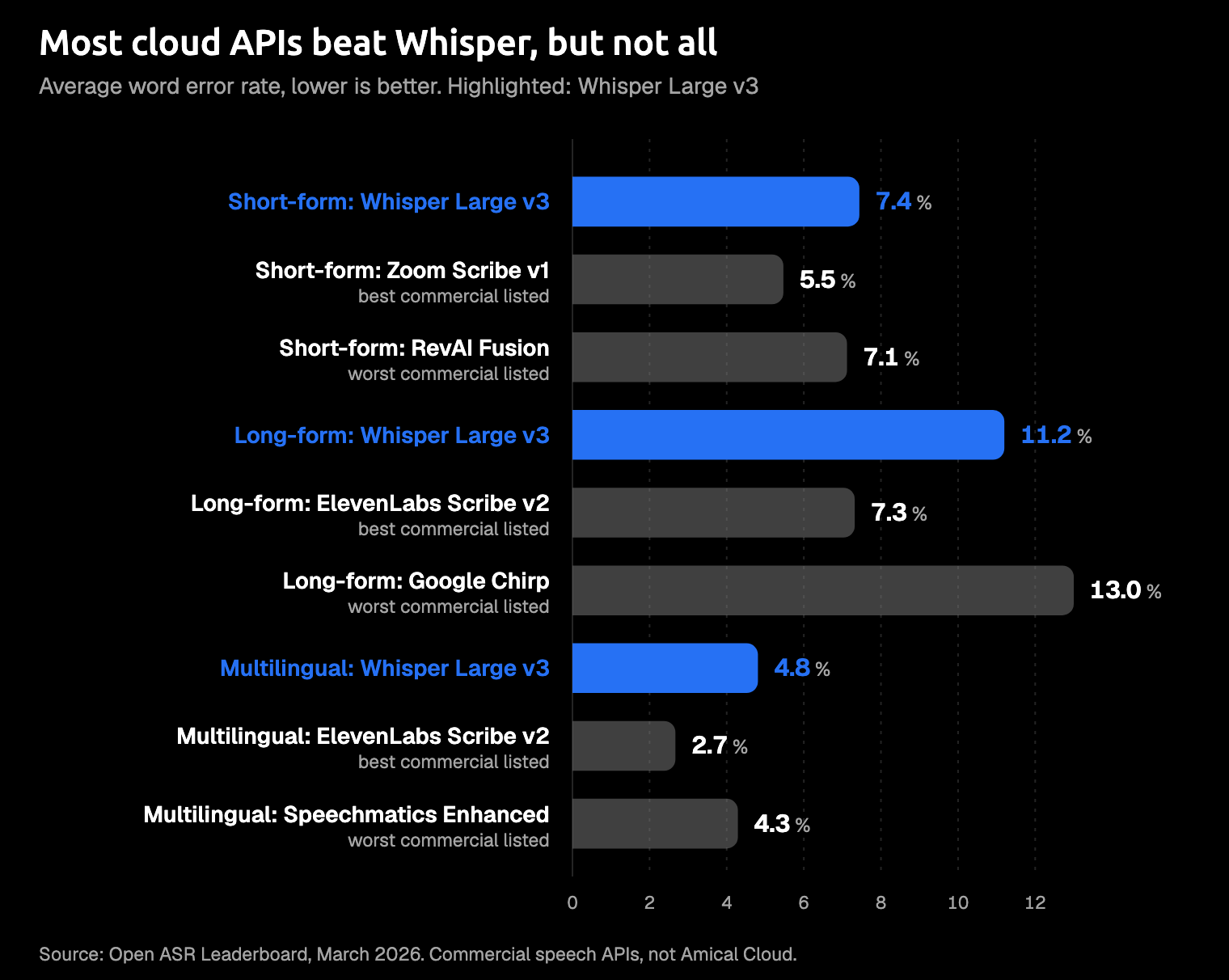
On the Open ASR Leaderboard (March 2026), every commercial API listed in the paper beats Whisper Large v3 on short English clips. Whisper Large v3 gets 7.44% of words wrong. The best commercial API listed, Zoom Scribe v1, gets 5.47%. Even the weakest, RevAI Fusion, gets 7.12%.
Put another way, Whisper leaves you about two more words in every hundred to fix than the best API does. You'd notice, but it won't ruin your morning.
Most commercial APIs pull further ahead on the paper's long English recordings and on its test in five European languages. On the long recordings, ElevenLabs Scribe v2, the best commercial API listed, scores 7.32% against Whisper's 11.2%. Not every cloud model wins there: Google Chirp scores 13.0%, worse than Whisper.
Open models are catching up. On short English clips, the lowest error rate in the paper's table belongs to an open model, Cohere Labs Transcribe, at 5.42%, and the Parakeet model Amical runs locally scores 6.32%, ahead of Whisper. It ties Whisper on the five-language test. If you go local, that makes Parakeet a good first model to try.
Whisper also has known weak spots. Its accuracy is uneven across languages, and it can occasionally write words nobody said or repeat itself. Large v3 Turbo is a trimmed version of Large v3: faster, with what OpenAI calls a minor drop in quality.
What local mode costs you
Local dictation costs disk space, memory, and a little setup, and it isn't available in the phone apps. For most people, the real cost is one download.
Whisper models use more memory while they run than they take on disk.
| Whisper model | Download in Amical | Memory while running (whisper.cpp) |
|---|---|---|
| Tiny | ~78 MB | ~273 MB |
| Base | ~148 MB | ~388 MB |
| Small | ~488 MB | ~852 MB |
| Medium | ~1.5 GB | ~2.1 GB |
| Large v3 | ~3.1 GB | ~3.9 GB |
| Large v3 Turbo | ~1.5 GB | Not listed |
On a laptop that's already full, Large v3 means choosing which old folder has to go. Tiny and Base fit anywhere but slip more on hard audio, so pick the largest model your disk and your patience allow.
The other costs each come with an answer:
- Older Macs. Local Whisper needs macOS 15 or later and is slower on Intel. Parakeet runs on Intel Macs and macOS 14, and Amical's docs suggest Amical Cloud for any machine that isn't well suited to local Whisper.
- Linux. Amical runs on Mac and on Windows 10 or later, but not on Linux. If you're on Linux, an open source dictation app that runs there is the better fit; our roundup of open source dictation apps is a good place to start.
- Phones. Local mode is desktop only. On iPhone, iPad, and Android, Amical uses Amical Cloud, so you sign in. The iOS quick start and Android quick start cover setup. The desktop app is open source under the MIT license; the phone apps aren't part of that public code.
- Cloud-only features. Draft needs Amical Cloud. It lets you speak an instruction and review the result before it goes in. Amical's cloud formatting also works only when Amical Cloud is doing the transcription.
- Recording length. Not much of a cost: in either mode, one recording session in Amical runs up to 2 hours, so you'll run out of things to say long before it runs out of room. AI dictation has the details.
What you get back is dictation with no meter running. Local dictation is unlimited on the free plan and never counts toward the 2,000 cloud words a week. If you'd rather have the cloud without a cap, that's what Premium is for.
Which mode fits which task
Pick the mode for the moment, not once for the year. The right answer for a flight to Tokyo isn't the right answer for your Tuesday inbox.
Use cloud dictation when:
- You want the fastest text with the least setup.
- You're dictating on your phone.
- Your Mac is on Intel or older than macOS 15, where local Whisper is slow or unavailable.
- You work in many languages: Amical Cloud covers 100+ (multi-language support has the list).
- You want Draft.
Use local dictation when:
- You're on a plane, a train, or anywhere without a connection.
- The material is sensitive and you want the audio to stay on your computer.
- You don't want an account, or you've used this week's cloud words.
Amical's answer is both: Amical Cloud by default, local mode one setting away. It's our pick because the desktop app, on Mac and Windows, puts the category's fastest cloud dictation and a free offline mode in one place, and the iPhone, iPad, and Android apps take Amical Cloud with you.
Other apps make different trade-offs, as of October 2026:
- Wispr Flow is cloud-only, with 2,000 free words a week on desktop and Pro at $15 a month ($12 billed yearly). See Amical vs Wispr Flow.
- Superwhisper also offers both: unlimited local Whisper models on its free tier, and cloud models on Pro. See Amical vs Superwhisper.
- Apple Dictation is built into the Mac, but it doesn't rewrite your words for the app you're in.
- Windows voice typing (
Win+H) needs a connection, except for fluid dictation on Copilot+ PCs.
How to switch modes in Amical
Both modes live on the same settings screen, so nothing you pick today is permanent. It's a dropdown, not a vow.
To use Amical Cloud:
- Open Settings > AI Models > Speech.
- Click Sign In on the Amical Cloud row, and finish signing in in your browser.
- Choose Amical Cloud as your Default Speech Model.
To use local mode:
- Open Settings > AI Models > Speech.
- Download a Whisper or Parakeet model, and select it as your Default Speech Model.
- Sync a local language model (from Ollama or another OpenAI-compatible server) in Settings > AI Models > Language, if you want formatting to stay on your computer too.
- Pick that model in Settings > Dictation > Formatting, or turn formatting off.
To see where your local transcripts and audio are stored, open Settings > Advanced > Data Location.
Try both on one real email
You'll learn more from one real email than from any table. Download Amical, dictate today's first email with Amical Cloud, then switch to local mode and dictate the next one. You'll know quickly which one you want on a Tuesday and which one you want on a plane.
The free plan covers both, so the experiment costs you nothing but an email you were going to write anyway.