You click the mic in Google Docs, start talking, and the page stays blank. Or you open Tools and Voice typing isn't there at all. Either way, the paragraph you were about to say is still in your head, and you're troubleshooting instead of writing.
When Google Docs voice typing is not working, the fix sits in one of four places that Google's help and the browser and system guides point to: the browser, a permission, your account, or the microphone itself. The permission checks are the quickest to run, once you know which screen to open. If none of it helps, the last section covers a backup that doesn't depend on your browser at all.
That backup is Amical, and Amical publishes this blog, so read that section knowing we have a stake in it. Every fix before it works with no extra app.
The quick answer
Run these checks in order, and click the mic again after each one. The browser and menu checks catch the case where Voice typing is missing. The permission and mic checks catch the case where the mic turns on but nothing types.
- Use a supported browser. Google's voice typing help page lists the latest versions of Chrome, Edge, and Safari.
- Open it from the menu. Go to Tools > Voice typing, or press
Cmd+Shift+Son a Mac orCtrl+Shift+Son Windows. - Allow the mic for docs.google.com in your browser's site settings.
- Allow the browser in your computer's mic settings, under Privacy & Security on a Mac or Privacy & security on Windows.
- Close other apps that are using the mic, like a call running in another tab.
When the mic turns red and your words appear, stop reading and go back to your paragraph. The rest of this guide will wait.
Voice typing isn't in the Tools menu
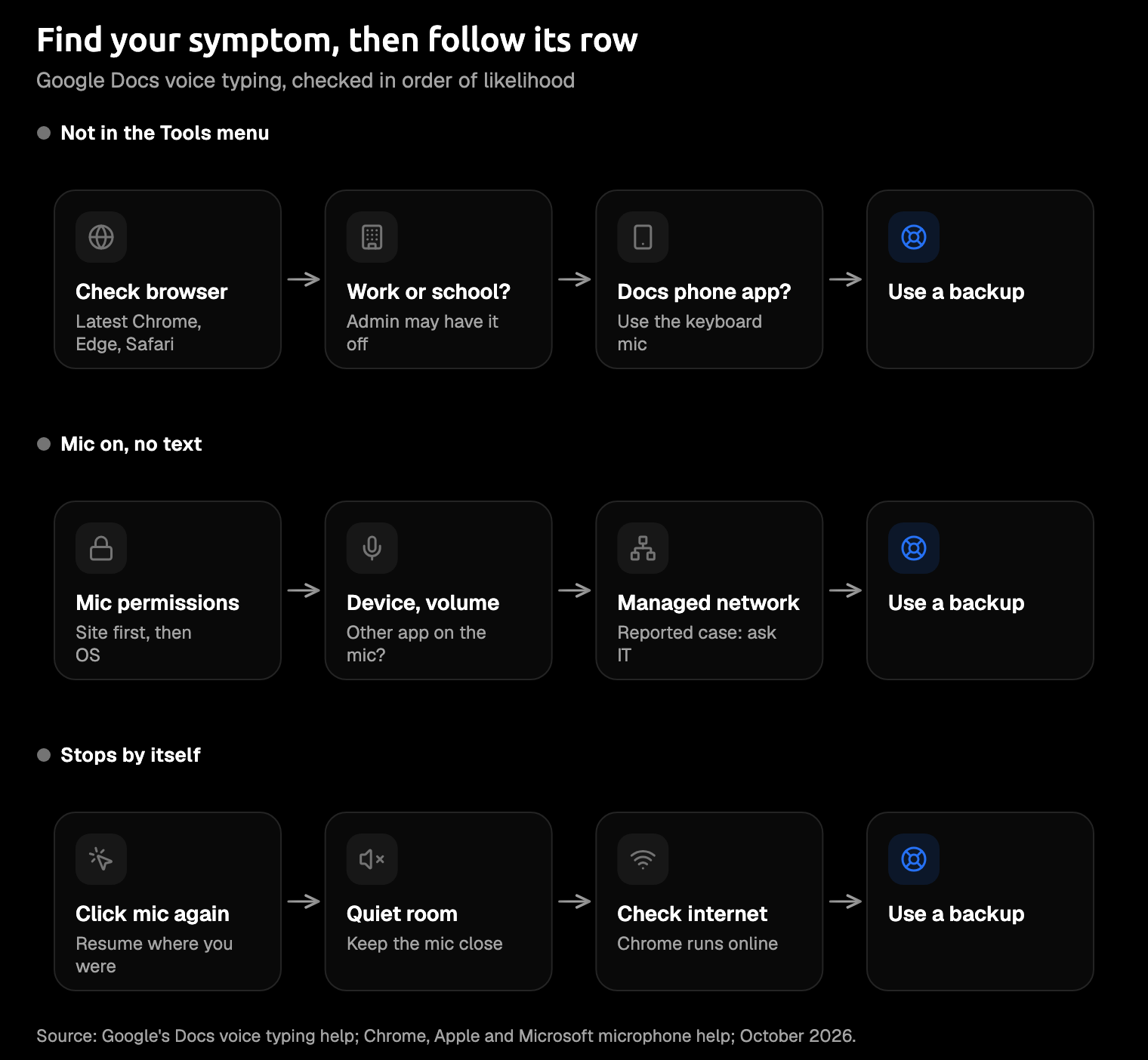
If Tools has no Voice typing, Docs isn't offering the feature to you, and no microphone setting will change that. The question is why it's hiding.
Your browser isn't on Google's list. Google supports the latest Chrome, Edge, and Safari, and Firefox and Brave aren't on that list. Open the doc in a supported browser, update it if it's behind, and check the menu again. If an older guide told you voice typing is Chrome only, it's out of date: Google added Edge and Safari in May 2024.
Your account belongs to a school or company. Your administrator may have turned voice typing off, and admins can also control which browsers it works in. A school Chromebook can look exactly like a classmate's and still have no Voice typing: same laptop, different rules.
Don't spend an afternoon in settings on a managed account: ask IT, because the switch is on their side.
You're in the Docs phone app. Google's help page doesn't mention phones, and one 2022 guide says the Docs apps for iPhone and Android have no Voice typing. Either way, the mic on your phone's keyboard is the way in. On Android, that's Gboard: tap in the document, tap the microphone, and speak when you see "Speak now".
You're in Slides, not Docs. Slides calls the feature Tools > Dictate speaker notes, and it types into your speaker notes.
The mic is on, but no words appear
When the mic turns red but nothing types, your voice is getting stuck at one of several gates between the microphone and the page. A mic that works perfectly in every meeting proves nothing here. Your browser needs its own permission from your computer, and Docs needs its own permission from your browser.
Every gate has to say yes.
- Allow the site in your browser. In Chrome, go to Settings > Privacy and security > Site settings > Microphone, then remove docs.google.com from the blocked list or set it to Allow. On the same screen, use the drop-down to pick the microphone you're actually speaking into. In Edge, each website needs its own permission too.
- Allow the browser in macOS or Windows. On a Mac, open Apple menu > System Settings > Privacy & Security > Microphone and switch on the browser you use for Docs; each app in that list has its own switch (Apple's guide). On Windows 11, open Settings > Privacy & security > Microphone and turn on microphone access and Let desktop apps access your microphone. Then quit and reopen the browser.
- Check the input device and level. Open your computer's sound settings and raise the input volume. If Docs says it's having trouble hearing you, move somewhere quieter or plug in an external microphone.
- Free the mic. End the call or close the meeting tab, because Docs can't use a microphone that another application is holding.
- On a work network, tell IT. In one 2020 report from a company network that inspected HTTPS traffic, Chrome showed the words only after the user clicked the mic off. The workaround was to switch off inspection for www.google.com, which points at the network rather than the laptop.
If every gate looks fine, try the doc in a private window. It's a quick way to rule out an extension.
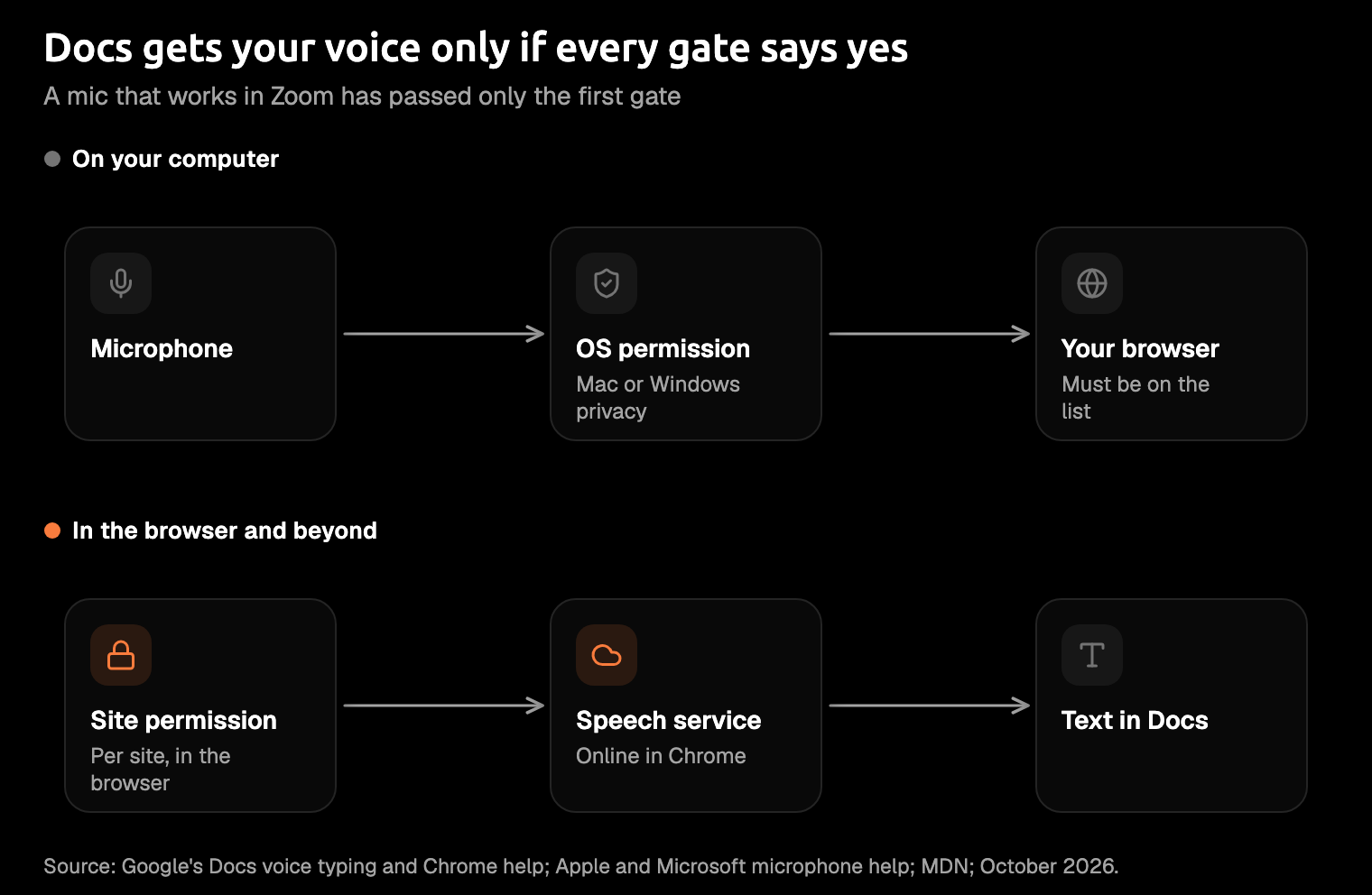
The last gate is the easy one to miss. Your browser, not Docs, controls the speech-to-text service, and Docs only receives the words. That's why the same document can type in one browser and stay silent in another.
It works in Chrome but not in Brave, Firefox, or on my Mac
If voice typing works in Chrome but not in Brave or Firefox, the answer is to switch browsers for Docs. Neither is on Google's list. Brave users have reported voice typing that records but types nothing since 2019, and those threads end without a fix. Firefox gets the same answer: use Chrome, Edge, or Safari for your documents.
Keeping another browser around just for a menu item is a little annoying. It's less annoying than a blank page. And if switching browsers isn't an option at all, a dictation tool that doesn't depend on the browser is the cleaner fix (more on that below).
On a Mac, go back to the microphone switch from step 2 and check it for the browser you're actually using. If Docs types in one browser but not another on the same Mac, that browser's switch is the first suspect.
Your Mac's Dictation settings won't help here, because macOS Dictation is a separate feature and Docs voice typing listens through the browser.
It stops listening by itself
When the mic goes grey mid-paragraph, click it again, get closer to the mic, and check your connection.
- Click the mic again. It's the quickest way back.
- Move closer and find a quieter spot, which is Google's advice for when it has trouble hearing you.
- Check your connection. In Chrome, speech recognition runs on a web service and needs a connection, so it won't work offline.
Google doesn't publish a time limit for voice typing, so no number of seconds quoted elsewhere can be confirmed. What it does document is a pair of voice commands: say "Stop listening" to stop, and "Resume" to carry on at the end of the paragraph. They work only in English, with both your account and document language set to English.
The way people describe it, you stop to think about the next sentence, look back, and the mic has gone grey.
If you dictate in long, thoughtful chunks, that's the best argument for a backup whose limits are written down.
When it still won't work: use a backup
Sometimes Docs voice typing can't work where you are: in a browser that isn't on Google's list, on a locked-down work account, or without internet. A dictation app that pastes into whichever app has focus doesn't depend on the browser's speech service or the Tools menu, so Docs only needs a blinking cursor. Working offline is a separate question: the app has to turn speech into text on your own computer.
Amical (our pick). Hold Fn on a Mac, or a shortcut you choose on Windows, speak, and let go; Amical pastes the text into whichever app has focus. It doesn't use the browser's speech service, so the browser list, the Tools menu, and the site permission stop being your problem. Amical Cloud needs internet and sign-in, and local mode works offline once a model is downloaded.
It also doesn't stop at a raw transcript. Amical's AI formatting rewrites what you said for the app you're in and fixes grammar as it goes. Say a rambling line like this one (illustrative, not a measured result):
so um the main point is that the survey went out late and uh we should probably give people more time to answer it
And this lands in your document:
The main point is that the survey went out late, so we should give people more time to answer it.
Amical Cloud is the quick route: by Amical's own figures, a short dictation comes back as finished text in under 300 ms. In that mode, your audio and some formatting context (the app name, the browser URL, and the text near your cursor) go to Amical Cloud.
In local mode, an open speech model (Whisper or Parakeet) runs on your own computer and your audio stays there. Text leaves only if you choose a cloud provider for formatting. Local AI models covers the setup, and our cloud vs local dictation guide covers the trade-off.
Amical runs on Mac and Windows, with apps for iPhone, iPad, and Android. The nice part is that the same key works in Docs, Gmail, and Slack, so you learn the habit once instead of a settings screen per app.
Amical has limits too, and they're worth knowing before you install it.
- It's another app, and it needs the mic permission too. You grant it once, and it covers every app you type in. On a managed work laptop, check with IT before you install it.
- No Linux, and no ChromeOS app listed. On a Chromebook, Docs voice typing in Chrome is the supported path, so the fixes above are your route.
- The phone apps need sign-in and internet, because they use Amical Cloud. On the desktop, local mode needs no account.
- Local Whisper needs macOS 15 or later and is slower on Intel Macs. Parakeet runs locally on macOS 14 and Intel Macs, and Amical Cloud has no macOS 15 requirement.
- Hands-free mode stops after 5 seconds of silence, and one recording session runs up to 2 hours. Unlike the grey mic in Docs, you know when Amical will stop, and holding the key keeps it listening through a long pause. AI dictation explains both ways to talk.
The free plan includes unlimited local dictation and 2,000 cloud words a week, and Premium removes the cloud limit.
The built-in options come with your system, and each fits a narrower situation.
- Windows Voice Typing: press
Win+Hon Windows; it needs internet. See how it stacks up against AI dictation. - Apple Dictation on a Mac: built in, and it stops after 30 seconds of silence. Our Mac comparison covers the rest.
- Gboard on Android: tap the mic on the keyboard in any text field, including the Docs app. We compared it with an AI voice keyboard.
Our view: if you write in Docs every day, a dictation app that types anywhere is sturdier than a feature that depends on your browser, your account, and two permission screens, any of which can change. Docs voice typing is fine when it works. It's just not something to build your day around.
Try it on the paragraph that wouldn't type
Download Amical and follow the quick start. Then put your cursor back in the doc that wouldn't listen, hold the key, and say the next paragraph out loud. The free plan covers it with room to spare. And if Docs voice typing starts working again tomorrow, that's fine too: now you have a spare.