The essay is due Friday. Over lunch you explained your argument to a friend, and it was brilliant. Then you opened a blank document, and the cursor won.
You already know what you think. The typing slows you down, so your friend gets the brilliant version and your professor gets the typed one.
Speech to text lets students say the draft and edit it afterwards. This guide covers essays, notes, emails to professors, your own language, and whether it's allowed. It's about dictating your own words; transcribing a whole lecture is a lecture recorder's job.
Our pick is Amical, and since Amical publishes this blog, we'd rather say so up front. Its free plan gives you unlimited local dictation on Mac and Windows, plus 2,000 Amical Cloud words a week, with AI formatting and custom vocabulary included. It writes what you meant: loose speech goes in, and a tidy email or clean notes come out. It's the same tool on your laptop and your phone.
Is speech to text allowed for schoolwork?
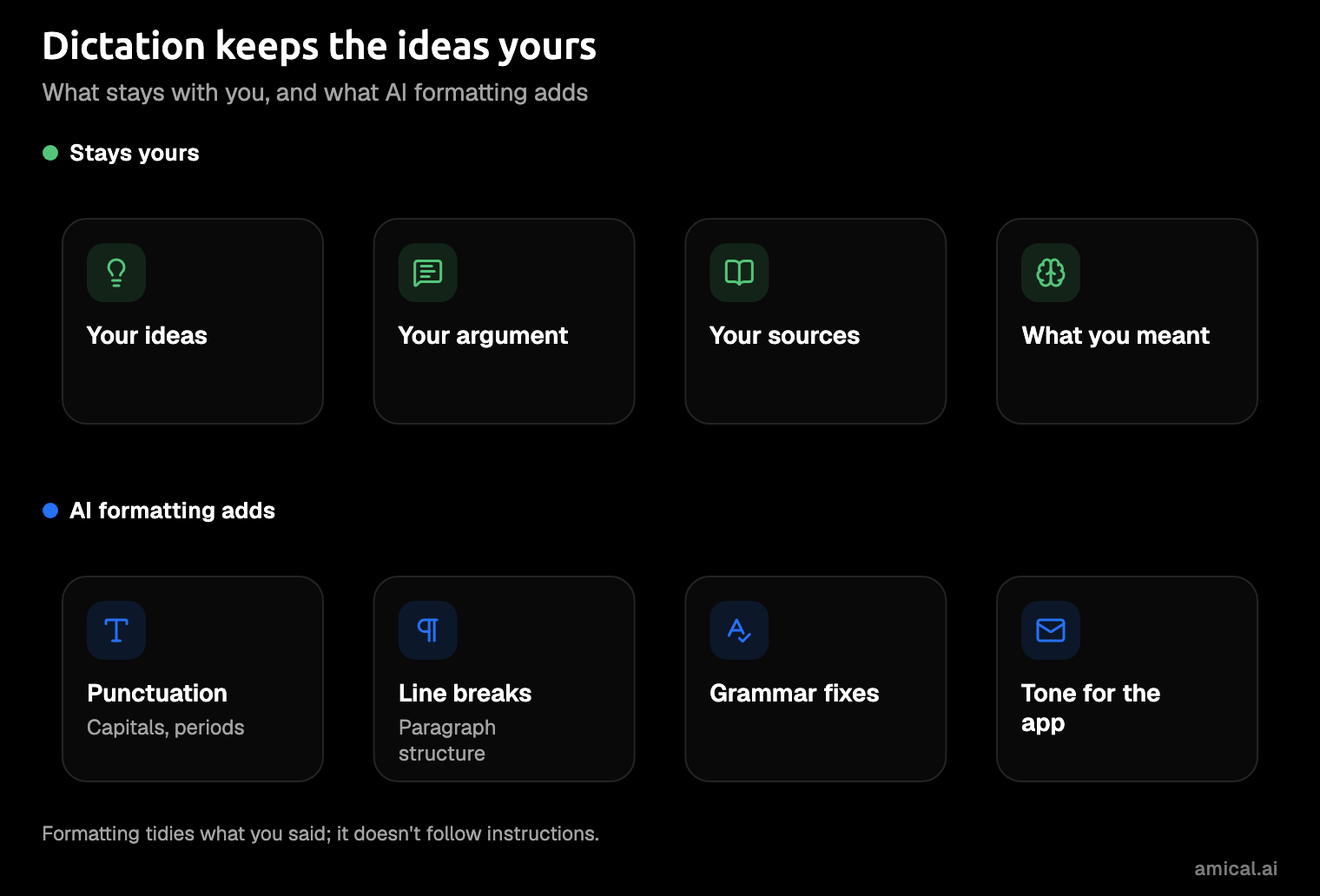
Dictation is typing with your voice, so the ideas and the argument stay yours. AI formatting then tidies what you said: it adds punctuation and structure, fixes grammar, and fits the text to the app, which can mean a reworded sentence here and there. It doesn't follow instructions, so dictating "write my conclusion" gets you that phrase, not a conclusion. Amical's separate Draft feature is the exception. It writes text from a spoken instruction and works only with Amical Cloud, so check your course's rules before you use it.
Your instructor sets the rules. Texas Tech's AI syllabus guidance, updated for Fall 2026, is one example, and it leaves the call to each instructor. It permits basic grammar, spelling, and punctuation features "unless they generate or substantially rewrite content or replace the skill being assessed". Approved assistive technologies and disability accommodations "remain available as authorized". For schools, the Texas Education Agency lists speech to text as assistive technology for writing.
The same Texas Tech page also has a sample syllabus statement on AI note-taking and transcription. It bars those tools without the instructor's prior written permission, except where a disability accommodation authorizes them. In a course that adopts it, ask before you use Amical's Notes or AI formatting.
We found no policy that names dictation outright, so the rule that counts is your course's. Ask your instructor, or disability services if dictation is part of an accommodation. If a course bans AI rewriting but not dictation, you can dictate with formatting off. This is practical guidance, not policy advice, and no tool can promise dictation is allowed everywhere.
Asking once beats wondering all term. A short email to your instructor settles it, and yes, you can dictate that one too.
Set up speech to text in a few minutes
Every speech to text tool starts the same way: a shortcut, a microphone permission, and a text box for the words to land in. The choice that actually matters is where your speech is processed, on a server in the cloud or on your own computer.
Here's how that looks in Amical on a laptop:
- Download Amical and open it. The desktop quick start walks through the rest.
- Allow microphone access when it asks, along with any other permission the setup requests.
- Click into any text box, hold Fn (Ctrl+Win on Windows), and talk. Let go, and the text lands where your cursor is.
- For a longer stretch, press Fn+Space (Ctrl+Win+Space on Windows) to start and again to stop.
You can change any of these in Settings > Shortcuts, and AI dictation explains both modes.
On a phone, follow the quick start for your device. For iPhone and iPad, install Amical from the App Store, open it, and sign in; you need iOS or iPadOS 18.3 or later. On Android, install it from Google Play, sign in, and allow Accessibility Service, Display over other apps, and microphone access, so its floating bubble can type into the app you're in. The phone apps transcribe with Amical Cloud only, so local mode is a laptop thing. On Android, the free plan gives you 2,000 cloud words a week.
On a laptop, Amical offers both kinds of processing in one app:
- Local mode runs a speech model on your computer: Whisper or Parakeet, open speech models you download once. It needs no account, works offline after that download, and never counts against your weekly cloud words. Unlimited covers the transcription; AI formatting can run on your computer or with a cloud provider, and the privacy section below explains the difference.
- Amical Cloud runs Amical's own speech model, covers 100+ languages, and draws on the free plan's weekly cloud words. By Amical's own figures, a short dictation comes back as finished, formatted text in under 300 ms, so it's there by the time you glance at the screen.
Before you install:
- Mac: local Whisper needs macOS 15 or later and runs slower on Intel Macs. Parakeet runs on macOS 14 and on Intel Macs, and Amical Cloud has no such limit.
- Windows: you need Windows 10 or later.
- Linux: Amical doesn't run on it, so Google Docs voice typing in the browser is the better fit.
- Sign-in: Amical Cloud needs an account and an internet connection; local mode on your laptop needs neither.
Our advice: dictate long essays in local mode, and spend cloud words on mixed languages, or on a Mac that can't run local Whisper. Pricing has the full plan details.
Draft an essay by voice: outline first, then one section at a time
For many people, talking is the easiest way to get a messy first draft down, and the messy first draft is the hard part. These steps work with any dictation tool; Amical is the example.
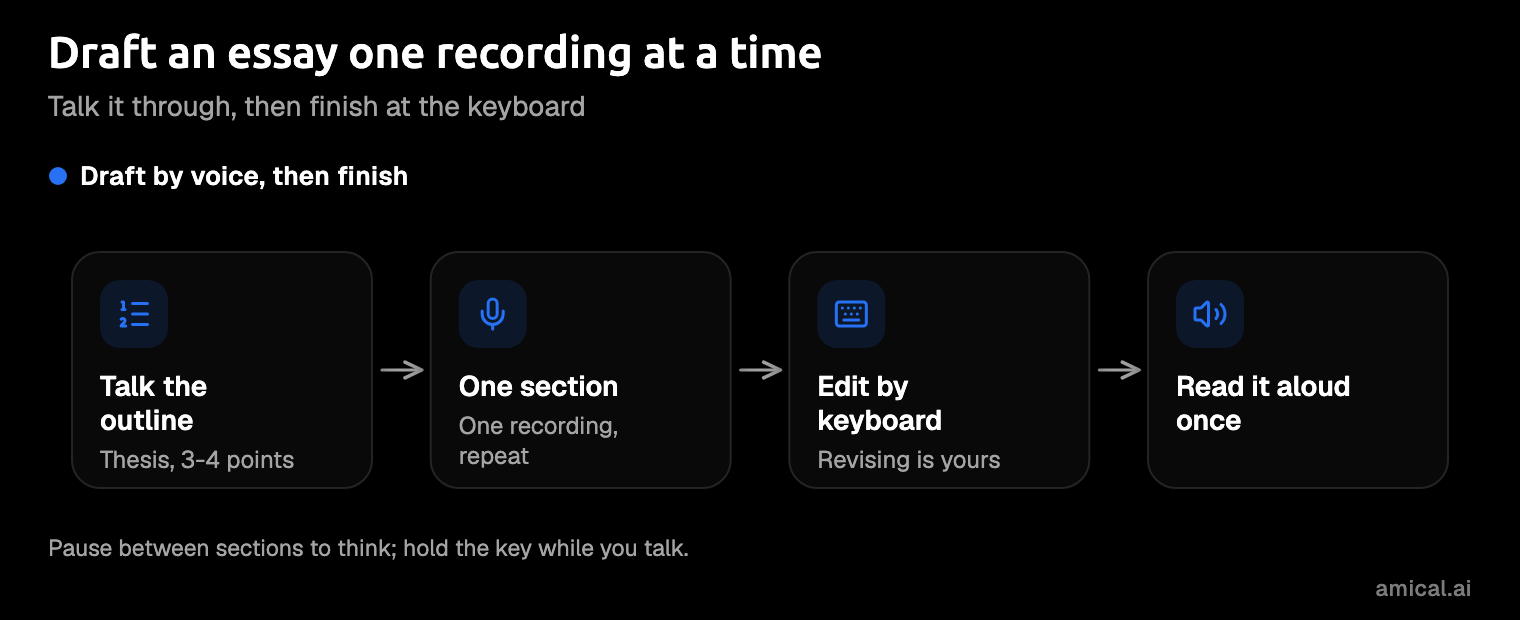
- Talk the outline. Say your thesis and your three or four main points as if you were explaining them to a friend. Don't polish anything yet. It's easier to argue with a friend than with a blinking cursor.
- Dictate one section per recording. Pick a point, talk it through, and stop where the section ends; the pause before the next point is a good moment to think. A recording can run up to 2 hours, so the section sets the length, not the app. Thinking in fits and starts? Hold Fn (Ctrl+Win on Windows) while you talk, because push-to-talk doesn't stop on silence. Want your hands free to pace the room? Fn+Space works, but it ends the recording after 5 seconds of quiet.
- Teach it your course words. Author names, theorists, and chemical names trip up any speech model. Add them to custom vocabulary, included on the free plan, and Amical uses them in every recording after that.
- Edit with the keyboard. Dictation gets the draft down; the editing is still yours, and that's where the grade lives. Then read the whole thing aloud once, because your ear catches what your eyes skip.
Speaking the first draft solves the blank page. It doesn't replace revision.
Take notes by voice (without recording the lecture)
Voice notes work best right after class or while you read. Say what you remember from the lecture, or sum up a chapter in your own words, which happens to be how you learn it.
In Amical, press Cmd+Ctrl+N on a Mac or Alt+Shift+N on Windows to start a new note; you can change either shortcut. Turn on Auto-dictate on new note if you want it listening as soon as the note opens (it's off by default). The notes window floats on top of other apps, so it stays in view while you read a PDF or watch a recorded lecture. Notes covers the rest.
If you do record a lecture with another app, your course or local law can require permission first, so check yours (general guidance, not legal advice).
Notes in your own words beat a transcript you'll never open again. Nobody rereads an hour of someone else's sentences the night before an exam.
Email a professor without rewriting it five times
Plain dictation gives you a transcript, but an email needs more: a greeting, paragraphs, and a closing. Most built-in dictation leaves that part to you.
Amical's AI formatting recognizes Gmail and Outlook, web versions included, and shapes your words as an email: greeting, body, and closing on separate lines, in a professional tone. It won't add a greeting you didn't say, so start with "Hi Professor Lee".
Here's an illustration of the idea, not a recorded result. You say:
hi professor lee I wanted to ask about the lab report, my laptop died on tuesday and I lost most of it, so could I hand it in on monday instead, sorry about this, thanks, maya
And something like this lands in Gmail:
Hi Professor Lee,
I wanted to ask about the lab report. My laptop died on Tuesday and I lost most of my work. Could I hand it in on Monday instead?
Sorry about this, and thank you.
Maya
Read it once before you send, and check names, dates, and course codes first. A professor reads your tone before your content. AI formatting explains how it adapts to each app, and dictating emails faster goes further.
Write in your language, or two
Many international students think in one language and write in another. Built-in tools vary here: Google Docs voice typing's commands work only in English, and Apple Dictation isn't offered in every language or region.
In Amical, use Amical Cloud for two languages in one sentence; local mode takes one language per recording.
- Amical Cloud: 100+ languages, including mixed ones in a single sentence, such as Hindi and English or Japanese and English.
- Local mode: Whisper covers 99 languages, one per recording, with auto-detect on by default; Parakeet covers 25 European languages. On macOS 14, where Parakeet is the local option, any other language goes through Amical Cloud.
Formatting fixes grammar as it goes, which helps when English is your second language. Your dictation language is set separately from the app's own language, so the menus can stay in English while you talk in Spanish.
Amical's docs say formatting for mixed-language and very long dictations is still being tuned, so give those a second read.
On a phone, the Amical Cloud list is the one that applies. Multi-language support lists the settings, and dictation for non-native English speakers goes deeper.
Think in the language you think in, and let the tool keep up. A sentence that starts in Hindi and finishes in English is how plenty of people talk, not a mistake to fix.
Free speech to text for students, compared
Built-in dictation is fine for a sentence. The gap is everything after the transcript: formatting, your course vocabulary, and the same tool on your phone. That's the gap Amical fills, which is why it's our pick.
Free plans and limits from each vendor's own pages, as of October 2026.
| Tool | Free on | Best for | What it lacks |
|---|---|---|---|
| Amical | Free plan on Mac, Windows, iPhone, iPad, and Android | Finished emails and notes on laptop and phone, in 100+ languages | No Linux; phone apps are cloud only |
| Google Docs voice typing | Google Docs (and Slides speaker notes), in Chrome, Edge, or Safari | Chromebook students who write in Docs | Works only in Docs and Slides; voice commands in English only; a school admin can turn it off |
| Windows voice typing | Any Windows text box, with Win+H | A quick try on a PC | Needs internet; on-device fluid dictation only on Copilot+ PCs, in English |
| Apple Dictation | Built into iPhone and Mac | A sentence or a text message | Offline only on supported models; macOS 27's newer Mac model still has no per-app formatting or custom vocabulary |
| Wispr Flow | Free plan on Mac, Windows, iOS, and Android | Cloud dictation, with student pricing advertised | A weekly cap: 2,000 words on desktop, limited use on mobile |
Dragon Professional is a Windows app, and Nuance's page lists no price; it asks you to contact them for licensing.
Wispr Flow advertises 50% off Pro for students on its pricing and education pages, so check the terms at sign-up. Amical's pricing page lists no student discount, as of October 2026. Amical's answer is its free plan, whose local dictation has no weekly cap.
If you write on a laptop and a phone and want text that reads like a finished message, pick Amical. If your school runs on Google Docs, its voice typing is the sensible free choice. For the odd sentence, the built-ins are fine, right up until the essay needs paragraphs.
For the head-to-heads, see Amical vs Apple Dictation and Amical vs Wispr Flow.
What happens to what you say
Students dictate personal emails and sometimes disability details, so it's worth knowing where the words go. In local mode, your audio is transcribed on your computer. Your text stays there too only if AI formatting is off or runs on a local model; with a cloud provider, the text goes to that provider. For a local model, connect Ollama (it runs AI models on your own computer). Local AI models covers the setup.
With Amical Cloud, your audio and your language and vocabulary settings go to Amical's servers. So does formatting context: selected text, the text around your cursor, the app name, and the browser URL. Amical's stated policy is no data retention and no training on your data. In either mode, your history is stored on your computer.
Pick the mode per task, not once for everything. The accommodation letter can stay on your laptop, in local mode with formatting off or on a local model, and the group-chat reply can take the cloud. Cloud vs local dictation walks through the trade-off.
FAQ
Is speech to text cheating?
Dictating your own words is typing with your voice, not handing the work to someone else. AI formatting tidies the words and doesn't follow instructions. Rules belong to each course, though, so if you're unsure, ask your instructor.
Is there a free speech to text app for students?
Yes. Amical has a free plan on every platform it supports, and the built-ins in the table above are free too.
Does Amical have a student discount?
No, there's no student discount. The free plan is the student plan in practice, with no student ID required. Premium adds unlimited cloud words, at $10 a month or $84 a year on the web; the App Store price differs slightly.
Dictate the email you've been putting off
Somewhere in your drafts is an email to a professor or TA that you've been meaning to send. Download Amical, click into that email, and say it the way you'd say it in office hours. Read it once, fix anything that needs fixing, and send it.
On a laptop, the free plan has room for the essay next.