 Amical
History
Every dictation Amical has done, with audio you can replay.
Settings → History keeps a record of every transcription. You can search it, copy text, replay the audio, or delete entries.
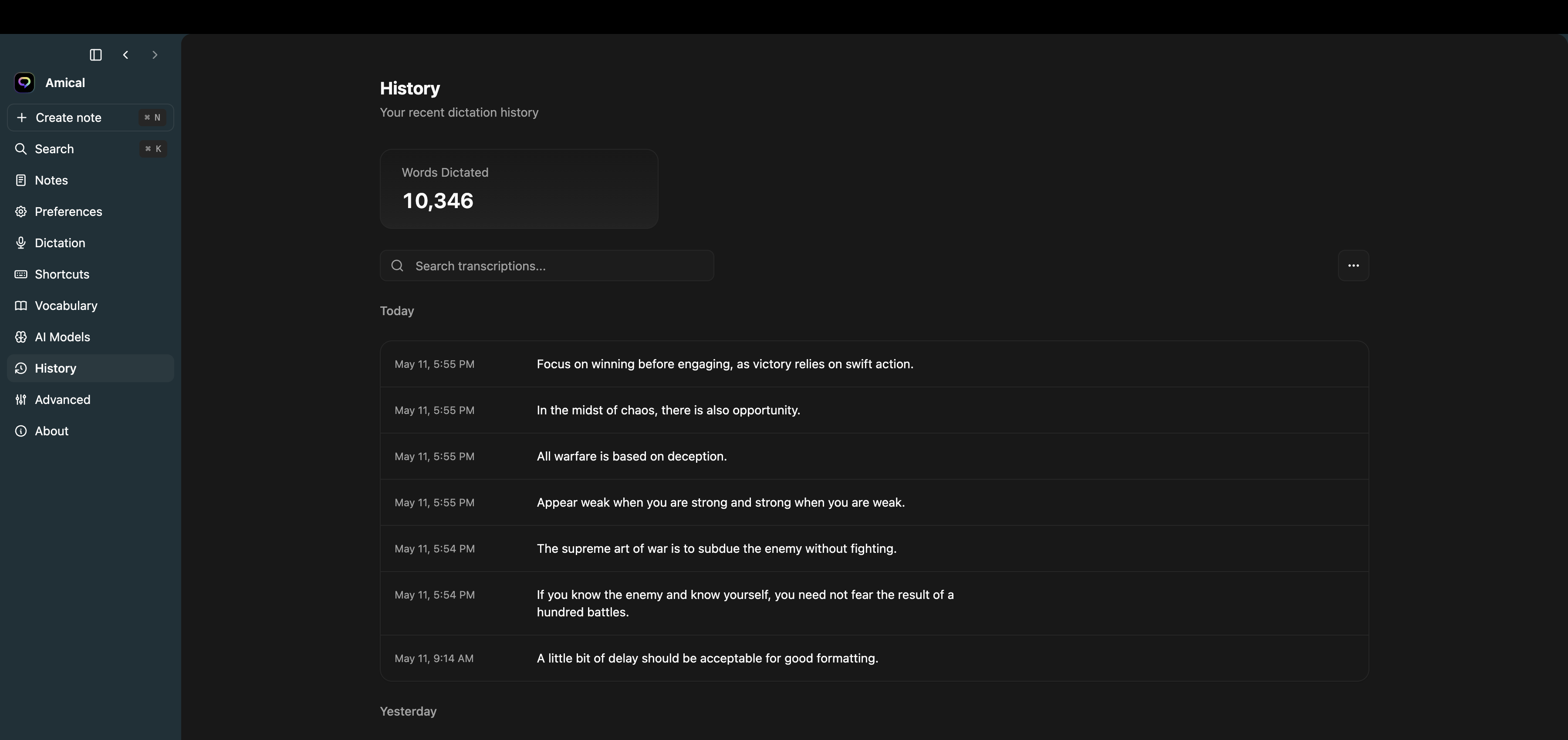
What's there
- A Words Dictated lifetime counter at the top.
- A search box that filters across the visible page (the latest 100 entries by default).
- Entries grouped Today / Yesterday / Earlier.
- Per-row actions on hover: copy text, play audio, download audio, retry transcription, report (cloud only), delete.
Per-row actions
- Copy — puts the transcript text on your clipboard.
- Play / Pause — plays the audio Amical kept for that recording. Only available when the audio file is still on disk (see retention below).
- Download — saves the audio file out somewhere of your choosing.
- Retry — re-runs the transcription with your current speech model. Useful if you've switched models since.
- Report (flag icon) — sends the audio + transcript to the team to improve quality. Only on cloud transcriptions, and only if Anonymous Telemetry is on (Settings → Advanced).
- Delete — removes the entry and its audio.
Retention
Settings → Advanced → History Retention controls how long Amical keeps audio. Options: 1 day, 7 days, 14 days, 28 days, Never. Default is Never — Amical keeps audio indefinitely until you change this or delete entries manually. After the cutoff (if you set one), the audio file is deleted but the transcript text stays.
There's also a Delete all action in the three-dot menu next to the search bar — wipes the entire history at once with a confirm dialog.
Notes
- The list refreshes every 5 seconds while open; new dictations appear without you having to reload.
- The lifetime word counter includes everything you've ever dictated, even after deletion.