You press the Microphone key (or Fn twice), say what you need, and Mac Dictation gets most of it. Then you fix the client's name, delete the "um", add a greeting, and rewrite the sentence you changed your mind about halfway through. It's close enough to be useful, but not quite good enough to stop typing.
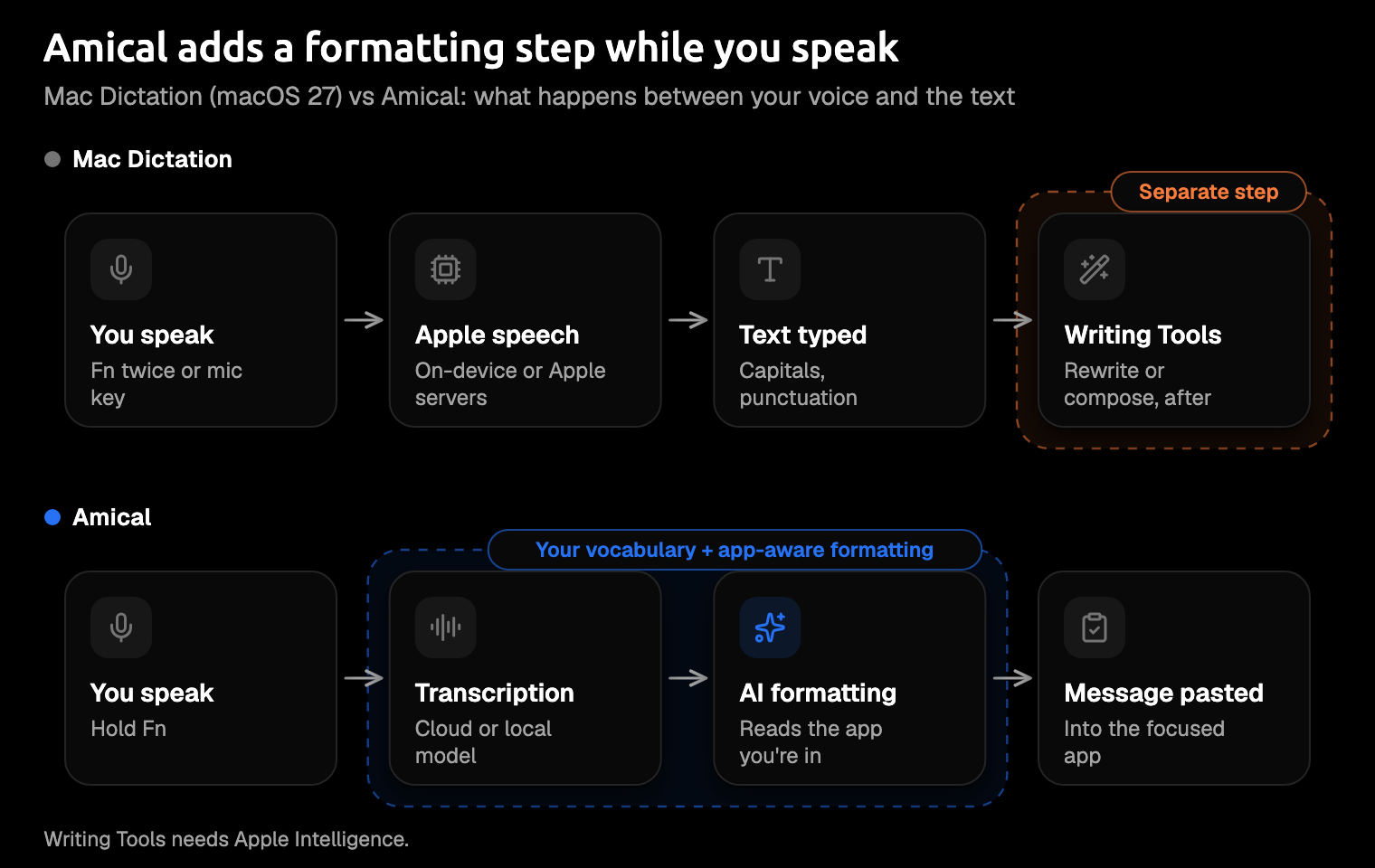
Here's the short version of AI dictation vs Mac Dictation: Mac Dictation types what you say, and AI dictation writes what you meant. After your speech becomes text, an AI model reads the app you're in and rewrites the transcript into the message that app needs, such as an email or a short Slack reply. That step is called AI formatting, and it's the step Apple doesn't claim for Dictation.
If you want to replace your keyboard for email and chat, use AI dictation, and our pick is Amical. Amical publishes this blog, so we say so up front. We've also given Apple's Dictation its due.
The short answer
Mac Dictation is a good free transcriber, and on a newer Mac it's a better one than it used to be. AI dictation adds the step that turns your transcript into a finished message. If you write email and chat all day, or you work in English as a second language and speak it better than you type it, that step is what lets you stop typing for most messages.
You'll still reach for the keyboard to fix one word in the middle of a long document, and talking is awkward in an open office or a noisy room.
As of October 2026, this post compares against macOS 27 (released September 14, 2026), which brings a better dictation model to Macs with M3 or later.
| Mac Dictation | Amical | |
|---|---|---|
| Price | Free, built into macOS | Free plan; Premium $10 a month or $84 a year |
| Start | Microphone key, or Fn twice if you pick that shortcut | Hold Fn |
| Output | Your words with punctuation; tidier capitals and punctuation on M3 or later with 12 GB+ memory | The message, rewritten for the app you're in |
| Formatting by app | Not something Apple claims | Yes: email, chat, and notes; a plain cleanup elsewhere |
| Custom vocabulary | No setting in Apple's Dictation docs | Yes, on the free plan |
| Draft from an instruction | Not in Dictation; Writing Tools can rewrite selected text or, with the ChatGPT extension, Compose from a typed description, and Siri AI can also compose and rewrite | Yes, by voice in the app you're in, with Amical Cloud |
| Length limit | No timeout; stops after 30 s of silence | Up to 2 hours per recording; stops after 5 s of silence in hands-free mode only |
| Where it runs | On your Mac for some languages (Settings shows which) | Amical Cloud (audio and formatting context go to Amical), or local mode (stays on your Mac when formatting also runs locally) |
| Languages | Varies by language and region | 100+ with Amical Cloud, 99 in local mode |
| Platforms | Built into macOS (this post covers the Mac) | Mac, Windows, iPhone, iPad, Android |
Our pick is Amical, for reasons you can check. It rewrites your words for the app you're in, keeps your names and jargon in a custom vocabulary on the free plan, and can write a whole message from a spoken instruction with Draft. It's fast, too: by Amical's own figures as of October 2026, Amical Cloud returns short dictation in under 300 ms and longer dictation in under 500 ms, though there's no public benchmark yet. It also works on your other devices, with 100+ languages on Amical Cloud and apps for Windows, iPhone, iPad, and Android. Multi-language support lists the languages.
Apple's clearest win is price: Mac Dictation is free and already on your Mac. Amical's free plan answers that, with unlimited local dictation, 2,000 cloud words a week, AI formatting, and custom vocabulary. For a feature-by-feature page, see Amical vs Apple Dictation.
Same sentence, two results (illustrative)
Here's one short message, said the way you'd say it to a coworker, with a name and one piece of jargon: kubectl, a tool developers use, which people say as "cube control". This is an illustration of the kind of output each tool aims for, not a recorded run or a promise, so your results will depend on your Mac, your microphone, and your voice. We also found no independent accuracy test of Mac Dictation, so this post gives no accuracy numbers for either tool.
What you say:
hi priya can we move the kubectl workshop to friday afternoon I'll send the slides tonight thanks
The "cube control" in the next line is the kind of jargon miss that LumeVoice, a company that makes a dictation app, describes for speech models in general; it isn't a recorded Mac Dictation result. With auto-punctuation on, Mac Dictation might type:
Hi Priya, can we move the cube control workshop to Friday afternoon? I'll send the slides tonight. Thanks.
What Amical's AI formatting aims for in Slack, with kubectl in your custom vocabulary:
Hi Priya, can we move the kubectl workshop to Friday afternoon? I'll send the slides tonight. Thanks.
And in an email app:
Hi Priya,
Can we move the kubectl workshop to Friday afternoon? I'll send the slides tonight.
Thanks
Apart from the jargon, the words are the same in all three, and nothing is added, so this example shows layout and vocabulary only. In an email app, Amical's AI formatting lays the message out as an email; in Slack, it stays one short chat message. For the jargon, Amical's custom vocabulary is there so kubectl comes out the way you spell it.
AI formatting can still get a detail wrong, so read the message once before you send it, starting with names, times, and days. AI formatting explains how that step works.
What Mac Dictation does well
Mac Dictation is better than its reputation, and some of what it does is very good. Here's the fair list, from Apple's Dictation guide and its list of dictation commands:
- Free and built in. There's nothing to install or pay for.
- No timeout. In Apple's words, "You can dictate text of any length without a timeout." It stops only after 30 seconds with no speech.
- Spoken punctuation and formatting. Say "comma", "question mark", "new paragraph", "caps on", or "numeral", and Dictation does it.
- Emoji by name. Say "heart emoji" and you get one.
- Auto-punctuation. In supported languages, it adds commas, periods, and question marks for you.
- More than one language. Add languages in the Dictation settings, then switch with the language indicator at your cursor or the Globe key.
- On-device for some languages. Your Keyboard settings show whether dictation in your language is processed on your Mac.
- Quick fixes. Words it isn't sure about get a blue underline, and you can click one to see alternatives.
- A better model on newer Macs. On macOS 27, Apple's newer on-device model handles capitals, punctuation, and formatting automatically on Macs with M3 or later and at least 12 GB of memory. MacStories' reviewer found it near-perfect on an M4 Max MacBook Pro, which is one person's experience, not a test.
Apple also has Writing Tools on Macs with Apple Intelligence. It can proofread, summarize, or rewrite text you've selected, and with the ChatGPT extension, its Compose option writes new text from a description you type. If most of what you dictate is short notes to yourself, this list may be all you need.
Where Mac Dictation falls short of replacing the keyboard
Replacing your keyboard is a higher bar than transcribing well. Here's where Mac Dictation stops, and what AI dictation does instead.
It types what you said, not what you meant
Reviews from VoiceDash and LumeVoice, two companies that make dictation apps, say Mac Dictation types your words as spoken, including fillers like "um" and false starts. LumeVoice points out that even a perfectly accurate transcript still includes the "um". Neither review looks at Apple's newer model specifically, and Apple hasn't said whether the Mac model drops them.
On older Macs, and for anything the newer model doesn't work out on its own, you say the formatting out loud: "new paragraph", "open parenthesis", "caps on". On M3 or later Macs, the newer model tidies capitals and punctuation, but Apple doesn't claim it rewrites your words for the app you're in.
AI dictation treats your transcript as a first draft. Amical's AI formatting rewrites it into the message for the app you're in; the example above shows the layout part of that.
It doesn't know your names and jargon
Apple's Dictation pages don't describe a custom vocabulary setting. Apple does document a vocabulary list of up to 1,000 terms, but it belongs to Voice Control, and while Voice Control is on, standard Dictation isn't available.
So the names of your colleagues and products depend on the speech model's best guess. LumeVoice gives the example of "cube control" for kubectl, a command-line tool that developers type all day.
Amical has custom vocabulary on the free plan, so you can add your colleagues' names, product terms, and acronyms one time instead of fixing them in every message. Custom vocabulary shows the setup, and Teach Amical technical vocabulary has examples for jargon.
Same text in every app
Apple doesn't describe any per-app formatting for Dictation, so an email in Mail and a quick reply in Slack come out as the same kind of transcript, and you shape each one by hand.
That shaping is most of the typing you have left. Amical reads the app you're in and formats for it, so an email is laid out as an email, a Slack reply stays a short chat message, and notes get their own handling. Everywhere else, it does a plain cleanup. You can set a casual or formal tone for each app in Personalization, so your Slack replies don't read like a press release; the Slack and Gmail pages show more.
You still write the message yourself
Any dictation tool, Apple's included, puts your words on the page. Mac Dictation itself can't take "write a polite reply saying I can't make Friday" and turn it into that reply.
Apple's answer is in two other places. Writing Tools, a separate tool on Macs with Apple Intelligence, can rewrite text you've selected as Friendly, Professional, or Concise, or from a change you describe, and with the ChatGPT extension, Compose writes new text from a description you type. Apple's Writing Tools page also says Siri AI can compose and rewrite text for you.
Amical's Draft does that job by voice, in the app you're already in. Press Fn+Ctrl, say what you want, and review the result before it goes in. Draft runs on Amical Cloud only, and the Draft docs show how it works.
Older Macs keep the older model
M1 and M2 Macs keep the older model, and so does any Mac still on macOS 26, since the new model came with macOS 27.
Reports on the difference are anecdotal. MacStories' reviewer saw frequent errors on fast or quiet speech on an M1 Max Mac Studio, which keeps the older model. In a MacRumors forum thread about a Mac mini M2 on macOS 27, two users reported dictation duplicating the whole line, and one reported a 1 to 2 second delay before it starts, which he suspects comes from his headset.
Amical Cloud runs its speech model on Amical's servers, so an M1 Mac gets the same speech model as an M4; the trade is that your audio goes to Amical, as covered below. If you'd rather use local mode, it needs macOS 15 or later and runs slower on Intel Macs.
When to stick with Mac Dictation
AI dictation is the better tool for replacing your keyboard, but Mac Dictation is the better choice in a few situations:
- Long, uninterrupted dictation. Apple has no timeout and stops only after 30 seconds of silence. One Amical recording runs up to 2 hours. In hands-free mode it stops after 5 seconds of silence, so a long pause to think can end it early; while you hold
Fn, it keeps listening. For emails and Slack replies neither limit matters, but for a long chapter dictated hands-free, with long pauses to think, Apple's more patient silence stop is a real advantage. - Built in and on your Mac, with nothing to add. If your Keyboard settings show your language is processed on your device, general text dictation stays on your Mac without installing anything. Two limits: dictation into search boxes isn't covered, and if you agreed to Share Audio Recordings, Apple may review a sample of your stored audio. Amical's local mode can also keep everything on your Mac with no account, as long as formatting runs on a local model too, but it's another app to install, and it needs macOS 15 or later.
- Short notes where a transcript is enough. A shopping list doesn't need a greeting.
There's one more trade to know about. With Amical Cloud, your audio goes to Amical's servers along with your language and vocabulary settings and some context for formatting: selected text, up to 500 characters around your cursor, the app name, and the browser URL. Amical Cloud also needs sign-in. In local mode, speech-to-text runs on your Mac and you don't need an account. If formatting also runs on your Mac, for example through Ollama (a free tool for running AI models on your computer), no audio or text leaves it. If you pick a cloud AI provider for formatting instead, the transcript goes to that provider. Draft needs Amical Cloud.
How to set up each
Mac Dictation
Turning it on takes a minute:
- Open System Settings > Keyboard, find Dictation, and turn it on.
- Click Enable. Apple may ask about Share Audio Recordings; if you agree, Apple may review a sample of your stored audio.
- Choose a Shortcut, such as Press Fn (Function) Key Twice, or pick Customize to set your own keys.
- Click where you want the text, then press and release the Microphone key, use your shortcut, or choose Edit > Start Dictation.
- Press Escape when you're done.
Pressing and holding the Microphone key opens Siri instead, so keep it to a quick press. You can turn auto-punctuation off in the same Dictation settings if you'd rather say every comma yourself.
Amical
Setup follows the desktop quick start:
- Download Amical and open it.
- Choose where your speech is processed: sign in for Amical Cloud, or download a Whisper model (OpenAI's open speech-to-text model) for local mode.
- Click into any app, hold
Fn, and speak. - Release
Fn. Amical formats the text for that app and pastes it at your cursor. - Add three names you type often, such as a colleague, a client, and a product, to your custom vocabulary.
For longer messages, press Fn+Space to dictate hands-free. In local mode, formatting runs through a model you choose, such as one on your Mac through Ollama, a free tool for running AI models locally; Local AI models has the details.
One tip: if you've set Apple's Dictation shortcut to Fn twice, switch it to another option, or rebind Amical's push-to-talk in Shortcuts, so each app has its own key.
FAQ
Is Mac Dictation private?
It depends on your language. Your Keyboard settings show whether general text dictation is "processed on your device and not sent to Siri servers". That note doesn't cover dictation into search boxes. And if you agreed to Share Audio Recordings, Apple may review a sample of your stored audio.
Does Mac Dictation work offline?
For languages on Apple's on-device list, Apple describes dictation as on-device once the speech models have downloaded. The list includes US and UK English, among others, plus Japanese; check that your language is on Apple's feature availability page.
Is Amical free?
Amical has a free plan with unlimited local dictation, 2,000 cloud words a week, AI formatting, and custom vocabulary. If you need more cloud words, Premium makes them unlimited for $10 a month or $84 a year; see Pricing.
Does Amical work on Windows and iPhone?
Yes. Amical runs on Mac, Windows, iPhone and iPad with iOS or iPadOS 18.3 or later, and Android. Amical Cloud and the phone apps need sign-in, and there's no Linux version, so if you work on Linux you'll need a different app.
Try it on one real email
Amical publishes this blog, so weigh our advice with that in mind: download Amical, hold Fn, and dictate one real email you'd otherwise type today. Then dictate the same email with Mac Dictation and compare the two. The free plan covers the test, and seeing your own email both ways will tell you more than any table.