You press Win+H to answer an email, and Windows types the words you say. Then you spend a few minutes fixing commas, adding a greeting, and rewriting the sentence you changed halfway through. It's useful, but it isn't good enough to stop typing.
That's the gap between Windows Voice Typing and AI dictation: Voice Typing types what you say, and AI dictation writes what you meant. If you want to replace your keyboard for email, chat, and docs, we think Amical is the best way to do it on Windows. Amical publishes this blog, so we say so up front. This post is for people who write all day at work and people who work in English as a second language. Windows' own tools still win some jobs, and we'll say which.
Below: what Windows ships today, the same message typed both ways, and how to set up each one in a few minutes.
The short answer
Windows gives you a capable transcriber in most text boxes, and on a Copilot+ PC it also tidies your grammar. AI dictation adds the step that turns your words into a finished message for the app you're in. If you write email and chat all day, or you work in English as a second language, that step is what lets you stop typing.
| Voice Typing (Win+H) | Fluid dictation (Copilot+ PCs) | Voice Access | Amical | |
|---|---|---|---|---|
| How you start it | Win+H, or the touch keyboard's mic | On by default inside Voice Typing and Voice Access | Turn on at Settings > Accessibility > Speech | Hold your push-to-talk shortcut (set it under Shortcuts) |
| Needs internet | Yes, uses Azure online speech recognition | Cleanup runs on the device; offline inside Voice Access after setup | Only for one-time setup | Amical Cloud: yes. Local mode: no |
| Languages | About 45 variants on Windows 11 | English only | 15 locales | 100+ with Amical Cloud; 99 with Whisper in local mode |
| Punctuation and cleanup | Spoken punctuation, plus an automatic punctuation setting | Fixes grammar, punctuation, and filler words | Automatic punctuation, off by default | AI formatting rewrites the transcript |
| Rewrites for the app you're in | No (not listed) | No (not listed) | No (not listed) | Yes: email, chat, notes |
| Custom words | No (not listed) | No (not listed) | Yes, "Add to vocabulary" | Yes, on the free plan |
| Works on Mac and phone | No, Windows 11 (Windows 10 has the older Dictation) | No, Copilot+ PCs only | No, Windows 11 22H2 and later | Yes: Windows, Mac, iPhone, iPad, Android |
| Cost | Included with Windows | Included on Copilot+ PCs | Included with Windows 11 | Free plan; Premium $10 a month |
"Not listed" means Microsoft's support page for that tool doesn't mention it. The Microsoft details are as its support pages describe them in October 2026, and Amical's prices are as of October 2026.
Use Win+H for a quick line of text, Voice Access for hands-free control of Windows, and Amical for writing emails, messages, and docs by voice.
Our pick is Amical because it rewrites your words for the app you're in, keeps your names and jargon in a custom vocabulary on the free plan, and can write a message from a spoken instruction with Draft. It's fast: once you stop speaking, Amical Cloud returns the text of a short dictation in under 300 ms and a longer one in under 500 ms (Amical's own figures; no public benchmark yet). And Amical runs on Windows (x64 and ARM64) and Mac, with separate apps for iPhone, iPad, and Android that need sign-in.
Windows' clearest win is that its tools come with Windows, so there's nothing to install. Amical's free plan covers the cost side, with unlimited local dictation and 2,000 cloud words a week, custom vocabulary included. Pricing has the details.
What Windows actually has built in
Windows has three voice tools with confusing names, plus an older one that's being retired.
Voice Typing (Win+H)
Voice Typing is the one most people find first. Click into a text box, press Win+H (or the microphone button on the touch keyboard), and wait for the "Listening..." alert. Win+H works on Windows 11 as Voice Typing, and on Windows 10 as the older Dictation feature. The Windows 11 list has about 45 language variants, including Japanese, Korean, French, German, and Spanish.
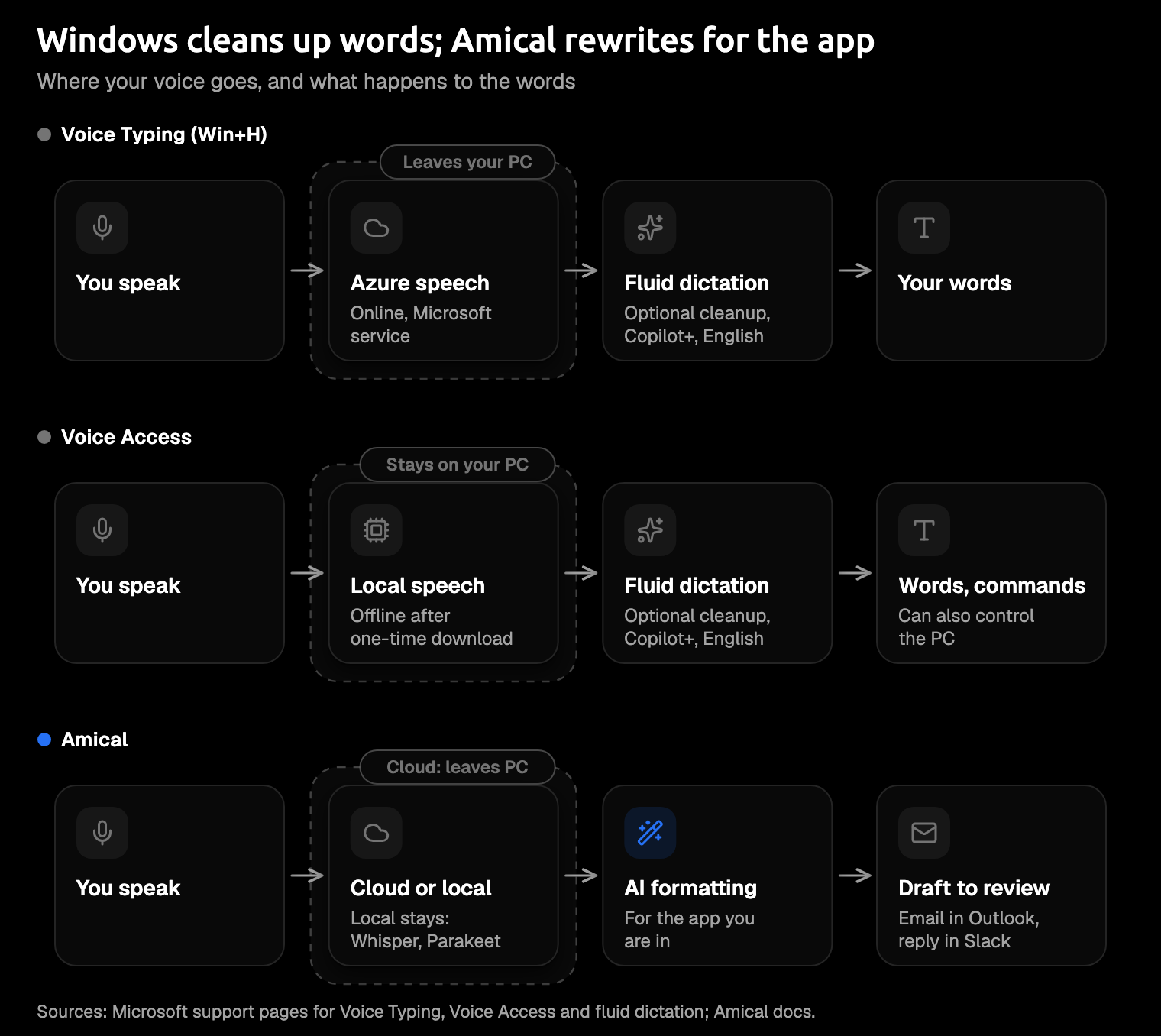
It needs an internet connection. Win+H sends your audio to Microsoft's cloud speech service, Azure Speech, so it stops working offline. Microsoft says it doesn't store, sample, or listen to your voice recordings without your permission.
You can say punctuation out loud ("comma", "question mark", "new line", "new paragraph") or let automatic punctuation add it. In US English, editing commands include "Delete that", "Scratch that", "Undo that", and "Press Enter", and "Stop listening" ends the session. The gear menu holds the rest: the voice typing launcher, automatic punctuation, a profanity filter, and your microphone.
What it does well: it needs no setup, it comes with Windows, and it works wherever you can put a cursor in a text box. Microsoft's Voice Typing page has the full command list.
Fluid dictation (Copilot+ PCs)
Fluid dictation is Microsoft's cleanup step, and it only runs on Copilot+ PCs. A Copilot+ PC is a Windows 11 PC with an NPU (a chip built for AI tasks) that can do more than 40 trillion operations per second, or 40+ TOPS. Many Windows PCs aren't Copilot+ PCs, so you may not have this feature.
On those PCs, small language models on the device "fix grammar, punctuation, and filler words as you speak." It's English only, on by default, and off in password and PIN fields, and "Undo that" or Ctrl+Z brings back your original words. The cleanup model runs on the device. Inside Voice Access, the whole path works offline after setup; in Win+H, Microsoft's Voice Typing page still describes speech recognition as online. As of October 2026, Microsoft's support pages list it in Voice Access and in the Voice Typing settings, once its model has downloaded in the background.
It's a real cleanup step. But it tidies the words you said. Microsoft's fluid dictation page doesn't describe it rewriting them for the app you're in.
Voice Access
Voice Access is different: it's full voice control of your PC, with dictation inside it. It needs Windows 11, version 22H2 or later, and it recognizes speech on your device. Setup needs the internet once to download language files, and after that it works offline. It supports 15 locales, including six kinds of English, Japanese, and Chinese. Turn it on at Settings > Accessibility > Speech.
For dictation, you focus a text box first, then fix mistakes with commands like "Correct that" and "Spell that". Automatic punctuation is off by default, so turn it on in its settings if you want it. Voice Access also has something Microsoft's Voice Typing page doesn't list: custom words. Say "Add to vocabulary" to teach it a name or a term.
It's the best fit for people who can't or shouldn't use a mouse and keyboard, because it can also click, scroll, and open apps by voice. Microsoft's setup guide walks you through it, and our Amical vs Voice Access page compares the two.
What happened to Windows Speech Recognition
Windows Speech Recognition, the older tool, is deprecated and no longer developed, which Microsoft announced in December 2023. On Windows 11 22H2 and later, Voice Access replaces it starting in September 2024, and older versions of Windows keep it. If you're on a current Windows 11 PC, look for Voice Access instead.
The same message, two ways (illustrative)
Here's one email to a colleague, said the way people actually talk: a filler word, a change of mind, and a list. This is an illustration of what each tool is designed to produce, including the Slack version, not a recorded run. We've written the Win+H line the generous way, with no filler words and clean punctuation, because the real difference is the shape of the text, not the spelling.
What you say:
hi dana um quick update on the vendor review, we can meet thursday, no, friday morning, and before then I need three things from you, the signed contract, the budget sheet, and the attendee list, thanks
What Win+H types, with automatic punctuation on:
Hi Dana, quick update on the vendor review. We can meet Thursday, no, Friday morning. And before then I need three things from you, the signed contract, the budget sheet, and the attendee list. Thanks.
What Amical types in Outlook:
Hi Dana,
Quick update on the vendor review: we can meet Friday morning.
Before then, I need three things from you:
- The signed contract
- The budget sheet
- The attendee list
Thanks,
Win+H keeps your change of mind ("Thursday, no, Friday"), and you fix it by hand or with commands like "Scratch that". Amical transcribes and then rewrites the transcript as an email, because that's the app your cursor is in. With Slack open, Amical is designed to give you the chat style instead, a short message without the email layout:
Hi Dana! Quick update on the vendor review: we can meet Friday morning. Before then, can you send me the signed contract, the budget sheet, and the attendee list? Thanks!
On a Copilot+ PC, fluid dictation would also remove filler words and fix the grammar, but Microsoft doesn't describe it turning your words into an email.
AI formatting can still slip, so read the message once before you send it, and check names and days first. AI formatting explains how that step works.
What AI dictation adds over Win+H
Replacing your keyboard is a higher bar than transcribing well. Here's what an AI dictation app adds.
Text that reads like you wrote it
AI formatting rewrites the transcript for the app you're in: an email with a greeting and a closing, a conversational reply in a chat app, or tidy notes. In Personalization, you can choose a more casual or a more formal tone for each app, so your Slack replies don't read like a press release.
This helps most if English is your second language. You speak the way you'd explain it to a coworker, and AI formatting aims to turn that into clean, natural English, not a transcript of every pause and restart. Check the result before you send it.
Your names and jargon
Every team has words a speech model hasn't heard: a client's name, a product code, an internal acronym. Amical's custom vocabulary lets you add them one time instead of fixing them in every message, and it's on the free plan. Custom vocabulary shows the setup.
Windows does have custom words, but in Voice Access, through "Add to vocabulary". Microsoft's Voice Typing page doesn't list a custom vocabulary.
Draft: write by instruction
Win+H writes down the words you say. Draft starts from an instruction instead. Say "reply that I can't make Friday and suggest Monday", and Amical writes the reply for you to review before it goes in. Draft runs on Amical Cloud only, and the Draft docs show how it works.
Speed and languages
On speed, Amical Cloud is the fast option; its figures are in the short answer above. It covers 100+ languages, and local mode covers 99 with Whisper models. With Amical Cloud, you can also mix Japanese and English in the same sentence.
For comparison, Voice Typing lists about 45 language variants on Windows 11, Voice Access supports 15 locales, and fluid dictation is English only. Multi-language support lists Amical's languages.
One tool on every device
Amical runs on Windows 10 and later (x64 and ARM64) and Mac, and there are separate Amical apps for iPhone, iPad, and Android. So you can keep dictating when you move from your work laptop to your phone. The phone apps need sign-in, and there's no Linux version. To start on a phone, see the iOS quick start or the Android quick start.
Cloud or local, your choice
Amical lets you choose where your speech is processed, in one app. Amical Cloud is the fast option. Local mode runs Whisper (OpenAI's open speech model) on your PC, works offline once a model is downloaded, and needs no account. Parakeet (NVIDIA's open speech model) is the other local option on Windows and Mac, and custom vocabulary and AI formatting work with it too.
Here's how that compares with Windows. Microsoft says Win+H uses online speech recognition (Azure), so it sends your audio to Microsoft. Voice Access (after setup) and Amical's local mode recognize speech on your PC. With Amical Cloud, your audio goes to Amical Cloud along with context for formatting, such as the app name and the text around your cursor. Amical's pricing page states "No data retention" and "No training on your data".
In local mode, the speech step stays on your PC. What happens to the text depends on where formatting runs:
- Local speech plus Ollama (a tool for running AI models on your own computer): no audio or text leaves your PC.
- Local speech plus a cloud AI provider: your text goes to that provider.
Local AI models and Cloud AI models explain both setups.
When Windows' built-in tools are enough
AI dictation is the better tool for replacing your keyboard. Windows' own tools are still the right choice in a few cases:
- A quick search or a one-line chat message. Win+H is already there, and one short line doesn't need formatting.
- A PC you can't install apps on. Win+H comes with Windows, so you can use it without adding software.
- A Copilot+ PC, and you write in English. Fluid dictation tidies grammar and filler words on the device, with no extra app.
- Hands-free control of Windows. If typing hurts (RSI, carpal tunnel) or you need to run the whole PC by voice, use Voice Access. Some people use Voice Access for control and a dictation app for writing; we haven't tested the two together. Dictation for RSI has more on working that way.
Amical has limits too, and you should know them before you switch:
- Cost. Windows' tools come with Windows. Amical's free plan gives you unlimited local dictation and 2,000 cloud words a week, and Premium is $10 a month or $84 a year for unlimited cloud words.
- Sign-in and data. Amical Cloud needs an account and sends your audio plus formatting context, while local mode needs no account and works offline. Win+H sends your audio to the cloud, too.
- Controlling your PC. Amical is for writing, and voice commands are coming soon. Until then, use Voice Access for control and Amical for the words.
- Long recordings. One Amical recording session runs up to 2 hours, far longer than any email. Microsoft's Voice Typing page doesn't list a limit. In hands-free mode, Amical stops after 5 seconds of silence, so if you like to pause and think mid-sentence, hold your push-to-talk shortcut instead.
- Proof. We haven't published accuracy figures, and our speed figures are Amical's own, with no public benchmark yet. That's why the example above is labelled illustrative, and why the best test is your own email.
And one plain point about voice in general: the keyboard is still faster for small edits in the middle of a paragraph, and in a quiet open office you may not want to talk at all.
Which one is for you
- You write email, Slack, and docs all day: Amical. It turns what you say into a message shaped for the app you're in, so you stop fixing commas by hand.
- You work in English as a second language: Amical. Speak naturally, let AI formatting clean it up, and read it once before you send.
- Typing hurts, or you need to run Windows by voice: Voice Access for clicks and commands. For longer writing, try Amical's free plan too.
- You only need a quick search or a one-line reply: Win+H. It's already on your PC.
How to set up each
Win+H in 30 seconds
There's nothing to install:
- Click into a text box, such as a new email.
- Press Win+H and wait for "Listening...".
- Open the gear and turn on Automatic punctuation.
- Speak, then say "Stop listening" when you're done.
Amical on Windows
Setup follows the desktop quick start:
- Download Amical for Windows, in the x64 or ARM64 version for your PC.
- Open Amical and allow microphone access when you're asked.
- Choose where your speech is processed: sign in for Amical Cloud, or download a local model (Whisper or Parakeet) for local mode.
- Add three names you type often, such as a colleague, a client, and a product, to your custom vocabulary.
- Click into an email, hold your push-to-talk shortcut (check or change it under Shortcuts), speak, and release. Amical formats the text for that app and pastes it at your cursor.
Try it on one real email
Amical publishes this blog, so weigh our advice with that in mind: download Amical and dictate one real email you'd otherwise type today. Then dictate the same email with Win+H and compare the two. The free plan includes unlimited local dictation and 2,000 cloud words a week, which is plenty for the test.