
You said "kubectl" and your speech-to-text app typed "cube cuddle". A client's name came out a different way in every paragraph of one email. (Both are made up, like every example here that doesn't name its source, but you've probably lived a version of them.)
The model isn't careless. It has simply rarely heard your words. Many dictation apps let you fill in a custom vocabulary, and that one list does two different jobs. This guide explains both, shows which one each miss needs, and walks you through setup in Amical, our pick because the same list also guides its AI formatting. Amical publishes this blog, so weigh the pick with that in mind; we'll say plainly where other apps do something better.
The good news: once you know which kind of miss you have, the fix takes minutes. That beats typing the same surname by hand yet again.
Why dictation mangles your words
General speech models are trained for breadth, not for your job. Whisper is the open speech-to-text model from OpenAI that many dictation apps run. It learned from 680,000 hours of audio. Your product name, the drug you prescribe, and the teammate who joined last month are still rare in general speech. To the model they're strangers, much like your surname is to the phone that keeps autocorrecting it. Speechmatics, a speech-to-text vendor, puts it neatly: specialist terms are "low-frequency words in general language and high-value words in a real workflow." Research on end-to-end speech models agrees that rare and never-seen words are where they struggle most.
Two other misses work differently. Some names have several correct spellings: 佐藤 has at least six in English, among them Sato, Satoh, and Satō. The model can't know which one your colleague uses. Then there are sound-alikes. Google's docs note that without a nudge, "fair" and "fare" are weighted equally, so the model just picks one.
None of these misses are random, and that's good news. A pattern can be fixed, and each kind needs its own fix.
Hints and replacements: two tools in one list
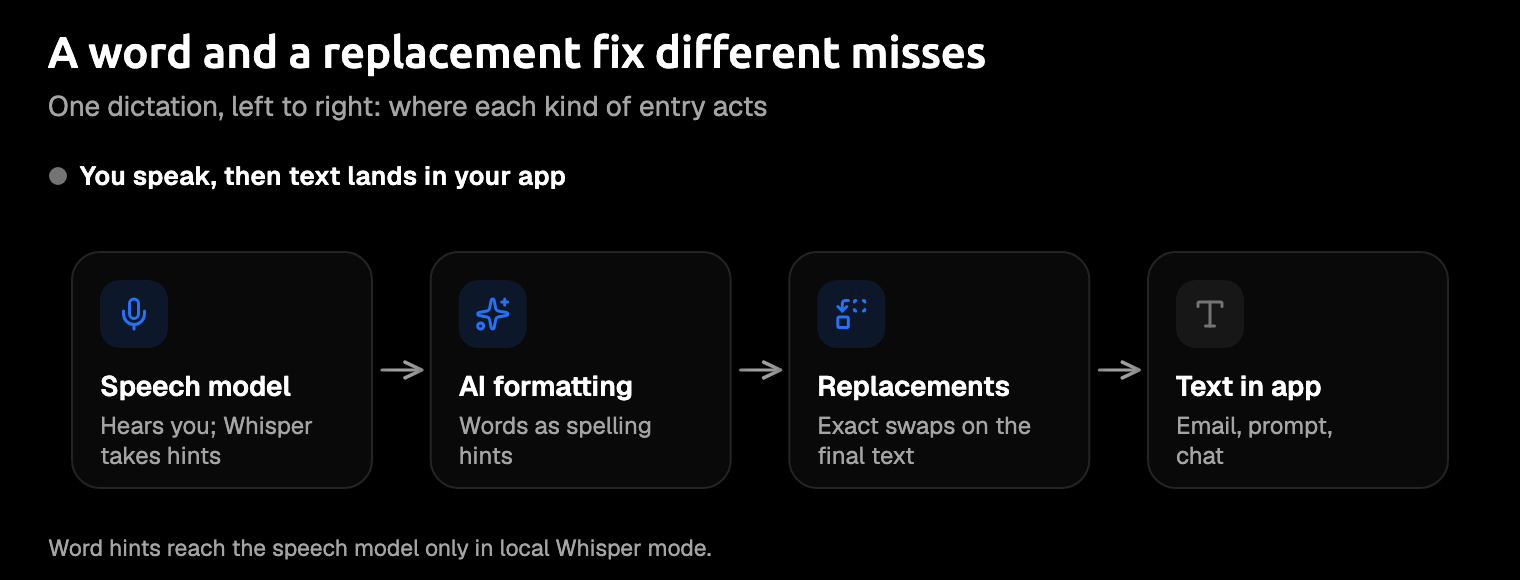
Most custom vocabulary screens you'll meet hold two kinds of entry. They look alike in the list, but they act at different moments and fix different misses.
A hint goes to the speech model while it listens. It nudges the model toward your spelling when the audio could go either way. In OpenAI's own example, the model wrote "Amy and Sean" until a prompt listed the right spellings; then it wrote "Aimee and Shawn". Still, a hint is a nudge, not an order. OpenAI says the prompt "will not override the model's comprehension of the audio" and calls the technique "not especially reliable." A long list dilutes the nudge, and Google warns that boosting a phrase hard can make it appear when nobody said it.
A replacement swaps text after the model is done. No AI is involved: when the text says one thing, it writes another, exactly, every time, and it never gets tired of the job. That makes it right for a miss that always comes out the same way, and for spoken shortcuts, like saying "at sign" to get @. It can't fix a word the model spells differently each time, because there's no single wrong version to catch.
Amical keeps both tools in one list, and a word entry works twice. In local mode with Whisper, the speech model reads your words before it transcribes. Whichever model does the transcribing, your words then go to AI formatting as spelling hints while it writes the message for the app you're in: a proper email in Gmail, a clean prompt in Cursor. With Amical Cloud, your vocabulary settings go along with the audio, and with Parakeet, the list applies too.
Switch on Replacement and the entry becomes an exact swap instead. Replacements run last, on the formatted text, whichever mode you're in. Start with words for names and terms. Add a replacement only after you've seen the same wrong spelling more than once.
Which fix does your miss need?
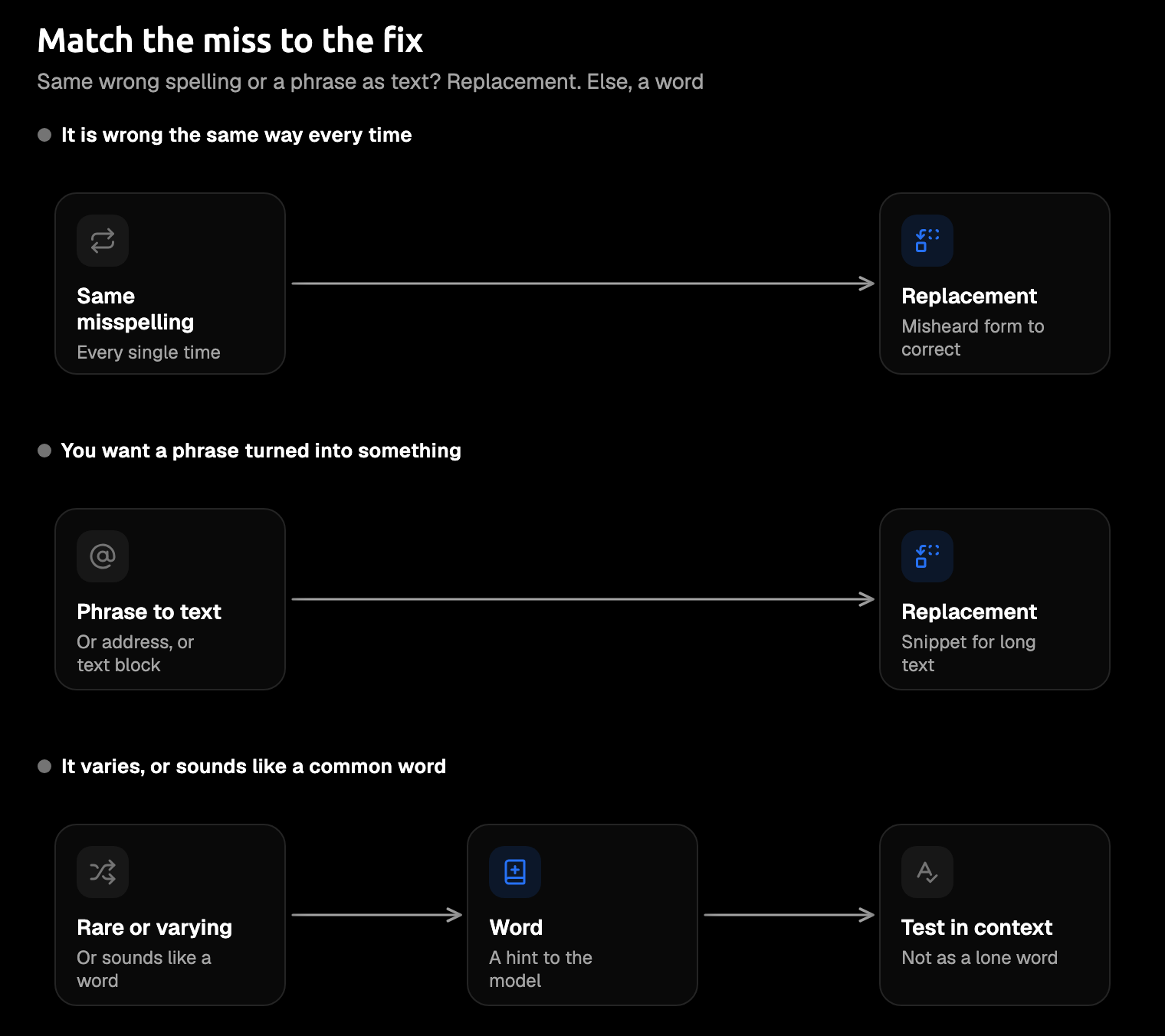
Look at what actually went wrong, then match it:
- The same wrong spelling every time, say "Acme" always arriving as "acne": add a replacement.
- A different spelling each time, or a rare name: add it as a word.
- A phrase you want turned into a symbol, an address, or a block of text: add a replacement. For longer text, an Amical snippet turns a spoken trigger into the full block.
- It sounds like a common word: add the word, then test it inside a real sentence, not on its own.
That last one catches people out. If a word looks perfect in your list and still comes out wrong in every email, it's probably a sound-alike losing to a more common word. Say it the way you'd say it to a colleague, mid-sentence, and see what comes back.
A short list of words that really go wrong beats a long list of words you're worried about.
Set it up in Amical
It's one dialog and a few minutes of your time.
- Open Settings → Vocabulary and click Add Word.
- For a word, leave Replacement off and type it the way you want it spelled, up to 60 characters. That's the right choice for names, acronyms, and jargon.
- For a replacement, turn Replacement on. Type the misheard form on the left and the correct form on the right, as in the docs' example "acme corp" → "Acme Corp".
- Dictate a real sentence that uses the new entry. Changes apply from your next recording, with no restart.
- Hover over a row to edit or delete it.
A replacement ignores case, and a trigger written in letters only matches whole words, so "link" won't fire inside "hyperlink". The right side goes in exactly as you typed it. Because replacements run after AI formatting, type the left side the way the mistake shows up in your finished text.
Your list is tied to your account, so it follows you to another computer, or to your Android phone, once you sign in.
You'll notice the day a colleague's tricky surname lands right in an email you didn't have to fix. For more examples, see teaching Amical technical vocabulary; the custom vocabulary docs cover search and paging.
What to add, by field
Add the words you'd be embarrassed to send misspelled, not every term you know.
Developers
Add library and command names as words: kubectl, useEffect, your repo's name. Use replacements for spoken shortcuts no model will guess, like "dot env" → .env. This pays off most when you dictate prompts to Claude Code or Cursor, where a mangled function name sends the agent hunting for something that doesn't exist. Amical for developers has more.
Medical and legal
Add drug, procedure, case, and court names as words. If your patients or clients are confidential, think about where your words travel, not only the list. With Amical Cloud, your custom-vocabulary settings go to Amical's servers, and so do the audio you dictate and the text around your cursor. Keeping a name off the list won't keep it off the server. AWS, for its own transcription service, tells users not to put personal or health information into a custom vocabulary at all. Our advice for confidential work: dictate in local mode with a local formatting model, so speech and text stay on your computer. That's practical advice, not legal or compliance advice. Dictation for therapists goes further.
Brand and product names
Your company, your customers, the product with the odd capital in the middle: add each as a word, spelled the way the brand writes it. Microsoft's own docs show why: before the names went on its list, "Contoso bank" came out as "can't do so bank". If a name keeps splitting into two words, add a replacement from the split form to the real one.
Japanese names in English
Back to 佐藤. Add the spelling the person actually uses, whether that's Sato, Satoh, or Satō, and if another variant keeps turning up, add a replacement from it to the right one. If you mix Japanese and English in one dictation, use Amical Cloud; local Whisper handles one language at a time. There's more in dictation for non-native English speakers and multi-language support.
What other apps offer
Checked in October 2026 against each app's own help pages (for Amical, release v1.12.5).
If you use the dictation built into your Mac, Windows, or Google Docs, there's no list to add to, going by each one's own help page. Beyond the built-ins, what's on offer varies a lot.
| App | Add words | Replacements | Notes |
|---|---|---|---|
| Amical | Yes; a hint to local Whisper, and spelling hints for AI formatting in every mode | Yes, via a toggle; runs last, on the formatted text | No import button; syncs to Android; no Linux (OpenWhispr runs there) |
| Wispr Flow | Yes, a dictionary on the free plan; learns from your corrections on desktop | Yes, a "Correct a misspelling" toggle | CSV import up to 1,000 entries, desktop only |
| Superwhisper | Yes, sent with the audio as hints | Yes, applied after transcription | CSV import |
| OpenWhispr | Yes, a dictionary of hints | Snippets swap a trigger for exact text | Open source; Mac, Windows, and Linux |
| Dragon | Yes, a written form with optional pronunciation training | A spoken form for each written form | Learns from your documents and sent email; imports a word list |
| Apple Dictation | No | No | Voice Control has a list of up to 1,000 terms, but turns standard Dictation off |
| Windows voice typing | No | No | Voice access, a separate feature, has "Add to vocabulary" |
| Google Docs voice typing | No | No | Right-click a gray-underlined word for alternatives |
Amical isn't the only app with both tools. Wispr Flow and Superwhisper have word lists and replacements too, and both import lists from a file. Amical is our pick because one list works whether you dictate through Amical Cloud or in local mode, follows you to your Android phone, and feeds the AI formatting that turns your words into a finished message for the app you're in. Wispr Flow is a fair choice if bulk import or learning from your corrections matters most to you.
The real gap isn't which app has more toggles. It's standard Dictation on a Mac and voice typing on Windows, where a misheard name has nowhere to go because there's no list to add it to. If that's your setup today, AI dictation vs Mac dictation and AI dictation vs Windows voice typing show what else changes when you switch. To weigh one app at a time, compare Amical with Wispr Flow, Superwhisper, Dragon, Apple Dictation, or Windows voice access.
Where custom vocabulary stops working
No list fixes everything, in any app, and the biggest limit isn't in the list at all. Bad audio beats any vocabulary. Speechmatics says it plainly: "Even a strong vocabulary cannot rescue every recording." If a word still fails after a hint and a replacement, check the mic, your distance from it, and how fast you're talking.
A laptop mic across the room is doing its best, and its best isn't much.
Languages can trip a list too. Superwhisper's docs warn that words in other languages can affect its accuracy and automatic language detection, so if you dictate in two languages, test your list in both.
Amical has its own edges, and you should know them before your list grows:
- No import button. Entries go in one at a time, while Wispr Flow and Superwhisper both import from a file. Start with the terms that trip you up most.
- Local Whisper has a small prompt. Your words share about 800 bytes, roughly a short paragraph, and words are the first thing cut when it runs long. Replacements don't use that space.
- AI formatting sees your newest 200 words. Once the list grows past that, the oldest words stop reaching formatting.
- Local Whisper on a Mac needs macOS 15 or later, and it runs slower on Intel Macs. Parakeet runs on macOS 14 or later and on Intel Macs, and Amical Cloud has no macOS requirement.
Where your list runs: Amical Cloud or local mode
Your list travels with your speech, so the mode you pick decides where it goes.
Amical Cloud is Amical's own hosted speech model, built for low latency. With it, your audio, custom-vocabulary settings, and formatting context go to Amical's servers, under a stated policy of no data retention and no training on your data.
In local mode, speech is transcribed on your computer with Whisper or Parakeet (another open speech model), and your list applies to both. It needs no account and works offline once a model is downloaded. Text, including your vocabulary hints, leaves your computer only if you choose a cloud provider for formatting; with a local formatting model, it stays put.
Pick by the words, not by habit. Words you'd rather keep at home can stay in local mode with local formatting, and your everyday Slack replies can run on Amical Cloud. On a plane with the Wi-Fi off, local mode is the one still taking dictation. Cloud vs local dictation covers the trade-off in full, and Parakeet vs Whisper helps you pick a local model.
FAQ
Does custom vocabulary work offline?
Yes, in local mode on Mac and Windows. Once a Whisper or Parakeet model is downloaded, transcription and your replacements work without an internet connection, and so do your formatting hints if your formatting model runs locally too.
How many words should I add?
Start with 20 to 50 that actually go wrong, the range Deepgram suggests for its own service. Add more when a new miss shows up, not before. A list of words you might say someday is just a pile of nudges pulling in different directions.
Can Apple Dictation or Windows voice typing learn new words?
Not according to their own help pages, as of October 2026. On a Mac, Voice Control has its own vocabulary, but standard Dictation isn't available while it's on. On Windows, voice access, a separate feature, has an "Add to vocabulary" option.
Teach it one real message
Download Amical, open Settings → Vocabulary, and add the five words that went wrong this week, one of them as a replacement. Custom vocabulary is on the free plan, alongside unlimited local dictation and 2,000 cloud words a week. Then dictate the message that needed those words, like the Cursor prompt with the function name that always arrives in pieces. If it lands in one piece on the first try, you'll know the list is doing its job.