You picked your dictation app because the website said offline. Then you switched on AI cleanup, because a raw transcript full of "um" is nobody's idea of a finished email. Now a small question keeps coming back: where does that cleanup actually happen?
That's the gap in a lot of local dictation privacy pages. Dictation is two steps: speech-to-text, then AI cleanup. "Offline" usually describes the first step, and the second can still send your text to a server. Amical, our pick, lets you keep both steps on your Mac or Windows PC.
So "offline" on the box is often a promise about half the pipeline.
This guide maps where common apps run each step, lists what leaves your computer in each setup, and shows how to keep both steps local, with what that costs.
Full disclosure: Amical publishes this blog, and Amical Cloud is how we make money. The fully local setup below is free.
Dictation is two steps, and each can leave
Every AI dictation app does two jobs, one after the other. First, a speech model turns your audio into a raw transcript: your words, roughly as you said them. Then a language model (the kind of AI behind chatbots) rewrites that transcript. It adds punctuation, drops the fillers, and shapes the text for the app you're typing in.
Each job can run on your computer or on a server, and the two don't have to match. That's how a privacy page can truthfully say your audio never leaves your device while your text goes to a cloud model a moment later. Local-first apps such as VoiceInk and Handy work this way: transcription runs on your computer, and cleanup is an optional switch with cloud providers on its list.
The cleanup step is the one privacy pages tend to skip, which is odd, since it's the step that reads your words.
Here's what each step does to a quick Slack reply. It's an illustration, not a recorded run:
- What you say: "um so yeah can we push the demo to friday, the build's not, like, ready yet"
- Step one, rough transcript: um so yeah can we push the demo to friday the build's not like ready yet
- Step two, after cleanup: Can we push the demo to Friday? The build isn't ready yet.
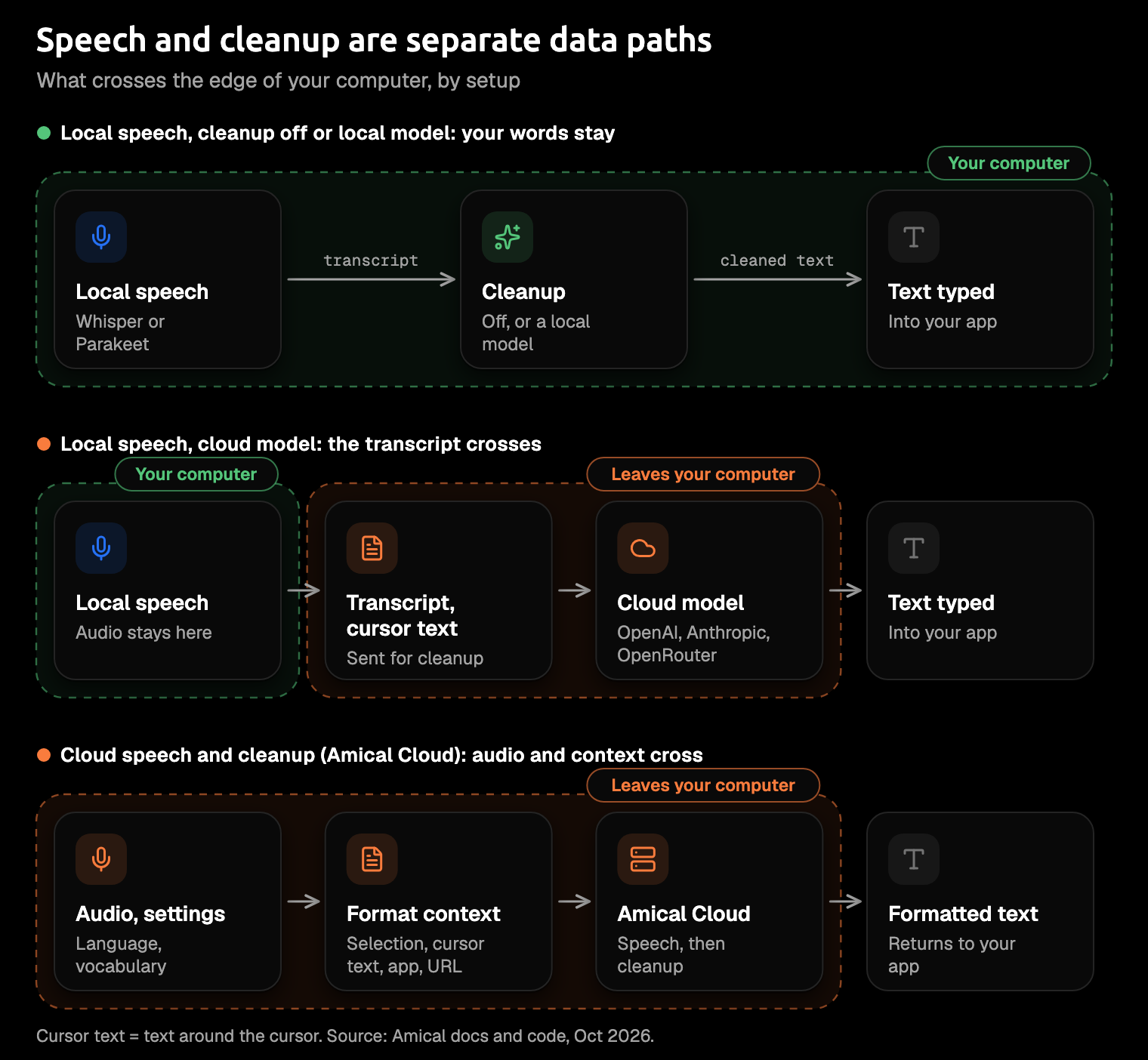
Amical's AI formatting also writes for the app you're in. The same sentence comes out as a short email in Gmail and as a loose one-liner in WhatsApp. In Amical, each step is its own setting, so you decide where each one runs. The diagram shows what crosses to a server in each setup.
Where each app runs each step
As of October 2026, this is where each app says it runs each step, taken from the vendor's own pages. Where a page is silent, the table says so. Two pairs of names come up a lot: Whisper and Parakeet are open speech models that run on your computer, and Ollama and LM Studio are tools that run language models there too.
| App | Speech-to-text | AI cleanup |
|---|---|---|
| Amical (Mac, Windows; no Linux app) | Local (Whisper or Parakeet) or Amical Cloud | Off, a local model (Ollama, LM Studio), or a cloud provider (OpenAI, Anthropic, OpenRouter); with Amical Cloud, both steps run there |
| Superwhisper | Local (Parakeet, Whisper Large v3 Turbo, Cohere Transcribe) or cloud, set per mode | Local (S1-mini) or cloud, set per mode |
| VoiceInk | Local | Optional: cloud providers with your own key (text only, never audio), Ollama, or a command-line tool that may itself use a cloud service |
| MacWhisper | Local models for file transcription; not stated for dictation | AI services including Ollama, LM Studio, and cloud APIs with your own keys; not stated whether dictation cleanup stays local |
| Handy | Local (Whisper or Parakeet) | Off by default; cloud providers (OpenAI, Anthropic, Groq, OpenRouter and others), Apple Intelligence (local), or a custom address that defaults to your own computer |
| OpenWhispr | Local or cloud | A local model through llama.cpp, or a cloud provider with your own key |
| Spokenly | Local models, or cloud models that send audio; Local Only Mode blocks outbound traffic except to your own computer | Not stated |
| Wispr Flow | Cloud, always | Not stated; reads limited text from the app you're in for context |
| Aqua Voice | Not stated; no local option on the homepage | Not stated; Privacy Mode stops storage on its servers |
| Typeless | Cloud | Cloud language models from providers such as Microsoft and Google, under zero-retention terms |
| Apple Dictation (Mac) | On device when Keyboard settings say so, except in search boxes | On macOS 27, an on-device model adds punctuation and formatting on M3 or later with 12 GB+ memory; not per app, no custom vocabulary |
| Windows voice typing | Cloud (Azure Speech), needs internet | Fluid dictation runs on-device on Copilot+ PCs, English only |
A few patterns stand out. Local-first apps transcribe on your computer, then treat cleanup as a separate switch, and most of the providers on that switch are cloud services.
Superwhisper's docs are the clearest about keeping both steps local. You set the voice model and the language model separately in each mode, and with local models, its privacy page says, your audio and transcripts never leave your device.
Wispr Flow and Typeless are cloud by design, and Aqua Voice doesn't say where processing happens. Apple and Microsoft clean up on-device only on recent hardware.
"Not stated" is an answer too. A privacy page can say a great deal about your audio and nothing at all about your text. If an app you use is quiet about cleanup, ask the vendor before you dictate anything sensitive.
Amical isn't the only way to keep cleanup local. Superwhisper, VoiceInk, Handy, and OpenWhispr can all run it on your computer, and MacWhisper lists Ollama and LM Studio, though it doesn't say whether dictation cleanup uses them.
Our pick is still Amical. Its formatting writes for the app you're in, with your own local model as well as with Amical Cloud. Cloud and local sit in the same app, so you can choose per task, and the iPhone, iPad, and Android apps come with you. The desktop app is MIT-licensed, so you can read the code that handles your words on GitHub.
Amical has no Linux app. If that's you, our roundup of open source dictation apps covers what runs there. For head-to-heads, see Amical vs Wispr Flow and Amical vs Superwhisper.
What leaves your computer in each setup
The setup decides what leaves your computer, not the logo on the app. These four setups work the same way in any app. The diagram draws them as three lanes, because the first two send nothing you dictate. Amical's details follow each general rule, and its anonymous telemetry, which never carries what you dictate, is covered at the end.
Local speech, cleanup off
Nothing you dictate leaves your computer. You get the transcript as the speech model heard it, and any tidying is yours to do.
In Amical's local mode, this setup needs no account and works offline once you've downloaded a model.
Local speech, local cleanup
Nothing you dictate leaves, as long as the cleanup model's address points at your own machine. That address usually starts with localhost, which is your computer's name for itself.
In Amical, two details are worth knowing. The Ollama address is a setting you fill in, so if it points at another computer, your text goes to that computer. Ollama also offers cloud-hosted models alongside local ones, so turn on its local-only mode and every request stays on your machine.
That address, in Settings > AI Models > Language, is the one setting worth reading twice.
Local speech, cloud cleanup
Your audio stays on your computer, and your text goes to the cleanup provider you picked, under that provider's terms. In Amical, if the formatter is OpenAI, Anthropic, or OpenRouter, your transcript and the text around your cursor go to that provider. VoiceInk's privacy page says much the same about its own cloud option: only the transcribed text, never audio, goes to the chosen provider.
This is the setup the word "offline" hides best. Your voice never touches the internet, but your sentences do, and cleanup needs a connection to work.
Cloud speech and cleanup
A cloud dictation app has to send your audio. If it also tailors the text to the app, it needs some context about where you're typing. As of October 2026, Superwhisper says its cloud models send the audio, the transcript, and any prompt or context the request needs. Wispr Flow sends audio to its servers over an encrypted connection and deletes it once it's transcribed, unless you've turned on its cloud storage for dictation.
With Amical Cloud, this is the full list of what leaves your computer:
- your audio
- your language and custom-vocabulary settings
- any text you've selected
- the text around your cursor
- the app name, and the URL when you're in a browser
That context is what makes the same sentence an email in Gmail and a quick line in Slack. Amical's stated policy for Amical Cloud is "No data retention" and "No training on your data." That's a policy, not an audit, and Amical's SOC 2 is still in progress. If a piece of text must not leave your computer, use the fully local setup instead. Teams with stricter needs can look at the Enterprise plan, which offers private hosting. Cloud AI models covers the setup.
In every setup (Amical)
Whichever setup you choose, Amical sends anonymous telemetry by default. It records usage events (app launches, when a recording starts and stops), errors, and timings such as transcription latency and model load time. It never includes your transcripts, notes, audio, or vocabulary. You can turn it off with Anonymous Telemetry in Settings > Advanced, which also stops crash reports.
The one exception is Report. If you flag an entry in your history, Amical sends that entry's audio and transcript to the team, and it works only for cloud transcripts with telemetry on. Telemetry lists what's collected.
Amical stores your history on your computer, and keeps the audio there too unless you set a retention period of 1, 7, 14, or 28 days. In the local setups, that copy is the only one. With Amical Cloud, the audio was also sent for transcription, as listed above. Transcription history shows how to set retention.
How to keep both steps local in Amical
Keeping both steps local takes two downloads and a few settings, and the steps in Amical are the same on Mac and Windows. If you haven't yet, install Amical first. Then:
- Open Settings > AI Models > Speech, download Whisper or Parakeet, and set it as your Default Speech Model. On an Intel Mac or macOS 14, pick Parakeet, which runs on both; Parakeet vs Whisper helps with the rest.
- Install Ollama and run
ollama pull llama3.2in a terminal. That's the example model in Amical's docs. - Switch Ollama to local-only mode, so it never hands a request to its cloud models. Add the
disable_ollama_cloudsetting, set totrue, to theserver.jsonfile in the.ollamafolder of your home folder. Ollama's FAQ also shows theOLLAMA_NO_CLOUD=1alternative. - Open Settings > AI Models > Language and choose your Ollama model as the Default Language Model.
- Turn on Formatting in Settings > Dictation.
- Turn off Anonymous Telemetry in Settings > Advanced if you'd rather no usage data leave either.
- Turn on Preload Whisper Model in Settings > Advanced if you like, so your first dictation doesn't wait for the model to load.
Using LM Studio instead of Ollama? Start its server from the Developer tab or with lms server start; it answers at http://localhost:1234/v1. Then, in Settings > AI Models > Language, choose the OpenAI-compatible provider, paste that address into Base URL, click Sync models, and pick your model as the Default Language Model. It takes the place of the Ollama steps above.
Local AI models has the full walkthrough, and AI formatting explains how the formatter picks a style for each app.
Now run the test that beats reading any privacy page, ours included. Turn off Wi-Fi and unplug any network cable, open an email draft or a Slack message, and dictate something you actually need to send. If formatted text appears with no network at all, both steps ran on your computer.
There's a quiet satisfaction in watching a tidy email write itself on a laptop that can't reach the internet.
What keeping it all local costs
For most people, a fully local setup costs two downloads and a few minutes in settings. How big those downloads are, and how fast they run, depends on the models you choose and the machine you have.
| Model | Download | Memory while running |
|---|---|---|
| Whisper Tiny (smallest) | ~78 MB in Amical | ~273 MB in whisper.cpp's table |
| Whisper Large v3 (largest) | ~3.1 GB in Amical | ~3.9 GB in whisper.cpp's table |
| llama3.2 1B (Ollama) | 1.3 GB | Not listed |
| llama3.2 3B (Ollama) | 2.0 GB | Not listed |
On a laptop that's already full, the largest Whisper model is where you start eyeing old downloads. The smaller ones fit almost anywhere.
- Your machine. Local Whisper needs macOS 15 or later, and Intel Macs run it more slowly. Parakeet runs on macOS 14 and on Intel Macs, so an older Mac still has a local option. LM Studio's own requirements ask for Apple Silicon on a Mac and recommend 16 GB of RAM. On Windows, they recommend 16 GB plus 4 GB of dedicated graphics memory.
- Speed. Local speed depends on your chip and the models you pick, so time one real message. A smaller formatter is quicker but may polish less than a cloud one. Read your first few results closely.
- Money. Nothing. Local dictation is unlimited on the free plan and never counts toward the cloud allowance; pricing has the details.
- Your phone. Amical's iPhone, iPad, and Android apps use Amical Cloud and need sign-in, so a fully local setup is a desktop thing. On the desktop, local mode needs no account at all.
If you're on a PC, our guide to offline dictation on Windows goes deeper on the Windows side.
When cloud cleanup is the better trade
Cloud cleanup is usually quicker, needs nothing installed, and a large cloud model may polish more than a small one on your laptop. The cost is that your words travel. Choosing it isn't careless. It's a different trade, and you can make it task by task.
Local speech with a cloud formatter sits in the middle. It suits you if the recording is the part you'd rather keep home: your audio stays on your computer, and your text goes to the provider, as described above.
Amical Cloud is the worked example of the full-cloud setup. By Amical's own measurements, formatted text is ready in under 300 ms for a short dictation, so it's usually there before you look up. It's also the better fit when:
- you're dictating on your phone
- you mix Japanese and English in one sentence, where Amical recommends Amical Cloud over local Whisper
- you want Draft: speak an instruction, then review the result before it goes in
- your Mac is older or on Intel and you'd rather not run models on it, since Amical Cloud doesn't need macOS 15, the floor for local Whisper
- you simply don't want to look after a model
What you trade is the list from the cloud setup above.
A sensible split for many people: Amical Cloud for everyday email and Slack, and the local setup for notes you'd rather not send anywhere. A quick Slack reply about lunch doesn't need a bunker. Premium makes cloud words unlimited for $10 a month or $84 a year.
For the speed and accuracy side of the question, see cloud vs local dictation.
Try it on one real message
You'll trust a setup more after one offline message than after any number of privacy pages. Download Amical, set both steps to local, and run the test above on an email or Slack reply you'd otherwise type today. The free plan covers it, with 2,000 cloud words a week if you'd like to compare.
At worst, you've sent one email without typing it.