You tap the mic on Gboard, say a quick reply, and it lands as one long line with no commas, because you were supposed to say those out loud. Now you're fixing it with your thumb, which is the job you were trying to skip.
Gboard types what you say. An AI voice keyboard sends what you meant: it transcribes your words, then rewrites them into the message you'd have typed. Unless you own a Pixel 11, that makes it the Gboard voice typing alternative worth trying, and our pick is Amical. Amical publishes this blog and makes its money from Amical Cloud, so weigh our pick with that in mind. Gboard gets its credit below, Pixel 11 included.
Which Gboard you have depends on the phone you bought, and on a Pixel 11 you may not need us at all.
Amical on Android isn't a keyboard you switch to, by the way. It's a floating bubble that appears over the app you're in and inserts your words.
The short answer
If you send what you dictate, the second pass is worth it: the message comes out shaped like a message, not like a voicemail transcript. If you mostly dictate reminders to yourself, standard Gboard is fine.
| Gboard voice typing (standard) | Gboard on recent Pixels (Advanced, Rambler) | AI voice keyboard apps | |
|---|---|---|---|
| Punctuation | You say it: "comma", "period" | Added for you | Added in the rewrite |
| Cleanup beyond punctuation | Not listed | Rambler removes filler; Fix it repairs typos and grammar (Pixel 8 and later, US English) | The transcript is rewritten, not just typed |
| Output by app | Not listed | Rambler rewrites on request | Shaped for the app, such as email, chat, notes |
| Custom vocabulary | Not listed | Not listed | Varies by app |
| Languages | One at a time; not all languages work | Advanced: six. Rambler: switches mid-sentence | Amical Cloud: 100+; Japanese and English in one sentence |
| Where it runs | Not stated | Advanced: on the phone, with exceptions. Rambler: processed by Google | Amical, Wispr Flow, Typeless: cloud |
| Phones | Android phones with Gboard | Advanced: Pixel 6 or later. Rambler: Pixel 11 series | Not tied to a Pixel |
| Price | Free | Advanced: no fee listed. Rambler: no price listed, "subject to usage limits" | Free plans, then subscriptions |
| Setup | A toggle in Gboard settings | A toggle in Voice typing settings | Install, sign in, grant permissions |
Our pick among AI voice keyboards is Amical. It writes the message for the app you're in instead of handing you a transcript, and Amical Cloud, the engine underneath, is built for speed.
Which Gboard do you have?
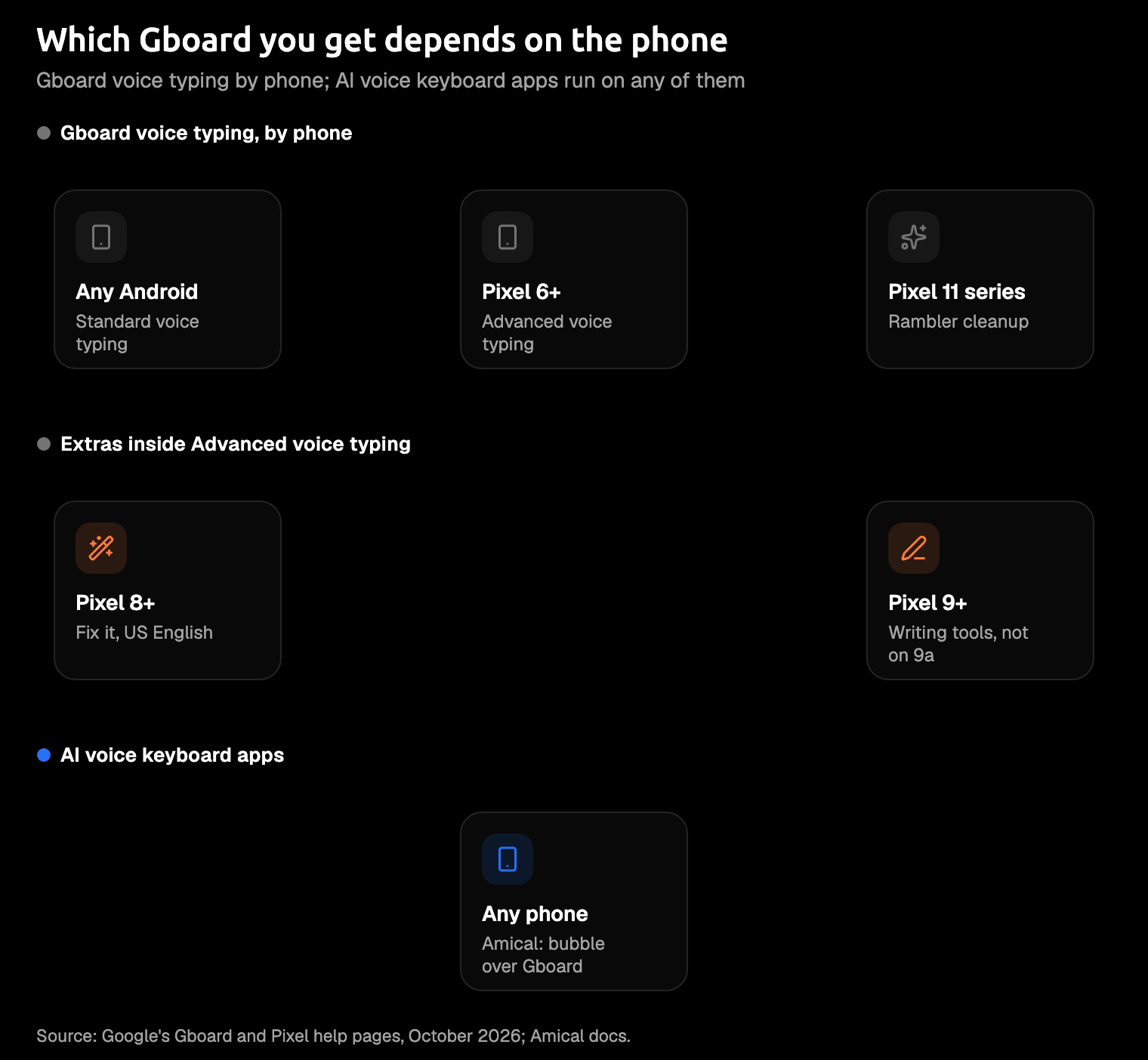
The best Gboard features follow the Pixel, not the keyboard. It's the same app on every phone, but what the mic does depends on the phone underneath.
- Standard voice typing. On any recent Android phone with Gboard, tap the mic at the top of the keyboard and talk. Google's page even nudges some Pixel owners elsewhere: "On some Pixel devices, to type with your voice, use Advanced voice typing."
- Advanced voice typing. Pixel 6 or later, including Fold and Tablet, in English, French, German, Italian, Japanese, and Spanish. It shows a colorful mic icon and adds automatic punctuation, emoji by voice, and commands like "Delete last word" and "Send".
- Rambler. On the Pixel 11 series only, Gemini (Google's AI model) turns rambling speech into cleaned-up text: filler words out, grammar and punctuation fixed.
Advanced has gates of its own. Fix it, which repairs typos, grammar, and punctuation, needs a Pixel 8 or later, US English, and a network connection. Writing commands like "Proofread this" need a Pixel 9 or later, and the 9a doesn't count.
Read that list on a Galaxy and most of it is for someone else's phone.
Same message, two results (illustrative)
Picture a quick reply to a coworker, said the way people talk, with no punctuation spoken. This is an illustration, not a recorded run.
What you say:
hi Kenji the review moved to Wednesday morning can you bring the slides thanks
Standard Gboard, with no spoken punctuation, gives you a raw transcript with nothing tidying it up:
Hi Kenji the review moved to Wednesday morning can you bring the slides thanks
An AI voice keyboard, in a chat app:
Hi Kenji, the review moved to Wednesday morning. Can you bring the slides? Thanks!
The same words in an email app, following Amical's email rules:
Hi Kenji,
The review has moved to Wednesday morning. Could you bring the slides?
Thanks
All three heard the same words.
The gap is the second pass. It adds punctuation and casing, then gives the message the shape the app expects: greeting, body, and closing on their own lines for email, a lighter touch for chat.
You can get closer with standard Gboard by saying "comma" and "question mark" as you go, which is fine at home and a little odd in a quiet office. And to be fair to Google, Rambler on a Pixel 11 cleans up punctuation and grammar too, and rewrites when you ask.
What Gboard does well
For a lot of people, Gboard is the keyboard that was already there when they unboxed the phone, and it does more than it gets credit for.
- Free, with no account. There's nothing to sign up for, and Google's pages list no fee or word cap for standard voice typing.
- Any text field. Tap into a text area, tap the mic, and talk.
- Live text. Standard voice typing shows words as you speak; HowToGeek notes that Rambler waits until you tap to finish.
- Quick fixes. Touch and hold a word, tap the mic, and say the replacement.
- More on Pixel 6 and later. You get automatic punctuation, emoji, and voice commands, and Google says the text you speak stays on your device, except for Fix it and detailed edits.
- Rambler on the Pixel 11 series. It removes filler words, fixes grammar, takes edits like "Change Saturday to Sunday", and keeps up when you switch languages mid-sentence. Google says it's subject to usage limits.
On a Pixel 11, Google has caught up on cleanup. That's a real alternative to an app like ours, and worth weighing before you install anything.
Where standard Gboard falls short
These gaps are about standard voice typing, the version every phone with Gboard gets. We're going by Google's help pages as of October 2026, so "not listed" means just that. Each gap is a step an AI voice keyboard takes off your hands.
You say the punctuation
Standard voice typing adds punctuation when you say it: "period", "comma", "question mark", "new paragraph", though not in every language. Automatic punctuation is on Google's list for Advanced voice typing on Pixels, not for the standard version. HowToGeek's writer, trying standard Gboard on a Samsung Galaxy, got "a long-winded stream of consciousness without any punctuation".
An AI voice keyboard punctuates in its rewrite, so you just talk. Amical's AI formatting cleans up punctuation and casing even in apps without a special style.
Languages one at a time
Standard Gboard switches languages, but only ones you've enabled first, and Google notes that "Talk-to-text doesn't work with all languages". Advanced voice typing lists six. That's hard going if you think in Japanese and write to colleagues in English, sometimes in the same breath.
An AI voice keyboard is only as multilingual as its speech model, so check the list before you switch. Amical Cloud covers 100+ languages and handles Japanese and English in one sentence; multi-language support has the list.
It doesn't know your names
Custom vocabulary isn't on Google's voice typing pages, so your colleague's name, your product, and your team's acronyms are the model's best guess. If her name is Siobhan, that's a lot of faith to put in a guess.
An AI voice keyboard can keep a list of the words you use. Amical calls it custom vocabulary, and it's on the free plan: add a name once instead of fixing it in every message.
The same text in every app
Per-app formatting isn't on Google's pages either, so a WhatsApp reply and a Gmail email come out as the same kind of transcript. The right shape changes by app, though. An email wants a greeting, and a Slack reply that opens with "Dear team" reads like a legal letter. Rambler rewrites when you ask ("Make this sound more professional"), but picking a style by app isn't on its page.
The idea behind AI voice keyboards is to read which app you're in and write for it. Amical's AI formatting works this way, and the app picks the style, not your words: email gets a greeting, body, and closing; chat stays conversational, emoji kept; notes get bullets for lists; everything else gets a plain cleanup.
How AI voice keyboards work on Android
An AI voice keyboard does two jobs. It turns your speech into text, usually in the cloud, then rewrites that text for the app you're in. Wispr Flow, Typeless, and Amical's phone apps all transcribe in the cloud.
To reach your text fields, it either becomes your keyboard or floats a button over the app you're in. Either way, it asks for permissions Gboard never needed, because Gboard is the keyboard.
Everyone wants to tap straight through that permissions screen. Read this one, because each permission has a job. Amical asks for three, and its docs say that together they let the floating bubble appear over the app you're in and insert your dictation.
- Display over other apps lets an app draw on top of others: that's the bubble.
- Accessibility Service lets an app act in other apps' text fields: that's how your words reach the box.
- Microphone is how it hears you.
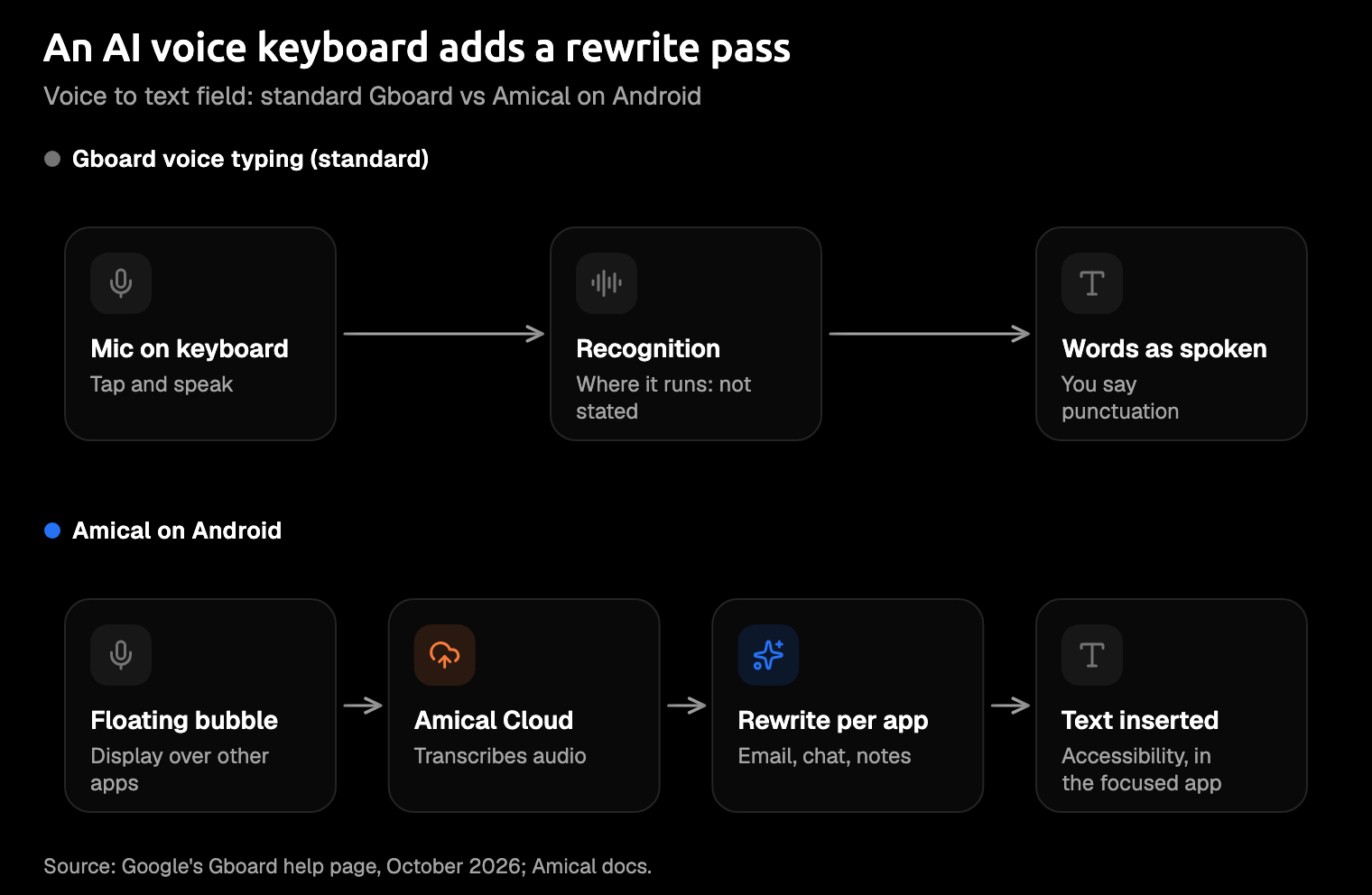
They sound alarming, but they're the price of working in every app instead of one. The better question is what leaves the phone. Amical says that, in general, Amical Cloud receives your audio, your language and custom-vocabulary settings, and context for formatting: any selected text, up to 500 characters around the cursor, the app name, and the browser URL. Its stated policy is no data retention and no training on your data.
Amical as the example
Tap the bubble in any app and talk, and Amical Cloud turns your speech into text in the field you're in.
By Amical's own figures (no public benchmark yet, and phones not measured separately), Amical Cloud is the industry leader in dictation speed: a short dictation comes back as finished, formatted text in under 300 ms. A quick reply shouldn't keep you waiting.
Amical on Android runs on Amical Cloud only, so it needs a connection. If you need dictation offline, local mode in the Mac and Windows apps works without one once a model is downloaded; cloud vs local dictation covers that trade.
Amical also needs an account, and its phone apps aren't open source. Signing in costs nothing, and there's a free plan with a weekly cloud allowance (Pricing has the numbers). On a computer, local mode needs no account, and the desktop app is MIT-licensed.
Amical is built to get names and jargon right, and custom vocabulary covers the ones it can't guess.
Beyond Android, Amical runs on Mac, Windows, iPhone, and iPad. If you write mostly at a desk, our comparisons with Mac Dictation and Windows voice typing cover that side, and Local AI models explains local mode.
Other options
Amical isn't the only AI voice keyboard on Android. As of October 2026, these four also run there, and each suits a different reader.
- Wispr Flow is the closest head-to-head: it's on Mac, Windows, iOS, and Android, transcribes in the cloud, and Pro starts at $12 a month billed annually. See Amical vs Wispr Flow.
- Superwhisper suits anyone who'd rather pay once: Pro is $8.49 a month, or $249.99 for a lifetime license. See Amical vs Superwhisper.
- Aqua Voice fits if your languages are among its 49 (Amical Cloud covers 100+), with Pro at $10 a month billed annually.
- Typeless is the one that also runs on Linux, which Amical doesn't; it transcribes in the cloud, with Pro at $12 a month billed yearly.
For the full field, see the best dictation apps for Android.
When to stick with Gboard
Switching is for people who send what they dictate. Gboard is the better choice if:
- You have a Pixel 11. Rambler already does the cleanup, right inside Gboard. Amical's case there is the same tool on every device you own, and 100+ languages on Amical Cloud.
- You mostly dictate for yourself. The grocery list doesn't need a greeting.
- You don't want another account or more permissions. That's a fair line to draw, and Gboard sits on the right side of it.
- You need offline dictation on a Pixel, where Google documents some offline support (see the FAQ).
- You want speech kept on the phone. Google says that with Advanced voice typing, the text you speak stays on the device, apart from Fix it and detailed edits.
How to set up each
Neither takes long. Gboard's setup is mostly finding the right toggle; Amical's is mostly saying yes to three permissions you now understand.
Gboard voice typing
- Open any app and tap into a text field.
- Tap the Settings icon on the keyboard, then Voice typing, and turn it on.
- Turn on Faster voice typing, which Google suggests "for improved responsiveness".
- Check the microphone permission in Settings > Apps > Gboard > Permissions > Microphone, and choose Allow only while using the app.
- Tap Microphone at the top of the keyboard, and talk when you see "Speak now".
On a Pixel 6 or later, the same settings let you turn on Advanced voice typing. On a Pixel 11, Rambler needs Gboard as your default keyboard; tap the mic and press Start, or go to Gboard Settings > Voice typing > Rambler.
Amical on Android
- Install Amical from Google Play.
- Open it and sign in with your Amical account.
- Grant Accessibility Service (to put text in the field), Display over other apps (to show the bubble), and microphone access (to hear you).
- Open any app, tap into a text field, tap the bubble, and talk.
The Android quick start has the details for each step.
FAQ
Is Gboard voice typing private?
It depends on which Gboard you have. For standard voice typing, Google's help doesn't say whether your speech is processed on the phone or on Google's servers. With Advanced voice typing, Google says the text you speak stays on the phone and "No audio data is sent"; Fix it and detailed edits send the command's transcript and the text in the field to Google. With Rambler, your speech, text, and corrections are "temporarily processed by Google" and, Google says, "never saved, stored, or shared".
Gboard's audio donation is opt-in, and you can switch it off under Audio donations in Gboard's privacy settings.
Does Gboard voice typing work offline?
Partly, as far as Google documents it. Its current voice typing pages don't mention offline use. In 2019, Google launched an on-device recognizer to Pixel phones in American English, "always available, even when you are offline". On a Pixel 11, Rambler works offline with limited features: basic cleanup, punctuation, and capitalization stay on, and bigger rewrites wait until you're back online. Test it in airplane mode before your flight, not during it.
Will Rambler come to my Samsung?
Maybe, but not yet. When Google announced Rambler on May 12, 2026, TechCrunch reported a first rollout to Samsung Galaxy and Pixel phones. Google's help page now lists only the Pixel 11 series, and 9to5Google reported in October that it's unclear whether other phones will get it. That may change, so check Google's Rambler page for the current list.
Is Amical free on Android?
Amical has a free plan with a weekly cloud allowance, and the Android app runs on Amical Cloud. Pricing has the current numbers and what Premium adds.
Try it on one real message
Pick a message you'd normally fix by hand: a client reply, a note to your team, the text you've been putting off. Download Amical, set it up with the Android quick start, and dictate that message with the bubble. Then say it again with Gboard's mic and read the two side by side.
Start on the free plan; your own messages will settle it faster than our table. If you carry an iPhone too, the same question on iPhone gets its own answer.