You know exactly what you want to tell the client. The slow part is typing it in English. You rewrite the first sentence three times, then check every "a" and "the" before you dare press send.
Speaking is often easier, so plenty of non-native English speakers look for a dictation app. One professional put it on LinkedIn: "English is not my first language. Every time I needed to write a prompt to Claude, I would sit down and type."
The right app writes what you meant, not a transcript of every pause. Our pick is Amical. Like the main AI dictation apps, it shapes the message for the app you're in: a proper email in Gmail, a short, relaxed reply in Slack. You choose how much it polishes in each app. It runs on Mac, Windows, iPhone, iPad, and Android, and with Amical Cloud it handles Japanese and English mixed in one sentence.
That's our own app, so you should know where we stand: Amical publishes this blog, and Amical Cloud is how we make money (Premium is $10 a month or $84 a year on our pricing page). There's a free plan too, and our advice would be the same without it: try any app on a real message before you trust it.
What to look for in a dictation app
A dictation app has five jobs when English is your second language. It has to hear you, accent and pauses included. It has to write the message for the app you're in. It has to get your names right. It has to cope with your other language. And it should be clear about where your voice goes.
The first job is the one you worry about. The next three decide whether the message is ready to send.
| What you need | Built-in dictation | General AI dictation apps | Apps built for non-native speakers | Amical |
|---|---|---|---|---|
| Writes the message for the app | Apple's newer model formats, but not per app | Wispr Flow, Typeless, Superwhisper: per-app styles | BlaBlaType (pre-launch) says it fixes grammar | Yes, with Polishing and Tone per app |
| Gets your names right | Apple Dictation: no custom vocabulary | All three have a personal dictionary | BlaBlaType, Flit say you can add your names. Shoute's page mentions none | Custom vocabulary and Replacements, free plan |
| Copes with your other language | Apple: switch languages by hand | Wispr Flow, Typeless say they handle mixing | Shoute Pro translates speech into English | Amical Cloud: Japanese and English in one sentence |
| Where your voice goes | Apple: on device in some languages. Windows: needs internet | Wispr Flow: always the cloud. Superwhisper: local or cloud models | BlaBlaType, Flit: say it stays on your Mac | Your choice: Amical Cloud or local mode |
Competitor details are as of October 2026, from each app's own pages. For a closer look at the built-in options, see AI dictation vs Mac dictation and AI dictation vs Windows voice typing.
Your accent and your pauses
Accent is the first worry, and it's the one with the least data. None of the apps we checked publishes accent accuracy figures, Amical included. Even guides on dictation for accented English give no numbers. Their advice is to test the app with your own names, acronyms, and numbers.
Judge any app on one real message in your own voice, not on what its website says.
What does exist is training data. Whisper, an open speech model that Amical and Superwhisper can run on your computer, learned from 680,000 hours of audio in many languages. That's a lot of accents. It's still a fact about the model's schooling, not a promise about your voice.
Pauses matter just as much. You know the word in your first language, the English one won't come, and meanwhile the app has to decide whether you've finished. On the Mac, Apple Dictation stops after 30 seconds of silence, as of October 2026. Amical stops after 5 seconds of silence only in hands-free mode; while you hold the push-to-talk key, it keeps listening.
So when you expect to hunt for words, hold the key: a long think won't end the recording. If the English word won't come, describe it in other words and keep going, imperfect sentences and all. Formatting tidies the filler afterwards. A guide for non-native writers from Auri, another voice-typing app, gives the same advice: speak the whole message first, then do a separate grammar pass (Auri uses its own tool for that), and check names, numbers, and dates by hand.
From what you said to what you meant
Turning speech into text is only the first step. The second step matters most for you: AI formatting, which takes the raw transcript and rewrites it for the app you're in.
Built-in dictation mostly stops after the first step. As of October 2026, Apple's Dictation on macOS 27 handles capitalization, punctuation, and formatting as you speak on recent Macs, but it doesn't change the result to suit the app. Apple's Writing Tools can rewrite or proofread, but as a separate step, on text you've already selected.
The AI dictation apps do take the second step. Wispr Flow, Typeless, and Superwhisper all say they adapt to the app you're in. Some apps built for second-language writers say they fix grammar too. BlaBlaType's guide shows "I am agree" turning into "I agree".
Amical does both steps in one go, and its formatting fixes grammar as it formats. It also removes filler and stutters and sets the structure and tone for the app. The "a" and "the" are in better hands, but they still get one read from you before you send.
In an email app, AI formatting puts the greeting, body, and closing on separate lines in a professional tone. In Slack or iMessage, it stays conversational and doesn't pad a short reply. In a search bar, it only fixes punctuation and capitals. It knows hundreds of apps, and it spots Gmail or Outlook in the browser too.
You can tune it per app in Personalization: a preset (Default, Personal chat, Work chat, or Email), a Polishing level from None to High, and a Tone, Casual or Formal. Higher polishing removes more filler and stutters, but it moves further from your exact words. Turn it down, and the message stays closer to how you actually talk.
Here's one idea said in two apps (an illustration, not a recorded result). In Slack, you might say:
um so the, the client report, I'll send it Thursday morning. the numbers from finance are not ready yet. sorry about that
Slack gets one relaxed line:
I'll send the client report Thursday morning. The numbers from finance aren't ready yet, sorry about that.
The same news, in a Gmail reply to a client:
hi Daniel, um, so the report, the report will come on Thursday morning. the numbers from finance are not ready yet. sorry for the wait. thanks
Gmail gets an email:
Hi Daniel,
The report will come on Thursday morning. The numbers from finance are not ready yet.
Sorry for the wait.
Thanks
To rewrite something you've already typed, select it, hold Fn+Ctrl on a Mac or Ctrl+Win+Alt on Windows, and say what you want, like "make this shorter and more formal". Draft shows the result in a floating window to insert, copy, or discard, and it needs Amical Cloud. So a reply gets shorter or more formal without leaving the app. No copying it into a chatbot and back, which by the third trip has turned a two-line reply into a small project.
Each step fixes different things, so the last step is still you. Formatting works from the transcript, so a word the speech model misheard may come through unchanged. It also adds no facts and takes no actions: say "send John the report" into a search bar, and you get those words, not a sent report.
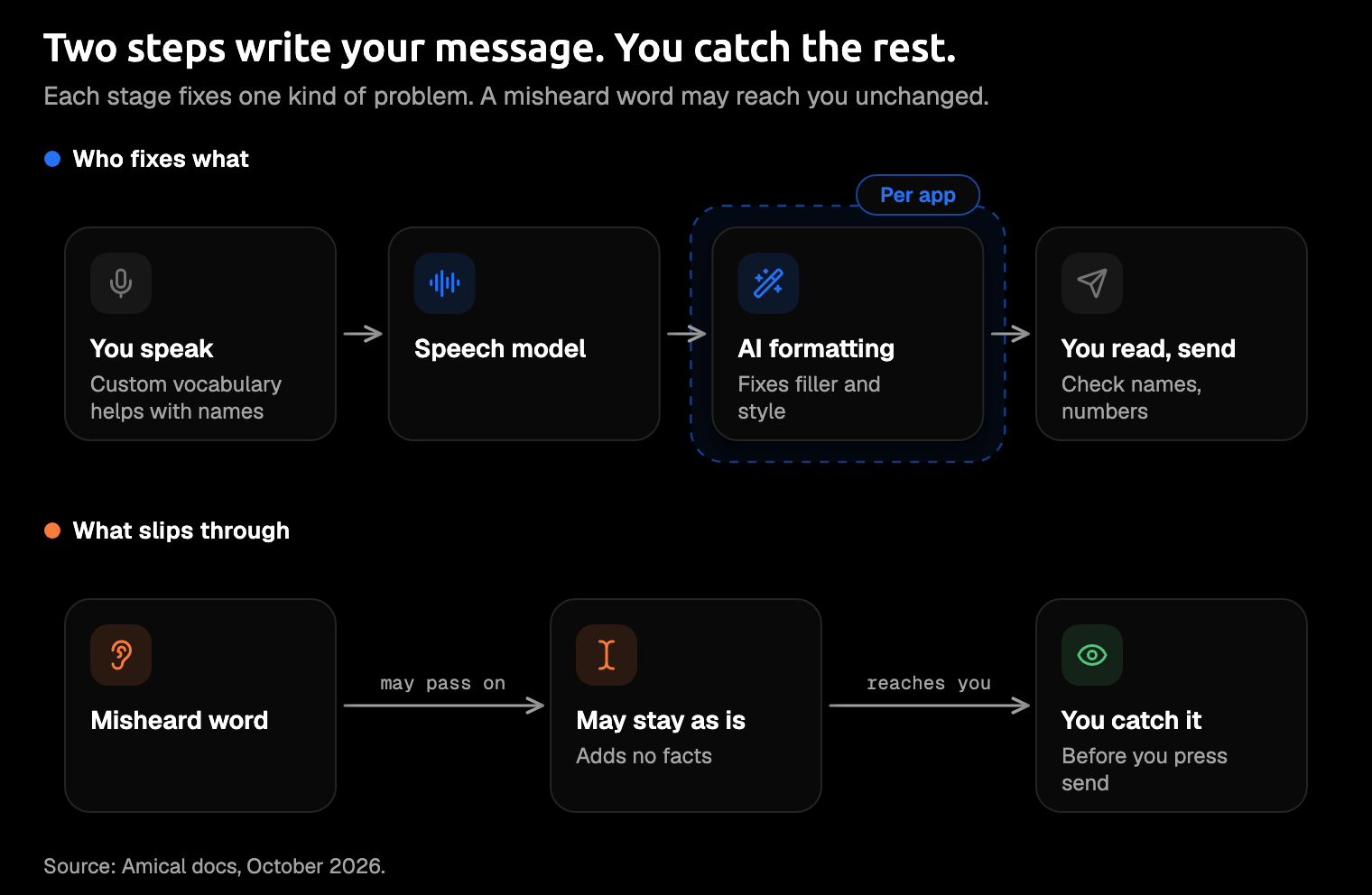
So read each message once before you send it, starting with names, numbers, and dates.
Names, jargon, and words it keeps mishearing
Names are where dictation fails first. A speech model has never met your client, your product, or your manager, so it guesses, and it usually guesses a more common word. The fix is a custom vocabulary: a list of words the app should expect. As of October 2026, Apple Dictation doesn't take one. Wispr Flow, Typeless, and Superwhisper all let you add your own names and terms.
In Amical, open Settings > Vocabulary and click Add Word. Add a word spelled your way, or a Replacement that swaps a word it keeps mishearing for the right one. Changes apply from your next recording, with no restart, and the list follows your account to your other computers.
Say it keeps hearing your colleague Ryota as "rotor". Add one Replacement from "rotor" to "Ryota", and your next recording should come out as Ryota.
Add your five most-used names before your first real message. Otherwise your manager's name can arrive spelled three different ways in one week, which is a lot of ways to spell Siobhan.
When you think in two languages
If you work in English, your other language doesn't switch off. It shows up halfway through a sentence: a Japanese sentence picks up "deadline" or "meeting" because that's the word your team uses. One user on LinkedIn described what went wrong with one app: it "locked onto the first language and tried to cram everything else into it."
As of October 2026, Wispr Flow says it can detect and switch languages as it writes, and Typeless says you can mix languages with auto-detect. On the Mac, Apple Dictation lets you switch languages by clicking the language next to the cursor.
In Amical, Amical Cloud is the mode for mixed speech. It handles Japanese and English in one sentence, on your computer and in the iPhone, iPad, and Android apps. It covers 100+ languages; local mode covers 99, but Whisper takes one language at a time. Parakeet, the other local model (an open speech model from NVIDIA), covers 25 European languages only.
Japanese and English is the mix Amical recommends Amical Cloud for, and formatting for mixed-language dictation is still being tuned. If you mix another pair, Hindi and English, say, try a short message before a long one. Multi-language support has the language settings, and AI voice keyboard vs iPhone dictation covers the phone side.
Translation is a different job. Typeless translates as you speak, while Superwhisper Pro and Shoute Pro translate your speech into English. Amical's docs don't list translation as a feature.
Pick by what you actually say. If English is what you mean to send, you don't need translation, just a tool that keeps up when your other language slips in.
Where your voice goes
For a client email, it's worth knowing where your voice goes.
As of October 2026, Wispr Flow says its transcription always happens in the cloud. Windows voice typing needs an internet connection and runs on Azure Speech services, except fluid dictation on Copilot+ PCs, in English. BlaBlaType and Flit, two small Mac apps, say everything stays on your Mac.
With Amical Cloud, your audio goes to Amical's servers, with your language and vocabulary settings. So does some context for formatting: any text you've selected, up to 500 characters around your cursor, the app name, and the browser URL. Amical's stated policy is no data retention and no training on your data. Amical Cloud and the phone apps need you to sign in.
Local mode needs no account. Your audio stays on your computer, and dictation works offline once the model is downloaded. Your text stays too, unless you pick a cloud provider such as OpenAI or Anthropic for formatting. With a local model through Ollama or LM Studio (tools that run AI models on your own computer), both stay on your machine.
On the desktop app, your history is stored on your computer, and its audio is kept unless you set it to clear after 1, 7, 14, or 28 days.
The client never needs to know you dictated their email. You should know where it went. Amical lets you choose per task: Amical Cloud for speed and mixed languages, local mode for the message you'd rather keep on your laptop. Cloud vs local dictation goes deeper, and the docs cover cloud models and local models.
Try it on one real message
Pick a message you'd otherwise type today, then set up Amical for it.
- Install Amical on your Mac or Windows PC. The desktop quick start walks you through setup, which asks you to choose Cloud or Local and suggests one for your hardware.
- Check your speech model in Settings > AI Models > Speech, under Default Speech Model. Pick Amical Cloud if you mix languages or want the same tool on your phone. Pick a local model for one language at a time, offline.
- Turn on formatting in Settings > Dictation > Formatting. The switch becomes available once you're signed in and Amical Cloud is your speech model. In local mode, first pick a language model under Settings > AI Models > Language: a local one through Ollama or LM Studio, or a cloud provider.
- Set your language in Settings > Dictation. Auto-detect is on by default and works out the language each time; turn it off to pin one.
- Add your names in Settings > Vocabulary > Add Word.
- Tune Personalization in Settings > Personalization, if you like. Gmail already gets email formatting; for more control, set Email and Formal for Gmail, Work chat and Casual for Slack.
- Hold your push-to-talk key with your cursor in the message, and say the whole thing. It's
Fnby default on a Mac; on Windows, check or set yours under Settings > Shortcuts. Release the key, and Amical pastes the text where your cursor is. - Read it, fix any name, number, or date, and send.
With Amical Cloud, the wait is short: by Amical's own figures, a short dictation comes back finished in under 300 ms.
On an older Mac, check one thing first. Local Whisper needs macOS 15 or later and runs slower on Intel Macs. Parakeet runs on macOS 14 and on Intel, but only for European languages, so for Japanese, Hindi, or Mandarin on a Mac older than macOS 15, use Amical Cloud.
A long message is no problem: one recording runs up to 2 hours. Hands-free mode (Fn+Space by default) saves you holding the key down. Formatting can vary between runs, though, the way two colleagues never edit a draft the same way. AI dictation has the details.
Which one to pick
If you want to speak your own language and send English, pick an app that translates: Typeless, Superwhisper Pro, or Shoute Pro. If your messages are short and only in English, the dictation already on your Mac or PC may be all you need.
If you want the message written for the app you're in, start with Amical. You set how much it polishes in each app, and you pick Amical Cloud or local mode for each task. Amical Cloud handles Japanese and English in one sentence, on your desktop and on your phone.
Start with today's message. Download Amical and say one message you'd normally type and retype: the client email, or the Slack reply that's been waiting since lunch. Talk the way you'd explain it to a colleague, read it once, and send it. The free plan includes AI formatting and custom vocabulary, with unlimited local dictation and 2,000 Amical Cloud words a week on the desktop app.
One message in your own voice will tell you more than this whole guide.