On this page
- The short answer
- Mac
- iPhone and iPad
- Windows 11
- Android (Gboard)
- Google Docs
- Why switching languages by hand keeps going wrong
- Let dictation detect the language for you
- FAQ
- Why does dictation keep switching back to English?
- Can I dictate in two languages at once?
- Does changing the dictation language change my keyboard?
- Is there a shortcut to switch dictation language on Mac?
- Try it with both your languages
You start dictating a message in Spanish, and the screen fills with confident English nonsense. Or you switch to Japanese for a colleague in Tokyo, and your phone hears every word as English. Nothing is broken. Your dictation is set to one language, and it'll keep listening for that one until you tell it otherwise.
To change your dictation language, add the language in your device's keyboard or dictation settings, then switch to it before you speak. The menus sit in a different place on every device, so each one gets its own section here: Mac, iPhone and iPad, Windows, Android, and Google Docs.
If you switch languages several times a day, there's another way: dictation that works out the language from your voice, so there's nothing to switch. Amical, which publishes this blog, works that way, and it comes after the steps.
The short answer
Every device can handle a second language, and almost all of them make you switch by hand.
| Device | Where you add a language | How you switch | Auto-detect documented? |
|---|---|---|---|
| Mac | System Settings > Keyboard > Dictation, then Edit next to Languages | Language indicator by the cursor, or the Globe key | Not in Apple's Mac guide |
| iPhone and iPad | Add a keyboard: Settings > General > Keyboard > Keyboards | Switch keyboards with the globe key | Not confirmed |
| Windows | Settings > Time & language > Language & region | Taskbar language switcher or Win + Space | Not on Microsoft's page |
| Android (Gboard) | Gboard Settings > Languages | Language abbreviation in the voice toolbar | Yes, on Pixel 6 and later, for six languages |
| Google Docs | Nothing to add | Language menu in the Voice typing box | Not in Google's help |
The switch itself is quick everywhere. Remembering to make it before every message is the part that fails, and it tends to fail on the one message that mattered.
Mac
On a Mac, dictation languages live in the Dictation settings. Add the ones you speak, then pick one while you dictate:
- Open System Settings > Keyboard, find Dictation, and turn it on. Click Enable if your Mac asks.
- Next to Languages, click Edit, then select each language and region you want. Deselect one to remove it.
- Start dictating, then click the language indicator next to your cursor, or press the Globe key if your keyboard has one, and choose the language.
The indicator only offers a choice once you've set up more than one language, so don't skip step 2.
If you went looking for a language shortcut under Shortcut in the same settings, you're not the first. That menu sets how you start dictation. It doesn't pick the language. Apple's Mac Dictation guide doesn't mention automatic language detection, so plan on switching yourself.
For how the built-in tool compares with AI dictation on a Mac, see AI dictation vs Mac Dictation.
iPhone and iPad
Apple's iPhone guide says that when you use a keyboard for another language, you can dictate in that language. So adding a language starts with adding a keyboard.
- Go to Settings > General > Keyboard and turn on Enable Dictation.
- In the same screen, tap Keyboards > Add New Keyboard and choose the language.
- In any text field, tap the globe key to switch to that keyboard, then tap the mic and speak.
Menu names and gestures differ slightly between iOS versions, so if a label doesn't match yours exactly, look for the closest one.
Apple Community answers also point to a Dictation Languages list in the same Keyboard settings. If your iPhone has it, keep only the languages you actually speak there.
A keyboard you'll never type with can still be worth adding, just for your voice. And if your phone keeps dictating in the wrong language, check which keyboard is open first.
AI voice keyboard vs iPhone dictation covers what changes when the keyboard itself formats your words.
Windows 11
Windows voice typing listens in your current input language. To dictate in another language, you add it as an input language and switch to it first.
- Open Start > Settings > Time & language > Language & region.
- Under Preferred languages, select Add a language, search for yours, and follow the prompts.
- Switch to the new language with the language switcher on the taskbar, or press Win + Space.
- Click in a text box, press Win + H, and wait for "Listening…" before you speak.
Voice typing needs an internet connection (Copilot+ PCs add an English-only on-device option), but not the speech recognition optional feature. Not every language is supported; Microsoft keeps the current list on its voice typing page.
Microsoft's page describes only switching by hand, so Win + Space is about to become a reflex. If your work moves between languages all day, AI dictation vs Windows voice typing looks at what else is out there.
Android (Gboard)
Gboard, Google's keyboard app, keeps its voice typing languages with its keyboard languages. Add one, then switch from the voice toolbar:
- Tap any text field, then tap the features menu icon at the top left of the keyboard.
- Tap More > Settings > Languages, choose a language, pick a layout, and tap Done.
- Tap the mic at the top of the keyboard and speak after "Speak now".
- To switch, tap the language abbreviation at the bottom left of the voice toolbar and choose another language.
Switching only works once you've enabled more than one language. Some languages don't support talk-to-text at all, and punctuation isn't available in every language.
Android is also where the exception lives. On a Pixel 6 or later, Gboard's advanced voice typing switches automatically between English, French, German, Italian, Japanese, and Spanish. On the Pixel 11 series, Rambler, Gboard's Gemini-powered voice typing, follows you when you change languages in the middle of a sentence. If you own one of those phones and speak those languages, you may never need the steps above.
AI voice keyboard vs Gboard compares Gboard with a keyboard that formats as it types.
Google Docs
Google Docs has its own voice typing tool, separate from your computer's dictation, with its own language setting. Yes, one more menu to remember.
- Open your document in a recent version of Chrome, Edge, or Safari.
- Choose Tools > Voice typing. A microphone box appears.
- Pick your language from the language menu in the voice typing box.
- Click the mic to start, and click it again to stop.
Voice commands work only in English, whichever language you're typing in.
Google's voice typing help lists the supported languages and accents, but it doesn't describe the language menu or any automatic detection. The menu comes from a 2021 freeCodeCamp guide, so if the box looks different today, look for a language drop-down near the mic.
If the mic won't start at all, Google Docs voice typing not working has the fixes.
Why switching languages by hand keeps going wrong
Almost every built-in above works the same way: you choose the language, then you speak. Apple's Mac guide and Microsoft's voice typing page don't document automatic language detection, and Google documents it only on recent Pixels. That's fine if you dictate in one language all day.
It gets tiring when you answer a colleague in Tokyo, then one in London, then write yourself a note that's half of each. Every message needs a trip to the switcher first, and the one you skip is the one that goes out in the wrong language.
Mac users have asked for a language hotkey on the Keyboard Maestro forum since 2018. The working answers are scripts, and a macOS update can break them.
A setting you have to remember before every message is a setting you'll forget at the worst moment.
Let dictation detect the language for you
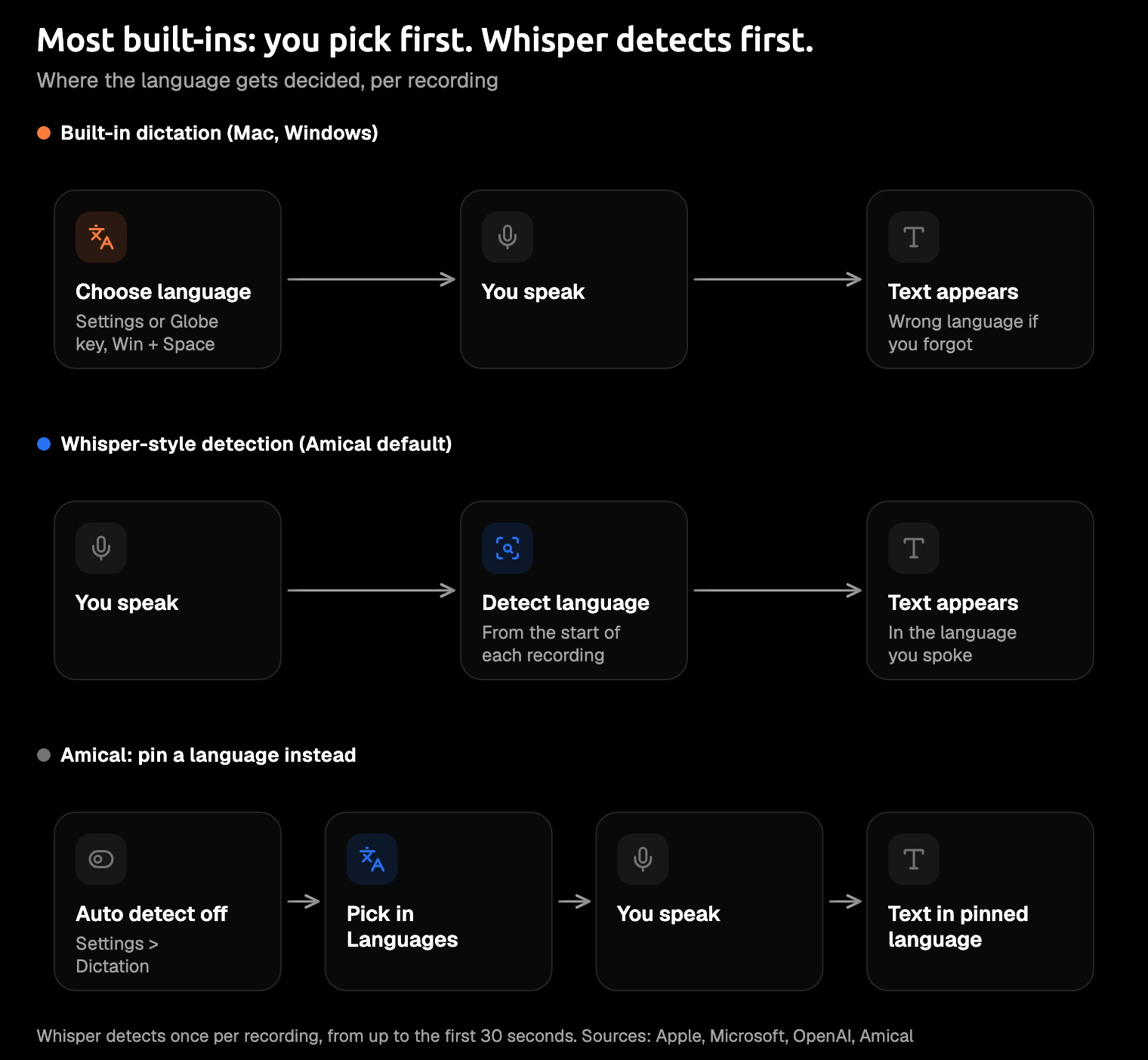
Dictation built on Whisper turns the order around: you speak first, and the software works out the language. Whisper is OpenAI's open speech-to-text model, and when you don't tell it a language, it predicts one from the audio. OpenAI's reference code makes that call once per recording, from up to the first 30 seconds, then transcribes the whole recording in that language.
Amical is an AI dictation app that detects the language by default. Auto detect language is on under Settings > Dictation, and Amical works out the language from the audio of each recording. Answer the Tokyo colleague in Japanese and the London one in English, and you never open a menu in between.
To pin one language in the desktop app, turn Auto detect language off and choose it in the Languages picker below the toggle. The app's own interface language is a separate setting under Settings > Preferences > Language, so changing it won't change what Amical listens for. Multi-language support shows both settings.
Mixing two languages in one message, such as Japanese and English or Hindi and English? Use Amical Cloud. In local mode, Whisper sticks to one language per recording.
Amical Cloud covers 100+ languages, and the Whisper models in local mode cover 99. Local AI models and Cloud AI models explain the two modes.
On your phone, Amical works through Amical Cloud. The App Store listing for the iPhone and iPad app describes "100+ languages, with automatic language detection." The iOS quick start and Android quick start cover setup.
Detecting the language is half the job. Amical's AI formatting then rewrites the transcript for the app you're in: an email layout in Gmail, a looser reply in Slack. If you write at work in a second language, dictation for non-native English speakers goes further, and does Whisper support multiple languages covers the model itself.
If you dictate in more than one language, Amical is our pick: it detects first instead of asking you to choose first, and Amical Cloud copes with a mixed message. Its weak spots:
- The built-ins are free and already installed. Amical's free plan includes unlimited local dictation and 2,000 Amical Cloud words a week.
- Amical Cloud sends your audio to Amical's servers and needs sign-in. Your language and vocabulary settings, plus some context for formatting, go with it. Local mode needs no account and transcribes on your computer; your text stays there too unless you pick a cloud provider for formatting.
- Local Whisper needs macOS 15 or later and is slower on Intel Macs. Parakeet, the other local model, runs on macOS 14 and on Intel Macs, and Amical Cloud has no such limit.
- There's no Linux version. Amical runs on Mac, Windows, iPhone, iPad, and Android; on Linux, look for a Whisper-based app that supports it.
- Detection is a guess. Whisper's model card says its accuracy depends on how much training data a language had, which matters in local mode for less common languages. If a guess goes wrong, pin the language in the desktop app for that stretch, then turn auto-detect back on.
FAQ
Why does dictation keep switching back to English?
It's following a setting you didn't change. On iPhone and iPad, check which keyboard is open, since Apple's guide ties dictating in a language to using its keyboard; on Windows, voice typing uses the active input language. On a Mac, check the language indicator by your cursor. Dictation isn't being stubborn, just loyal to the wrong setting.
Can I dictate in two languages at once?
Apple's Mac guide and Microsoft's voice typing page don't describe it, so plan on one language at a time there. Gboard is the exception on recent Pixels: advanced voice typing switches automatically between its six languages, and Rambler on the Pixel 11 series handles a switch mid-sentence. Elsewhere, Amical Cloud handles a mixed message, such as Japanese and English, in one recording.
Does changing the dictation language change my keyboard?
On Windows, yes: you switch the voice typing language by changing the input language. On iPhone and iPad, it works the other way round: a keyboard for a language lets you dictate in it, so in practice you switch keyboards. On a Mac, Apple's steps never mention keyboard layouts: you add dictation languages under Languages in the Dictation settings and switch with the indicator by your cursor.
Is there a shortcut to switch dictation language on Mac?
Apple's guide doesn't list a dedicated one. While you dictate, press the Globe key (if your keyboard has one) or click the language indicator by your cursor. For a true hotkey, Keyboard Maestro users have shared scripts, though a macOS update can break them.
Try it with both your languages
Download Amical, leave Auto detect language on, and dictate two real messages back to back, one in each of your languages, without touching a setting. The free plan covers the test, and the desktop quick start takes you through setup. If both come out in the right language, that's one setting you'll never have to remember again.