On this page
- The short answer
- Mac: turn on Japanese Dictation
- Punctuation and line breaks on Mac
- Windows: Japanese voice typing with Win+H
- The Japanese commands worth memorizing
- Voice Access, the offline option
- In the browser: Google Docs voice typing
- Why Japanese comes out wrong, and what helps
- Where an AI dictation app fits
- One tool on Mac and Windows
- Amical Cloud or local Whisper
- Set Japanese as your language
- Text for the app you're in
- Test them on one real message
- Send your next Japanese message by voice
You want to send a short reply in Japanese. Typing it means romaji, a row of conversion candidates, and picking the right kanji again and again. You'd rather just say it, and you suspect your computer can already listen.
It can. Both macOS and Windows 11 have Japanese voice typing built in, so there's nothing to install. Here's how to turn it on, get 、 and 。 by voice, and fix the kanji and names it gets wrong.
The built-ins are fine for a quick line. If you write in Japanese all day, on a Mac at home and a Windows PC at work, the setup that sticks is one tool on both computers. Our example of that tool is Amical. Amical publishes this blog, and Amical Cloud is how we make money, so you know where we stand.
The short answer
Your computer already does Japanese voice typing. After years of romaji and conversion candidates, your fingers have earned the break.
On a Mac, turn on Dictation and add Japanese; on Windows 11, add Japanese as a language and press Win+H. For a quick message, that's enough. If you live in Google Docs, its voice typing handles Japanese right in the browser.
For writing Japanese all day on a Mac and a Windows PC, an AI dictation app is the better fit, and Amical is our pick. By Amical's own figures, Amical Cloud has your text back in under 300 ms, and AI formatting shapes it for the app you're in. It's one tool on both computers, with a word list for your names and a choice of cloud or local.
| Mac Dictation | Windows voice typing (Win+H) | Voice Access (Windows) | Google Docs voice typing | AI dictation app (Amical) | |
|---|---|---|---|---|---|
| How to start | Your Dictation shortcut | Win+H | Set it up once, then speak | Tools > Voice typing | Hold your push-to-talk key (Fn on a Mac) |
| 、 and 。 by voice | No command for 、 or 。; 「点」 types a half-width "." | Say 「読点」 and 「句点」 | See Microsoft's Voice Access help | No: voice commands are English only | Not documented for Japanese; test it |
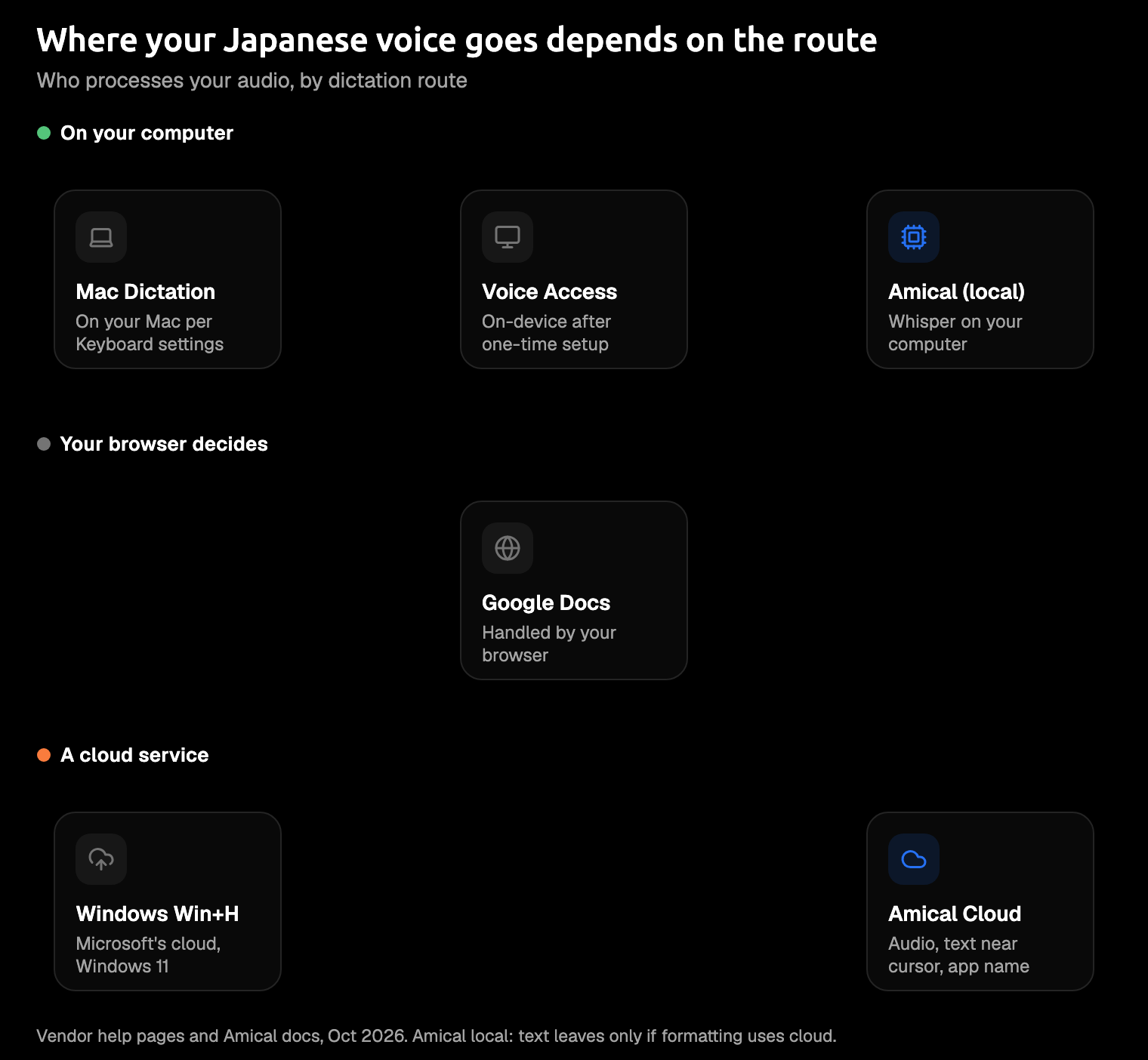
| Where your audio is processed | Keyboard settings shows whether it runs on your Mac | Microsoft's cloud (Azure Speech) | On your PC, after setup | Your browser controls it | Amical Cloud, or your own computer in local mode |
| Works offline | Not stated by Apple | No | Yes, after setup | Not stated by Google | In local mode, once a model is downloaded |
| Custom words for names | None listed | None listed | See Microsoft's Voice Access help | None listed | Yes, in Settings > Vocabulary |
| Mac and Windows | Mac only | Windows 11 | Windows 11 22H2 or later | Any computer with Chrome, Edge or Safari | Both, plus iPhone, iPad and Android (Amical Cloud only) |
| Cost | Built in | Built in | Built in | Built into Docs | Free plan; Premium for unlimited cloud words |
Mac: turn on Japanese Dictation
As of October 2026, Apple lists Japanese for Mac Dictation, including on-device dictation, which runs on the Mac itself. Setup takes a moment.
- Open System Settings > Keyboard, go to Dictation, and turn it on.
- Click Edit next to Languages and select Japanese (Japan).
- Choose a shortcut under Keyboard > Dictation > Shortcut.
- Click into a text box and start Dictation with your shortcut, the Microphone key, or Edit > Start Dictation.
- If you've added more than one language, switch with the language indicator by the cursor or the Globe key.
- Stop with Esc or your shortcut.
Apple doesn't name a default shortcut, so pick one you'll actually remember. A shortcut you have to look up is a shortcut you'll stop using by Friday.
Keyboard settings shows whether dictation runs on your Mac; Apple says input handled there isn't sent to its Siri servers. The on-device version needs a speech-model download first. Dictation has no length limit, but it stops after 30 seconds without speech, so a long pause to find the right word ends the session. For more on switching languages, see how to change your dictation language.
Punctuation and line breaks on Mac
Apple's Japanese command list covers plenty of marks, including question and exclamation marks (「疑問符」 and 「感嘆符」), brackets, quotes and colons. Say 「次の行」 for a new line and 「次の段落」 for a new paragraph. The gap is the two marks you need most: 「点」 (or 「ピリオド」) types a half-width ".", not 。, and the page lists no command for 、 or 。.
A half-width period in Japanese text is a small thing. Once you've seen it, though, you can't stop seeing it.
Auto-punctuation is on Apple's list for Japanese. In supported languages it adds commas, periods and question marks as you speak, but Apple doesn't say which marks it writes in Japanese. Try it, and check what it writes before you send. If it gets in your way, turn it off under Keyboard > Dictation.
If you need exact 、 and 。 by voice, Windows has the clearer command list.
Windows: Japanese voice typing with Win+H
As of October 2026, Microsoft lists Japanese for voice typing in Windows 11, and it documents spoken commands for 、 and 。, which Apple's list lacks. Microsoft calls this feature voice typing. Its separate "dictation" list doesn't include Japanese, so search for "voice typing" when you look for help.
- Open Settings > Time & language > Language & region and add Japanese under Preferred languages.
- Switch your input to Japanese with Win+Space or the language switcher on the taskbar.
- Click into a text box.
- Press Win+H and wait for "Listening...".
- Click the gear icon to set Automatic punctuation, your microphone, and how long it waits.
Voice typing always needs an internet connection: in Japanese your voice goes to Microsoft's cloud (Azure Speech), even on Copilot+ PCs.
On Windows 10, the Win+H dictation toolbar doesn't list Japanese. There, use Google Docs voice typing in your browser, or an app that runs on Windows 10, such as Amical.
If you were looking for voice input in the Microsoft Japanese IME, it isn't there: the IME handles typing and conversion, not speech.
The Japanese commands worth memorizing
Microsoft's page lists these spoken commands for Japanese, among others.
| To get | Say |
|---|---|
| 、 | 「読点」 |
| 。 | 「句点」 |
| ? | 「疑問符」 |
| ! | 「感嘆符」 |
| A new line | 「改行」 |
| Delete the last phrase | 「それを削除」 |
| Stop voice typing | 「音声入力を停止」 |
Learn 読点 and 句点 first. They cover the two marks most Japanese sentences need.
Saying 句点 out loud feels odd at first. After a while, it's simply how your sentences end.
Voice Access, the offline option
Voice Access is a separate Windows feature that supports Japanese on Windows 11 22H2 or later. It needs the internet only for setup, then runs on your PC without a connection. It's built to run the whole PC by voice, so it suits people who can't use a keyboard more than someone dashing off a reply. Amical vs Windows Voice Access compares the two.
In the browser: Google Docs voice typing
As of October 2026, Google Docs voice typing handles Japanese in the latest Chrome, Edge or Safari: open a document and choose Tools > Voice typing. Google's page says that "your web browser controls the speech-to-text service," and it says nothing about offline use or adding custom words.
It has two catches for Japanese. Voice commands work only in English (your account and document language must be English), and Google warns that "punctuation might not be available in every language."
So plan to check your 、 and 。 by hand.
Docs voice typing is a good fit for drafting a long document. It only works inside Docs, though, so the Slack reply you were about to write is back on the keyboard. If it stops listening or picks the wrong language, see Google Docs voice typing not working.
Why Japanese comes out wrong, and what helps
Most mistakes in Japanese voice typing come from a few sources, and each one has a fix. The habit that helps most: speak in whole phrases, not single words.
- Kanji choice and homophones. Japanese has many words that sound alike. Users on the WaniKani forum reported in 2020 and 2021 that a lone reading like こう comes back with many possible kanji, and that whole words and sentences work better; one wrote in May 2021 that they hadn't found a way to get Mac dictation to output pure kana. A full sentence gives the speech tool the context to pick the right word.
- Punctuation. Use the spoken commands on Windows, check auto-punctuation on a Mac, and fix Docs by hand.
- Names and jargon. People's names, product names and place names trip up every speech tool, and Apple's, Microsoft's and Google's voice typing pages list no way to add your own words. Add the names you always have to fix to a word list: in Amical that's Settings > Vocabulary, and replacement mode maps a form it keeps mishearing to the right one. Custom vocabulary has the details, and our guide to speech-to-text custom vocabulary covers other apps.
Start your word list with the colleague whose name comes out in different kanji every time you say it. They've noticed.
Where an AI dictation app fits
The built-ins give you a transcript. An AI dictation app transcribes your speech, then rewrites it for the app you're in, so a Slack reply doesn't read like an email.
It also works the same way on each computer you use. That makes it a tool for people who write in Japanese all day, not for the occasional line, and Amical is the example here.
One tool on Mac and Windows
Amical runs on Macs with Apple Silicon or Intel and on Windows 10 or later (x64 and ARM64). There are apps for iPhone, iPad and Android too; they use Amical Cloud and need sign-in. Sign in to the same account on both computers and your custom vocabulary follows you, so the names you add on the office PC are waiting on your Mac at home.
Amical doesn't run on Linux. If that's your desktop, try Handy or OpenWhispr, open source apps that run Whisper on your computer; choose their Whisper option, since Parakeet doesn't cover Japanese.
Amical Cloud or local Whisper
Amical lets you choose where speech recognition runs, in one app.
With Amical Cloud, there's nothing to download. It covers 100+ languages, Japanese included, and it's the fast route: under 300 ms for a short dictation, under 500 ms for a longer one. It needs sign-in.
Your audio goes to Amical Cloud with your language and vocabulary settings, plus some context for formatting:
- any text you've selected
- up to 500 characters around your cursor
- the app name
- the browser URL
Amical's stated policy is no data retention and no training on your data.
In local mode, Amical runs Whisper (OpenAI's open speech-recognition model) on your computer. No account, and no internet once a model is downloaded. Your audio stays on the machine; text leaves only if you pick a cloud provider for formatting. Japanese is one of the 99 languages local mode supports. Pick a Whisper model for it: the list runs from Tiny up to Large v3 and Large v3 Turbo, and in Amical's own ratings the larger models are more accurate and slower.
Start with Amical Cloud. Switch to local mode for private documents, or for the flight with no Wi-Fi. Cloud AI models and Local AI models have the setup, and our guide to cloud vs local dictation weighs the trade-off.
Set Japanese as your language
Amical detects the language of each recording by default. If you only dictate in Japanese, pin it:
- Open Settings > Dictation.
- Turn off Auto detect language.
- Pick Japanese from the Languages list.
Auto-detect is handy if you switch languages all day. If you don't, pinning removes one thing that can go wrong.
If you mix Japanese and English in one sentence, use Amical Cloud: local Whisper handles one language at a time. Dictate in multiple languages and does Whisper support multiple languages? cover it, and Multi-language support has the settings.
Text for the app you're in
After transcription, Amical's AI formatting rewrites the text for the app you're in, and it fixes grammar as it formats. A chat message and an email don't need the same shape, and you shouldn't have to reshape them yourself. Personalization lets you set the tone for each app. Amical's formatting docs show only English examples, so judge the Japanese result with your own test below. AI formatting explains how it works.
Amical has limits worth knowing before you install it:
- The built-ins cost nothing, and neither does Amical's free plan: unlimited local dictation and 2,000 Amical Cloud words a week. Pricing covers Premium.
- There are no Japanese accuracy figures for Amical. Amical hasn't published any, and the figures dedicated Japanese dictation apps publish are vendor claims, so the test below is how to judge.
- Parakeet doesn't cover Japanese. Parakeet, Amical's other local speech model, supports 25 European languages, so pick a Whisper model in local mode, or use Amical Cloud.
- Local Whisper needs a recent macOS. It requires macOS 15 or later and is slower on Intel Macs. Amical Cloud has no such limit.
Test them on one real message
We found no independent test that compares dictation apps on Japanese accuracy, so the best test is your own voice. Say these sentences, each built to catch a common mistake:
- 明日の打ち合わせは、田中さんではなく高橋さんが担当します。 (Tomorrow's meeting will be run by Takahashi-san, not Tanaka-san.) Swap in a name you always have to fix.
- この資料を公開するか、後悔するかはまだ決めていません。 (I haven't decided whether to publish this document or regret it.) The odd pairing is on purpose: 公開 and 後悔 are both read こうかい.
- 資料は確認しましたが、少し質問があります。ご返信をお待ちしています。 (I've checked the document, but I have a few questions. I look forward to your reply.)
Dictate them with your built-in tool first (on Windows, say 読点 and 句点 where you need them), then with Amical. For each tool, count what you'd have to fix: a wrong kanji, a misspelled name, a missing 、.
Count the fixes, not the impressions. A tool that sounds clever but needs every name corrected hasn't saved you anything.
Send your next Japanese message by voice
- Download Amical and follow the quick start.
- Pin Japanese in Settings > Dictation.
- Add one name you always have to correct in Settings > Vocabulary.
- Hold your push-to-talk shortcut (Fn on a Mac; set yours under Shortcuts) and dictate one real message you'd otherwise type.
The free plan is plenty for that first message. Picking the kanji is now Amical's job; checking its work is still yours.