You wanted to dictate an email. You searched for voice typing, Windows offered you Voice Access, and now your screen is covered in numbered tags waiting for you to say which one to click. Or it went the other way: you pressed Win+H hoping to run the whole PC by voice, and it only typed.
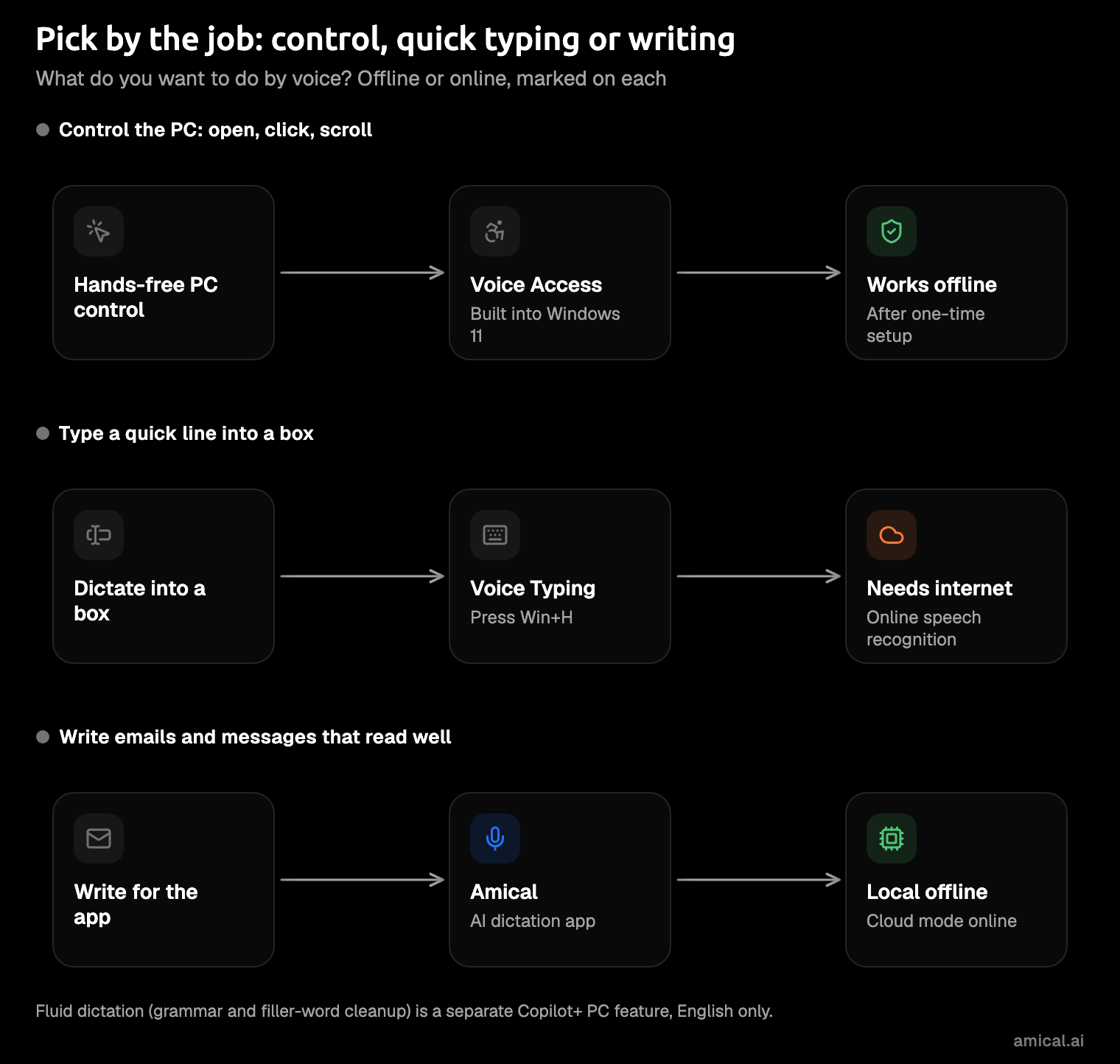
Here's the difference between Windows Voice Access and Voice Typing in one line: Voice Access controls the PC, and Voice Typing types into a text box. If what you want is an email that reads like one, that's a third job: an AI dictation app. We make one, Amical, and this is our blog. So we'll also say plainly where Windows' own tools win.
The short answer
Voice Access is an accessibility tool for running Windows hands-free: open apps, browse, and read and write email, all by voice. Voice Typing is plain dictation: put the cursor in a text box, press Win+H, and talk. An AI dictation app also listens, then rewrites your words for the app you're in.
If you only want to dictate text, Voice Typing is the simpler tool. Turning on Voice Access just to dictate one email is like renting a moving truck to carry a chair.
| Voice Access | Voice Typing (Win+H) | AI dictation app (Amical) | |
|---|---|---|---|
| What it's for | Controlling the PC by voice, with dictation inside | Typing what you say into a text box | Writing text formatted for the app you're in |
| How to start | Settings > Accessibility > Speech, or search "voice access" | Win+H, or the touch keyboard's mic key | Hold Ctrl+Win to talk |
| Needs internet | Only for setup; recognition runs on the device | Yes, Microsoft's cloud speech service | Amical Cloud: yes. Local mode: no, once a model is downloaded |
| Languages | A short list, and Microsoft's pages disagree | A long list, with regional variants | 100+ with Amical Cloud, 99 in local mode |
| Punctuation and cleanup | Automatic punctuation setting | Spoken marks or automatic punctuation; fluid dictation cleanup on Copilot+ PCs | AI formatting rewrites the transcript for the app |
| Custom words | Yes, "Add to Vocabulary" | Not listed on Microsoft's page | Yes, custom vocabulary |
| Windows 10 | No, Windows 11 22H2 or later | Yes, where it's called dictation | Yes, Windows 10 and later |
| Cost | Part of Windows 11 22H2 and later | Part of Windows | Free plan, or Premium for unlimited cloud words |
Voice Access: control Windows with your voice
Voice Access runs the whole PC by voice, and dictation is only one part of it. You can open and switch apps, browse the web, and read and write email without touching the mouse or keyboard. It's worth learning if you can't or shouldn't use your hands for a while. For one email, it's more tool than you need.
Microsoft details in this post were checked in November 2026, and Windows updates can change them.
How to turn it on
- Open Start > Settings > Accessibility > Speech and turn on Voice access. Or search "voice access" in Windows and select Open.
- Stay online for the first run. Voice Access downloads its language files, and after that it can control your PC without a connection.
- Choose whether it starts before or after you sign in, if you'll use it every day.
It needs Windows 11, version 22H2 or later, so Windows 10 users won't find it.
When a colleague walks over, press Alt+Shift+B to put Voice Access to sleep (press it again to wake it), and Alt+Shift+C to mute the mic. Both come from Microsoft's docs. You can also say "Voice access sleep" or "Mute", then "Voice access wake up" or "Unmute" when they've gone. Some guides mention Win+Ctrl+S as a shortcut; Microsoft's setup page doesn't list it.
Commands worth learning first
Voice Access listens for fixed phrases, so it's more like learning the buttons on a remote than learning a language. A short list goes a long way:
- "Open Outlook", or any other app name
- "Click Send", or any button or link you can see
- "Show numbers", then "Click" plus the number on the item you want
- "Scroll down"
- "Mouse grid", to point at anything on the screen
- "Select all", or "Select" plus the words you want
- "Correct that" and "Delete that", to fix text
When you forget one, say "What can I say" or "Show all commands" for the help list. Voice Access also has modes: "Dictation mode" only types, "Commands mode" only takes commands, and "Default mode" does both. Dictation mode is handy for a long paragraph, when you don't want a stray word treated as an order. Microsoft's voice access command list has the rest.
Offline, languages and limits
Voice Access recognizes speech on your device, so after setup it works without the internet. That's a real advantage over Voice Typing, which needs a connection.
Languages are where Microsoft's own pages get confusing. The setup page lists English (US, UK, India, New Zealand, Canada, Australia), Spanish (Spain, Mexico), German, French (France, Canada), Simplified Chinese, Traditional Chinese, Japanese, and Italian. Other Microsoft pages give shorter lists, so check Settings on your own PC for the current one.
The settings hold automatic punctuation, a profanity filter, and Add to Vocabulary, for the names it keeps getting wrong. If you use a screen reader, some parts won't work: the voice access guide, Click commands, and the number and grid overlays. The voice access bar also stays fixed at the top of the screen.
Copilot+ PCs (Windows PCs with an AI chip, called an NPU) get more. Microsoft's Copilot+ PC page describes flexible commands that understand everyday speech, and names Snapdragon X Series models for them. Some of those features are English only.
Looking for Windows Speech Recognition? On Windows 11 22H2 and later, Voice Access is replacing it. Microsoft says the old tool is deprecated and no longer developed, a change it announced in December 2023.
If you have RSI or a broken wrist, Voice Access is the tool that takes the mouse away too, not just the keyboard. Dictation for RSI covers how to set up a day like that.
Voice Typing (Win+H): dictation in any text box
Voice Typing needs no setup: put the cursor in a text box and talk. It types what you say, and that's all it tries to do. For most people, it's the right first try.
How to start it
- Click into a text box, such as a new email.
- Press Win+H, or tap the microphone key on the touch keyboard.
- Wait for "Listening...", then speak.
On Windows 10, the same shortcut opens what Microsoft calls dictation. It also needs internet there, and its commands are US English only.
Commands and punctuation
Voice Typing adds punctuation when you say its name: "comma", "period", "question mark", "new line", or "new paragraph". Or turn on automatic punctuation in the voice typing settings and let Windows place the marks. Saying "comma" out loud feels odd at first, then it becomes a habit.
In US English, a few commands save you a trip to the keyboard:
- "Delete that" or "Scratch that" removes what you just said
- "Press Enter" sends a chat message
- "Undo that" takes back the last change
- "Stop listening" ends the session
Online, languages and fluid dictation
Win+H stops working when your Wi-Fi does. Recognition runs online, on Azure Speech, Microsoft's cloud speech service.
Languages are generous. Microsoft's Voice Typing page lists a long run of languages and regional variants, from Bulgarian to Vietnamese, and Win+Spacebar switches between the ones you've added.
Fluid dictation is Microsoft's cleanup step. On Copilot+ PCs, in English, small language models on the device fix grammar, punctuation, and filler words. It's on by default and turns off in secure fields, such as passwords.
The same page doesn't list a custom vocabulary, so a client's unusual name may need fixing by hand.
Voice Access vs Voice Typing, side by side
Voice Access is for running the PC, and Voice Typing is for filling a text box. Beyond that, the choice usually comes down to these:
- Internet. Voice Access works offline after setup; Voice Typing needs a connection.
- Windows version. Voice Access needs Windows 11 22H2 or later; Win+H also works on Windows 10, as dictation.
- Custom words. Voice Access has Add to Vocabulary; Microsoft's Voice Typing page lists none.
Can you use both? Yes. Turn to Voice Access when your hands need a break from the mouse as well as the keyboard, and to Win+H when you just need a sentence in a box. They don't compete; they just have names that sound like twins.
When an AI dictation app is the better pick
Both Windows tools type your words. Fluid dictation goes a step further on Copilot+ PCs, fixing grammar, punctuation, and filler words, but Microsoft's page doesn't describe it rewriting the message for the app you're in. A tidy transcript is still a transcript.
If you write for a living (email, Slack, docs, support replies), this is the option to try. An AI dictation app transcribes your speech, then rewrites it for the app you're in. Amical is our example, since we make it:
- Hold Ctrl+Win, speak, and release. For longer thoughts, Ctrl+Win+Space goes hands-free, and both keys can be changed in Shortcuts.
- The text lands in the app you're using, formatted for it: a proper email in Outlook, a short reply in WhatsApp. AI formatting explains how.
- Tone and polish can be set per app, on the free plan.
- Names and jargon go into custom vocabulary once, and they work across apps.
- It covers 100+ languages with Amical Cloud and 99 in local mode.
- It runs on Windows 10 and later, on x64 and ARM64 PCs, and one recording can run up to 2 hours.
Amical Cloud is also fast: by Amical's own figures, a short dictation comes back formatted in under 300 ms. It needs sign-in and internet, and it sends your audio plus some formatting context, such as the app name. In local mode, there's no account, your audio is transcribed on your PC, and it works offline once a model is downloaded. Your text stays put too, unless you pick a cloud provider for formatting.
This helps most when English is your second language. You say it in your own words, and AI formatting fixes the grammar and shapes the text for the app. Read it once before you send, because AI formatting can still slip on a name or a time.
Where Amical costs you something:
- It isn't full hands-free PC control. Amical has voice commands, but they don't replace Voice Access for clicking, scrolling, and mouse grids. Use Voice Access to drive the PC, and Amical for the words.
- Windows' tools are free and already installed. Amical's free plan includes unlimited local dictation plus 2,000 cloud words a week, and Premium is $10 a month or $84 a year for unlimited cloud words. Pricing has the details.
- Amical Cloud needs an account. Local mode doesn't; Local AI models shows the setup.
- It's one more app to install. After that one download, Ctrl+Win works in the apps you type in.
For a longer look at Win+H against AI dictation, read AI dictation vs Windows Voice Typing. Our Amical vs Voice Access page compares the two directly.
Try it on a real message
Try each tool on an email you need to send anyway. It's the quickest way to settle the question, and the email gets written either way.
Voice Typing
- Open a new email and click in the body.
- Press Win+H.
- Say the message, with "comma" and "period" where you want them, then say "Stop listening".
Voice Access
- Turn it on in Settings > Accessibility > Speech.
- Say "Open Outlook", then "Click" and the name of the button for a new message.
- Say the message, then "Correct that" for any word it misheard.
Amical
- Install it with the desktop quick start.
- Choose Amical Cloud and sign in, or download a model for local mode. For the offline route, see offline dictation on Windows.
- Click into the email, hold Ctrl+Win, say it the way you'd tell a coworker, and release.
Whichever Windows tool you tried first, hand the same email to Amical next and keep the version you'd rather send. Download Amical; the free plan is plenty for a fair test.