You're in the middle of something else when the perfect reply to that email finally shows up in your head. By the time you've found the thread and clicked Reply, half of it is gone.
The rest joins the reply you've been meaning to send all week.
If you have ADHD, or you simply think faster than you type, the gap between thinking a sentence and typing it is where good ideas leak out. Dictation closes some of that gap: you say the messy version while it's still in your head, and AI formatting tidies it into something you can send. Educators and people with ADHD, writing in ADDitude and on Understood.org, say dictation helps with writing. We found no study that tests it in adults with ADHD, so treat it as a tool, not a treatment.
By the end, you'll have sent one real message by voice.
Our pick is Amical. Hold one key in whatever app you're in and say what you mean. AI formatting then writes it as an email, a Slack reply, or a note, so the ramble doesn't have to be tidy. It runs on Mac and Windows, with apps for iPhone, iPad, and Android. We make Amical, so weigh our pick accordingly; the free plan, AI formatting included, is enough for a real test.
Nothing here is medical advice. If you think you have ADHD, or it's getting in the way of your work, talk to a clinician.
Does dictation help with ADHD?
For writing, plenty of people say yes, including some serious sources. But the support is reports and reasoning, not trials, and it's worth knowing which is which.
Start with the reports, which mostly come from teachers and students. ADDitude's educational therapist Ezra Werb writes that dictation lets students get ideas down without worrying about spelling. The UNC Writing Center's handout on ADHD and graduate writing simply says: "Use dictation software to transcribe your speech into words on a screen." CHADD is more cautious. Its page for educators suggests allowing speech-to-text software for writing, and notes that CHADD doesn't endorse products.
The most vivid account comes from a student. On Understood.org, Caida Mendelsohn, who has ADHD and dyslexia, wrote that dictation "helped ease the strain of trying to remember sentences before writing them down."
For work, the Job Accommodation Network (JAN) lists speech recognition software among accommodations for executive functioning deficits in ADHD. It also notes that not everyone with ADHD needs accommodations.
The research is narrower than the advice. Studies of children and students link working memory to writing trouble; one 2021 study of 91 children aged 8 to 13 found it had direct effects on written expression, spelling, and writing fluency. None of these studies tests dictation.
For adults, we found nothing direct. A preliminary 2026 preprint reviewing assistive technology for adults with ADHD (46 papers) doesn't mention voice in its abstract. So the step from "writing strains working memory" to "speaking will ease it" is a reasonable guess, not a finding. ADDitude's speech-language pathologist Wendy Consoli says speech-to-text tools "free up working memory," but she cites no study for it.
Our read is that the honest benefit isn't speed; it's doing fewer jobs at once.
Typing a message asks you to hold the idea, find the words, spell them, and arrange them into something fit to send, all while the idea edges toward the door. By Werb's account, dictation takes spelling off that list. AI formatting can take the arranging, too.
Speed is the other thing you'll read about. On the ADHD dictation pages we checked, the "times faster" claims travel from page to page without a source. If speed is what you're after, our look at speaking vs typing speed sticks to measured figures.
What a dictation tool needs to work for you
Every dictation tool turns speech into text. Whether you're still using it next month comes down to five things:
- One key, any app. If capturing a thought means opening an app first, the thought gets a head start.
- No tidying as you go. In Werb's 2024 article, punctuation has to be spoken aloud. Newer built-in tools add it for you, but shaping a ramble into a message is still your job.
- Room for pauses. You'll stop to think. The tool shouldn't hang up on you while you do.
- A place for stray ideas. Not every thought belongs in the app you're in.
- Privacy you're comfortable with. You may dictate things about your health, your work, or your family.
Three kinds of tool cover most options.
Built-in dictation is free and already on your computer. Depending on the system, it ranges from plain transcription to punctuation and capitalization, and on Copilot+ PCs in English it also fixes grammar and filler words. Even Apple's newest model types what you said, not a message shaped for the app you're in.
AI dictation apps transcribe and then rewrite, so an email comes out as an email and a chat reply as a chat reply. Some run only in the cloud: Wispr Flow, for example, says its transcription always happens there. Amical lets you choose cloud or local.
Meeting notetakers like Otter are built for meetings and long conversations; Otter's plans count transcription minutes, not words (as of October 2026). That's a different job from a quick Slack reply.
Measured against the list, each kind wins somewhere. Built-in dictation wins on price, and Apple's waits longest through a pause when you talk hands-free. AI apps win on tidying. Notetakers win on long conversations.
Amical is an AI app that also covers the rest of the list: one key in any app, a notes window for stray ideas, and a choice of cloud or local mode. Its weak spot is hands-free mode, which stops after 5 seconds of silence. Hold the key instead, and the recording waits while you think (Step 1 shows how).
If you judge on one feature, make it the shortcut.
A better speech model can't rescue an idea that left while you were finding the right app. That's how you end up with a tab you opened to write something down, still open, now lost among the others.
Step 1: Set up one-key capture in any app
The best capture happens where you already are: in the email, the chat, the doc. The usual way is push-to-talk. You hold a key, speak, and let go.
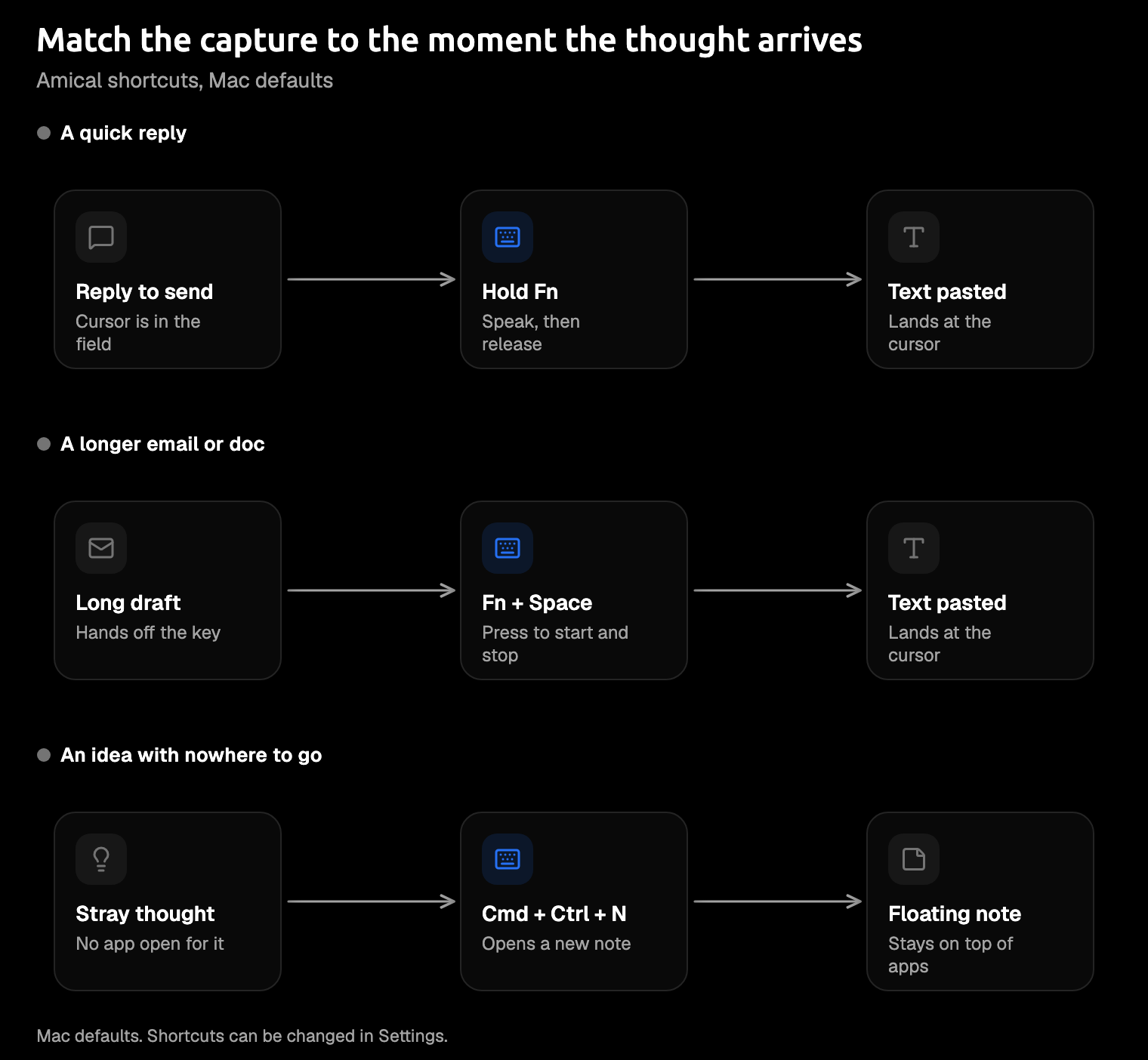
In Amical, hold Fn, talk, and let go; the text lands wherever your cursor is. For something longer, press Fn+Space to talk hands-free, and press it again to stop. These are the Mac defaults. On Windows, find yours in Shortcuts, where you can change any of them; on a phone, start with the iOS or Android quick start.
- Install Amical and open it.
- Click into a Slack message to a teammate.
- Hold
Fn, say your reply, and let go. - If you started talking before you clicked into the right box, press
Cmd+Ctrl+Vto paste your last transcript where it belongs.
Pick a key you can hit without looking, because if you have to glance down, you've already half-left the thought.
With Amical Cloud, the wait is short. By Amical's own figures (there's no public benchmark yet), a short dictation comes back in under 300 ms and a longer one in under 500 ms, the fastest in the category.
Let go of the key, and the reply is ready about as soon as your finger is up.
Pauses are the thing to plan for. While you hold the key, the recording waits for you, up to 2 hours a session; hands-free mode stops after 5 seconds of silence. So if you think in pauses, hold the key, and save hands-free for when you know what you want to say.
Practice on something low-stakes first, like a Slack reply nobody will mind if it's a little off. Your first tries will include a pause while you hunt for a word, which is exactly why holding the key helps.
Step 2: Ramble, then let AI formatting tidy it
Built-in dictation writes down what you said. AI formatting writes what you meant, shaped for wherever you're typing. You can talk the way you think, false starts and all, and still end up with something you'd send.
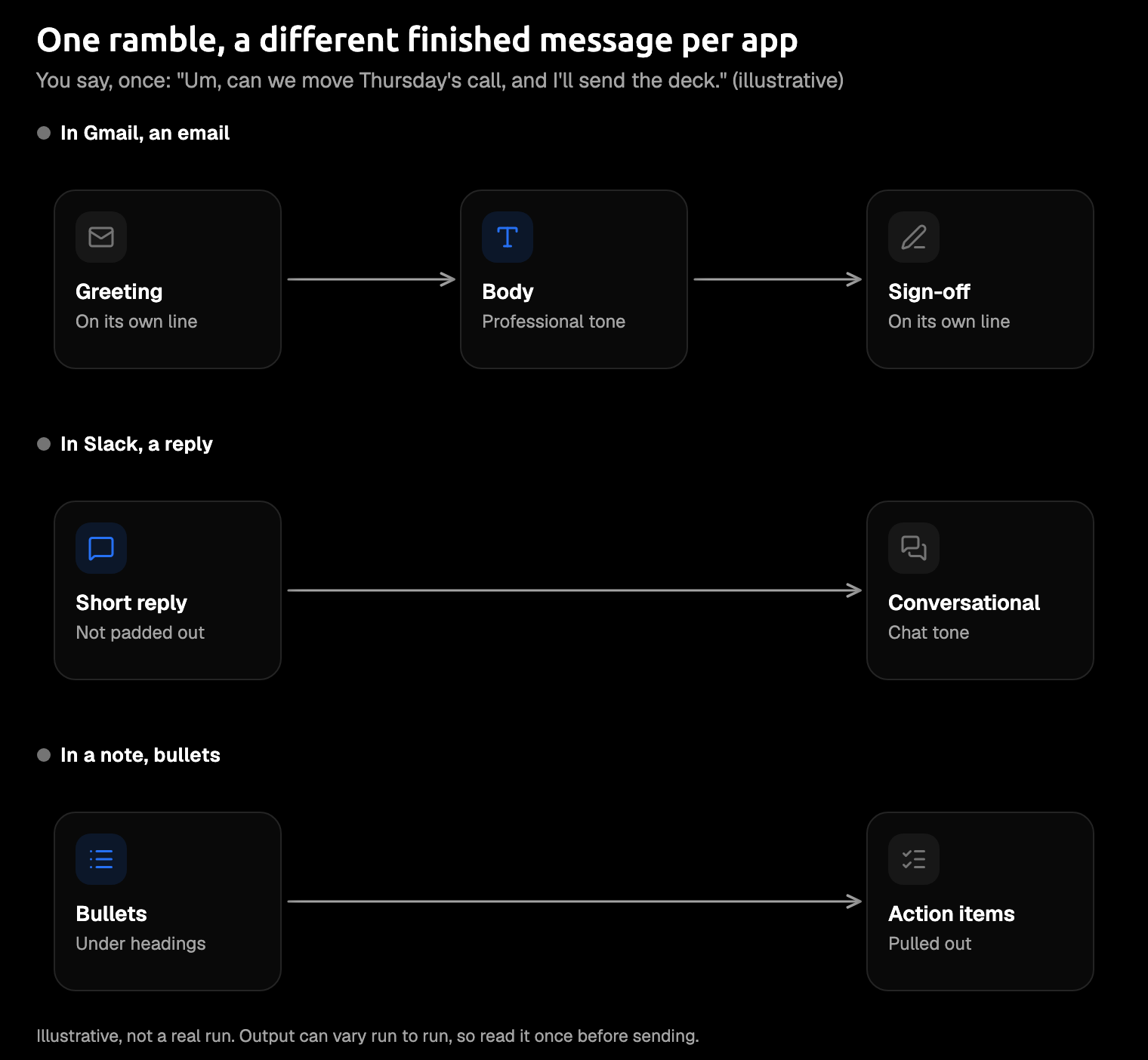
In Amical, formatting reads which app you're in. An email in Gmail gets a greeting, a body, and a sign-off. A Slack reply stays short and conversational. In a notes app you get headings and bullets, with action items pulled out. It adapts to to-do apps as well. You do the thinking out loud; the shaping happens after you let go.
Here's an illustration of the idea, not a recorded result. Say this into a notes app:
ok so the offsite, we still need a venue, I think Maya was looking at a couple, um, and someone needs to book the train, probably me, oh and ask finance about the budget before Friday
And you'd get something like this:
Offsite
- Venue still open; Maya was looking at options
Action items
- Book the train (me)
- Ask finance about the budget before Friday
Then read it once before you send it. One unsigned newsletter post on voice typing warns that a ramble can come out in the wrong tone. The student quoted earlier found homophones that spellcheck missed: real words, wrong place. And AI formatting can vary from run to run, so the same ramble won't always come out the same way.
The read-through is the one step not to skip.
If the tone is off for a particular app, you can adjust it per app in Personalization. AI formatting explains how Amical picks a style.
Step 3: Give stray ideas a place to land
Some thoughts don't belong in the app you're in. They're a task for later, a name to remember, an idea for a different project. They need one place you trust, or they end up on a sticky note that says only "Tuesday?"
In Amical, press Cmd+Ctrl+N from anywhere, and a note opens in its own floating window that stays on top of your other apps. An optional setting starts a hands-free recording the moment the note opens.
- Open Settings > Preferences and turn on Auto-dictate on new note (it's off by default).
- When a stray thought shows up, press
Cmd+Ctrl+N. - Say it, then go back to what you were doing.
AI summaries and tasks for notes are coming soon. For now, a note is a place to catch the thought, and sorting it later is still your job. Notes covers the rest of the panel.
One inbox you trust beats a scatter of places you might have written it.
That gives you three ways in, one for each kind of moment. All three fit on one sticky note, a more useful one than "Tuesday?"
Step 4: Get past the blank page
For many people, starting is the hardest part. ADDitude's editors point to executive dysfunction as the cause behind many problems with starting tasks. One of their readers put it plainly: "Starting tasks feels infinitely more difficult than finishing them."
The same no-editing advice shows up for writing and for speaking. The UNC Writing Center suggests getting ideas down before polishing them, even if that means you "turn off the monitor and force yourself to write for five, ten, twenty minutes." On the ADHDifference podcast blog, guest Garrett Hammonds, who was diagnosed as an adult, suggests the spoken version: talk for five to ten minutes without polish, then edit. Understood.org adds a warning: without an outline, it's easy to lose your point, so draft by voice and edit by keyboard.
Here's one way to try it (our suggestion, not a method from those sources):
- Press
Cmd+Ctrl+Nand dictate the few points you want to make into a note, so you can't lose them. - Click into the email, hold
Fn, and talk through each point without fixing anything; holding the key lets you stop and think. - Switch to the keyboard to cut and tidy.
- Read it once, then send it.
With Amical Cloud, there's another way in. Hold Fn+Ctrl (the Mac default) and speak an instruction, such as "write a short, friendly email asking Sam to move our call," and Draft shows you the result to review before it goes in. Press Enter to insert it or Esc to throw it away. Draft has the details.
An ugly first draft you can fix beats a perfect one you never start.
The cursor blinking in that empty email will wait all day; you don't have to.
The same talk-first idea shows up in ramble prompting for AI tools, and in our guides for students and writers.
Pick a mode for the personal stuff
People dictate about their health, their work, and their families, so where the audio goes deserves a minute. In CHADD's Attention magazine, Suzanne Sophos notes that many AI tools need personal data, and suggests thinking about how it's stored and used.
In local mode, Amical transcribes your speech on your computer with an open speech model (Whisper or Parakeet). You don't need an account, and it works offline once the model is downloaded. Your text leaves only if you choose a cloud provider for formatting. Local AI models covers the setup.
With Amical Cloud, your audio, your language and vocabulary settings, and some context for formatting (such as the app name and the text near your cursor) go to Amical Cloud. Amical's stated policy is no data retention and no training on your data. Cloud AI models has more.
In either mode, your history stays on your computer. Audio is kept by default, and a setting clears it after 1, 7, 14, or 28 days.
Amical Cloud and the phone apps need an account; local mode on the desktop doesn't. On an older Mac, pick Parakeet or Amical Cloud. Local Whisper needs macOS 15 and is slower on Intel chips, while Parakeet runs on macOS 14 and Intel Macs, and Amical Cloud skips the macOS 15 requirement.
The free plan includes unlimited local dictation and 2,000 cloud words a week, with AI formatting. Premium removes the cloud cap for $10 a month or $84 a year.
Our advice: use Amical Cloud for everyday speed, and switch to local mode for the things you'd rather keep on your machine. The message to your doctor about a new prescription is a good one for local mode. Local mode keeps the audio on your computer; to keep the text there too, format with a local model through Ollama (a tool that runs language models on your own machine), or turn formatting off. For a deeper look at what each setting sends, see local dictation and AI cleanup.
Other options worth knowing
Each of these suits a different situation, as of October 2026:
- Apple Dictation is built into the Mac and free. It waits for 30 seconds of silence before it stops, and it adds punctuation automatically. Thirty seconds is a long pause to think in, so Apple's dictation suits you if you'd rather talk hands-free and often go quiet mid-thought. See AI dictation vs Mac dictation.
- Windows voice typing (
Win+H) is built into Windows and needs an internet connection. See AI dictation vs Windows voice typing. - Wispr Flow is an AI dictation app that transcribes in the cloud, with 2,000 free words a week on desktop and Pro at $15 a month, or $12 billed yearly. See Amical vs Wispr Flow.
- Otter suits meetings and long talks, where you want a transcript of the conversation rather than text in the app you're using.
- Apps built for ADHD brain dumps exist too; this guide compares only the tools above.
- On Linux? Amical doesn't run there. An open source app that supports Linux is the better fit, and our roundup of open source dictation apps is a good place to start.
If you only dictate now and then, start with what's built in; pick Amical when you want the message finished, not just transcribed.
What dictation won't fix
Dictation is a good tool, not the whole answer, and it helps to know where it stops.
- It isn't treatment. NIMH lists medication and psychotherapy as the common treatments for adults with ADHD. CHADD's Attention magazine says AI tools are no substitute for treatment, and that leaning on them too much may weaken organization and time-management skills.
- It takes practice. Understood.org says that using dictation well "may take training and practice." Mendelsohn, the student quoted earlier, needed almost a semester to get comfortable, and she still uses the keyboard to polish.
If ADHD is affecting your work, a clinician is the right next step. A primary care provider or a mental health professional can evaluate you, and NIMH says "it is never too late to seek a diagnosis."
FAQ
Does dictation help with ADHD?
ADDitude and Understood.org contributors say it helps with writing, and CHADD and JAN list speech-to-text among suggested accommodations. The working-memory research behind the idea is about children and students and doesn't test dictation, and dictation isn't a treatment.
What's the best dictation app for ADHD?
Look for one key that works in any app and formatting that writes the finished message for you. In our view (we publish this blog, so keep that in mind), that's Amical: hold Fn, talk, and an email comes out as an email.
Can I dictate a to-do list?
Yes. Amical's AI formatting adapts to to-do apps, so a spoken list comes out shaped for the app. You can also dictate into a notes app, where action items get pulled out. AI tasks for Amical's own notes are coming soon.
Is it private?
It depends on the mode. In Amical's local mode, your speech is transcribed on your computer, and text leaves only if you pick a cloud provider for formatting. With Amical Cloud, your audio and some formatting context go to Amical Cloud, under a stated no-retention, no-training policy.
Say the message you've been putting off
You know the one. Download Amical, click into that reply, hold Fn, and say what you've been meaning to say. Read it once, then send it.
The free plan covers it, AI formatting included, so the only cost is a message you were going to write anyway (eventually).