The scene was clear on your walk. You knew what she'd say, how he'd take it, and the line that ends the chapter. Then you sat down at the keyboard, and what came out was a list of notes and one decent sentence. The perfect version is still in the shower, where you left it.
Or the word count is fine, and it's your wrists that aren't. (If that's you, our guide to dictation for RSI covers the comfort side.)
Dictation for writers has moved on since the Dragon era, when the advice was to train the software, buy a headset, and learn to say "comma" out loud. AI dictation now adds the punctuation for you, so you can draft a novel by voice and still sound like yourself on the page. This guide walks through the workflow writers who dictate describe, with any tool, from the beat list to the final edit.
Talk the draft, edit with your hands.
We use Amical as the worked example, and it's the tool we recommend, so you should know that Amical publishes this blog. On the desktop, its AI formatting adds punctuation and capitals, a Polishing setting turns down to keep the text close to your exact words, and a custom vocabulary takes your characters' names. With Amical Cloud, by Amical's own figures, formatted text is ready in under 300 ms for short dictations and under 500 ms for longer ones: there before your eyes are back on the screen. It runs on Mac, Windows, iPhone, iPad, and Android.
What writers who dictate actually do
The writers quoted here mostly describe one workflow: plan, talk a messy first pass, then edit in text. Speed comes later, if at all.
Scott Baker told Joanna Penn's Creative Penn in 2017 that Dragon is "purely a first draft tool" and that he doesn't edit with it at all. Monica Leonelle put it more bluntly on the same site in 2015: "You just can't edit what you're writing, and it's a huge rewiring for your brain." She also said her walk-and-talk setup took about two months to get right, which is both a fair warning and a little reassuring.
Christopher Downing (Creative Penn, 2018) dictates in timed blocks of 2 to 20 minutes and edits later in Scrivener. Sarah Elisabeth Sawyer (Helping Writers Become Authors, 2025) keeps her first pass messy on purpose: "Dictation isn't a race to speak as fast as you can."
Different setups, one rule: nobody here edits while they talk.
Then there's speed. Leonelle reported averaging 3,000 to 3,500 words an hour, and Sawyer says she went from about 1,500 to about 3,000, all self-reported. A retail blurb for one Dragon guide promises up to 5,000 words an hour, but that's marketing copy, not a test.
The speed claims are the least useful part of these stories. The split is the lesson.
You don't even need software to prove it works. Kevin J. Anderson wrote in 2017 that he drafts by talking into a hand-held recorder and pays a typist to transcribe the recordings. Western Colorado University reported in 2021 that he does most of his writing by dictation while hiking in the Colorado mountains, so his office is mostly a trail.
Step 1: Plan the scene in beats
You can't decide what happens and say it well at the same time, so decide first. Before you press anything, write the scene as a short list of beats: one line for each thing that happens. Leonelle calls this a deeper outline.
No tool changes this. The best speech model in the world can't tell you whether Tom finds the letter before dinner or after.
A beat list doesn't need to be pretty. Here's an illustration:
- Mara finds the letter under the door and doesn't open it.
- She reads it on the stairs. It's from her brother.
- At dinner, Tom mentions selling the house. She drops a glass.
- She hides the letter in the cookbook.
A beat list is the cheapest dictation upgrade there is. It takes a few minutes, and it saves you from the character who wanders into the wrong room because you were deciding mid-sentence where she should go.
Step 2: Set up for long takes
A fight scene is a lot of talking, so check how long your tool will listen before you start. Tools differ on two rules: how long one recording can run, and how much silence ends it. As of October 2026, Apple Dictation on the Mac has no length limit and stops after 30 seconds without speech. Wispr Flow's desktop sessions run up to 20 minutes. Google's help page for Docs voice typing states no time limit.
One Amical recording session runs up to 2 hours, longer than Wispr Flow's, so the clock won't end your fight scene. Silence might: in hands-free mode, Amical stops after 5 seconds without audio, quicker than Apple's stop.
Whichever tool you use, pick hands-free. Push-to-talk, where you hold a key while you speak, is fine for a Slack reply and miserable for a fight scene. By the second punch, your thumb is in the fight too.
Amical's desktop app gives you two ways to start a hands-free take:
- On a Mac, press
Fn+Spaceto start, talk, and press it again to stop. - Or click the floating widget once to start, and click the red stop icon to end.
Amical's docs call hands-free "useful for longer passages or when you don't want to keep a key held," and for prose it's the only mode worth using. On Windows, or to change a key, look in Settings > Shortcuts. AI dictation has the details, and Desktop widget covers the floating pill.
Step 3: Write in takes, not sessions
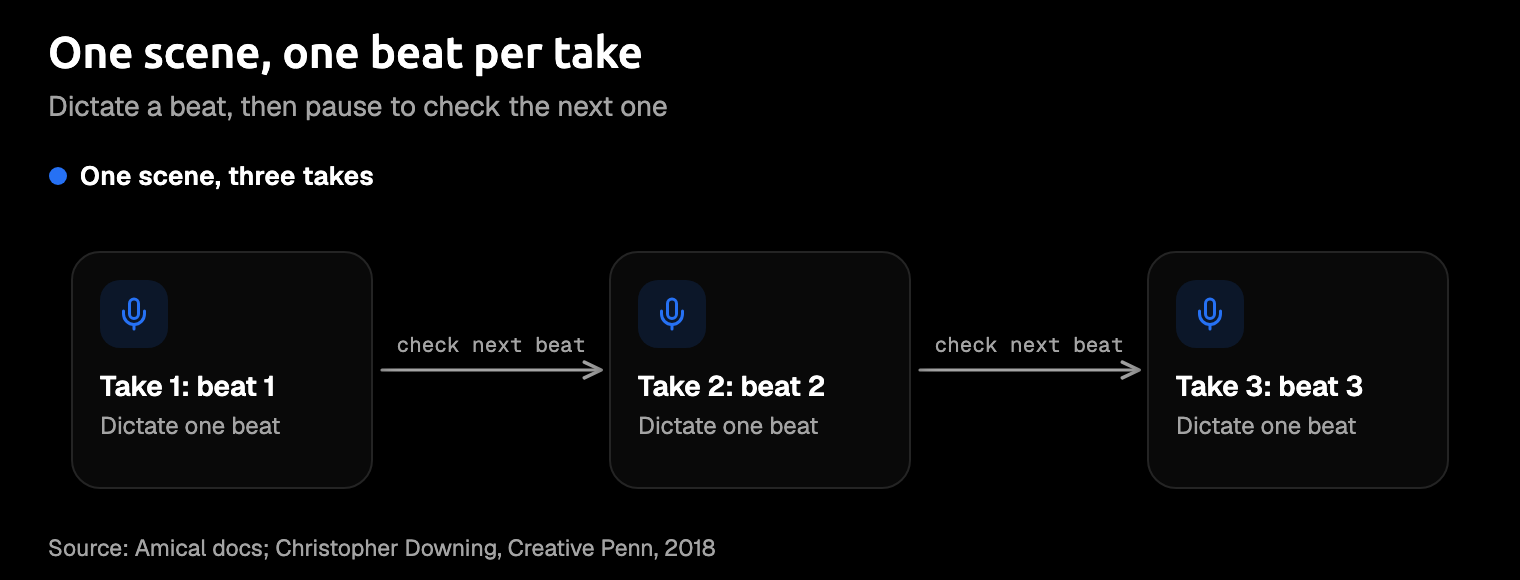
Talk one beat per take. When the beat is done, stop, glance at the beat list, and start the next take. Downing's method already works this way: his blocks of 2 to 20 minutes all fit inside one Amical session, so how long a take runs is up to you, not the tool.
Think of the stop as a pause to check the plan, not a wall. Two hours of recording is plenty of rope to talk straight past the beat where Mara drops the glass; stopping at the end of each beat is how you notice.
The silence stop is the rule that catches you out if you pause to think: in hands-free mode, Amical stops a recording after 5 seconds with no audio. That's the beat list's job: decide before you start. If you do need to think, let the take end, and start a fresh one when you know.
Step 4: Keep formatting light for prose
Older dictation made you speak your punctuation. Apple Dictation now adds commas and periods on its own, and saying "new paragraph" still gives you a paragraph break. AI dictation goes further: it adds punctuation and capitals, then rewrites your words to fit where you're typing. That's ideal for an email. In fiction, your rhythm is the product, and you don't want a model sanding it down.
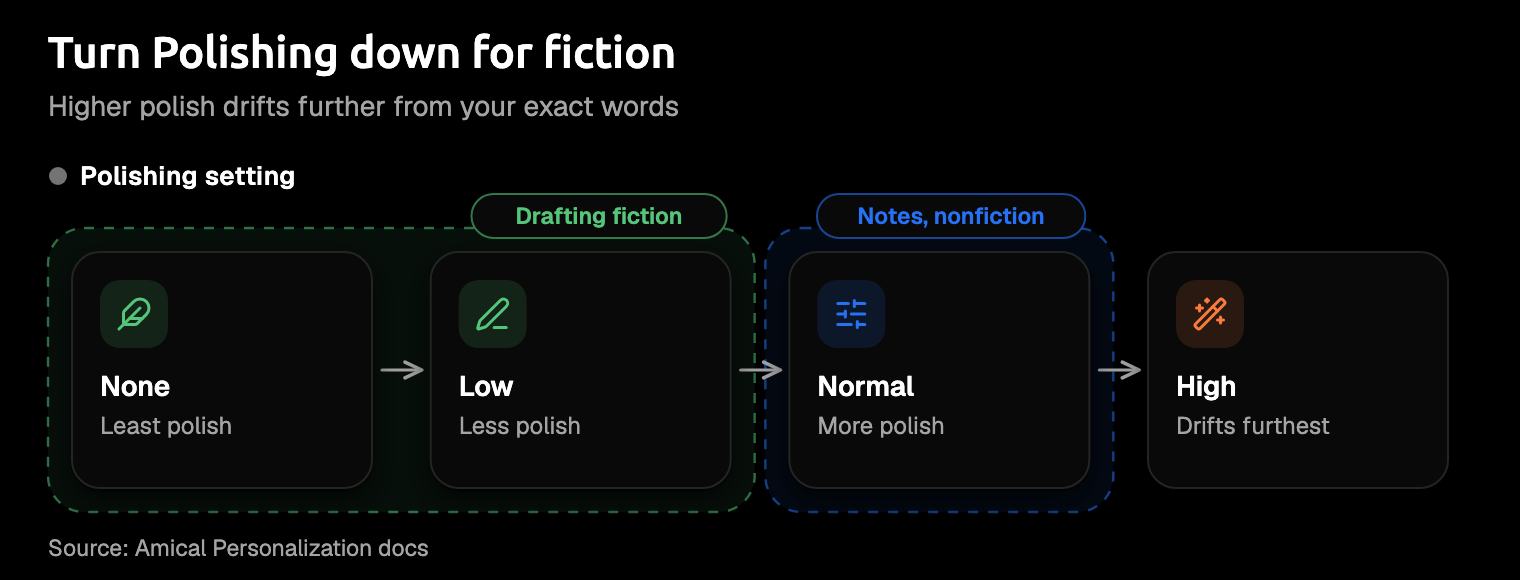
In Amical, the control for this is Polishing, in Settings > Personalization: how aggressively Amical cleans up filler words, run-ons, and stutters, from None through Low and Normal to High. The docs warn that "Higher polish drifts further from your exact words." Like the rest of AI formatting, it needs sign-in with Amical Cloud speech or a local language model set up. Apps Amical doesn't recognise get plain cleanup (punctuation and casing only), but the docs don't say where Scrivener, Word, or Google Docs fit, so rely on Polishing.
Here's an illustration of the difference, not a recorded result. You say:
she didn't answer she just put the cup down very carefully like it might go off
At Low, you want something like this:
She didn't answer. She just put the cup down, very carefully, like it might go off.
Push the polish up and you risk "She remained silent and set the cup down with great care." Accurate, and not your book. High polish is how your villain ends up speaking in tidy business English.
For fiction, start at Low or None. Normal suits notes and nonfiction you'll restructure anyway. If you'd rather have no AI formatting at all while drafting, turn it off at Settings > Dictation > Formatting. AI formatting and Personalization cover both settings.
Step 5: Teach it your characters' names
Invented names are a recurring complaint from Dragon-era writers. Leonelle said Dragon "just does not learn" names and locations, so she fixed them afterwards with Replace All.
A custom vocabulary is the modern answer: a list of names you add yourself so the speech model listens for them, plus a way to map a misheard form to the right spelling. Apple Dictation doesn't take one. In Amical:
- Open Settings > Vocabulary and click Add Word.
- Type the name as it should appear, such as "Aelith".
- Turn on Replacement if Amical keeps hearing something else, and map the misheard form (say, "a lith") on the left to the right spelling on the right.
- Dictate. The change applies from your next recording, with no restart.
Once you're signed in, your vocabulary follows your account to your other machines. It's confirmed for Amical Cloud and for Parakeet, one of the local models; the docs don't say whether local Whisper, an open speech-to-text model, uses it. Custom vocabulary has the details, and teaching Amical technical vocabulary shows the same method with jargon.
For a name that is also an ordinary word, borrow the workaround P. H. Solomon described on Story Empire in 2018: a placeholder, then search and replace. A Replacement entry would rewrite every "queen" in the book, so dictate "the queen" and change it to "Queen Wren" in the final pass.
Add your names before chapter one, not halfway through the book. Otherwise you get a heroine spelled a different way on every page, and a search-and-replace job that keeps finding new ones.
Step 6: Draft where the words should land
Writers who dictate send the words to one of three places: straight into the manuscript, into a notes app away from it, or into a phone on a walk. Sawyer dictates into Scrivener's iOS app on her phone, which she describes as "an hour of writing and an hour of walking" at once.
Amical pastes wherever your cursor sits, so the manuscript itself can be the destination. The catch is a habit, not a feature. A cursor at the end of a long chapter invites you to reread the page before it, and rereading is editing in disguise.
If the manuscript makes you edit, draft in Amical's Notes instead. On a Mac, Cmd+Ctrl+N opens a new note, and Auto-dictate on new note in Settings > Preferences starts a hands-free take the moment it opens. Notes formats with Markdown that scales with length, so a long take may come back with headings or bullets; for prose, turn formatting off while you draft. Notes covers the rest.
For walk-and-talk, Amical runs on Android, and on iPhone and iPad with iOS 18.3 or later. The phone apps use Amical Cloud, so you sign in. (Local mode on the desktop needs no account.) The phone docs don't state recording limits, and the Polishing and vocabulary steps above come from the desktop docs. The iOS quick start and Android quick start cover setup.
Then the best scene of your week might be the one you talk through on the second bench of your park loop.
Step 7: Revise with your hands
Plan a separate editing pass, the way Baker does when he marks up a PDF of his draft on an iPad.
Read for the errors spell check can't see: correctly spelled wrong words, like "their" for "there" or a "bear" that should have been "bare". No tool catches all of them, so read the draft once, slowly, before you trust it.
Amical has two optional extras for this stage:
- Draft rewrites by spoken instruction. On a Mac, select a paragraph, hold
Fn+Ctrl, say what you want ("tighten this, keep the dialogue"), and review the result in a window: Enter inserts it, Esc throws it away. Draft needs Amical Cloud, so the paragraph you select goes there too (more on that below). You'll reach for it in revision, not while drafting. Draft explains how it works. - History keeps every take. If one pasted in the wrong place, or not at all, open Settings > History and use Copy or Retry. Transcription history covers how long audio is kept.
Voice for volume, keyboard for judgement.
Your manuscript and where your words go
What happens to your words depends on the mode, and an unpublished book deserves a moment's thought. Dictation apps either send your audio to a server or transcribe it on your computer; Amical lets you choose.
In local mode, Amical transcribes your speech on your computer, needs no account, and works offline once a model is downloaded. No audio leaves the computer, and your text leaves only if you pick a cloud provider for formatting. Local Whisper on a Mac needs macOS 15 or later and is slower on Intel Macs. Parakeet, NVIDIA's open speech model, runs on macOS 14 and on Intel Macs.
In either mode, the desktop app's History lives on your own computer. It keeps the audio of every take until you pick a retention period of 1, 7, 14, or 28 days under Settings > Advanced > History Retention; by default, it keeps it.
With Amical Cloud, your audio goes to Amical with your language and vocabulary settings and some context for formatting: anything you've selected, up to 500 characters around your cursor (in a manuscript, that's your book), the app name, and the browser URL. Amical's stated policy for Amical Cloud is "No data retention" and "No training on your data," and that's separate from the History on your own computer. It has no macOS version requirement, but it needs internet and sign-in.
Pick the mode for the book, not the session. Amical Cloud is the quick choice for everyday drafting, and it's the one your phone uses. The novel about real people, or the one you haven't told your agent about yet, might be the book you keep in local mode from the first word.
As of October 2026, the free plan covers unlimited local dictation and 2,000 cloud words a week, and Premium is $10 a month or $84 a year for unlimited cloud words. Local words never count toward the weekly allowance. Pricing has the details, and our guide to cloud vs local dictation weighs the trade-off in full.
Other dictation tools for writers
Each of the usual alternatives suits a particular writer, as of October 2026.
- Dragon still works for Windows writers who want a trained voice profile. Dragon Professional v16 is Windows only, and Nuance stopped supporting the Mac version in 2018. If you're still holding a Dragon licence for a Mac you no longer own, switching from Dragon and our roundup of Dragon alternatives cover the move.
- Apple Dictation is built into the Mac, adds basic punctuation, and has no length limit, though it stops after 30 seconds of silence. On macOS 27, Macs with M3 or later and at least 12 GB of memory also get an on-device model that handles capitalization, punctuation, and formatting, but it doesn't take a custom vocabulary or adapt to the app you're in. It suits a writer trying voice for the first time. AI dictation vs Mac dictation compares the two in depth.
- Google Docs voice typing lives under Tools > Voice typing and works in the latest Chrome, Edge, or Safari; its spoken punctuation and editing commands need English as the account and document language. It suits writers who already draft in Docs.
- Wispr Flow runs desktop sessions of up to 20 minutes and transcribes in the cloud. It suits a writer who's happy to dictate in the cloud and doesn't need an offline mode. Amical vs Wispr Flow lays out the differences.
Amical doesn't run on Linux. If that's where you write, Handy and OpenWhispr are open source dictation apps that do, and Google Docs voice typing works in the browser if you draft in Docs.
For everyone else, Amical is our pick. Its sessions run longer than Wispr Flow's, and where Wispr Flow always transcribes in the cloud, Amical gives you a local mode, so the speech of an unpublished book can stay on your computer. On the desktop, it also lets you turn the polish down and add your characters' names, the two things fiction asks of a dictation tool.
Dictate one beat today
Pick the scene you're on and talk one beat of it today.
- Download Amical, open it, and either sign in for Amical Cloud or set up a local language model. Either one switches on AI formatting.
- Add your protagonist's name in Settings > Vocabulary.
- Set Polishing to Low in Settings > Personalization.
- Look at your beat list, press
Fn+Spaceon a Mac (or your hands-free shortcut on Windows), and talk the first beat in one take.
The free plan covers all of it, so the only cost is a few minutes of talking to your desk.