You had a good idea on the walk home, so you said it into your phone. It's still there, in a folder of untitled recordings you'll never play back, because finding one sentence means listening to the whole thing again.
Voice is quick to capture and slow to use. Text is the reverse: slower to make, but easy to skim, search, and paste. A good voice notes to text app gives you the useful half of each, so you talk and get back a tidy note you can find next week. This guide covers the four kinds of apps that do it, shows each step in Amical, and ends with you turning one real idea into a note.
Amical publishes this blog and Amical is our pick, so here's the reason up front: the text it gives you is already the note, not a transcript, because its AI formatting tidies your ramble as it lands. Other apps win on other things, like keeping the recording itself searchable, and we'll say where.
The best voice note is the one you never have to replay.
Which "voice notes" do you mean?
Three different searches share this phrase, and only one of them is about notes you make yourself.
- Your own ideas, memos, and journal. That's this guide.
- A voice message someone sent you. WhatsApp can transcribe it once you turn on Settings > Chats > Voice message transcripts; then long-press a message and tap Transcribe. WhatsApp says the transcript is generated on your device. Useful for the friend whose voice messages have chapters.
- An audio file you already have. A file transcriber such as Otter suits that job better, though its free plan allows 3 audio or video imports in total, ever.
If you meant the first, you're in the right place. The other two are one setting or one upload away.
What a good voice-notes app does
Every app in this guide gets the same four tests:
- Capture. How many steps sit between the thought and the record button?
- Tidiness. Does the text read like a note, or like a transcript?
- Finding it later. Can you search it, and can you get the text out?
- Where the audio goes. Your phone, your computer, or a server, and for how long?
Each kind of app answers these differently. Recorders such as Apple Voice Memos and Google Recorder keep the audio first and add a transcript you can search. Record-and-rewrite apps such as AudioPen and Whisper Memos record you, then hand back a cleaned-up version. Meeting transcribers such as Otter set their limits per conversation.
Dictating into a note, which is how Amical works, skips the audio-first step. You speak, and the text lands in the note, already tidied.
A transcript that keeps every "um" is accurate, technically. It's also a chore to read. If you'll read your notes more often than you replay them, weigh the second test most.
Capture a note in a few seconds
Every voice-notes app races the same clock: the steps between the thought and the record button. On a phone, that means waking the screen, finding the app, and tapping record; each step is a chance for the idea to wander off. Whichever app you use, put it one tap or one key away.
On a Mac, a new note in Amical is one shortcut away. You can also start one from Notes in the sidebar, or from the notebook icon on the floating widget. Each note has a title, an optional emoji, and a body you dictate or type into. If you haven't set Amical up yet, the desktop quick start walks you through it.
Capturing an idea on a Mac takes three steps:
- Press
Cmd+Ctrl+Nto open a new note. - Hold
Fnand say the idea. - Release
Fn, and read the note that lands.
For something longer, press Fn+Space and talk hands-free. On Windows, the defaults are Ctrl+Win to talk, Ctrl+Win+Space for hands-free, and Alt+Shift+N for a new note. Every shortcut can be changed in Shortcuts, so if a key clashes with something, that's where to set yours. On iPhone, the Amical app has built-in voice notes of its own, covered further down.
Two more things cut the steps further. Auto-dictate on new note, in Settings > Preferences, starts hands-free recording as soon as a note opens; it's off by default. And the widget's notebook icon opens a floating notes window that stays on top of other apps, so jotting an idea doesn't mean leaving your email. Push-to-talk and hands-free work the same in a note as anywhere else.
If you often say names, like a colleague, a client, or a product, add them to custom vocabulary, which is on the free plan.
With Amical Cloud, a short note comes back as finished, formatted text in under 300 ms by Amical's own figures, so it's on the page while the thought is still warm.
Both examples in this guide are illustrations, not recorded runs. Say an idea like this:
ok so idea for the newsletter, um, instead of the usual roundup we answer one reader question properly each time, and maybe ask for questions at the end of this one
And the note reads:
Idea for the newsletter: instead of the usual roundup, we answer one reader question properly each time. Maybe ask for questions at the end of this one.
A rough note you captured beats a perfect one you didn't.
Journal by voice
Journaling is the hardest test for a voice-notes app. Entries run long. You stop to think. Recording limits matter more here than anywhere else.
Apps handle length differently. AudioPen's free plan records up to 3 minutes at a time, and Prime raises that to 15. Whisper Memos takes up to 90 minutes in one recording.
Amical's limit is roomier: one recording session runs up to 2 hours. The pauses are the catch. In hands-free mode, a recording stops after 5 seconds of silence, and you'll meet that limit while deciding how honest to be.
When a pause ends a take, press Fn+Space again and keep talking in the same note. Or hold Fn instead: push-to-talk doesn't stop on silence, so you can think for as long as you hold the key.
Short takes suit a journal anyway. Treat each take as a paragraph, and since each one is tidied on its own, the entry reads as paragraphs rather than one long breath. A few habits help:
- Go hands-free.
Fn+Spaceleaves your hands free to make tea or pace the room. - Give each entry a title, and an emoji if that's your style, so a month of entries is easy to scan.
- Talk to one person. Tell an imaginary friend about your day; it comes out more natural than narrating to a microphone.
If you're drafting longer pieces by voice, dictation for writers goes further.
Turn a ramble into a tidy note
A raw transcript keeps every "so, anyway" and every sentence you started twice. The useful step is a rewrite, and apps put it in different places.
- AudioPen transcribes, then rewrites the note in a writing style you choose.
- Whisper Memos emails you a formatted transcript with a summary.
- Apple Voice Memos gives you the transcript. Apple Intelligence Writing Tools can then summarize, proofread, or adjust it as a separate step, where your device, language, and region support it.
In Amical, the rewrite is part of dictation rather than a separate step. AI formatting reads the app you're in and shapes the text for it, and quick notes and to-do lists are among the styles it knows. For a bigger rework, Draft takes a spoken instruction with Amical Cloud, such as "turn this into a list", and shows you the result before inserting it.
Say a to-do list like this:
right so tomorrow, um, call the dentist, send Maria the invoice, oh and pick up the dry cleaning, and maybe book the train for the weekend
The note reads:
Tomorrow:
- Call the dentist
- Send Maria the invoice
- Pick up the dry cleaning
- Maybe book the train for the weekend
AI summaries and tasks for notes are coming soon. For now, formatting cleans up the words you said, take by take.
Say it messy; tidying is the app's job. Still, read the note once. AI formatting can get a name or a detail wrong, so check names, dates, and numbers first. The same habit works for AI prompts too: see ramble prompting.
Find it again
A note is only useful if you can find it, ideally without replaying anything. Voice Memos searches titles and transcript text, and tapping a match jumps to that moment in the audio. Google Recorder searches inside a recording for words, phrases, or sounds.
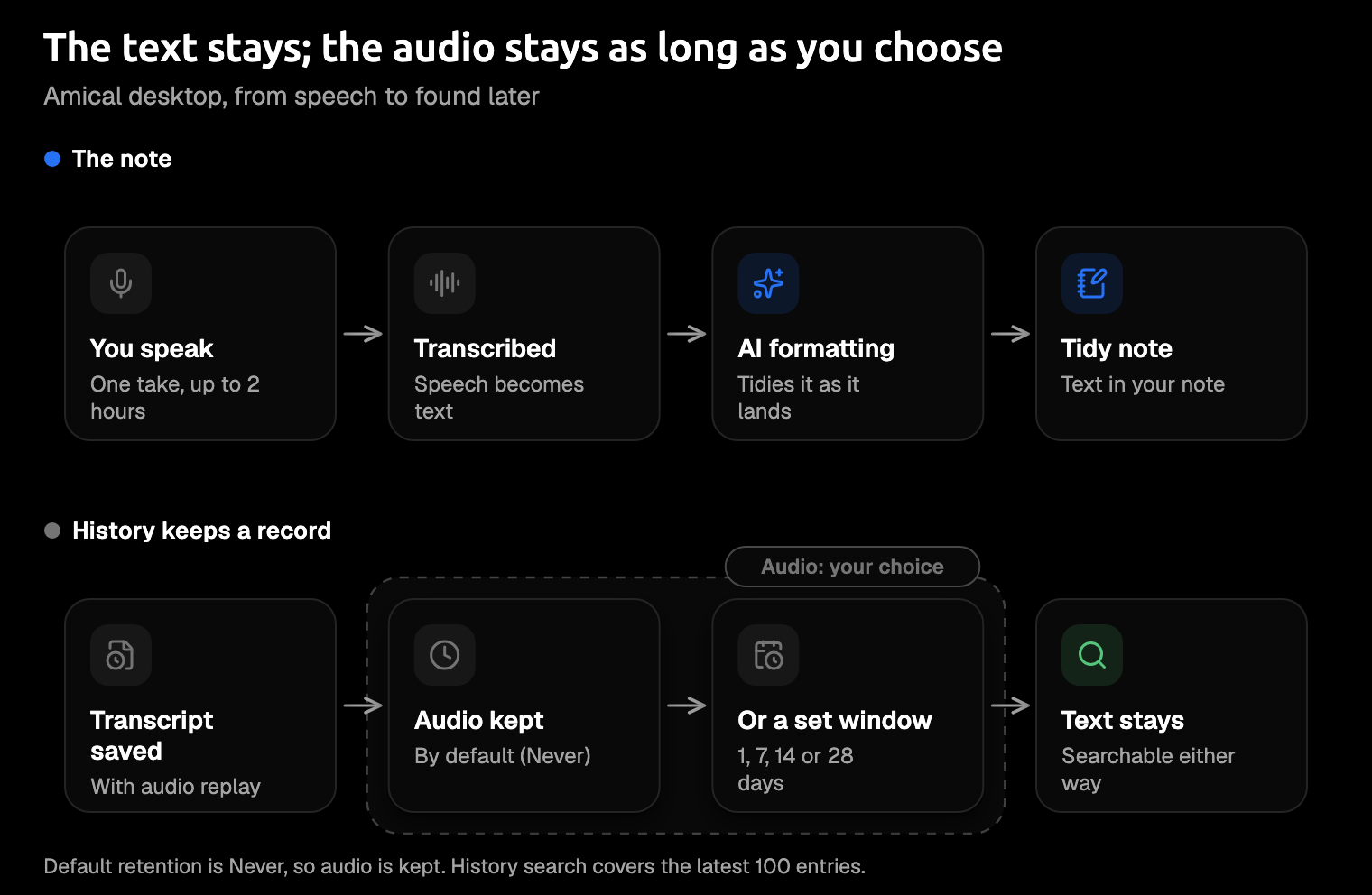
In Amical, every transcription also lands in History. From there you can replay the audio, copy the text, download the audio, retry with your current model, or delete it.
To find a note, search History, which covers your latest 100 transcriptions by default. A journal kept in several takes a day gets there sooner than you'd think. Older entries are still in Notes, which lists them by most recently edited, so a title you'd actually search for is worth the extra second. History is also where you find out you called it "the thing with Sam", not "the budget".
You choose how long the audio is kept: 1, 7, 14, or 28 days, or Never, which is the default and keeps it. When the audio expires, it's deleted and the transcript text stays.
Keep the text and let the audio go. For a journal, a short retention means the recording of you thinking out loud doesn't sit around, while the words you meant are still there.
On your phone
The phone is the obvious place for voice notes: it's in your pocket when the idea arrives, usually while your hands are full of shopping.
On an iPhone, Apple Voice Memos is already installed. Transcripts work on iPhone 12 or later with iOS 18.0 or later, and not in every country or region. They cover ten languages, from English and Spanish to Japanese, Korean, and two kinds of Chinese. To get the text out, you copy the transcript and paste it somewhere else.
On a Pixel, Google Recorder can share the transcript as a .txt file or send it to Google Docs.
Amical's iPhone app has built-in voice notes and an on-device dictation history with a retention window you choose. It needs iOS or iPadOS 18.3 or later, and there's an Android app on Google Play too. Both phone apps transcribe with Amical Cloud only and need you to sign in; if you'd rather not have an account, local mode in the Mac or Windows app doesn't need one.
Amical Cloud covers 100+ languages and handles Japanese and English mixed in one note, which helps if you think in one and work in the other. Local mode on the desktop covers 99.
Amical runs on Mac, Windows, iPhone, iPad, and Android, so the habit you build at your desk comes with you on the walk home. Setup is in the iOS quick start and the Android quick start, and the best dictation apps for iPhone compares more options.
If you mostly want the recording kept and searchable, start with the app your phone came with.
Where your voice notes go
A journal is the one document where "who else can read this?" should have a clear answer, so ask every app where the audio goes. Per each app's own pages, as of October 2026:
- AudioPen: offline transcription in its iPhone, Android, Mac, and Windows apps keeps audio on the device (the AI rewrite needs a connection), and audio on its servers is deleted within 48 hours.
- Google Recorder: recordings stay on the phone unless you back them up, share them, or save them to Drive, though re-transcribing one may process the audio on Google's servers.
- Otter: stores data with cloud providers including AWS, and trains its AI on de-identified audio recordings and on transcriptions, which it says may contain personal information.
- Voice Memos and Whisper Memos: neither says where transcription runs, though Whisper Memos has a private mode that deletes the transcript after delivery.
Amical's answer depends on the mode you pick:
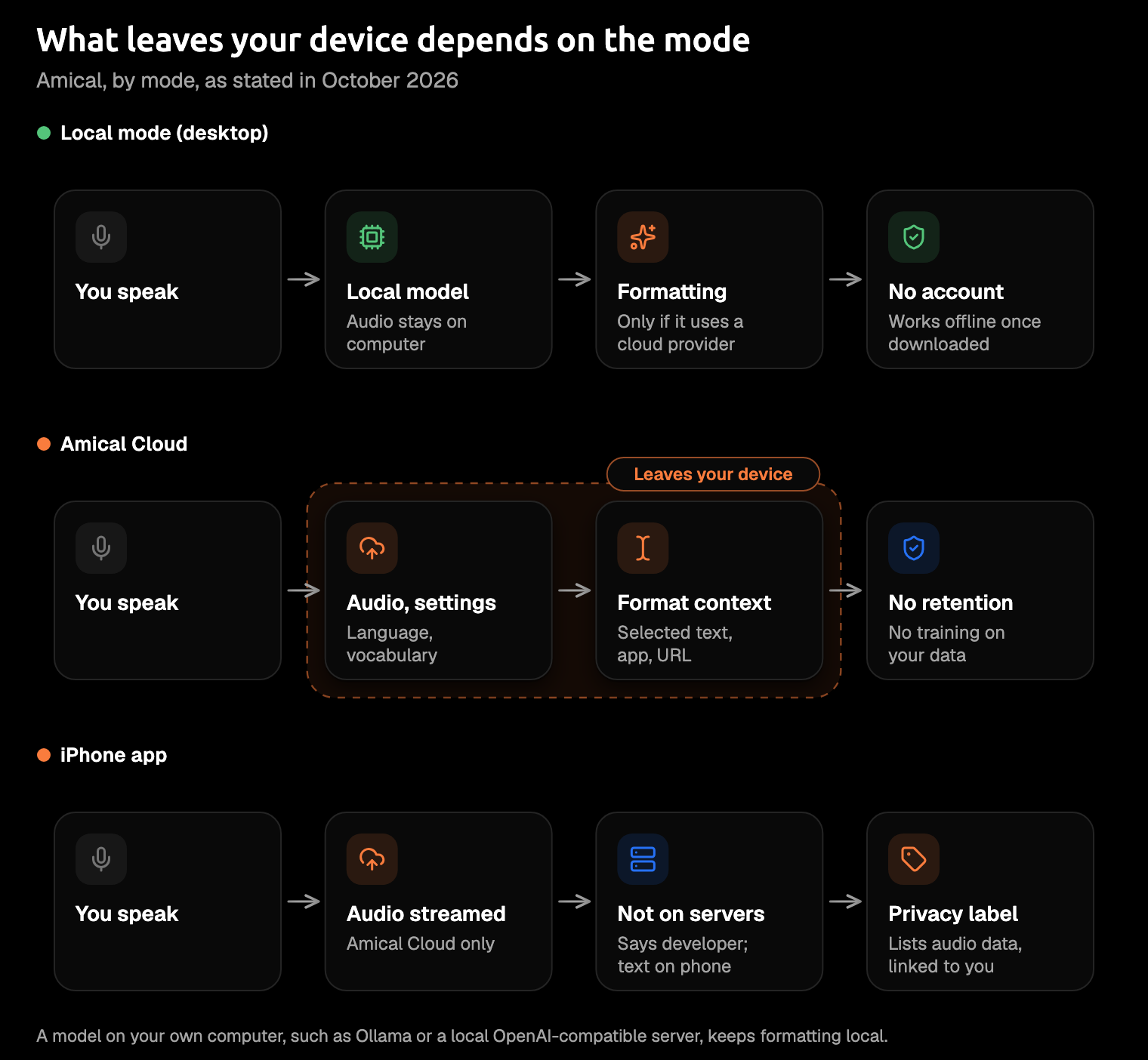
- Local mode, on Mac and Windows: your audio is transcribed on your computer, with no account, and it works offline once a model is downloaded. Text leaves only if you pick a cloud provider for formatting; a model on your own machine, such as Ollama (an app that runs AI models locally), keeps formatting local too.
- Amical Cloud: your audio goes to Amical Cloud, with your language and custom-vocabulary settings and some context for formatting: selected text, up to 500 characters around the cursor, the app name, and the browser URL. The stated policy is "No data retention" and "No training on your data".
- The iPhone app: Amical says audio is streamed for transcription and not stored on its servers, and transcripts stay on the phone. The App Store privacy label also lists audio data among the data linked to you.
Local mode has one catch on a Mac, and it's about the speech model you choose. Whisper needs macOS 15 or later and is slower on Intel Macs. Parakeet, the other local model, runs on macOS 14 and on Intel Macs, and Amical Cloud has neither limit. There's no Linux version, so on Linux a web app such as AudioPen's is the practical route.
For a journal at your desk, local mode is the one we'd reach for. Your speech stays on your computer, and with formatting on Ollama or another model on your machine, the text does too. On a phone, Amical journals go through Amical Cloud under the policy above; if you want the speech to stay on hardware you own, dictate the entry at your desk in local mode. Local AI models and Cloud AI models cover setup, and cloud vs local dictation weighs the trade.
Anonymous telemetry is a separate thing. It's on by default, excludes what you dictate, and you can turn it off; Telemetry explains how.
Voice-notes-to-text apps compared
Prices and limits are from each app's own pages as of October 2026. Otter is here for its limits, so its apps and exports aren't compared.
| App | Price | Platforms | Longest take | Where transcription runs | Getting text out |
|---|---|---|---|---|---|
| Amical | Free plan; Premium $10/mo or $84/yr (web price) | Mac, Windows, iPhone, iPad, Android | Up to 2 hours per session | Local mode (desktop) or Amical Cloud; phones: Amical Cloud | Lands in the note or app you're in; copy from History |
| Apple Voice Memos | Comes with iPhone | iPhone 12 or later with iOS 18.0 or later, and Mac | Not stated | Not stated | Copy and paste |
| Google Recorder | Comes with Pixel phones | Pixel only | Not stated | Not stated; recordings stay on the phone unless backed up | .txt file, Google Docs, NotebookLM |
| AudioPen | Free; Prime $99/yr (web price) | iPhone, Android, Mac, Windows, web, Chrome extension, and more | 3 min free, 15 min Prime | Apps: on the device when offline. Web: cloud | Zapier, webhooks; no file export described |
| Whisper Memos | $69.99/yr | iPhone, Apple Watch | 90 minutes | Not stated | Email, plus Notion, Todoist, Day One, and more |
| Otter | Free Basic; Pro $16.99/mo or $8.33/mo yearly | Not compared | 30 min free, 90 min Pro, per conversation | Cloud, including AWS | Not compared |
Pick by what you'll do with the words, not by the longest feature list.
- Amical suits you if you want a finished note rather than a transcript, on Mac, Windows, iPhone, iPad, or Android.
- Apple Voice Memos suits recordings first, on a supported iPhone, with transcripts you can search.
- Google Recorder suits Pixel owners who want the transcript in Google Docs.
- AudioPen suits long monologues rewritten in a style you pick.
- Whisper Memos suits long recordings on iPhone, delivered to your inbox.
- Otter suits meetings and interviews more than personal notes.
If you want the recording itself to be the note, searchable down to the moment, Voice Memos and Google Recorder do that better. Amical's answer isn't the recording; it's text you don't have to tidy, plus a local mode on the desktop that keeps your speech on your computer. That's why it's our pick. Compare has head-to-heads with other dictation apps.
FAQ
How do I turn voice notes into text?
Dictate straight into a note and let AI formatting tidy it, which is how Amical works. On an iPhone, you can also record in Voice Memos and copy the transcript out. Either way, you read the words instead of replaying them.
Can I transcribe voice notes offline?
Yes. Amical's local mode on Mac and Windows works offline once a model is downloaded. AudioPen's apps can transcribe offline too, though its rewrite needs a connection.
Is there a free voice notes to text app?
Amical's free plan includes unlimited local dictation on desktop and 2,000 cloud words a week. Voice Memos comes with the iPhone and transcribes on supported models.
Try it on one real note
Think of the idea you've been meaning to write down for days. Download Amical, press Cmd+Ctrl+N on a Mac for a new note, hold Fn, and say it the way you'd tell a friend. On your phone, the Amical app's voice notes work for the same test. Then read what landed, and ask yourself whether you'd ever want to play the recording back.
The free plan covers it, and local dictation never counts toward its weekly cloud allowance. If you end up dictating all day, Pricing shows what Premium adds.