You've explained the same bug three times today. Once to Claude Code in the terminal, once to Cursor, and once more to ChatGPT when the other two got stuck. Each time you typed it, and each time the full story in your head shrank to a couple of lines, because typing the rest felt like a chore.
Dictation fixes that, and you have three ways to get it into Claude Code and the other coding agents. Use the agent's own voice feature, your operating system's dictation, or a dictation app that types into whatever window you're in. This guide covers all three, then sets up one key for whichever agent you're talking to.
The agent's own button is fine until you use a second agent. Claude Code has /voice and Cursor has Voice Mode, while OpenAI removed the Codex CLI's hold-to-talk dictation in March 2026. That's a different key in every window, and no dictation key at all in the Codex terminal app.
Fair warning, we make one of these apps: Amical publishes this blog, and it's the dictation app we set up below. It's our pick if you talk to more than one agent or use the Codex CLI. One key covers them all, with a custom vocabulary on the free plan and a choice of Amical Cloud or local mode. If Claude Code is your only agent, its built-in /voice may be all you need.
Why talk to a coding agent
People who prompt all day report that spoken prompts carry the context they cut when they type. No study we know of compares spoken and typed prompts, so this is a habit heavy users describe, not research. Typing, you write the request. Talking, you also say why you want it, what you already tried, and which file to leave alone, because saying it costs you almost nothing.
That context is what a coding agent runs on. Picture the prompt where you left it out: the follow-up where you explain the part you trimmed, and the agent undoes half of what it just did.
Speed is the usual pitch for dictation. For prompts, context is the better reason.
AI researcher Andrej Karpathy wrote in July 2026 that "a nice long ramble session" is a pattern he finds useful with LLMs: he switches to Claude Code's /voice and rambles for about 10 minutes. Allie K. Miller wrote in February 2026 that 95% of her prompts to Claude Code require zero typing; she dictates them with Wispr Flow.
Two tools, one habit. The agent can't read the paragraph you decided not to type.
Three ways to dictate to a coding agent
The three ways differ in how far they reach: one agent, most text fields, or every window you use. Built-in voice also varies a lot from agent to agent, as of October 2026:
| Tool | Built-in voice | How to start it | Where the audio goes | Limits |
|---|---|---|---|---|
| Claude Code | /voice | Turn on with /voice, then hold Space | Streamed to Anthropic's servers | Needs a Claude.ai login; no SSH or cloud sessions; 20 languages |
| Cursor | Voice Mode, since Cursor 2.0 | Cmd+Shift+Space | Not stated in Cursor's docs | Built for talking to Cursor's Agent |
| Codex CLI | No dictation since March 2026 | Not available | Not available | OpenAI removed hold-to-talk dictation from the terminal app |
| ChatGPT desktop app | Dictate | Select Dictate in the composer | Sent to OpenAI, kept while the chat stays in your history | Text waits in the composer for you to review |
| Claude desktop app (Mac) | Voice dictation | Caps Lock, once you turn the shortcut on | Not stated | Needs macOS 14 or later |
Claude Code's /voice is well made. Hold Space and the transcript appears live in the prompt, and it works in the Claude Code extension for VS Code too.
Built-ins are good inside their own window and nowhere else. Work across three agents in a day and you're learning a new key every time you switch.
macOS Dictation is built into every Mac and types into most text fields. It has no length limit, stops after 30 seconds without speech, and takes spoken punctuation like "comma" and "new line". One snag: a GitHub issue from January 2026, filed on Claude Code 2.0.37 and macOS 26.2, reported that pressing fn twice often failed to start Dictation in Claude Code's prompt. It was closed as not planned, and newer versions may behave differently.
System-wide dictation apps run outside every agent and type into whichever window has focus: the terminal, the editor, or the chat box. Amical, Wispr Flow, and Superwhisper work this way; Superwhisper's site names Cursor, Claude Code, and Codex among the apps it works with.
Where built-in voice stops
Built-in voice stops at three things: the window it lives in, the words you can teach it, and the account it needs.
One tool each. Every built-in stops at the edge of its own window.
No vocabulary you control. In one developer's test in March 2026, Povilas Korop found that /voice got several technical terms wrong, including "user underscore ID", and he stayed with Wispr Flow. Anthropic's voice dictation docs now say /voice is tuned for coding vocabulary: it knows terms like regex, OAuth, and JSON, and it adds your project name and git branch as hints. What the docs don't describe is a place to add your own words.
That's the gap you feel every day. The words that trip dictation up are rarely regex. They're your table names, your internal service, and the library with the odd spelling. When one comes back as ordinary English, you fix it by hand before you send.
macOS Dictation's help page doesn't mention custom vocabulary or code terms either. Our guide to AI dictation vs Mac dictation covers what it does and doesn't do.
An account, on your own machine. /voice needs a Claude.ai login. It isn't available if you use Claude Code with an Anthropic API key or through Amazon Bedrock, and it doesn't work in SSH or cloud sessions. If your agent runs on a remote box or on your company's API key, the button just isn't there.
Set up one key for every agent
A system-wide app sits outside every agent, so it doesn't care which one you're talking to. The steps below use Amical's default keys on a Mac. Amical also runs on Windows 10 and later, and on either system you can change any key in step 7.
- Install Amical. Download it and follow the desktop quick start. On a Mac you can also run
brew install --cask amical. - Choose Amical Cloud or local mode in Amical's settings (more on that just below).
- Click into Claude Code's prompt, hold
Fn, and say what you want. - Release
Fn. Amical transcribes and formats your words, then pastes them at your cursor. A tap shorter than half a second is ignored, so hold the key for the whole thought, not just the first word. - Press
Fn+Spacefor a long prompt to dictate hands-free. AI dictation explains both ways of recording. - Press
Cmd+Ctrl+Vif the text landed in the wrong window. It pastes your last transcript again. - Change any key in Settings > Shortcuts. If your choice clashes with a system shortcut, Amical undoes it and tells you. Shortcuts has the details.
That's the setup. Because Amical pastes into whichever app has focus, the same Fn reaches Cursor, a terminal running Claude Code or the Codex CLI, and the Claude and ChatGPT apps.
If you also use /voice, it listens on Space, and Amical's hands-free shortcut is Fn+Space. Nothing documents how the two interact, so turn /voice off (/voice off) or rebind one of the keys before you go hands-free in Claude Code. Amical's Fn won't open the macOS Dictation popup, either.
Start with Amical Cloud for speed. It's Amical's own speech model, built for low latency. By Amical's own figures, a short dictation comes back formatted in under 300 ms, and it covers 100+ languages. It needs sign-in and works on every Mac and Windows PC the app supports. Cloud AI models covers setup.
Pick local mode to keep your speech on your computer. In local mode, the speech model runs on your own machine: Whisper (OpenAI's open speech model) or Parakeet (NVIDIA's), with no account needed. The code in your prompt stays local only if formatting also uses a local model or is turned off. On a Mac, local Whisper needs macOS 15 or later and is slower on Intel; Parakeet runs on macOS 14 and on Intel Macs. Local AI models walks through the downloads, and cloud vs local dictation covers the trade-off in full.
The free plan covers both: unlimited local dictation, plus 2,000 cloud words a week.
Teach it your code words
Custom vocabulary is a list of the words dictation keeps getting wrong. You add them once, and the app uses them as hints the next time you speak.
In Amical, open Settings > Vocabulary > Add Word. An entry can be one of two kinds:
- A single word, spelled the way you want it, such as
Kubernetes. - A replacement, which swaps what you said for what you meant. Turn on the Replacement toggle; the docs' example turns "acme corp" into "Acme Corp".
For a web project, entries might look like this (examples, not a recommended list): Supabase and pgvector as single words, and a replacement from "next js" to Next.js.
Entries follow your account to any computer you sign in on and apply from your next recording. Custom vocabulary is on the free plan.
Add only the words that actually come out wrong. If your ORM is called Drizzle and your prompts keep reading like a weather report, that's an entry.
Keep the list short, too. In Amical's open source code (checked on main in October 2026), local Whisper takes only a limited hint, and when the hint runs long, the vocabulary is the first thing cut. Formatting gets your list as well, with an instruction to correct the transcript from it. Custom vocabulary has the full how-to.
What happens to your prompt on the way in
Dictation apps differ most in how much they change your words. macOS Dictation adds punctuation and types what it heard. An AI dictation app adds a step: a language model tidies the transcript before it reaches your cursor.
Amical's AI formatting adapts to the app you're in, and coding apps such as Cursor are among them. Filler words come out, and your words stay yours. The "um" was never part of the spec anyway.
In a terminal, Amical's docs describe plain cleanup: punctuation and casing fixed, nothing restructured. For a prompt, that's the right amount: your words, in your order, and the agent does the rewriting.
In a browser, Amical's code on main (as of October 2026) counts claude.ai and ChatGPT as chat, so they get chat formatting. AI formatting lists how each kind of app is handled.
When you do want Amical to write the text for you, use Draft (Amical Cloud only): press Fn+Ctrl, say what you want written, and review it before it goes in.
The ramble workflow
A ramble is what Karpathy described: talk through the whole problem, then let the agent sort it out. Explain it the way you would to a colleague at your desk, and most of the prompt takes care of itself.
- Open the agent's prompt and click into it.
- Press
Fn+Spaceto dictate hands-free. - Talk for a minute or two. Cover the goal, what you saw, what you tried, which files to leave alone, and what done looks like.
- Finish with an instruction: ask the agent to restate its plan and ask you questions before it changes anything.
- Stop talking. Amical stops on its own after 5 seconds of silence.
- Read it once, fix any name that came out wrong, and send.
An example ramble, made up to show the shape:
So the login page hangs after you hit submit, but only in Safari, Chrome is fine. I think it's the redirect in the auth callback. I already cleared cookies and that didn't change anything. Don't touch the session middleware, another team owns it. Done means Safari logs in and the tests still pass. Before you change anything, tell me your plan and ask me anything you need.
One recording can run up to 2 hours, so you'll run out of bug long before Amical runs out of tape.
Talk for a minute, read once, send. The read is for the one name that came out wrong, not for polishing prose the agent will never grade.
What leaves your computer
Where your words go depends on the mode, and it's worth knowing before you dictate into an editor full of code.
In local mode, Amical transcribes your speech on your computer and needs no account. Your text leaves only if you pick a cloud provider for formatting. Choose a local model through Ollama (a tool that runs language models on your own machine) or another OpenAI-compatible server, or turn formatting off, and the text stays put too.
With Amical Cloud, Amical sends your audio, your language and vocabulary settings, and context for formatting: any text you've selected, up to 500 characters around your cursor, the app name, and the browser URL. In an editor, the text around your cursor is usually code. Sometimes it's the config file you had open to check one setting. Amical's stated policy for Amical Cloud is "No data retention" and "No training on your data."
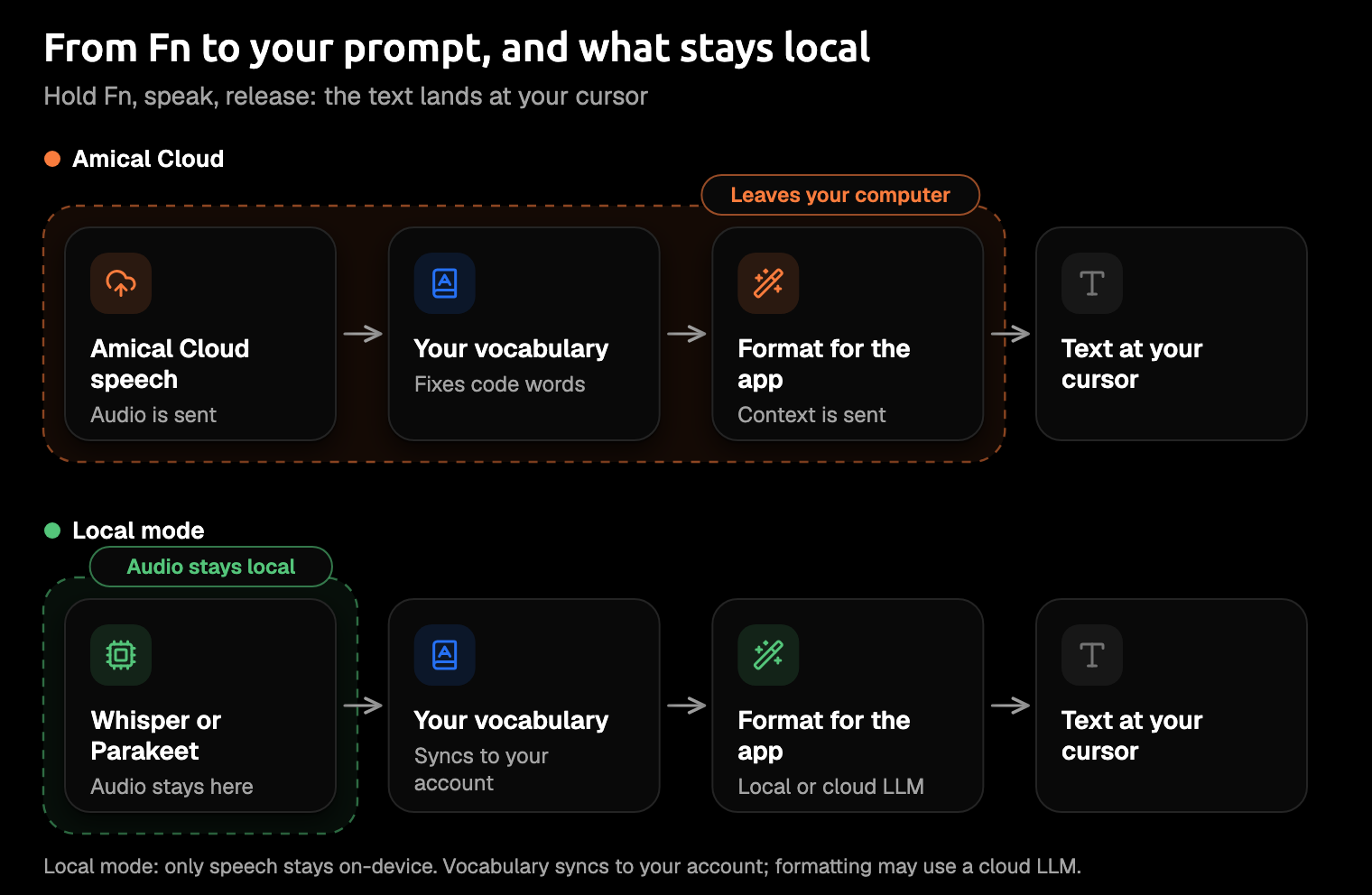
In either mode, your history stays on your computer. By default Amical keeps the audio too, until you set it to clear after 1, 7, 14, or 28 days. Anonymous telemetry is on by default, never includes what you dictated, and can be turned off. Telemetry lists what it collects.
The built-ins send audio too: /voice streams it to Anthropic's servers, and ChatGPT's dictation sends it to OpenAI and keeps it while the chat stays in your history.
If the code can't leave your computer, use local mode with local formatting. For everything else, start with Amical Cloud.
Which one to use
Pick by the agents you use and by where your code is allowed to go.
- Only Claude Code, and the cloud is fine: use
/voice. It costs nothing beyond your Claude.ai account, is tuned for coding words, and doesn't count toward your usage limits. - Only Cursor: use Voice Mode.
- On Linux: use your agent's own voice feature, since Amical doesn't run there.
- Several agents, the Codex CLI, an API key or Bedrock login, or your own vocabulary: use a system-wide app. We'd pick Amical.
Amical gives you one key in whichever window you're in and a custom vocabulary on the free plan. Amical Cloud is the faster choice. Local mode needs no account, runs Parakeet even on macOS 14 and Intel Macs, and never uses your weekly cloud words. The desktop app is open source (MIT), and Premium removes the weekly cap if you live in the cloud.
One key everywhere beats learning a new one per agent.
Other dictation apps also work across agents, as of October 2026:
- Wispr Flow runs on Mac, Windows, iOS, and Android, with 2,000 free words a week on desktop and Pro at $15 a month ($12 billed yearly). It suits you if you want the same app on your phone, which Amical also covers on iPhone, iPad, and Android. See Amical vs Wispr Flow.
- Superwhisper says it works with Cursor, Claude Code, Codex, and other agentic coding apps, so it's worth a look if you want another app built with agents in mind. See Amical vs Superwhisper.
FAQ
Does dictation count toward my Claude usage?
Not with /voice. Anthropic says its transcription doesn't use messages or tokens and doesn't count toward your usage limits. With Amical, transcription happens outside Claude entirely, so only the prompt you send counts, just as if you'd typed it.
Does it work over SSH?
/voice doesn't work in SSH sessions. Amical runs on your own computer and pastes into whichever window has focus, your terminal included.
Can I use /voice and Amical together?
Yes, on separate keys: /voice listens on Space and Amical's push-to-talk on Fn. The one overlap is Amical's hands-free Fn+Space, so turn /voice off or rebind a key before you use both, as in the setup above.
Is my code sent anywhere?
It depends on the mode. In local mode, your audio stays on your computer, and your text does too unless formatting uses a cloud provider. With Amical Cloud, your audio and the text near your cursor go to Amical Cloud for transcription and formatting.
Say your next prompt out loud
You already have the test case: the next prompt you were about to type. Download Amical, click into Claude Code, hold Fn, and say the whole thing, the why included. Read it once, then send.
The free plan covers it, and Pricing is there for the week you run out of cloud words.