You're on a train with no signal, or on a work laptop where IT blocks cloud tools, and an email needs an answer. You reach for Win+H, then remember that Microsoft's own page says voice typing needs an internet connection. Which is exactly the thing you don't have.
Windows does have a built-in tool that works offline, but it's made for running your PC by voice more than for writing. For private voice typing that also tidies the message, you need dictation software that runs a speech model on your own PC.
Our pick is Amical in local mode. It runs Whisper on your PC, needs no account, and works offline once a model is downloaded. Add a local formatting model and you get a finished email or reply, not a raw transcript. Amical publishes this blog, so we have a stake in that pick, though the local mode we recommend is unlimited on the free plan.
The short answer
Of Win+H voice typing, fluid dictation, and Voice Access, only Voice Access passes the airplane test. Apps that run a speech model on your PC pass it too, and cloud apps don't, by design.
| Option | Works offline? | Rewrites for the app you're in? | What you need |
|---|---|---|---|
| Win+H voice typing | No, it uses online speech recognition on Azure | No | Windows 10 or 11 and an internet connection |
| Fluid dictation (Copilot+ PCs) | No, only the cleanup runs on-device | No, it fixes grammar, punctuation, and filler words | A Copilot+ PC (40+ TOPS NPU), English |
| Voice Access | Yes, after a one-time setup online | No, it's dictation plus voice control | Windows 11, version 22H2 or later |
| Apps with a local speech model (Amical, Handy, OpenWhispr) | Speech, yes, once a model is downloaded | Varies; Amical does it offline with a local formatting model such as Ollama | A model download, plus Ollama for offline formatting; Amical runs on Windows 10+ (x64 or ARM64) |
| Cloud dictation apps (Wispr Flow, Amical Cloud) | No, transcription happens in the cloud | Varies; Amical Cloud does | Internet; Amical Cloud also needs sign-in |
If you want to drive the whole PC by voice, use Voice Access. If you want to write, use an app with a local speech model, and pick Amical if you want the writing to come out as a finished message.
Back online, Amical Cloud in the same app is the fast route. By Amical's own figures (no public benchmark yet), a short dictation comes back as finished text in under 300 ms.
Does Windows dictation work offline?
Mostly no, and Microsoft's own support pages say so (checked October 2026). For how Win+H compares with AI dictation when you're online, see AI dictation vs Windows voice typing.
Win+H voice typing: needs internet
Win+H starts voice typing on Windows 11 and Windows 10. Microsoft's voice typing page is plain about it: you need to be connected to the internet, because voice typing uses online speech recognition powered by Azure Speech.
Copilot+ PCs add fluid dictation, which fixes grammar, punctuation, and filler words with small language models on the device, in all English locales. Those laptops have an NPU, a chip built for AI tasks, rated at 40+ TOPS (trillions of operations per second). Look for it on the laptop's sticker.
Fluid dictation tidies your words on the device, but Microsoft still says voice typing needs the internet. So it's a nice upgrade if your PC has one, not a way to make Win+H work offline.
Voice Access: offline after setup
Voice Access is the built-in tool that really works offline, though some offline dictation roundups skip it entirely. On Windows 11 version 22H2 and later, setup needs the internet once to download language files to your PC, and after that it works without a connection. It understands six variants of English, plus Spanish, German, French, Chinese, Japanese, and Italian.
It's built to run your whole PC by voice, and dictation is one of its modes. A dictation-only mode treats everything you say as text, with automatic punctuation and custom words. On Copilot+ PCs, fluid dictation works here too and tidies grammar and filler words in English. What it won't do is adapt your words to the app you're in, so you get tidy sentences where you wanted an email. Microsoft's setup guide walks you through turning it on.
Windows Speech Recognition, the older tool, is deprecated and no longer developed, and Voice Access is its replacement.
What makes dictation software truly offline
Dictation is two steps, and it's offline only when both run on your PC. First, a speech model turns your audio into text. Then, in apps that format, a language model turns that text into a message for the app you're in. Turn formatting off and only the first step is left.
"Local" on an app's page usually describes the first step. The second is the one people forget to check.
The speech models you'll meet in local apps are Whisper (OpenAI's open speech model) and Parakeet (NVIDIA's open speech model). Amical, Handy, and OpenWhispr offer both. Amical shows all three ways your words can travel, so it makes a useful example:
- Local mode with Ollama, or with formatting off. Your audio is transcribed on your PC and the text is formatted there too, so nothing you dictate has to leave.
- Local mode with a cloud formatting provider (OpenAI, Anthropic, or OpenRouter). Your audio stays on your PC, and your text goes to that provider to be formatted.
- Amical Cloud. Your audio goes to Amical Cloud with context for formatting: any selected text, up to 500 characters around your cursor, the app name, and the browser URL. That context is how it knows you're writing an email and not a Slack reply. It needs internet and sign-in.
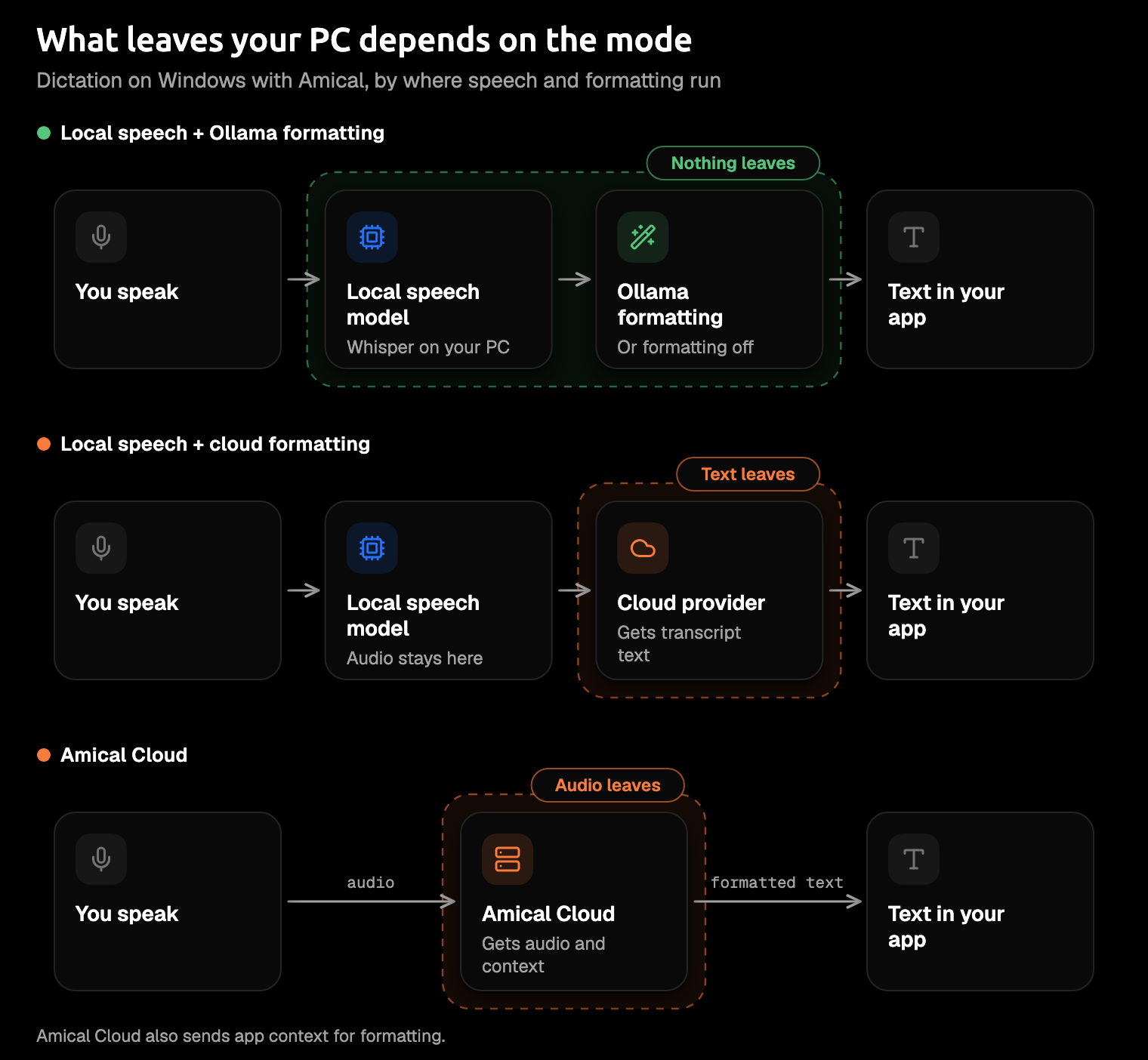
Amical keeps your transcription history on your PC, and that includes the audio: recordings stay until you delete them or set a retention period. Its anonymous telemetry is on by default and excludes what you dictate; switch it off under Settings > Advanced if you prefer. Local AI models covers the settings, and cloud vs local dictation weighs the two approaches in more depth.
Set up offline dictation on Windows with Amical
Five steps take you from the installer to a message dictated with the Wi-Fi off. Most of the time goes into one model download, a progress bar you'll watch once and never again.
1. Install Amical and choose Local
- Download Amical for Windows, picking the x64 or ARM64 installer to match your PC.
- Run the installer. Amical installs into your user's AppData folder and adds a shortcut.
- Open Amical and allow microphone access when it asks.
- On the model screen, choose Local. Amical recommends Cloud or Local based on your hardware, but for offline use you want Local, and it needs no account.
The desktop quick start walks through the same screens.
2. Download a speech model (the one time you need internet)
The installer is the app only. Speech models download inside Amical from Hugging Face, so do this step while you're still online.
- Open Settings > AI Models > Speech.
- Click Download next to the Whisper model you want (step 3 helps you choose).
- Select it in the Default Speech Model dropdown.
Amical also runs Parakeet TDT 0.6B v3 locally on Windows. It transcribes when you stop speaking rather than as you speak, so it's worth a try next to Whisper. If you change your mind about a model, its delete button gives the disk space back.
3. Choose the model for your PC
Bigger models hear you better and run slower. Ratings are Amical's own, 1 to 5, speed first and accuracy second. Memory figures come from whisper.cpp, not from Amical's measurements.
| Whisper model | Download in Amical | Speed / accuracy (Amical's rating) | Memory while running (whisper.cpp) |
|---|---|---|---|
| Tiny | 78 MB | 5.0 / 2.5 | About 273 MB |
| Base | 148 MB | 4.0 / 3.0 | About 388 MB |
| Small | 488 MB | 3.0 / 3.8 | About 852 MB |
| Medium | 1.5 GB | 2.0 / 4.3 | About 2.1 GB |
| Large v3 Turbo | 1.5 GB | 3.5 / 4.2 | Not listed |
| Large v3 | 3.1 GB | 1.5 / 4.7 | About 3.9 GB |
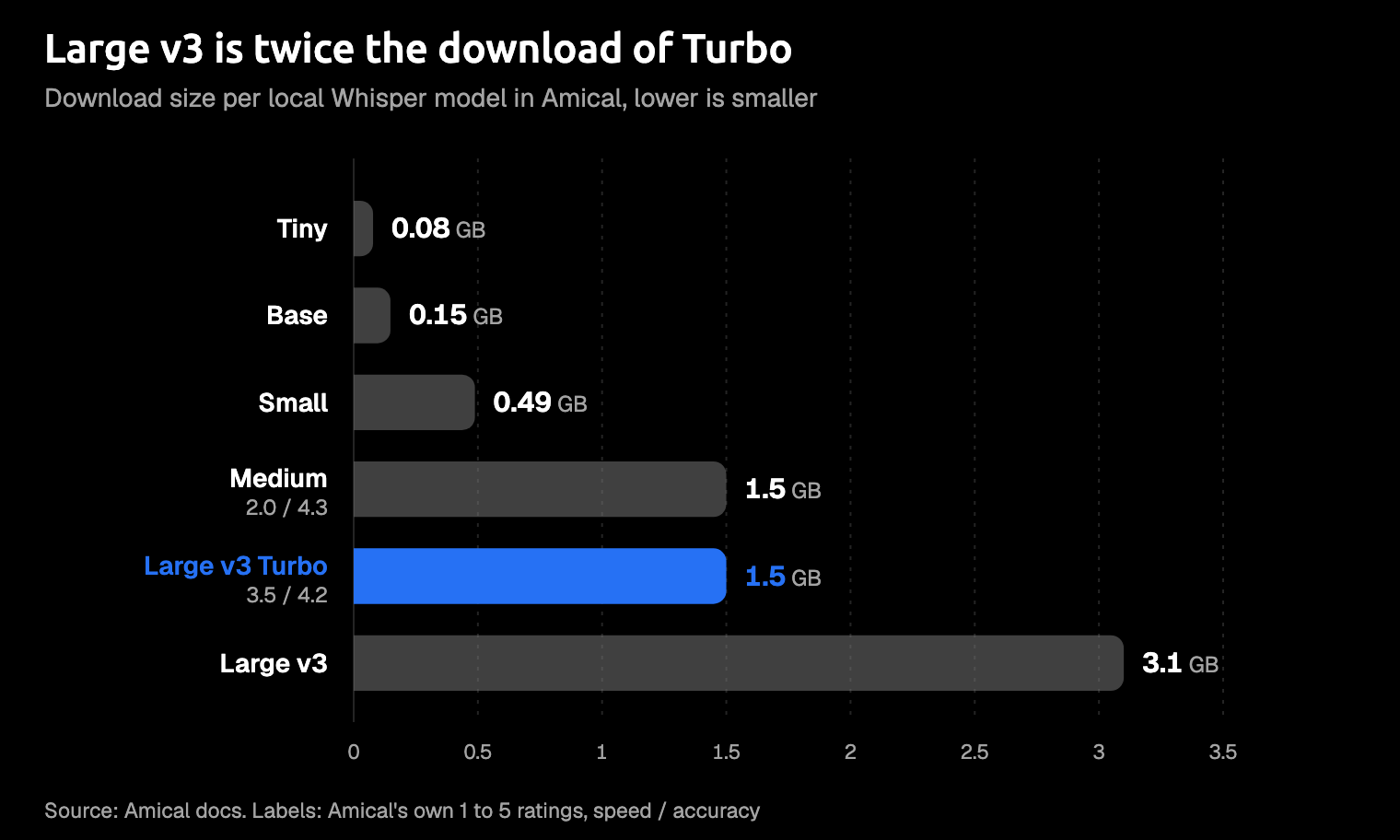
Start with Small or Large v3 Turbo. That's our advice, not a benchmark: Turbo is the same download as Medium, rated close to it on accuracy and well ahead on speed. If dictation feels slow, step down a size. If it mishears you, step up. Large v3 is a 3.1 GB download, which is a lot to ask of a nearly full SSD. Whisper Large v3 Turbo vs Large v3 compares the top two in detail.
Your graphics card may help. On x64 PCs, Amical ships a Vulkan build of Whisper that can use the GPU, and falls back to the CPU if that build won't load. The ARM64 version has no Vulkan build, so expect it to use the CPU. Which graphics cards work isn't documented, so treat speed as something to test on your own PC.
One more setting: Preload Whisper Model, under Settings > Advanced, keeps the model in memory so your first press is quick. It's on by default; turn it off if you'd rather save the RAM.
4. Keep formatting on the PC with Ollama (optional)
Ollama is an app that runs language models on your own computer. In Amical it handles the formatting, not the speech. On Windows it needs Windows 10 22H2 or newer and at least 4 GB of disk for the app, with models on top. Its installer doesn't need administrator rights, which helps on a locked-down work PC.
Ollama's docs don't list ARM64 Windows, so on an ARM64 PC, check before you rely on it.
- Install Ollama for Windows.
- In a terminal, run
ollama pull llama3.2(the example model in Amical's docs). - In Amical, open Settings > AI Models > Language, where your Ollama model shows up.
- Pick it as the Default Language Model.
- Turn on Formatting in Settings > Dictation.
If the Formatting switch won't turn on, check that your Ollama model appears under Settings > AI Models > Language: the switch stays locked until a language model is available. LM Studio or another OpenAI-compatible server on your PC works too.
Or leave formatting off and get a plain transcript, fully offline. Just don't pick a cloud provider here, because that sends your text out, the very thing you came to avoid. AI formatting explains the options.
5. Turn off Wi-Fi and dictate one real message
- Turn off Wi-Fi.
- Click into something that works offline: a new email in Outlook's desktop app, a Word document, or Notepad.
- Click Amical's desktop widget, the thin pill on your screen, to start a hands-free recording. Or press Ctrl+Win+Space, the default hands-free shortcut on Windows, which you can rebind under Settings > Shortcuts.
- Speak the way you'd explain it to a colleague.
- Click the stop icon. Amical transcribes, formats the text for the app you're in if Formatting is on, and pastes it at your cursor.
If you send keystrokes through remote desktop, a KVM switch, or PowerToys, turn on Allow injected keystrokes, because Amical ignores those by default. Shortcuts shows how to change your keys.
Here's the kind of thing you might say. It's an illustration of what local formatting is designed to do, not a recorded run:
hi marco so I'm on the train and the signal's gone, um, I read the draft contract and it looks fine except the payment terms, can we talk tomorrow morning, oh and can you send me the latest budget, thanks
And the kind of email that comes out:
Hi Marco,
I've read the draft contract, and it looks fine apart from the payment terms. Could we talk tomorrow morning?
Could you also send me the latest version of the budget?
Thanks
Read it once before you send, since AI formatting can still slip on a name or a day. If the email is sitting there with the Wi-Fi icon still crossed out, you're done. Gmail and Slack can wait until the signal comes back.
Limits worth knowing first
Local mode has a few limits, and most have a workaround:
- The model download needs internet once. Do it before you travel.
- Hands-free recording stops when you pause. In hands-free mode, Amical ends the recording after 5 seconds of silence; holding the push-to-talk key (Ctrl+Win by default) keeps it listening through pauses, and presses shorter than 500 ms are ignored. Either way, one recording session runs up to 2 hours, long enough for the most rambling email of your week.
- One language at a time. Local Whisper handles one language per recording, so if you mix Japanese and English in a sentence, Amical Cloud is the better fit. Local Whisper covers 99 languages plus auto-detect, and Amical Cloud covers 100+. Multi-language support lists them.
- Draft needs Amical Cloud. Draft writes a message from a spoken instruction for you to review; with a local model, the Draft shortcut just transcribes.
- Offline formatting on ARM64 is unconfirmed. If Ollama won't run on your ARM64 PC, leave formatting off for a plain offline transcript, or use Amical Cloud when you're online.
- No published Windows specs or local speed figures. Amical doesn't publish minimum Windows hardware or local speed numbers, and there are no accuracy figures yet. Use the model table, start mid-size, and adjust. On an older PC, Amical Cloud is the quick route when you're online, and it runs on every system the app supports.
Those are the documented limits. Try a few messages with the Wi-Fi off before a trip that depends on it, not on the plane.
Other offline dictation software for Windows
If you'd rather not run Amical, these are the other Windows apps that work offline, and who each one suits (details from their own pages, October 2026).
- Handy, for an open source app with a big following: open source (MIT) for Windows, macOS, and Linux, with local Whisper or Parakeet V3 and installers for x64 and ARM64.
- OpenWhispr, for open source with a cloud option: open source (MIT) for Mac, Windows, and Linux, with local whisper.cpp or Parakeet, or your own key for a cloud service. Local dictation is unlimited on every plan, and Pro is $80 per user a year.
- Whisper Dictate, for a PC with an NVIDIA card and room for a yearly fee: runs on Windows 10 and 11 (x64) and macOS, and calls itself "100% local". The first download is about 2.4 GB per language, and an NVIDIA GPU is recommended. After a 14-day trial it costs EUR 40 a year.
- Buzz, for transcribing audio files: open source (MIT), transcribes audio files and live microphone input offline. Its README doesn't say it types into other apps, so treat it as a transcriber. The Windows installer is unsigned.
- VoxScribe, for a small CPU-only app: an open source (MIT) project for Windows 10 and 11 that runs on the CPU and downloads its model on first launch. Its installer is unsigned, so SmartScreen will warn you.
- Dragon Professional, for long-time Dragon users: installed locally on Windows 11, and compatible with Windows 10. Nuance's page doesn't state offline use or list a price. Moving off it? See how to switch from Dragon.
Two names you may expect here: Superwhisper lists Windows and says it works offline but doesn't confirm offline models on Windows, and Wispr Flow always transcribes in the cloud.
Handy has far more GitHub stars than Amical. Stars measure attention, not features. Amical adds formatting for the app you're in, Amical Cloud for the days you're online, and apps for iPhone, iPad, and Android (those run on Amical Cloud and need sign-in). Best open source dictation apps compares the open source field.
Our pick
- You want to write offline, and you want finished messages: Amical in local mode, with Ollama for formatting.
- You want to control the whole PC by voice on Windows 11: Voice Access.
- You're online most days and want speed: Amical Cloud, in the same app.
Amical is our pick because its local mode does the whole job on your PC: speech on x64 and ARM64, formatting wherever Ollama runs, and a message shaped for the app you're in. The desktop app is open source under the MIT license. In local mode with Ollama, it works the same way on a plane, at a client site, or in a hotel lobby: nothing it needs is waiting at the other end of a connection.
Try it with the Wi-Fi off
Give it one real message: download Amical, choose Local, grab Small or Large v3 Turbo, then switch off the Wi-Fi and dictate a note or draft you'd otherwise type today. The free plan covers all the local dictation you can talk through, and Pricing shows what Premium adds if you want Amical Cloud too.