It's mid-afternoon. Your wrists ache, and the reply you've been putting off is still waiting, because typing it is going to hurt. A lot of what your hands did today was words.
Words don't need fingers.
That's the idea behind dictation for RSI: you say the words, and your hands do less. Dictation won't heal an injury or replace your mouse. It can take on the writing itself: the emails, the chat replies, the docs.
The catch is that starting, stopping, and fixing the text can quietly turn into new hand work. This guide sets dictation up so it doesn't, in most apps, with Amical as the example.
Our pick for the writing is Amical. Full disclosure: Amical publishes this blog, and Amical Cloud subscriptions are how we make money, so test our pick on the free plan before you trust it.
None of this is medical advice. The NHS says to see a GP if your symptoms aren't going away or are getting worse.
What dictation can and can't do for sore hands
Health sources keep naming the same cause: repetition. The NHS says RSI is caused by repeated use of a body part, and it names typing among the risks. For carpal tunnel, it advises cutting down on anything that makes you bend your wrist often or grip hard.
Dictation moves one big source of that repetition, the writing, from your fingers to your voice. On a day of emails, chat, and docs, that's a lot of keystrokes you never make.
Think of it as an accommodation, the kind of change you might ask your employer for. JAN, a US workplace-accommodation service, lists speech recognition for these conditions. Mayo Clinic's orthopedics team says there's no proven program for preventing carpal tunnel, and we found no study showing dictation treats it. JAN also warns that untrained users won't benefit, so expect a learning curve.
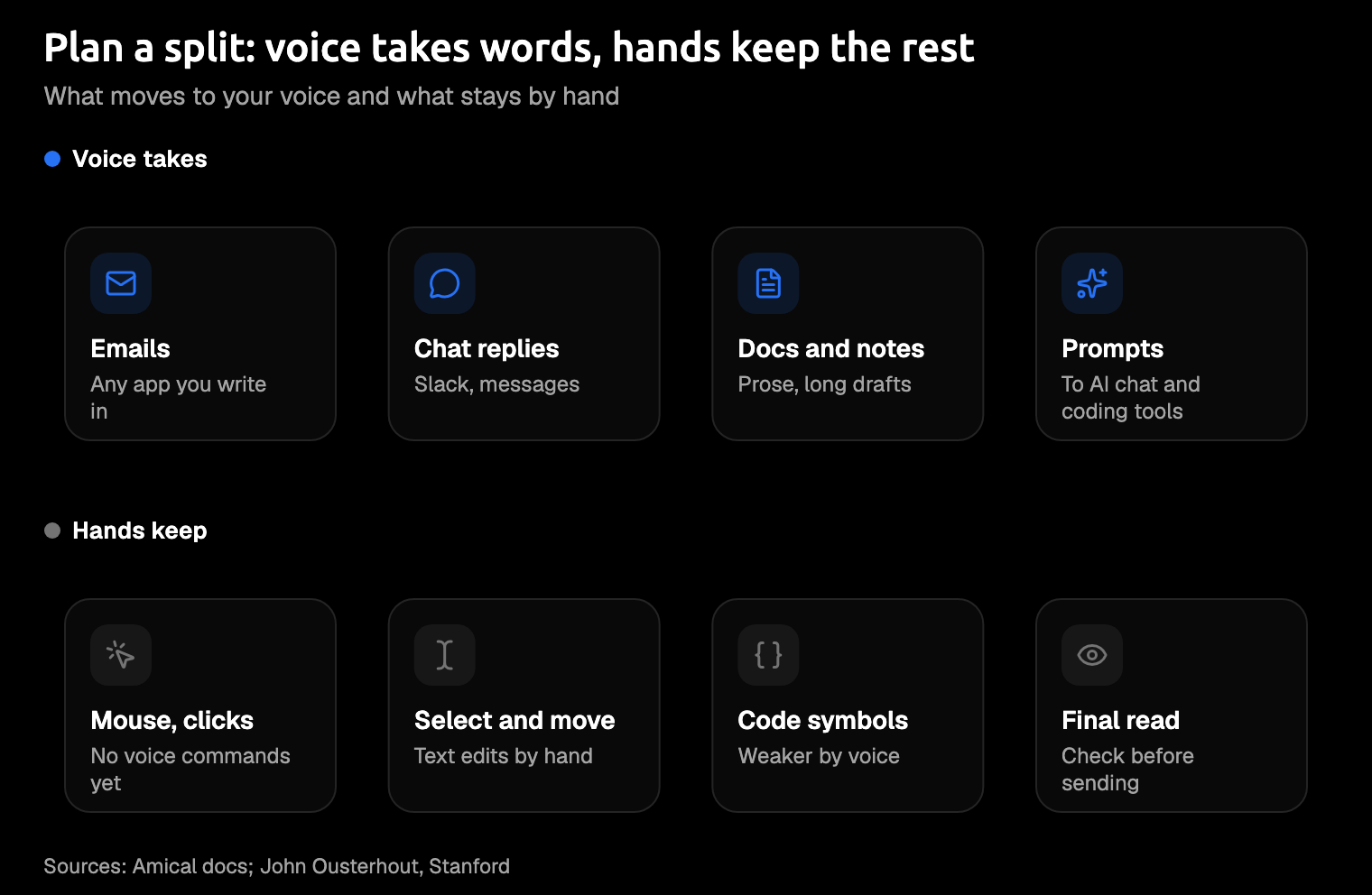
John Ousterhout, a Stanford professor, wrote up how he deals with RSI on a page last updated in 2021. He found dictation good for email and papers, weaker for programming, and about as fast as typing once learned. He kept a hand on the mouse, since moving the cursor by voice was "extremely clumsy."
So plan for a split, not a switch. The mouse will still be on your desk on Monday.
Three kinds of voice tools, and which one fits
Voice tools come in three kinds, and the right one depends on what hurts.
Built-in dictation, such as Apple Dictation on the Mac or Windows voice typing, is free and already on your computer. It types what you say and leaves the shaping to you, so you dictate a perfect sentence, then reach for the keyboard to turn it into an email.
Full voice control runs the whole computer by voice, clicks included, so it's the kind to look at if the mouse hurts as much as the keyboard. Both Mac and Windows build one in. On a Mac, Voice Control lets you move around apps, work the screen, and dictate and edit text by spoken command. On Windows 11, from version 22H2, it's Windows Voice Access. Dragon is the separate app Ousterhout used, and its current version, Dragon Professional, runs on Windows 10 and 11.
AI dictation apps rewrite your speech as a finished message for the app you're in, so an email arrives as an email.
When typing messages is what hurts, that's the edge: the text comes out shaped for where it's going, so there's less to fix afterward. It's the job Amical is built for:
- Hands-free.
Fn+Spaceon a Mac, or a click on the floating widget, so no key stays held while you talk. - Finished messages. AI formatting writes for the app you're in, so less of your effort goes into fixing.
- Desktop and phone. Mac, Windows, iPhone, iPad, and Android.
- Fast. By our own figures, with no public benchmark yet, Amical Cloud has finished text ready in under 300 ms for a short dictation and under 500 ms for a longer one: the fastest in the category. The reply is usually there before you've looked up.
- Your words. Custom vocabulary fixes a mangled name once, not every time.
The gap that matters here: voice commands are coming soon, not shipped. Until then you click and select by hand, and if that's what hurts, macOS Voice Control or Windows Voice Access is built for it.
Step 1: Start and stop without holding a key
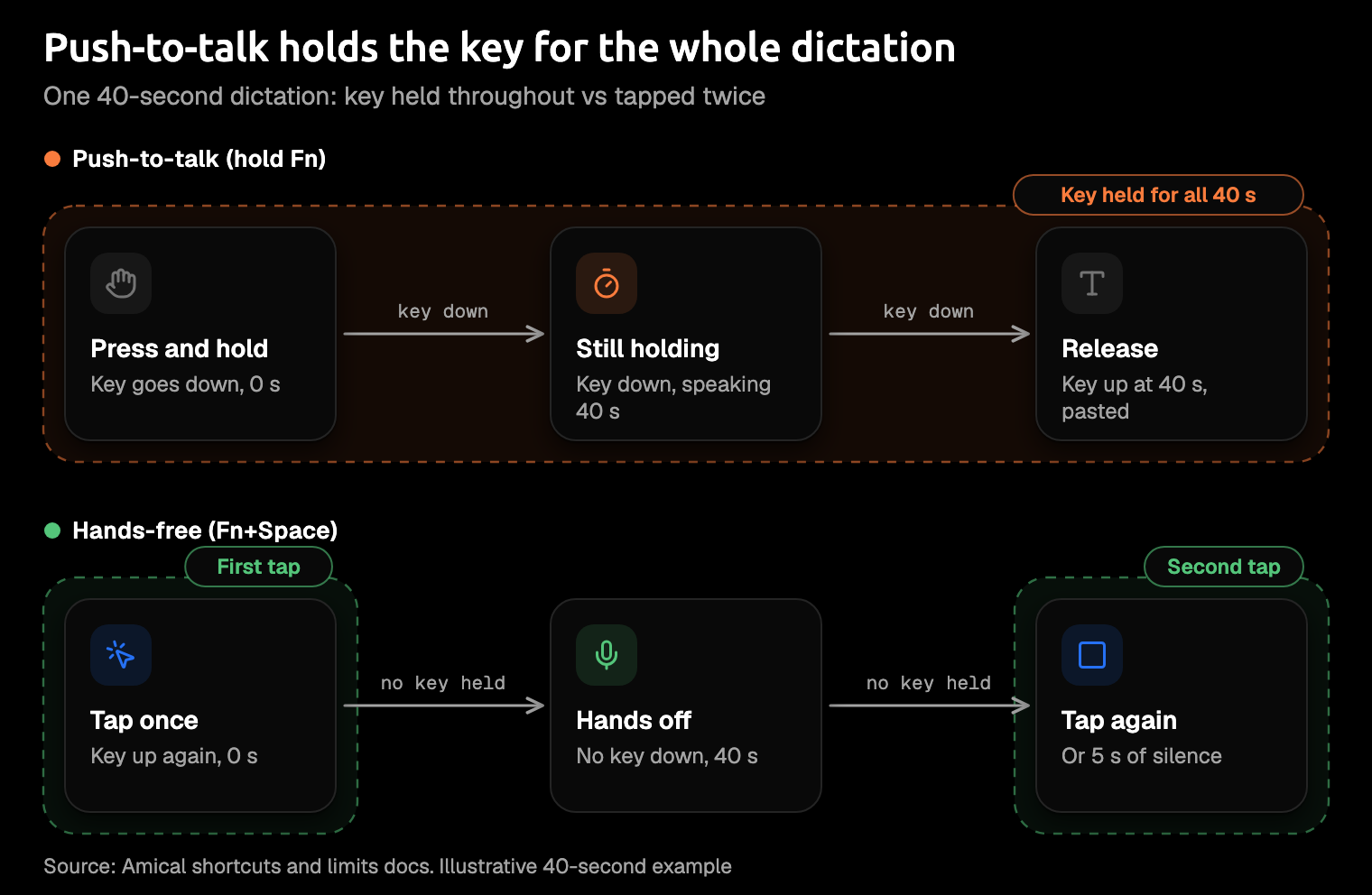
Every dictation tool needs a way to start and stop. Built-in tools mostly start with a key press, such as Win+H for Windows voice typing, while push-to-talk means holding a key down for as long as you talk.
Holding a key is hand work too. That's our reasoning, not a clinical finding: a finger pinned to a key for a whole paragraph is exactly the effort you're trying to shed. Hands-free mode avoids it, with one press to start and one to stop.
Install Amical with the quick start, and on a Mac you get these defaults:
- Hold
Fnfor a quick line, and let go to paste it. - Press
Fn+Spacefor anything longer, and press it again to stop. - Click the floating widget to start, and its red stop icon to end.
On Windows, you pick your push-to-talk key during setup.
Wispr Flow has a hands-free mode too (as of October 2026). Use whichever app you like, but switch it on.
One limit, plainly: in hands-free mode, 5 seconds of silence ends the recording, and a single session runs up to 2 hours. The silence stop is the one you'll notice. Pause too long to think and the take ends; starting the next one is a single press, and a natural moment to rest your voice.
Make hands-free your default for anything longer than a sentence. Save the hold for "sounds good, thanks."
Step 2: Put the shortcut where your hands are comfortable
You'll press your dictation shortcut all day, so it should be one you reach without stretching a finger or bending your wrist. That test is our own rule of thumb, borrowed from the NHS's advice to cut down on frequent wrist bending. A pinky stretch to a corner key, all morning long, fails it.
That includes Amical's own default. Fn sits in the bottom corner of most Mac keyboards, so if that reach hurts, rebind it before anything else: pick keys near where your hand already rests, or skip the keyboard and click the floating widget instead.
- Open Settings > Shortcuts.
- Click the shortcut you want to change.
- Press the new keys. If they clash with another shortcut, Amical restores the old ones and tells you.
Then learn Paste last transcript (Cmd+Ctrl+V on a Mac), which pastes your latest dictation again when it lands in the wrong window, so you never retype it. Shortcuts lists every default.
Step 3: Cut the correction keystrokes
Every fix after you dictate is typing again: the capital, the comma, the line break, the sign-off.
Built-in dictation handles some of it. Apple Dictation punctuates for you. On Macs with M3 or later and 12 GB or more of memory, macOS 27's on-device model, released in September 2026, also handles capitalization and formatting. What it still lacks is a custom vocabulary list and any sense of which app you're in.
AI dictation apps rewrite your words for where they're going. Amical's AI formatting does it across hundreds of apps, including web apps in your browser. Gmail gets an email with a greeting, and a short Slack reply stays short.
The rewriting needs a language model behind it. Amical Cloud is one, once you're signed in. You can also run a local model through Ollama (it runs AI models on your own computer), or add a cloud provider such as OpenAI or Anthropic.
Here's an illustration, not a recorded result. You say:
hi dana um sorry this is late, the draft looks good, just fix the date in the intro and send it thanks
And Gmail gets:
Hi Dana,
Sorry this is late. The draft looks good: just fix the date in the intro, then send it.
Thanks
You can set tone and polish per app in Personalization. With Amical Cloud, Draft goes further. Say "tell Dana Thursday works," review the text Amical writes, and press Enter to insert it or Esc to drop it.
Still, read before you send. Formatting can vary from run to run, and recognition slips. Ousterhout calls these slips "speakos": mistakes that sound close to what you meant, so you don't catch them as you talk, like "female" for "email." The fewest keystrokes come from text that's right the first time, not a short reply you've edited more times than it has words.
Step 4: Teach it your words
Every misheard name is a correction by hand. A custom vocabulary, in any tool that has one, fixes a word once instead of every time. Your manager's surname, mangled daily, is a habit your wrists pay for.
- Open Settings > Vocabulary.
- Click Add Word and type the term.
- Turn on Replacement if Amical keeps mishearing it, and enter the misheard and correct forms.
It applies from your next recording and, when you're signed in, syncs across your computers. Snippets go further: say a trigger phrase, and Amical types a longer block of text, like your address. Setting up custom vocabulary and snippets takes a few minutes and pays you back every day.
Step 5: Use it everywhere you type, including your phone
Relief only counts where you actually write. If dictation works in email but not in the support tool you live in, your hands are back on the keyboard by noon.
Amical pastes wherever your cursor is: Slack, Gmail, Docs, a web form. On a Mac, it needs microphone and accessibility permission to do that.
Your thumbs type too, and a long reply tapped out on the train is still repetition. The iPhone and iPad app needs iOS or iPadOS 18.3 or later. Both phone apps use Amical Cloud, need sign-in, and, unlike the desktop app, aren't open source. Setup is in the iOS quick start and the Android quick start.
Amical doesn't run on Linux; an app from our open source roundup will suit you better there.
One tool on every device beats a different habit for each.
Local or cloud, for what you dictate
Once dictation takes over your writing, it hears all of it, including a note about your own symptoms. Know where your speech goes.
Cloud dictation sends your audio to a server to be transcribed, while local dictation runs the speech model on your own computer. Amical's desktop app does both, and our guide to cloud vs local dictation goes deeper.
In local mode, you need no account at all, and it works offline once a model is downloaded. Your audio stays on your computer, and text leaves only if you pick a cloud provider for formatting. Local Whisper (an open speech-to-text model) needs macOS 15 or later and is slower on Intel Macs. Parakeet, NVIDIA's open model, covers macOS 14 and Intel Macs.
With Amical Cloud, your audio goes to Amical's hosted service with your language and vocabulary settings. Formatting also sends context: selected text, up to 500 characters around your cursor, the app name, and the browser URL. The stated policy is "No data retention" and "No training on your data." In return you get the faster mode, on any Mac the app supports, for the price of a sign-in.
History stays on your computer in both modes, and by default the app keeps your audio there too, on your own disk. If you dictate health notes, set audio to clear after 1, 7, 14, or 28 days in transcription history.
The free plan has unlimited local dictation and 2,000 Amical Cloud words a week, and Premium removes the cap for $10 a month or $84 a year.
Amical Cloud is the one you'll leave on for the daily run of email and Slack. Local mode is for the plane, and for the health note you'd rather keep to yourself. With formatting off or on a local model, both the audio and the text stay on your machine.
Build up gradually
The NHS's general advice for RSI is to keep the sore area moving, start with less, and build up gradually. Dictation fits that well, as long as you don't switch everything over in one morning. One way to start:
- Start with short replies: chat and quick emails.
- Move to longer emails and documents once talking feels normal.
- Keep the keyboard for light edits, where a keystroke beats describing the fix.
Breaks still matter. Canada's workplace safety centre, CCOHS, recommends a 5 to 10 minute break for every hour at a workstation, because computer work involves very few changes in body position. Dictation changes what your hands do, not how long you sit still.
Ousterhout's advice is to take action as soon as you start having any problems, which argues for starting this week rather than after a bad one. The goal is less load, not zero typing.
Look after your voice too
Talking all day is work for your voice. Moving the load off your hands shouldn't pile it onto your throat.
The US National Institute on Deafness and Other Communication Disorders (NIDCD) suggests vocal naps, water, and rest, and it advises against speaking when your voice is hoarse or tired. If you've been hoarse for more than three weeks, it says to see a doctor.
Alternate dictation with quiet work like reading or planning, and let your hourly break rest your hands and voice together. When the croak arrives by late afternoon, that's your cue. Spread the load, don't just move it.
FAQ
Is dictation good for carpal tunnel?
Dictation isn't a treatment, but it can lighten the load on your wrists. It cuts how much you type, which fits the NHS's advice to reduce frequent wrist bending. JAN lists speech recognition as a workplace accommodation. We found no study showing dictation treats carpal tunnel, and Mayo Clinic's orthopedics team says no prevention program is proven.
Does holding a dictation key strain your hand?
A finger held on a key for every word is hand work too. In Amical, Fn+Space on a Mac or one click on the widget starts a recording you don't have to hold.
Can I dictate without the internet?
Yes, in local mode on Mac and Windows, once a model is downloaded; for formatting offline, add a local language model too. The macOS version limits are in the local-or-cloud section above.
Send the reply that's been waiting
Download Amical, switch on hands-free, and dictate the reply you've been putting off. Read it once and send it. The free plan covers it, so the first try costs nothing but a message you owed someone anyway.