You clicked Home in Word, looked for the microphone, and found nothing. You didn't miss a setting: in Microsoft's own words, "Dictate is not available in Office 2016 or 2019 for Windows without Microsoft 365."
So does Microsoft Word 2019 have dictation? Not unless you subscribe. If an online how-to showed you a Dictate button, it was showing you someone else's Word.
You don't need a subscription to talk to Word, though. This guide compares five ways to dictate into a Word document, and our pick among them is Amical, an AI dictation app. Amical publishes this blog, so read that part knowing we have a stake in it.
Does Word 2019 have dictation?
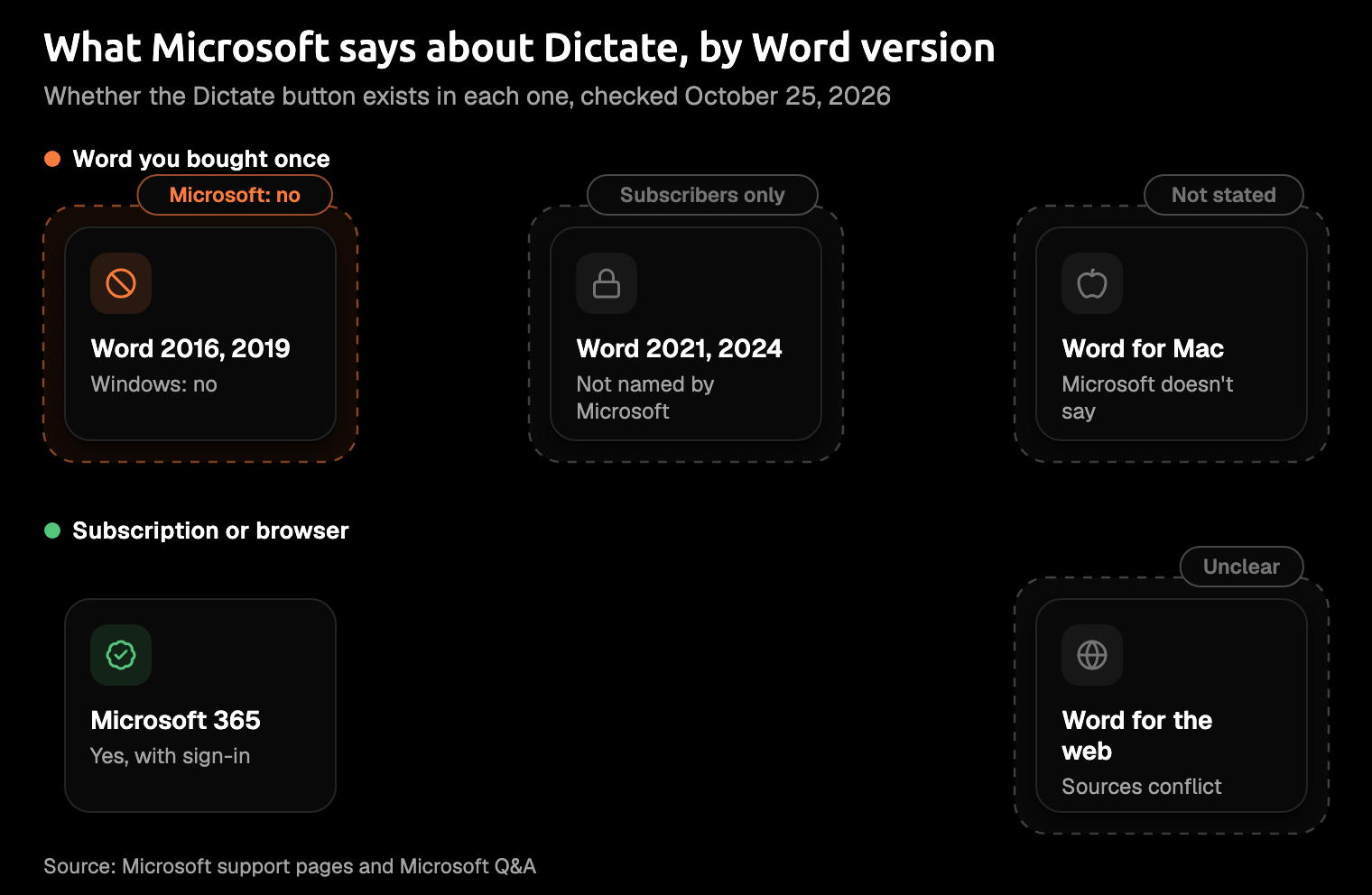
It depends on how you bought Word. For Word 2016 and 2019 on Windows, the answer is no, and for other copies bought once, Microsoft points you to a subscription: "The dictation feature is only available to Microsoft 365 subscribers."
- Word 2016 and 2019 for Windows: no. Microsoft staff told an Office 2019 user the same on Microsoft's forum.
- Word 2021 and 2024, bought once: subscribers only, per Microsoft's page, though its "not available" line names only 2016 and 2019. A Microsoft moderator told an Office 2021 user the same.
- Word for Mac, bought once: Microsoft doesn't say either way, but its Mac steps start with being "signed into Microsoft 365."
- Word for Microsoft 365: yes, this is where the button lives.
- Word for the web: the sources conflict (more below).
Don't hold out for an update, either. Office 2019 reached end of support on October 14, 2025, and Microsoft says it "doesn't receive new features." Office 2024, also a one-time purchase, gets no new features either.
If you own Word outright, assume there's no Dictate and plan around it. Oddly, Microsoft's Dictate article lists Word 2019 and Word 2016 under "Applies to," right at the top of the page that says it isn't available.
It applies to your version mostly by telling you no.
Why the Dictate button is missing (even with Microsoft 365)
If you do pay for Microsoft 365 and the button still isn't on the Home tab, Microsoft's checklist covers the usual causes.
- Sign in to Word with an active Microsoft 365 subscription.
- Use Windows 10 or later, with a reliable internet connection.
- Turn on connected experiences under File > Account > Account Privacy > Manage Settings. On a Mac, it's in the app menu under Preferences > Privacy.
- Make sure the document isn't read-only.
A greyed-out button is Word saying "not here," not "broken." Microsoft lists a read-only file as one cause, and turning connected experiences off can grey it out too. On a work or school account, your admin controls that switch, so that one's a question for IT.
On Word 2019 or 2016 without a subscription, none of this will make the button appear. Skip to the options; they work today.
Is Word's Dictate private?
Word's Dictate is a cloud service: it needs "a microphone and reliable internet connection," and your speech goes to Microsoft to become text. The support page sums it up in two lines: "Your speech utterances will be sent to Microsoft and used only to provide you with text results." And: "This service does not store your audio data or transcribed text."
Microsoft also lists Dictation among its "connected experiences that analyze your content," which is why that privacy switch can turn it off.
That's a fair deal for a cover letter or a status report. For a contract or anything confidential, read the fine print before you read the document aloud, and ask the same of whatever tool you use instead.
Five ways to dictate while you're on Word 2019 or 2016
Without the Dictate button, you still have choices, and one is probably on your computer already. Three of them sit outside Word and put text into whatever app you're in; the other two need a different Word, in a browser tab or with a subscription. They differ on four things: whether they work in the Word you installed, whether they need internet, whether you get a transcript or finished writing, and what they cost.
| Option | Works in your installed Word | Needs internet | What you get | Cost |
|---|---|---|---|---|
| Word for the web | No, it runs in your browser | Yes | Dictated text | Unclear (see below) |
| Windows voice typing (Win+H) | Yes, in any text box | Yes | A transcript; grammar fixes in English on Copilot+ PCs | Included in Windows |
| Mac Dictation | Yes, anywhere you can type | Depends on the language; some are processed on your Mac | A transcript; better formatting with macOS 27 on newer Macs | Included in macOS |
| Microsoft 365 Dictate | Comes with Word for Microsoft 365 | Yes | Dictated text; punctuation varies by language | A Microsoft 365 subscription |
| Amical | Pastes into any app that accepts pasted text | With Amical Cloud; local mode doesn't, if formatting is local too | Cleaned-up text, formatted for apps like email and chat | Free plan; Premium $10 a month |
Checked in October 2026 against each maker's own pages.
The built-in tools are fine for a sentence or two. For pages of writing, you want text that comes out already written, not a transcript you then have to fix.
Word for the web
Word for the web is the browser version of Word, with its own Dictate button on the Home tab, and it needs "a microphone and reliable internet connection."
Whether it's free is where the sources disagree. A 2020 Microsoft blog post said "Dictate is free on Word for the Web" in Edge, Chrome, or Firefox. On Microsoft's forum, a volunteer moderator said in March 2025 that it's in the free online app, and an independent advisor said the same in April 2026. The current web Dictate page, though, talks about being "signed into Microsoft 365" with an "active Microsoft 365 subscription."
So test it with your own account before you count on it. Sign in to Microsoft's free web apps, open a document, and look for Dictate on the Home tab.
If your account gets the button, it's the closest thing to the real one. It still isn't your installed Word, though: you're writing in a browser tab, which is a long way round for one letter.
Windows voice typing (Win+H)
Windows has its own dictation, and because it types into any text box, it works in Word 2019 too. Click in your document, press Windows key + H, and start talking.
It's built into Windows 10 and 11. It needs internet, because your speech goes to Microsoft's online speech service to become text. Microsoft's voice typing page lists 46 language options on Windows 11.
On Copilot+ PCs, a feature called fluid dictation corrects grammar and punctuation as you speak, on the device, in English. On other PCs, you get a transcript: your words, in the order you said them, ready for you to tidy. Old advice may point you to Windows Speech Recognition; it's deprecated and being replaced by voice access on Windows 11, so skip it.
Win+H is the quickest free thing to try on Windows, and it's been on your PC all along, behind a shortcut nobody mentions. Our AI dictation vs Windows voice typing comparison goes deeper, and offline dictation on Windows covers working without a connection.
Mac Dictation
Macs have dictation built in, and it works in Word because it works "anywhere you can type it." Turn it on in System Settings > Keyboard > Dictation, then press the shortcut shown there (you can change it).
There's no timeout, but Apple's Dictation guide says it stops "when no speech is detected for 30 seconds." Pause to think through a tricky sentence, and you may come back to a Mac that's stopped listening.
Some languages are processed on your Mac rather than on Apple's servers, and Keyboard settings tell you which. If Dictation won't start at all, check Voice Control: while it's on, standard Dictation isn't available.
macOS 27 adds a better on-device model that handles capitalization, punctuation, and formatting, on Macs with M3 or later and at least 12 GB of memory. M1 and M2 Macs keep the old model, and neither one adapts to the app you're in or takes a custom vocabulary.
For notes and short replies, it's good enough, and it's already there. Our AI dictation vs Mac Dictation comparison covers the rest, and does Apple Dictation work offline? covers the no-Wi-Fi case.
Microsoft 365 Dictate
Microsoft says Dictate is for Microsoft 365 subscribers, so subscribing gets you the real button in Word for Microsoft 365. It runs in the cloud, with 15 supported languages and 36 in preview, which Microsoft says "may have lower accuracy or limited punctuation support." Don't count on it in your old copy, though: one user on Microsoft's forum reported in September 2025 that they had a Microsoft 365 Family plan and Word 2019 installed, and still no button. That's one person's report, not Microsoft's word, but it's a reason to check before you pay.
It's worth it if you want the rest of Microsoft 365 anyway. For one button, it's a lot of subscription.
Amical (our pick)
An AI dictation app works outside Word, so it doesn't care which version you own. Amical pastes your words into whichever app has focus, which makes Word 2019 one more app that accepts pasted text. There's no add-in to install, and the free plan needs no subscription. We haven't tested it in Word 2019 specifically, so the paragraph you dictate at the end of this post is your check.
- Install Amical on your Windows PC or Mac.
- Click in your Word document where the next sentence should go.
- Hold
Fn, speak, and let go. The text is pasted at your cursor.
Push-to-talk is Fn by default, and you can change it in Shortcuts. For a longer stretch, press Fn+Space and talk hands-free.
The bigger difference is what reaches the page. Amical turns your speech into text, then its AI formatting rewrites it for the app you're in: an email for your mail app, a reply for chat, and a plain cleanup elsewhere, fixing grammar as it goes. In Word, expect the plain cleanup. You might say something like this (an illustration, not a measured result):
um so basically the report's going to be late because the supplier data came in late, so we'll have it by the end of the month, sorry about that
And a paragraph like this goes into your document:
The report will be late because the supplier data arrived late. We'll have it ready by the end of the month. Sorry for the delay.
In that example, the "um," the "so," and the "basically" stay in the room.
You choose where your speech becomes text. Amical Cloud is Amical's own speech model, built for speed, in 100+ languages, and it needs sign-in. By Amical's own figures, a short dictation comes back as finished, formatted text in under 300 ms, and a longer one in under 500 ms. The paragraph is there by the time you look back at the page. In that mode, your audio and some formatting context, such as the app name and the text near your cursor, go to Amical Cloud.
In local mode, speech becomes text on your own computer. Whisper and Parakeet are speech-to-text models that run locally, and you download one once. Local mode needs no account and works offline after that. Your audio stays on your computer, and text leaves only if you pick a cloud provider for formatting.
Names and jargon are where plain dictation slips, so add yours to custom vocabulary, which is part of the free plan. It tells Amical which names and terms to expect, like the client's surname that sounds like a common noun.
It runs on Windows 10 or later and on Apple Silicon or Intel Macs, so it follows you from the office PC to the laptop at home.
- It isn't built into Word. It's a separate install, which is why it doesn't depend on a Word that Microsoft no longer updates, and the same key works in your email too.
- Local Whisper needs macOS 15 or later and is slower on Intel Macs. Parakeet runs locally on macOS 14 and Intel Macs, and Amical Cloud has no such limit.
- Hands-free stops after 5 seconds of silence. Holding the key keeps it listening while you think, and one recording session runs up to 2 hours, longer than you'll want to talk without a break.
- There's no Linux version. If your Word 2019 is on Windows or a Mac, that won't get in your way.
The free plan includes unlimited local dictation and 2,000 cloud words a week, and Premium removes the cloud limit. Amical for Microsoft Word has more on using the two together.
Which one should you use?
Pick by the computer in front of you and how much you write.
- On Windows, with internet, for a sentence or two: press Win+H.
- On a Mac, for notes and quick replies: use Mac Dictation.
- You want the real button and need Microsoft 365 anyway: subscribe.
- You already work in a browser: try Word for the web with your own account.
- You write whole documents, want formatted text, need to work offline, or use both Windows and a Mac: use Amical.
If you write more than a paragraph at a time, you belong in that last line: you want writing on the page, not a transcript to fix. If the privacy side gives you pause, our guide to cloud vs local dictation walks through it.
You don't need a new Word to stop typing into the old one.
Try it on one real paragraph
Download Amical, follow the quick start, and open the Word document you've been putting off. Put your cursor where the next paragraph should go, hold the key, and say it the way you'd explain it to a colleague. The free plan covers it with room to spare, and that one paragraph tells you how it behaves in your copy of Word.
If the paragraph that comes back needs a word changed, change it. You've still skipped the typing. (Yes, we make Amical. Judge it by that paragraph.)