The laptop is open on the tray table, the Wi-Fi says not connected, and there's a long email to write. Your plan was to dictate it, which quietly assumed the plane had Wi-Fi.
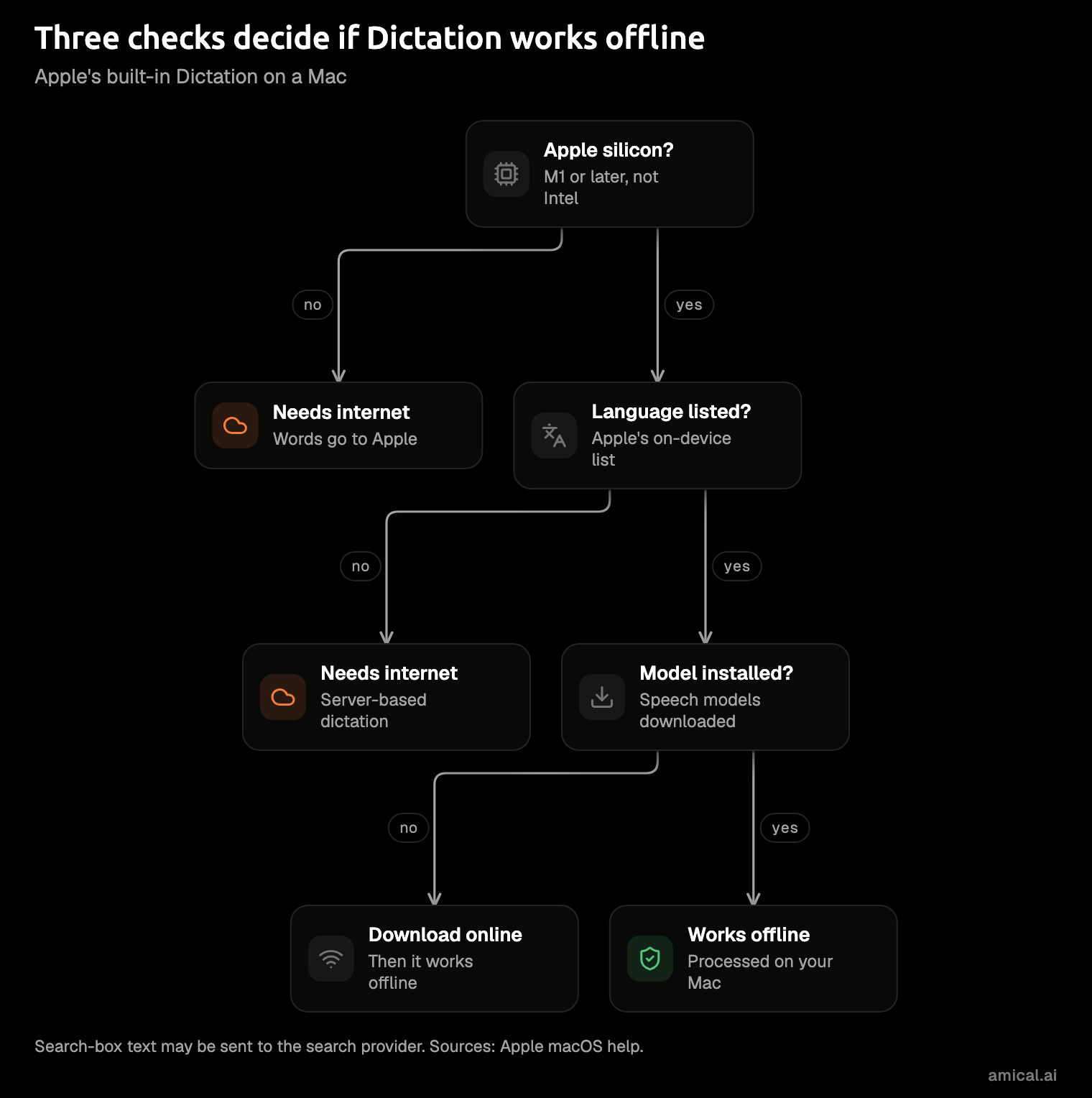
Does Apple Dictation work without internet? On most recent Macs, yes, if three things are true: your Mac has Apple silicon (M1 or later), your language is on Apple's on-device list, and Apple's speech models are already downloaded. On an Intel Mac, Apple's macOS 14 help page says your words go to Apple, so no internet means no dictation.
Amical publishes this blog and makes a dictation app with an offline local mode, so weigh what we say about it near the end accordingly. Everything before that covers Apple's own Dictation, from how to check your Mac to what macOS 27 changed.
The short answer
Nobody loves "it depends," but this one comes with a checklist. Three things decide it: your chip, your language, and whether the speech models are on your Mac. On-device means your Mac turns speech into text itself, without sending it to Apple's servers.
| Your Mac | Your language | Works without internet? |
|---|---|---|
| Apple silicon | On Apple's on-device list, speech models downloaded | Yes |
| Apple silicon | On the list, speech models not downloaded yet | Not yet: download them while you're online |
| Apple silicon | Not on the on-device list | No, it needs internet |
| Intel, macOS 10.15 or later | Any | No |
| Any Mac | Any, when dictating into a search box | Not on-device: search boxes may send text to the search provider |
The on-device list is shorter than the full Dictation list. On Apple's macOS 27 list as of October 2026, English (US) and Japanese are on it; Hindi, for one, isn't, so Hindi dictation needs a connection.
Apple's current help page no longer spells out the internet requirement, so the Intel row rests on the macOS 14 page, the newest one that says it in words.
Apple's Dictation has no length limit. It stops when it hears no speech for 30 seconds, and that's a silence timer, not your connection dropping.
How to check your own Mac
The note in System Settings is the real answer for your Mac and your language. Trust it over any blog post, this one included.
- Find your chip in About This Mac. An Apple M chip (M1 or later) means Apple silicon; Intel means an Intel Mac. If you've had your Mac long enough to forget what's inside it, this settles it.
- Open System Settings > Keyboard and turn on Dictation.
- Read the note under Dictation. It tells you whether your voice input is "processed on your device and not sent to Siri servers."
- Click Edit next to Languages and check each language you dictate in.
- Turn Wi-Fi off and dictate a sentence into Notes. If the words keep appearing, that language works offline on your Mac.
That last step is a practical test that MacHow2 suggests, not an Apple method, but it's the closest thing to a rehearsal for the plane.
One catch: when Voice Control is on, standard Dictation isn't available, so turn Voice Control off before you test.
Before you go offline
On-device dictation runs on speech models, which your Mac has to have on disk. Apple says so next to the on-device languages: "Requires download of speech models." The download needs internet, so it happens on the ground.
Set up each language you dictate in while you're still online, and run the Wi-Fi test from the last section in every one of them, including the one you only switch to now and then.
Auto-punctuation has its own, shorter language list, so check that one as well if you count on Dictation to place your commas.
The time to find out is at the gate, not at cruising altitude.
Why old guides talk about "Enhanced Dictation"
Search this question and the top results still tell you to tick a box called Use Enhanced Dictation. That advice was right once.
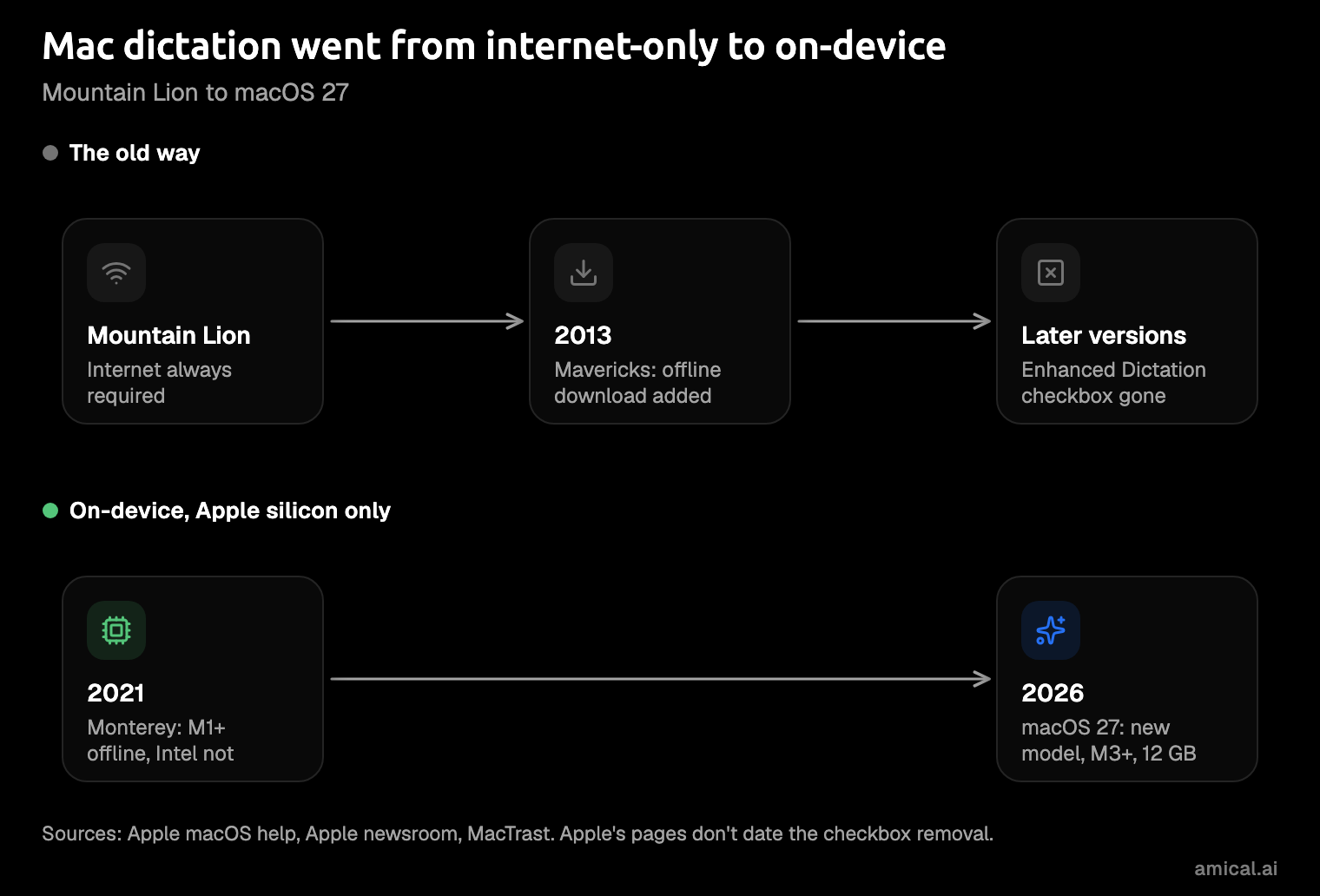
Back in Mountain Lion, Mac dictation needed an active internet connection at all times. Mavericks (2013) added Enhanced Dictation, a download of about 800 MB that let you dictate offline; without it, you could speak for up to 30 seconds at a time.
Apple's help for macOS 10.13 and 10.14 still describes the checkbox, and later macOS versions no longer show it.
Monterey (2021) brought offline dictation with no time limit to Apple silicon Macs, while Intel Macs kept a 60-second cap.
So a guide that sends you looking for Use Enhanced Dictation is describing Mavericks, not your Mac. If you've been clicking through System Settings hunting for it, you can stop. It isn't hiding.
The checkbox is gone. The question it answered isn't.
What macOS 27 changed
macOS 27 arrived on September 14, 2026, with an improved on-device Dictation model that handles capitalization, punctuation, and formatting as you speak. It needs a Mac with M3 or later and at least 12 GB of unified memory (the memory the chip shares for everything).
M1 and M2 Macs keep the previous on-device engine, the same one described above. Intel Macs can't run macOS 27 at all, so they stay on server-based dictation.
The new model still doesn't shape the text for the app you're in, learn your custom vocabulary, or write a draft from an instruction. Writing Tools can rewrite text you've selected, but that's a separate step after you dictate.
Better punctuation is real progress. Apple's new model handles the commas; it still doesn't know you're writing in Slack. You get a cleaner transcript, not a message.
Whichever engine your Mac runs, the Settings note from earlier still tells you whether your dictation stays on the device.
What Apple sends when dictation isn't on-device
Apple's privacy page answers this in plain language. When dictation runs on-device, "your audio and transcripts are processed on your device and not sent to Apple servers." Otherwise, they're "sent to and processed on the server, but will not be stored unless you opt in to Improve Siri and Dictation."
The same page fills in details for Siri and Dictation requests in general, without separating out on-device ones. Request history is tied to a random identifier your device generates, which rotates multiple times per hour, not to your Apple Account. Apple says it may keep that data for up to two years, and a reviewed subset for longer.
Dictation can also send contact names, nicknames, and relationships from Contacts to help it recognize them.
If you opt in to Improve Siri & Dictation, Apple may store your audio, and Apple employees review a subset. To see what you chose, open System Settings > Privacy & Security > Analytics & Improvements.
If you clicked through setup on day one, this is where you find out what you agreed to.
If Apple's Dictation doesn't fit: use an offline dictation app
If your Mac has Apple silicon and the Settings note says your language is processed on your device, Apple's Dictation already works offline for you. Keep using it: it's built in, with nothing to install.
If you're on an Intel Mac, your language isn't on Apple's list, or you want a finished message rather than a transcript, use a dictation app that runs its speech model on your Mac. Amical is our pick for those cases:
- Works offline in local mode. Amical transcribes on your computer and works without internet once a model is downloaded. Local mode needs no account.
- Runs on Intel Macs. Parakeet v3, an open speech model, runs on Intel and Apple silicon Macs from macOS 14; local Whisper, another open model, needs macOS 15.
- Supports 99 languages in local mode. Local Whisper supports 99 languages and can detect which one you're speaking, so it's worth checking for yours if Apple's on-device list leaves it out.
- Writes the message. AI formatting rewrites your words for the app you're in: an email in Gmail, a short reply in a chat app, tidy notes. It can run on your Mac too, through Ollama or LM Studio (apps that run AI models on your own computer). In local mode with a local formatter, neither your audio nor your text leaves the Mac.
- Free. The free plan has unlimited local dictation.
Amical Cloud isn't an offline option: it needs internet and a sign-in. It's the fast choice when you're connected, with short dictations finished in under 300 ms by Amical's own figures, and local mode is the offline one, in the same app (cloud vs local dictation weighs the two).
Local mode has limits of its own: Whisper runs slower on Intel Macs, and Parakeet doesn't cover Japanese, so step 2 below says which to pick. And Apple's Dictation has no length limit, while one Amical recording session runs up to 2 hours: long past any email, but a limit all the same.
Fully offline output needs a local formatter. With a cloud formatter, your transcript and the text around your cursor go to that provider, so set formatting to Ollama or LM Studio before you lose the connection.
Local AI models covers the setup options, and Amical vs Apple Dictation has the side-by-side.
On a PC, see offline dictation on Windows; on a phone, AI voice keyboard vs iPhone dictation.
Offline dictation shouldn't depend on which year you bought your Mac. The Intel Mac that handles everything else shouldn't be the one that can't dictate.
How to set it up before your next trip
Do this while you still have Wi-Fi. Airport Wi-Fi is nobody's first choice for a large download.
- Download Amical and open it; the desktop quick start covers permissions.
- Open Settings > AI Models > Speech > Default Speech Model and pick a model: Parakeet if you're on macOS 14 or an Intel Mac and dictate in one of its 25 European languages, a Whisper model for Japanese and other languages (macOS 15 or later). Whisper models run from about 78 MB for Tiny to about 3.1 GB for Large v3, so start the big ones at home.
- For fully offline formatting, point AI formatting at Ollama or LM Studio.
- Turn Wi-Fi off.
- Click into a real email, hold Fn, and say what you want it to say. Let go, and the text lands at your cursor.
For a longer stretch, press Fn+Space to dictate hands-free; it stops after 5 seconds of silence. You can change both keys in Shortcuts.
FAQ
Does Mac dictation work in airplane mode?
Yes, if your Mac has Apple silicon, your language is on Apple's on-device list, and its speech models are downloaded. On an Intel Mac running macOS 10.15 or later, no: Apple's help says dictation there goes to Apple's servers.
Does Apple Dictation send my voice to Apple?
Not when it runs on-device. Otherwise your audio is sent to Apple and processed there, and it isn't stored unless you opt in to Improve Siri & Dictation.
Why does Mac dictation stop after 30 seconds?
Today, Dictation stops when it hears no speech for 30 seconds, and there's no length limit. Older guides mention a 30-second cap, but that was the limit for dictating without Enhanced Dictation back in 2013.
Can I use Enhanced Dictation on a new Mac?
No. Later macOS versions no longer show it. On Apple silicon, on-device dictation does the same job without the checkbox.
Try it with the Wi-Fi off
Before your next flight, download Amical while you're still connected, pick a local model, and turn Wi-Fi off. Then dictate one real email, the one you'd otherwise type on the tray table, and read what lands.
We make Amical, so judge it on your own words rather than ours. The free plan includes unlimited local dictation, so the test costs you nothing but one email you had to write anyway.