You have the prompt ready. You click the mic in Cursor's chat, the waveform dances along with every word, and the box stays empty. There is a particular irony in explaining a bug out loud to an editor that isn't listening.
When Cursor voice input is not working, the cause may not be your microphone at all. Many reported failures trace back to Cursor itself, and a Cursor reply on the forum put one of them down to the speech-to-text service on its end. Give the quick checks a few minutes, not an afternoon: they rule out the causes you can fix yourself. If they don't help, you can dictate into Cursor with Amical (which publishes this blog) without touching Cursor's mic at all.
The quick answer
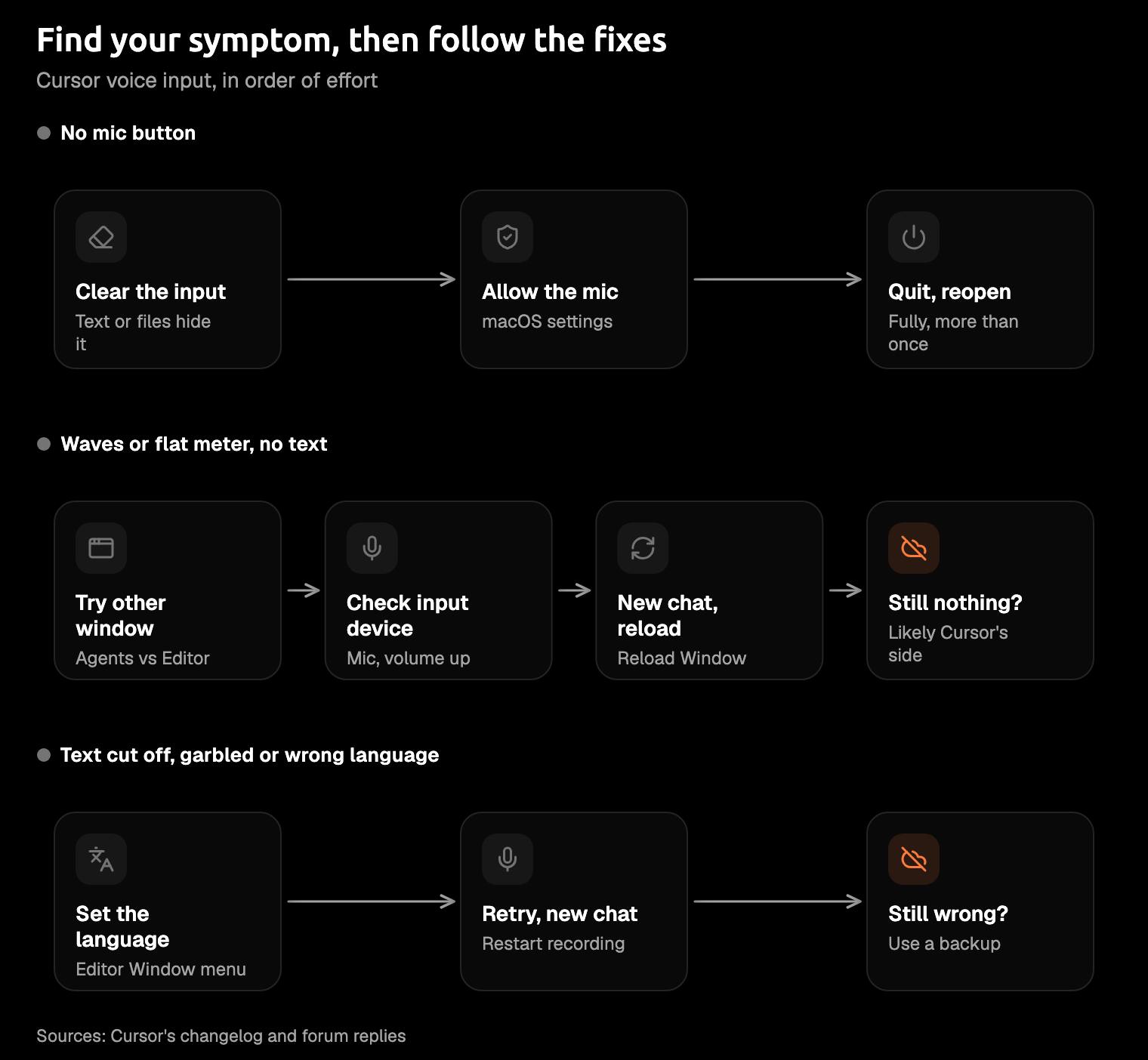
Work through these in order, and stop as soon as text appears.
- Find the mic button. Clear the chat input, because the button hides when there's text, a file, or an image in it. If it's still missing on a Mac, check that Cursor has microphone permission.
- Waves (or a flat meter) but no text? Try the other window. If the Editor Window's mic fails, try the Agents Window's, or the other way round. The two should now behave alike, so if both fail, move on.
- Still nothing? Start fresh. Open a new chat, run Reload Window, and record again.
- On the Free plan? The plan may be the reason; see "Is it your plan?" below.
- Nothing works? Dictate with your system's dictation or a dictation app while Cursor sorts it out.
If text shows up, send that prompt before you forget what it was.
First, which voice input are you using?
Cursor's voice input has changed often since it arrived, and forum threads mix versions and windows freely. Knowing which mic you're clicking saves real time.
- Voice Mode is the original. It arrived in Cursor 2.0 in October 2025, as built-in speech-to-text for talking to the agent. On a Mac, Cursor's keyboard shortcuts page lists Toggle Voice Mode as
Cmd+Shift+Space. - Hold-to-talk came with Cursor 3.1 in April 2026. At launch, you held
Ctrl+Min the Agents Window to speak, and Cursor transcribed the whole clip in one batch. - The Editor Window has its own mic, and it is where the language dropdown lives. Since mid-October 2026, a Cursor reply says the Agents Window uses the same live transcription as the Editor.
While Cursor is listening, the X button throws the dictation away and puts the box back how it was. The check button stops recording and keeps the text. Press the wrong one and your good paragraph vanishes, which feels like a bug but isn't.
Whichever you use, your audio is transcribed on a cloud speech service, not on your machine. When that service has a bad moment, all you see is an empty box.
Forum threads don't always say which window they mean, and each window's mic has had its own opinions. Know which one you're in before you change anything.
The mic button is missing
When you can't find the mic button at all, start with the input box. It's the least obvious cause and the quickest to rule out.
- Empty the input box. The mic button disappears when there's text, a file, or an image in the chat input. A Cursor reply called it a known issue, with an open request to keep the button visible. Clear the box and the mic comes back. Yes, that includes the file path you just pasted to give the agent some context.
- Undo an old "Don't Allow". If you once turned down macOS's microphone prompt, Cursor loses the mic. Open System Settings > Privacy & Security > Microphone and switch Cursor on (Apple's guide). Then fully quit Cursor and reopen it. One user on the forum got the icon back only after force-quitting several times, so don't give up after the first restart.
- Check the shortcut. On a Mac,
Cmd+Shift+Spacetoggles Voice Mode, and Windows users reportCtrl+Shift+Space. You can also holdCtrl+M(Control+Mon a Mac) for voice input.
If the box is empty, the permission is on, and the shortcut still does nothing, the problem is past your settings.
The waveform moves but no text appears
A lively waveform for a sentence that never arrives is a frequent complaint on Cursor's forum. If your level meter stays flat instead, this section is for you too. Work through these in order, and stop as soon as your words appear.
- Try the other window's mic. If the Editor Window's mic fails, try the Agents Window's, or the other way round. On current builds the two should behave alike, so if the other one fails too, move on.
- If the meter is flat in both, check the input. Make sure the right microphone is selected, nudge the input volume slider in System Settings > Sound > Input, and restart Cursor. That helped some users and not others.
- Look in DevTools. Open Help > Toggle Developer Tools, go to the Network tab, and look for
voice-processor.jsfailing withERR_FILE_NOT_FOUND. Cursor replies disagree on whether it matters: one called it a likely cause in the Editor Window, others a red herring. Treat it as a clue for your bug report, not a diagnosis. - Suspect the server. In September 2026, a Cursor reply on the forum said the audio reaches the server but the speech-to-text service "intermittently returns nothing". The suggested fixes: restart the recording if no text appears within a few seconds, and open a new chat. One user said Reload Window sometimes helps.
This isn't new. In May 2026, Cursor replies called a dead level meter in the Editor Window a regression in 3.2.21, and the Agents Window's mic was the workaround. The next day, another reply said voice transcription had been fixed on the backend, though some users still got garbled or dropped text.
If the meter moves and the other window fails too, stop tweaking. That points to Cursor's side, and you'll get your sentence onto the screen faster by going around it. A dictation app doesn't use Cursor's speech service at all, which is why it is the backup at the end of this guide.
Text comes back cut off, garbled, or in the wrong language
When your text does arrive but it's wrong, the fix depends on how it's wrong.
- Cut off mid-sentence. Cursor's replies point to the same server problem as above: restart the recording, and open a new chat when a prompt keeps cutting out.
- Garbled, or missing chunks. Live transcription rewrites its guesses as you speak, and that part is normal. Losing whole chunks is not. Cursor has acknowledged quality problems on Mac and Windows and says it has improved dictation since. There is no setting on your side for this one.
- Translated into English, or the wrong language. The language dropdown appears in the Editor Window while you're dictating, and the choice carries over to the Agents Window, which has no dropdown of its own. As of August 2026, the list of languages was fixed, and an empty setting fell back to an English hint. A Cursor reply said Auto-Detect was "coming soon".
- Ctrl+M dropping text on Linux. In April 2026, a Cursor reply promised a fix "in the next 3.2 patch". If it still happens to you, note that the Dictate button kept working for that reporter while the shortcut lost text.
Speaking Czech and getting back a confident English paraphrase is what that English fallback looks like. If your language is on Cursor's list, select it yourself. If it isn't, don't wait for a setting. Cursor offered the Czech reporter no reliable workaround, but a dictation app that supports your language can write it for you today.
It works in one setup but not another
The laptop dictates fine, and the remote box hears only silence. When one setup works and another fails, the difference between them is your best clue, so change one thing at a time.
- Remote Desktop on Windows. Over Remote Desktop, the Agents Window recorded silence while the Editor Window worked. Dictate in the Editor Window (
Ctrl+Shift+N), and retest on the latest version, since Cursor now says both windows use the same transcription. - Linux. In November 2025, a forum reply suggested turning off HTTP/2 under Cursor Settings > Network, while a Linux user found voice worked on HTTP/2 and failed on HTTP/1.1. The advice is old and the reports conflict, so try both and keep whichever works.
Is it your plan?
Maybe. The forum replies have pointed both ways, and the pricing page does not settle it.
In April 2026, a Cursor reply told a Free user that voice transcription was "Pro and above". It called the generic error they saw, instead of an upgrade hint, a bug. A May reply said the same, then put it down to an account that only looked Free in Cursor's system. In June, a Pro+ user was told speech-to-text "is not available on the Free plan", until Cursor withdrew that reply as a likely client-side bug.
Earlier, in February, forum replies not clearly from Cursor said voice has no separate charge. Cursor renamed its plans in October 2026, and as of late October its pricing page doesn't mention voice for any plan.
So if you're on Free and see waves but no text, rule out the plan first: try a paid account if you have one, or ask Cursor support. If you pay, the plan is probably not your problem, so start with the window and server checks.
An error that just says something went wrong, when it may mean upgrade, is not what you want at the end of a long day. The plan question deserves one email to support, not an evening of reinstalls.
When Cursor's voice input still won't work
When the checks run out, you can go around Cursor with a dictation tool that puts text into whichever field has focus. It skips Cursor's mic button, plan, and speech service entirely.
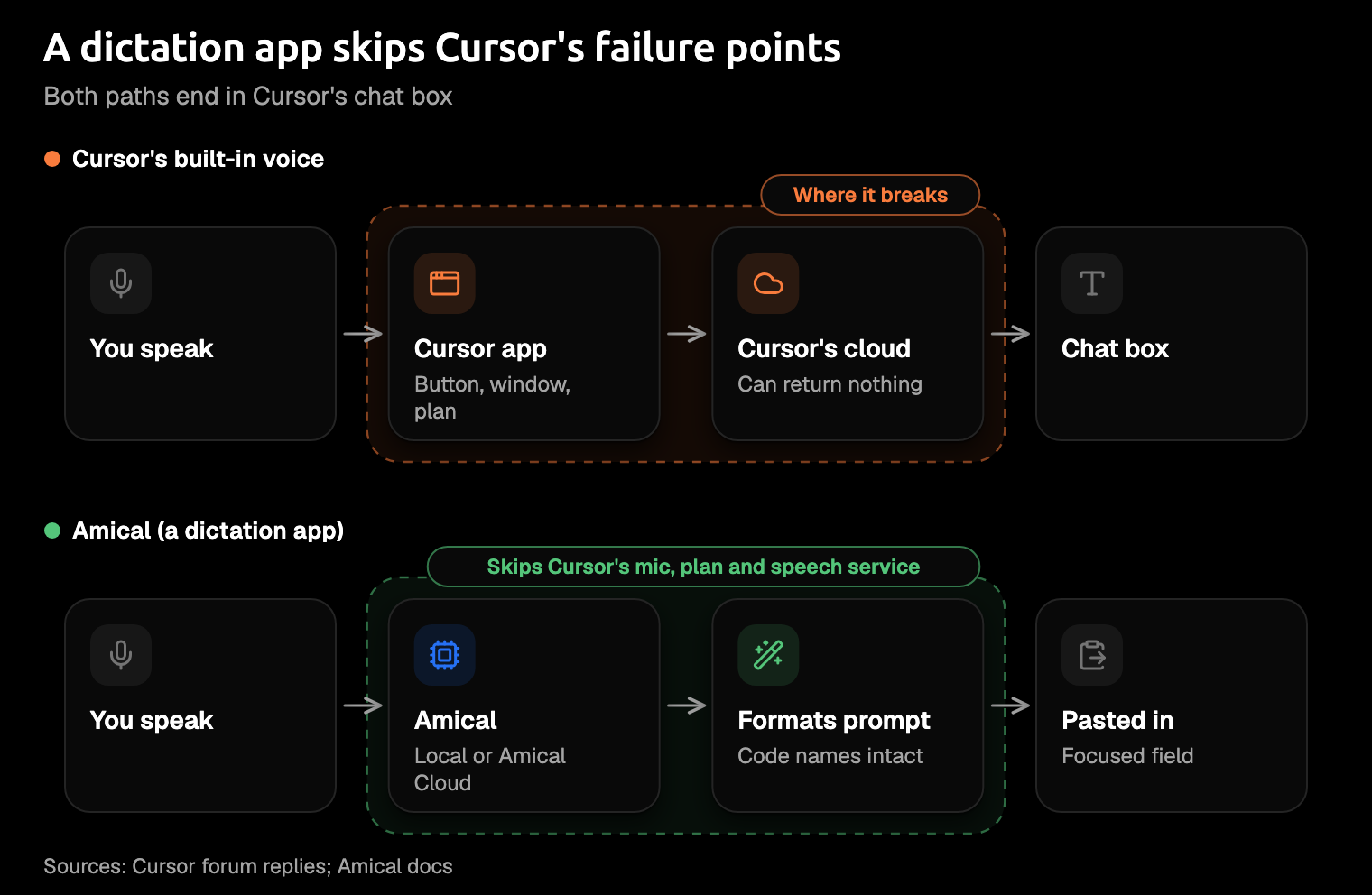
Amical (our pick, and our product). Hold your push-to-talk key, speak, and let go. Amical pastes the text into whichever app has focus, Cursor's chat box included. On a Mac the key is Fn by default, on Windows you choose your own, and you can change it whenever you like. Cursor's server problems don't touch it, and in local mode it works offline once a model is downloaded.
It also writes the prompt you meant, not a transcript. In a code editor, Amical's AI formatting turns your speech into a precise prompt and keeps function names, type names, and file paths intact. Custom vocabulary tells it which project names to expect. Here's an illustrative example, not a measured result. You say:
um okay so in auth slash session dot ts, the refreshToken function is, uh, retrying forever when the token's expired, can you make it give up and log the user out instead
And this lands in Cursor's chat:
In
auth/session.ts,refreshTokenretries forever when the token has expired. Make it stop retrying and log the user out instead.
That is ramble prompting in practice: say the messy version, send the tidy one.
With Amical Cloud, by Amical's own figures, finished, formatted text comes back in under 300 ms for a short dictation. In local mode, Whisper or Parakeet (open speech models) run on your own computer instead.
Amical runs on Mac and Windows, with apps for iPhone, iPad, and Android. The same shortcut works in Cursor, in the terminal (so you can dictate to Claude Code too), and in the Slack thread where you're reporting Cursor's mic bug.
Amical has limits, too.
- It asks for two permissions on a Mac. Setup asks for microphone access and accessibility access, and the second is what lets Amical paste into Cursor and other apps.
- No Linux app. On Linux, the HTTP/2 setting above is worth a try, though the reports on it conflict. Open source dictation apps such as Handy also run on Linux, and our open source roundup compares them.
- Amical Cloud needs sign-in and sends context. Along with your audio, it sends formatting context, which in a code editor can include selected text and up to 500 characters around the cursor. Local mode transcribes on your computer and needs no account; text leaves only if you pick a cloud provider for formatting.
- Local Whisper needs macOS 15 or later and is slower on Intel Macs. Parakeet runs locally on macOS 14 and Intel Macs, and Amical Cloud has no macOS 15 requirement.
The free plan includes unlimited local dictation and 2,000 cloud words a week, and Premium removes the cloud limit.
The built-in options come with your system and suit narrower cases.
- macOS Dictation: press
Fntwice or the Microphone key. Cursor replies have recommended it as a workaround, though one reporter found it failed inside Cursor too. It stops after 30 seconds of silence (how it compares with AI dictation). - Windows voice typing: press
Win+Hwith the cursor in a text box; it needs internet. - Windows Voice Access: runs on Windows 11 22H2 or later and works offline after setup, in four languages as of October 2026. See how both Windows options compare with AI dictation.
If you talk to an AI agent all day, your voice input shouldn't depend on one editor's mic button. A dictation app works in Cursor today and in whatever you open next.
Send the prompt that didn't go through
Download Amical, follow the quick start, and click into Cursor's chat box. Hold your key and say the prompt that got stuck earlier; the free plan covers it. Our page on dictating into Cursor has more once that first prompt lands.
If Cursor's mic comes back next week, good. You'll have two ways to talk to your editor, and one of them doesn't care which window you're in.