You tap the mic in Gboard, talk through a reply to a client, and remember halfway through that the commas were your job. Standard voice typing is fine for a search. For a real message, saying every punctuation mark out loud gets old fast.
Our pick for the best dictation app for Android is Amical, and four more AI dictation apps follow it: how each one sits on your screen, what it asks you to allow, what it costs, and which to try first. Several reached Android recently, so plenty of older pages still say they aren't available.
Amical is one app and one account across Mac, Windows, iPhone, iPad, and Android. On your phone it runs on Amical Cloud, Amical's own speech model, which covers 100+ languages and handles Japanese and English in the same sentence. Amical calls itself the industry leader in dictation speed: by its own figures, with no public benchmark yet, a short dictation comes back in under 300 ms. And its floating bubble sits over Gboard, so you keep the keyboard your thumbs already know.
Since we're recommending our own app, you should know where we stand: Amical publishes this blog, and its paid plan is how we make money. The other four each win a situation of their own, and we'll tell you which.
Quick picks
- Amical: best overall, and best for Japanese and English in one sentence, or one app on your phone and laptop.
- Wispr Flow: best if you already pay for Wispr Flow on your computer.
- Superwhisper: best if you'd rather buy a lifetime license than subscribe.
- Aqua Voice: best for fixing text by voice after you've said it.
- Typeless: best if you want a full voice keyboard instead of a bubble.
- Gboard voice typing: the baseline you already have, fine for searches and a quick "on my way."
| App | How it sits on Android | Free tier | Paid tier (monthly / yearly) | Android requirement | Where audio is processed |
|---|---|---|---|---|---|
| Gboard voice typing (baseline) | Mic key inside the keyboard | Built into Gboard | No price listed by Google | Gboard and mic permission; Pixel 6 or later for Advanced voice typing | Basic Advanced voice typing stays on your phone; detailed edits and Rambler use Google's servers |
| Amical | Floating bubble over your keyboard | Free plan | $10 a month / $84 a year | Sign-in and internet | Amical Cloud |
| Wispr Flow | Floating bubble over your keyboard | "Limited weekly use on mobile" | $15 a month / $12 a month billed yearly | Android 13+, internet, 6 GB RAM recommended | Wispr's cloud |
| Superwhisper | Floating bubble over your keyboard | Not stated for Android | $8.49 a month / $84.99 a year, or $249.99 lifetime | Phones only, no tablets | Not stated in its Android docs |
| Aqua Voice | Floating button above your keyboard | 1,000 words | $12 a month / $10 a month billed yearly | Android 10+, internet, no Android Go | Aqua's servers |
| Typeless | Voice keyboard you switch to | "Limited words each week" | $30 a month / $12 a month billed yearly | Not stated in its docs | Typeless's cloud |
Web prices checked October 25, 2026; billing through Google Play can differ.
If you read only one column, make it the last one. It tells you where your voice goes before it turns into text.
The baseline: Gboard voice typing
You already have this one. Tap a text field, tap the microphone at the top of Gboard, and say what you want. Punctuation is your job: you say "comma," "period," and "new paragraph" out loud, like a telegram operator on a deadline. Google also notes that talk-to-text doesn't work with every language.
On a Pixel 6 or later, Advanced voice typing adds automatic punctuation and simple commands such as "Delete last word" and "Clear." It covers English, French, German, Italian, Japanese, and Spanish, and Google says the text you speak stays on your device. The exceptions are Fix it and detailed edits such as "Change apples to oranges," which send text to Google.
Rambler, Google's Gemini-powered upgrade to Gboard, goes further: it removes filler words and switches languages mid-sentence, subject to usage limits. Google processes your audio and text temporarily and deletes them once your text is delivered. The catch is your phone. Google's announcement said Rambler would start on the latest Samsung Galaxy and Pixel phones and reach others later, but for now Gboard Help lists only the Pixel 11 series.
On most phones, that leaves standard voice typing: you get your words and supply the punctuation. The apps below are for when you want more, such as two languages in one sentence, editing by voice, or the same tool on your laptop.
Three ways an app sits on your phone
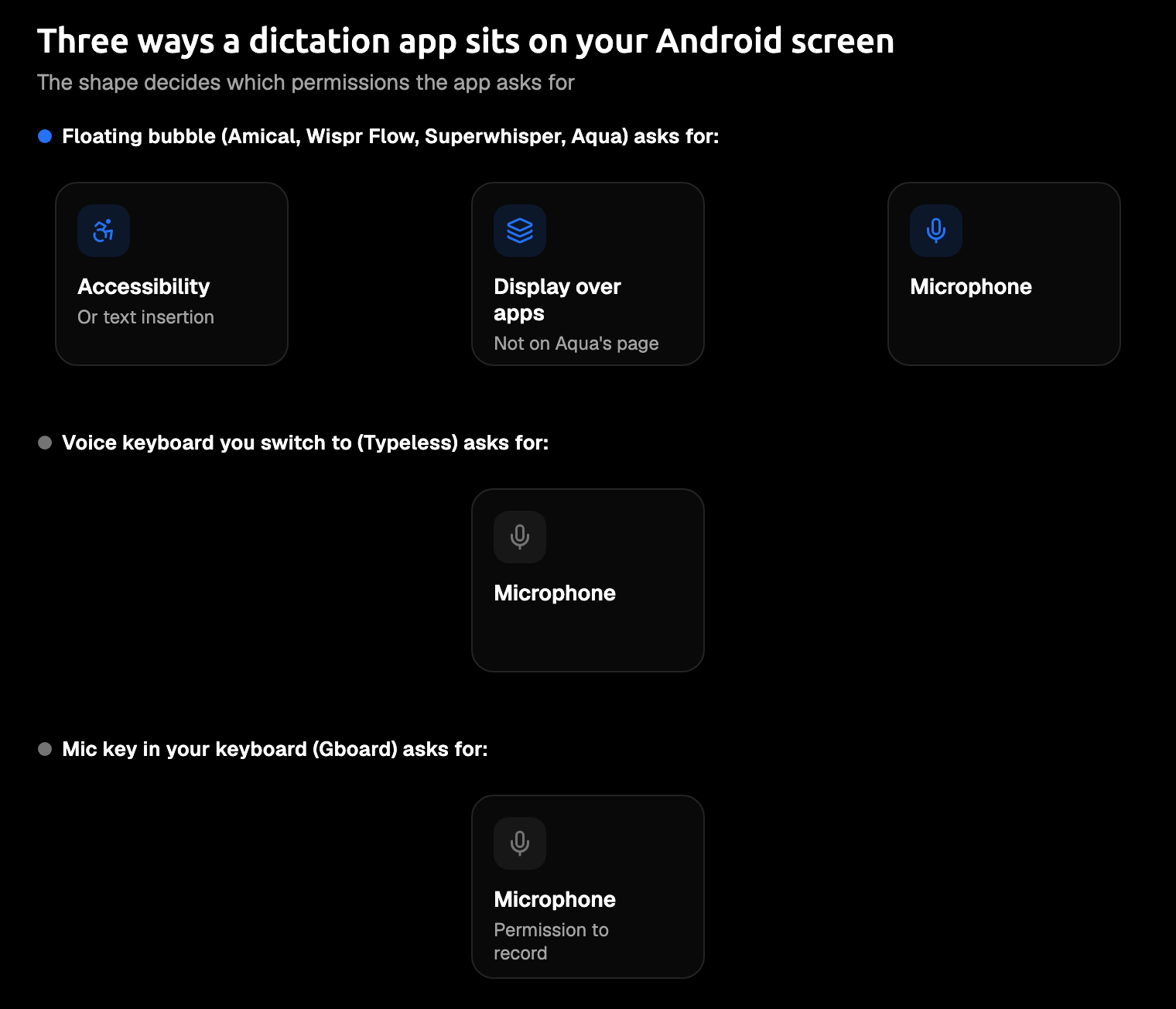
Every Android dictation app has to get your words into another app's text box. There are three ways to do it, and the one an app picks decides what it asks you to allow.
- A floating bubble over your keyboard. You keep Gboard, and a small bubble shows up when you tap into a text field. Tap it, talk, and the app types into the field. It needs the microphone, accessibility access or a text-insertion permission, and usually permission to display over other apps. Amical, Wispr Flow, Superwhisper, and Aqua Voice work this way.
- A voice keyboard you switch to. The app takes Gboard's place, and you swipe to move between keyboards. Typeless works this way.
- The mic key in your keyboard. This is Gboard's own voice typing, which needs permission to record audio.
Accessibility access is the one that makes people hesitate. Amical's Android quick start asks for it so the bubble can put your dictation into the field you're typing in. Other apps may use it for more, and their docs are where you find out.
Wispr's docs, for example, say Flow reads on-screen text, the field's layout, limited text-box contents, and the app or site name or URL. That's the kind of list to look for from any app before you tap Allow.
Then there's the reminder. Google Play periodically asks you to review apps with accessibility access, and Wispr points out that the prompt comes from Google Play, not from Flow. So the repeat "still sure?" isn't the app nagging you. It's Google's routine check, and it's worth a quick look: keep access for the apps you use, and switch it off for the one you tried once and forgot.
If you use accessibility tools because typing hurts, our guide to dictation for RSI is a good next read.
The top 5
The steps for Amical, Wispr Flow, Superwhisper, and Aqua Voice come from each app's own docs, so the permission names match what you'll see on screen. Typeless documents less of its Android setup, and its entry says so.
1. Amical (our pick)
Best for: you, if you mix Japanese and English, or want the same dictation app on your phone and your laptop.
Amical adds a floating bubble over whatever app you're in. Tap a text field, tap the bubble, and talk; your words go into the field, and Gboard stays right where it was.
On Android, Amical transcribes with Amical Cloud, a speech model Amical built for low latency. Its figures are under 300 ms for a short dictation, less than a third of a second, and under 500 ms for a longer one. They aren't measured on phones specifically.
Amical also rewrites your words for the app you're in, on your phone just as on desktop: a proper email in Gmail, a looser reply in Slack. Your custom vocabulary works on Android too, so your colleague's surname stops turning into a breakfast cereal.
With Amical Cloud, your audio goes to Amical's servers for transcription. On desktop, Amical Cloud also receives formatting context, such as the app name and the text around your cursor; on your phone, it gets your audio, your vocabulary, and which app you're in, but not the surrounding text. As of October 2026, Amical's pricing page states the policy for Amical Cloud: no data retention and no training on your data.
For second-language writers, language support is the part you'll feel every day. Amical Cloud covers 100+ languages and handles Japanese and English mixed in one sentence. Typeless also handles mixed-language speech, while Wispr Flow has you dictate in one language at a time. With Amical, you could say 「来週のlaunch、Slackでupdateを送ります」 ("I'll send the update on next week's launch in Slack") just as you'd say it to a colleague. That's an illustration of the kind of sentence, not a recorded result. Multi-language support lists the languages, and our guide to dictation for non-native English speakers goes deeper.
One account works across Mac, Windows, iPhone, iPad, and Android. Sign in once on your phone, and the same account works in Amical on your computer and your iPhone.
Amical has a free plan, and Premium is $10 a month or $84 a year, the lowest yearly web price of the five. Those are web prices: Pricing doesn't list the Android app's in-app terms yet, so check them in the app before you subscribe.
How to start on Android: the steps follow Amical's Android quick start.
- Install Amical from Google Play.
- Open it and sign in.
- Grant Accessibility Service, Display over other apps, and Microphone when Amical asks.
- Tap a text field in any app.
- Tap the bubble and talk.
Watch out for: three gaps, each with an answer.
- It needs sign-in. The upside is that one account carries you between your phone, your laptop, and an iPhone if you have one.
- No offline dictation on the phone. The Android app uses Amical Cloud only. For offline work, Amical's desktop app has local mode, which runs with no connection once a model is downloaded and keeps your audio on your computer. Cloud vs local dictation explains the trade. None of the other four documents offline dictation on Android either.
- The phone app's source isn't public. The Android app isn't in Amical's GitHub repository; the desktop app is, under the MIT license.
Long messages aren't one of the gaps: one recording runs up to 2 hours on Android, the same as on your laptop, which is longer than any voice note your group chat deserves.
2. Wispr Flow
Best for: people who already use Wispr Flow on a computer and want it on their phone too.
Flow shows a bubble whenever you're in a text field, and it works alongside the keyboard you already have. Tap the bubble to start and stop, or hold it while you talk and let go when you're done. It covers 100+ languages, though you pick yours in Settings and dictate in one at a time. If your laptop already runs Flow, the habit comes with you, and your phone stops being the last place you type everything by thumb.
The free tier gives you "limited weekly use on mobile." Pro is $15 a month, or $12 a month if you pay yearly.
How to start on Android: two of these screens can't be skipped, according to Wispr's installation guide.
- Install Wispr Flow from Google Play and open it.
- Allow Microphone.
- Allow Display over other apps. Setup won't continue without it.
- Turn on accessibility for Flow so it can insert text. Setup needs this one too; leave the separate Wispr Flow shortcut toggle off.
- Accept the battery optimization exemption, which Wispr recommends but you can skip. Notifications are optional.
- Tap a text field and tap the bubble.
Watch out for: Flow needs Android 13 or later and an internet connection, and Wispr recommends 6 GB of RAM or more. A single dictation stops at 5 minutes. Transcription always happens in the cloud, and Wispr deletes the audio afterwards unless you've turned on cloud storage. Setup pre-selects "Improve the model for everyone," so look at that screen before you tap through. The bubble also hides in password fields and some banking apps, by design. For a side-by-side, see Amical vs Wispr Flow.
3. Superwhisper
Best for: paying once. Superwhisper sells a lifetime license, and one Pro license covers Mac, Windows, iPhone, and Android.
On Android it works like the other bubbles: tap a text field, tap the bubble, speak, and tap again to stop. On the web, Pro is $8.49 a month or $84.99 a year, and a lifetime license is $249.99. Android purchases go through Google Play, though Superwhisper's docs don't list the Play options or prices. Pay once and the renewal email never arrives.
How to start on Android: the permissions live under Settings > Permissions, per Superwhisper's Android docs.
- Install Superwhisper from Google Play.
- Open Settings > Permissions and grant Floating bubble (draw over other apps), Text insertion, and Microphone. Notifications are optional.
- Tap Enable floating bubble.
- Tap a text field, tap the bubble, and speak.
Watch out for: the Android app is for phones only; tablets aren't supported. Staff on Superwhisper's feedback board say spoken punctuation isn't supported yet. Your modes and vocabulary are stored per device, with sync planned, and the Android docs don't say where your audio is processed. Amical vs Superwhisper compares the two.
4. Aqua Voice
Best for: fixing text by voice. Select what you wrote, tap Edit, and say the change.
Aqua Voice puts a floating button above your keyboard and sits next to whatever keyboard you use. It supports 49 languages, and its Privacy Mode stores nothing on Aqua's servers. Voice editing is made for the sentence that came out right except for one word.
You get 1,000 free words, no card needed. Pro costs $10 a month on a yearly plan, or $12 if you pay monthly, and one subscription covers Android, iPhone, Mac, and Windows.
How to start on Android: Aqua's Android page asks for accessibility and the microphone.
- Install Aqua Voice from Google Play.
- Grant accessibility, which Aqua says it uses "to insert dictations in other apps," and microphone access.
- Tap a text box, tap the floating button, and speak.
- Tap the checkmark when you're done, or hold the button while you talk and release it.
Watch out for: Aqua needs Android 10 or later and an internet connection, because transcription runs on Aqua's servers. Android Go phones aren't supported, and password fields are left out.
5. Typeless
Best for: people who'd rather swap keyboards than add a bubble on top of Gboard.
Typeless is a voice keyboard. Each time you tap a text field, you start on its Voice keyboard, and you swipe left or right to reach your others. It covers 100+ languages with auto-detect and handles mixed-language speech. Gboard doesn't go anywhere; it just moves one swipe back, which is about right if you talk more than you type.
The free tier offers "limited words each week." Pro is $12 a month on a yearly plan, or $30 if you pay month to month.
How to start on Android: Typeless documents little of its Android setup, so treat these as a sketch rather than a script.
- Install the Typeless Android app.
- Add the Typeless keyboard when setup asks. Typeless doesn't document this step for Android, and the help page that names it may be describing the iPhone app.
- Tap a text field, and you'll start on the Voice keyboard.
Watch out for: transcription happens in the cloud. Typeless says your audio is discarded once the result comes back and isn't used for training. Typeless lists a 9-minute dictation limit without saying whether Android matches it. For Gboard's own features, you swipe back to Gboard.
Also worth a look
Dictaboard is an Android replacement keyboard on Google Play with a 3-day free trial, then prices from $4.99, according to a Droid Life report. One report is a tip, not a review, so check the listing before you pay.
What it costs per year
On yearly billing, Amical and Superwhisper are almost tied at the bottom, and the rest cost noticeably more. The gap between the first two wouldn't buy you a coffee. The gap to the top of the chart is a few good lunches, not a laptop.
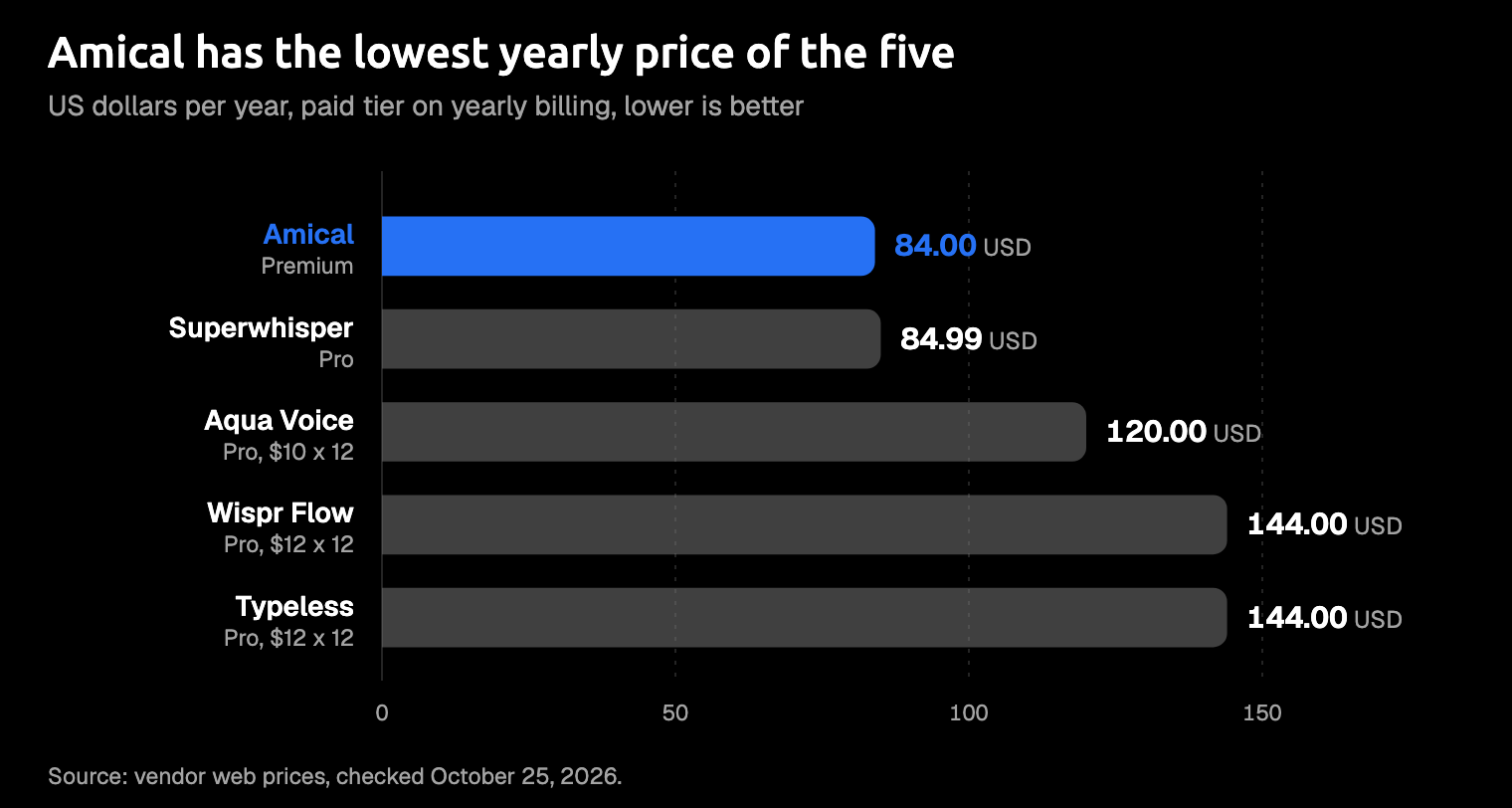
Vendor web prices on yearly billing, checked October 25, 2026; Google Play prices can differ.
Most of these apps have a free tier, so try one on real messages before you pay for a year.
Which one should you try first?
Match the app to how you write on your phone.
- You mix Japanese and English, or want one app on your phone and laptop: Amical.
- You already pay for Wispr Flow: Wispr Flow.
- You want to pay once: Superwhisper, for the lifetime license.
- You fix sentences after you say them: Aqua Voice.
- You'd rather swap keyboards than add a bubble: Typeless.
- You only dictate searches: keep Gboard.
If you're not sure, start with Amical's free plan. It's the easiest way to find out whether talking beats thumb-typing for you, and the reply you've been putting off since lunch makes a good first test.
Try it on one real message
Install Amical from Google Play, following the Android quick start, and dictate one message you'd normally thumb-type: the Slack reply, the email to a client, the note to your landlord about the boiler. The free plan lets you try it before you decide anything.
If you work on a computer too, download Amical for Mac or Windows and sign in with the same account. Either way, one real message will tell you more than this page can.