Copilot Chat is open on the right, Claude Code is in another panel, and the terminal is waiting at the bottom. You'd rather say the prompt than type it. Good news: you can dictate in VS Code without installing anything. Since version 1.131, VS Code has its own built-in dictation, so you hold Cmd+I (Ctrl+I) in the chat input, or Opt+Cmd+V (Ctrl+Alt+V) in the editor, and talk.
Some guides, including ones updated since July, still tell you to install an extension first. For plain dictation you can skip that step.
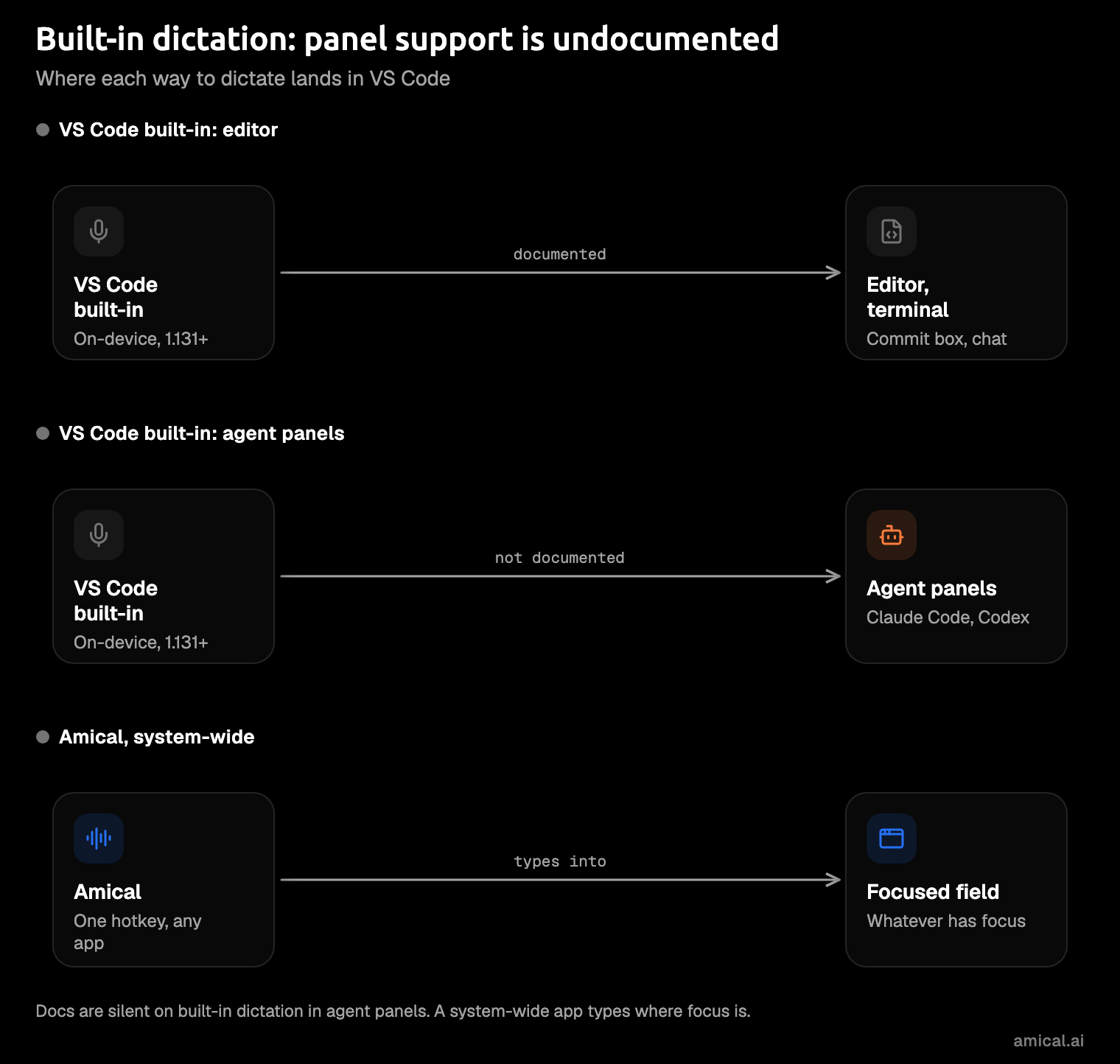
The agent panels are where it gets murky. VS Code's docs don't say whether built-in dictation reaches other extensions' panels, such as Claude Code or Codex. That's where a system-wide dictation app comes in: one key that pastes into whatever app has focus.
Full disclosure: Amical publishes this blog, and it's the system-wide option below.
Start with what's built in anyway; it covers more than you'd expect, from the editor to the commit box to Copilot Chat. It's marked experimental, so it may still change.
The quick answer: which way to dictate in VS Code
| Option | Where it works | Where audio goes | Cost | Main limit |
|---|---|---|---|---|
| VS Code built-in dictation (1.131+) | Chat input, editors, commit box, PR comments, terminal, remote workspaces | Desktop: stays on your device. Web: streamed to Microsoft | Included with VS Code | Not on Intel Macs, Arm32 or musl Linux |
| VS Code Speech extension | Voice chat, read-aloud, "Hey Code", and dictation where built-in isn't available | Processed locally | Free | Chat voice submits when you release the key |
| Claude Code extension mic | The Claude Code panel | Streamed to Anthropic | Needs a claude.ai login and a paid Claude plan | No Remote sessions; 2-minute cap |
| System-wide app (Amical) | Whatever app has focus, including the browser and Slack | Local mode: your computer; Cloud: Amical | Free plan; Premium $10 a month | No Linux |
Everything here was checked in November 2026. Editors and their extensions change quickly, so the row that matters most to you is worth a quick test on your own machine.
VS Code's built-in dictation, step by step
Built-in dictation needs no setup beyond a recent VS Code. It's controlled by the dictation.enabled setting, which is on by default (your company can manage it). It uses an on-device model, meaning the speech recognition runs on your computer rather than a server: an offline Nemotron model that downloads the first time you use it. Since 1.132, the default is the multilingual Nemotron 3.5. That holds for desktop VS Code; in VS Code for the Web, dictation streams your audio to Microsoft's voice service instead.
- Update VS Code to version 1.131 or later.
- Click into the chat input or an editor and hold the dictation shortcut.
- Allow microphone access when VS Code asks for it.
- Wait for the model to download on first use, then say a sentence.
That's one fewer extension in a sidebar that's probably full already.
Copilot Chat and the chat input
In the chat input, click the mic button or hold Cmd+I (Ctrl+I on Windows and Linux). Dictation listens while you hold the key and stops when you let go. The text lands in the box without being sent, and Escape cancels it.
Inserting without sending is the right default for prompts. You get to read the prompt before the agent does.
Hit Enter on half a sentence once, watch an agent confidently solve the wrong problem, and you'll value the pause.
One thing that confuses older guides: the VS Code Speech extension's chat voice transcribes and submits when you release the key, while built-in dictation doesn't submit. If your text gets sent the moment you let go, you're probably using the extension's chat voice.
The editor, commit box and PR comments
In any writable editor, run Voice: Start Dictation in Editor or press Opt+Cmd+V (Ctrl+Alt+V). The same command works in the Source Control commit input and in pull request comment fields.
Commit messages are the best everyday use. You already know what you changed, the message is short, and saying "fix token refresh when the session expires" takes a breath.
Typing it takes just long enough to start doubting the wording.
The terminal panel
Open the Command Palette and run Voice: Start Dictation in Terminal. Terminal dictation isn't ordinary dictation: it removes normal punctuation, turns spoken symbol names into symbols, and adjusts capitalization. Say "git commit dash m hello world" and you get git commit -m "Hello World".
This is the most surprising part of the feature, and the most useful.
Saying "dash m" out loud feels odd the first time and normal soon after. If you use it often, bind the command to a key in Keyboard Shortcuts so you're not opening the palette every time.
Project terms with dictation instructions
Run Voice: Configure Dictation Instructions to give the model your project's vocabulary. It reads ~/.copilot/dictation.md for your own terms and .github/dictation.md for the project, in trusted workspaces. Put your service names, library names and odd identifiers there.
Do this before you judge the accuracy.
Without it, useAuthStore can come back as a string of ordinary words, which is correct English and useless code.
Limits
Built-in dictation runs one session at a time and stops by itself at 20 minutes. That's plenty for prompts.
If you're dictating longer than that into a code editor, you may be writing a design doc.
It runs on Windows x64 and Arm64, macOS on Apple silicon, and Linux x64 and Arm64 with glibc 2.34 or later. It also works in remote workspaces, because the speech recognition runs in your local VS Code, not on the server. It isn't available on Intel-based Macs, 32-bit or Arm32 systems, or musl Linux such as Alpine. On those, VS Code points you to the VS Code Speech extension instead.
When you still need the VS Code Speech extension
Most people no longer need the extension for dictation. It still owns voice chat, read-aloud for chat responses, and "Hey Code" keyword activation, none of which built-in dictation does. It's also the fallback on the platforms listed above.
The extension is free and published by Microsoft. It supports 26 languages, set with accessibility.voice.speechLanguage. Audio is processed locally, with no internet connection needed. You only need the Copilot Chat extension and a sign-in if you want to use it for AI chat.
Think of it as the specialist you call for "Hey Code" and read-aloud, not the way to get dictation.
Claude Code and Codex panels
Agent extensions like Claude Code and Codex run in webview panels. A webview panel is the extension's own small web page inside VS Code, with its own input box, separate from Copilot Chat.
Claude Code has its own microphone button in the extension panel. It comes with conditions:
- The extension needs VS Code 1.94 or later and a paid Claude plan or Console account, and dictation itself needs a claude.ai login.
- Dictation isn't available if you use Claude through Bedrock, Google Cloud Agent Platform or Microsoft Foundry.
- It doesn't work in VS Code Remote sessions: SSH, Dev Containers or Codespaces.
- A recording ends after 15 seconds with no recognized words, or after 2 minutes in total; click the mic again to add more.
- It uses Claude Code's
languagesetting, then VS Code'saccessibility.voice.speechLanguage, then English, across 20 supported languages. - Audio is streamed to Anthropic's servers for transcription, not processed locally.
The Remote limit is the one that catches people.
Over SSH, Dev Containers or Codespaces, the mic button just isn't there, usually right when you've found the words. VS Code's built-in dictation does work in remote workspaces, so the editor and commit box are still covered.
If you prefer Claude Code in the terminal, set claudeCode.useTerminal to open it in terminal mode instead of the panel. There, the CLI's own /voice command handles dictation: hold Space by default, or switch to tap mode. Our guide to dictating to Claude Code covers that side in detail.
Codex has a VS Code extension (openai.chatgpt), but its IDE docs don't document dictation. Treat voice in the Codex panel as unconfirmed until OpenAI documents it.
Whether VS Code's built-in dictation reaches either panel isn't documented either. So test it on your setup, and test any dictation app the same way. Click into the panel's input box, hold the key, and say a sentence. If text appears, you're set. If it doesn't, try the next tool on the list.
One key in every app: a system-wide dictation app
A system-wide dictation app works at the operating system level, not inside VS Code. You hold a key, speak, and it pastes the text into whatever app has focus. It doesn't rely on VS Code's shortcuts or on any extension's mic button, so the same habit carries over to your browser and Slack. If the text lands in an agent panel, you're set there too. (See how Amical works in VS Code.)
- Install Amical on your Mac or Windows PC.
- Pick where it runs. Amical Cloud is the fastest: by Amical's own figures, short dictations come back in under 300 ms and longer ones in under 500 ms, in 100+ languages, with a sign-in. Local mode runs Whisper or Parakeet on your computer with no account, and your audio stays there.
- Click into the field you want, hold
Fnon a Mac (Ctrl+Winon Windows), speak, and let go. - Add your project's identifiers to custom vocabulary, which is included on the free plan.
- If the key clashes with something, change it in Settings > Shortcuts.
Amical's AI formatting then rewrites the transcript for the app you're in, and coding apps and prompts are among the formats it covers. Formatting can still get a detail wrong, so read the result once before you send it.
Which mode you pick decides what leaves your machine. In local mode, your audio is transcribed on your computer, and text only leaves if you choose a cloud provider for formatting. With Amical Cloud, your audio goes to Amical along with formatting context: selected text, up to 500 characters around the cursor, the app name and the browser URL. Amical's stated policy is no data retention and no training on your data. The cloud vs local dictation guide walks through that choice.
If your Mac is older, check one thing first. Local Whisper needs macOS 15 or later and runs slower on Intel Macs, but Parakeet runs on macOS 14 and on Intel Macs, so local mode still works where VS Code's built-in dictation doesn't. Parakeet covers 25 European languages, not Japanese; Amical Cloud covers 100+ languages.
- Built-in dictation is free and already there. Keep using it for the editor, the commit box and Copilot Chat; add Amical for the rest.
- Amical doesn't run on Linux. On Linux, built-in dictation covers x64 and Arm64 with glibc 2.34 or later.
- It's a second key to learn. But it's one key in every app, which beats Cmd+I here, a mouse click there and Space in the terminal. You can rebind it so it doesn't clash with Cmd+I or Opt+Cmd+V.
Prompts vs commit messages
What you say depends on where it's going. Agents do better with a loose, complete ramble: the goal, what you've tried, and what done looks like.
Git wants one tight line in the imperative, and has never once asked what you tried first.
Spoken prompt, for the Claude Code panel: okay so the login test is flaky on CI but passes locally, I think the token refresh is racing the redirect, can you look at the auth middleware and the test setup, don't change the public API, and done means it passes on CI without a retry
Spoken commit message: fix token refresh race in auth middleware
For commit messages, VS Code's built-in dictation in the commit box is already a good fit, and its terminal mode handles shell syntax if you commit from the command line. Our post on ramble prompting explains why the loose version works better for agents.
Push-to-talk or hands-free
A dictation key works one of two ways: you hold it while you talk (push-to-talk), or you tap to start and tap again to stop (hands-free). VS Code's built-in dictation is push-to-talk: it listens while you hold the shortcut. Claude Code's panel mic is a click, and you click again to add more after it stops.
Amical does both. Hold Fn for push-to-talk, or press Fn+Space (Ctrl+Win+Space on Windows) for hands-free. A recording session can run up to 2 hours. The dictation docs cover both modes.
Use hold for short prompts and quick replies. Use hands-free for long ramble prompts and PR descriptions, when you want to pace a little and think out loud.
Hold is the habit worth building. Letting go of the key is a natural full stop, and it keeps your thinking-out-loud pauses out of the prompt.
Which should you use
- You're on Apple silicon, Windows or Linux and mostly write in the editor, commit box and Copilot Chat: start with built-in dictation.
- You're on an Intel Mac, or you want "Hey Code" or read-aloud: install the VS Code Speech extension.
- You only use Claude Code, with a claude.ai login, on your local machine: its panel mic is fine.
- You work over Remote or SSH: built-in dictation works in remote workspaces, while Claude Code's panel mic doesn't.
- You want one key across VS Code, your browser and Slack: use Amical. The same goes if you want one vocabulary across every app, or 100+ languages with Amical Cloud.
The free plan covers unlimited local dictation, so trying Amical costs nothing. The first time you reach for Cmd+I in Slack is the day it starts paying off.
Try it on a real message
- Open VS Code and the panel you use most: Copilot Chat, Claude Code or Codex.
- Click into its input box.
- Hold the key: Cmd+I for built-in dictation in chat, or
Fnfor Amical. - Say the goal, what you've tried, and what done looks like.
- Let go, read it once, and send.
Example: the dashboard chart doesn't update after a filter change, I checked the API and the data comes back fine, so look at how the chart component handles new props, done means the chart redraws without a page reload
If you haven't installed Amical yet, the quick start gets you there.
FAQ
Does VS Code have built-in dictation?
Yes. VS Code added built-in dictation in version 1.131, released on July 29, 2026, and it's marked experimental. It's on by default through the dictation.enabled setting, and you don't need the Speech extension for it.
Is VS Code dictation private?
On desktop, built-in dictation uses an offline model and your audio stays on your device; in VS Code for the Web, it streams audio to Microsoft's voice service. The VS Code Speech extension also processes audio locally. Claude Code's panel mic is different: it streams audio to Anthropic for transcription.
Can I dictate in the Claude Code VS Code extension?
Yes, with its own mic button, if you sign in with claude.ai and you're not in a Remote session. Recordings stop after 2 minutes, or sooner if you go quiet for 15 seconds. A system-wide app like Amical pastes into whatever app has focus.
Why doesn't dictation work on my Intel Mac?
VS Code's built-in dictation isn't available on Intel-based Macs; VS Code points you to the Speech extension there. Amical's local mode also runs on Intel Macs using Parakeet.
Your next step
Use VS Code's built-in dictation for the editor today, because it's already installed. For the panels where it doesn't land, and every app outside VS Code, download Amical and try one real prompt where you'd normally type it. The free plan includes unlimited local dictation and 2,000 cloud words a week, enough to feel Amical Cloud's speed for yourself, and Premium makes the cloud unlimited when you want it every day.