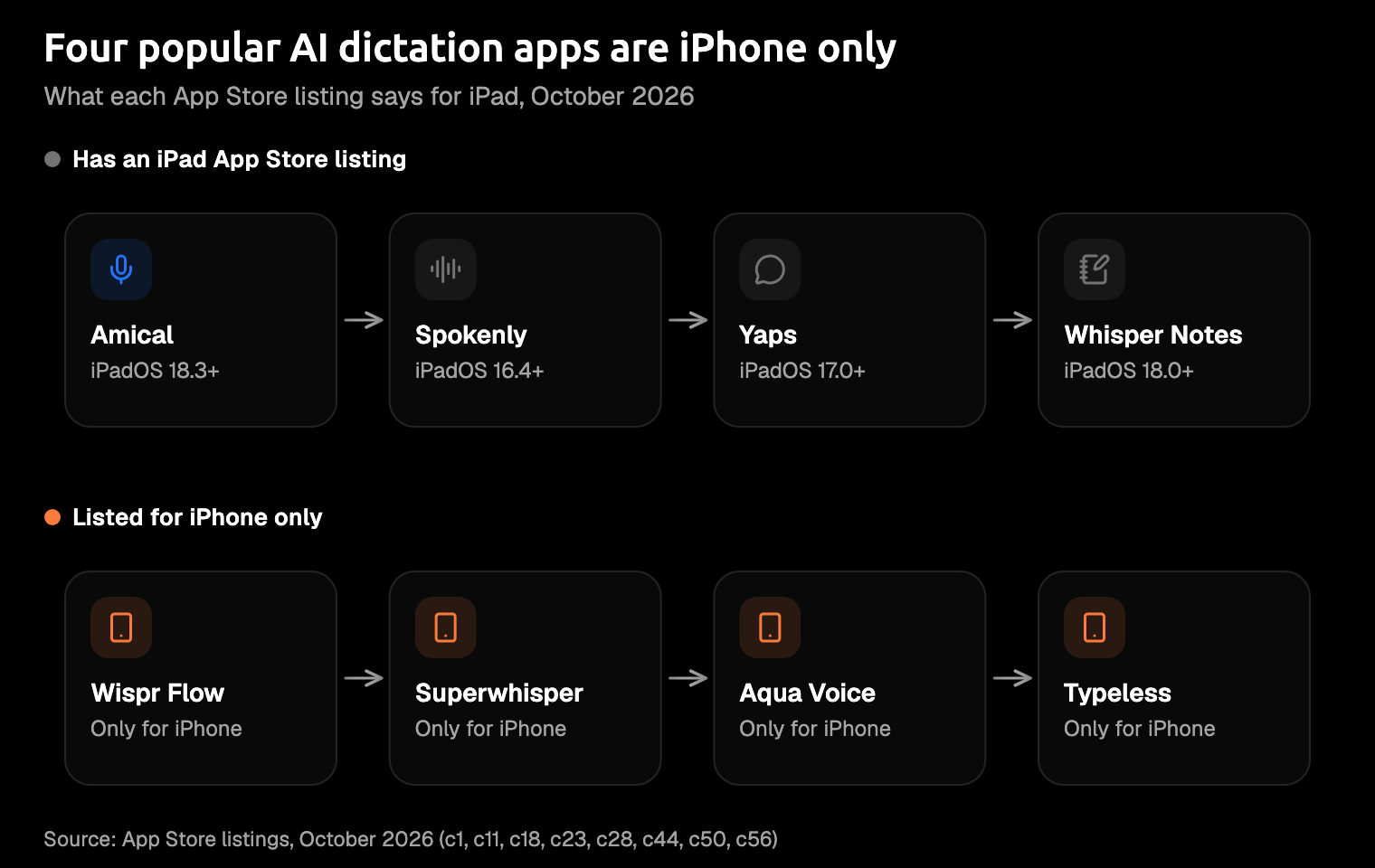
You've got a long email to write, an iPad propped on the table, and a glass keyboard that turns every quick sentence into a hunt for typos. Talking would be faster. So you search for the best dictation app for iPad, open the first list, and find that several of its picks are listed for iPhone only.
On an iPad, "does it support iPad?" is the first question, not the last. Every app in this guide has an iPad listing on the App Store or comes built in, as of October 2026, and the popular apps that skip iPad get their own section. A list that sends you to an iPhone-only app hasn't met your iPad.
Our pick is Amical, and since Amical publishes this blog, you should know that up front. It earns the spot with a real iPad listing, clean text instead of a raw transcript, and speed. By Amical's own figures, Amical Cloud is the fastest in the category.
If you're on an iPhone instead, our iPhone roundup covers that screen.
The short answer
Choose Amical for long notes and email you'll actually send. Choose Apple Dictation if the price you want to pay is nothing and you'd rather not install a thing. Spokenly suits offline models or your own API key, Yaps is a low-cost keyboard that says it can run on the device, and Whisper Notes records long voice notes instead of typing into apps.
| Best for | iPad listing | How it works | Where speech is processed | Free | Price | |
|---|---|---|---|---|---|---|
| Amical | Notes and email you'll send | iPadOS 18.3+ | Keyboard | Amical Cloud | 2,000 cloud words a week | Premium $9.99/month or $83.99/year in the app |
| Apple Dictation | Free, nothing to install | Built in | Built into Apple's keyboard | Offline on iPad Pro models (varies by language) | Yes | Free |
| Spokenly | Offline or your own API key | iPadOS 16.4+ | Keyboard | On the iPad (local models) or your chosen provider | Local models and your own key | Pro from $9.99/month |
| Yaps | Low-cost keyboard | iPadOS 17.0+ | Keyboard | On the iPad when supported, per Yaps | 1,000 words a week | From $2.99/week or $49.99/year |
| Whisper Notes | Long voice notes | iPadOS 18.0+ | Records; you copy the text | On the iPad, per the vendor | Paid app | $7.99 once |
Prices are from each App Store listing as of October 2026.
Four of the five put text straight into the app you're writing in; Whisper Notes is the odd one out, on purpose.
How dictation apps work on iPad
On an iPad, a third-party dictation app is really a keyboard. You install the app, add its keyboard in Settings, then switch to it in Mail, Notes or Pages and start talking.
Apple's developer guide for custom keyboards sets the ground rules, though it's an archived page written in the iOS 8 era. It says a keyboard extension has no access to the microphone. Turning on Full Access (the guide calls it open access) gives a keyboard network access and a space it shares with its main app.
So expect a dictation keyboard to ask for Full Access. The request isn't a red flag in itself, but it does mean you're trusting that app with what you say, so read the privacy line in each entry below.
The same guide says the system swaps in Apple's keyboard for password and phone-number fields, and that apps can refuse custom keyboards altogether. If your dictation keyboard vanishes on a login screen, that's by design, not a bug.
Apple Dictation skips all of this. It lives inside Apple's own keyboard: tap the Dictate key, or press Globe-D on an Apple external keyboard.
Judge a dictation keyboard on the text you get back: a finished paragraph, or a transcript to fix. AI voice keyboard vs iPhone dictation goes deeper on that difference.
1. Amical: best for long notes and email you'll send
Amical is a dictation keyboard for writing you'll send to someone. The App Store lists it for iPhone and iPad, on iPadOS 18.3 or later, which already sets it apart from many of the AI dictation apps people recommend. You talk, and Amical Cloud hands back tidy text: punctuation and capitals in place, filler words gone.
That's the gap between what you said and what you meant. "Um, so, about Thursday" has no business in an email to a client, and you shouldn't have to delete it by hand.
It's fast, too. Amical Cloud runs a speech model Amical built for low latency. Amical rates it at under 300 ms from a short dictation to clean text, and under 500 for a longer one. Picture the reply waiting before you look back at the screen.
You can also teach it the words it would otherwise guess at: add names, acronyms and technical terms to its custom vocabulary, and they'll come out spelled right. It understands 100+ languages, detects which one you're speaking, and copes with Japanese and English mixed in one sentence. Multi-language support has the list. Amical is also available on Mac, Windows, iPhone and Android.
Before you install it:
- It's cloud only on iPad. The iPad app needs a connection and a sign-in, because your speech goes to Amical Cloud for transcription, not to a model on the iPad. The listing says your audio "is not stored on our servers," and Amical's pricing page lists "No training on your data" among its plan features. For offline days, Apple Dictation on an iPad Pro or Spokenly's local models fill the gap; Amical's own local mode runs on Mac and Windows. Cloud vs local dictation explains the trade.
- The free plan has a weekly limit. Amical's pricing page puts it at 2,000 cloud words a week. Premium makes it unlimited, at $9.99 a month or $83.99 a year in the app. Pricing has the plan details.
- It needs Full Access. Amical's listing says Full Access lets it "send your speech to our transcription service and bring the text back," and dictation doesn't work without it.
For prose you're going to send, speed and clean text matter more than raw recognition, which is why Amical is first.
Setting it up takes three steps:
- Install Amical: AI Voice Keyboard from the App Store, open it, and sign in.
- Add the Amical keyboard in Settings and turn on Allow Full Access.
- Open Mail, switch to the Amical keyboard, and say the email you've been putting off.
The iOS quick start walks through installing and signing in.
2. Apple Dictation: best free option with nothing to install
Apple Dictation is the one you already have. It's built into the iPad, needs no account, and costs nothing. Turn it on in Settings > General > Keyboard > Enable Dictation, then tap the Dictate key on the on-screen keyboard.
You add punctuation by saying it: "comma," "period," "new paragraph." It works. By the end of a long email, though, you'll have said "comma" out loud more often than anyone should.
On iPad Pro models, dictation works without an internet connection, though that depends on your language and region. If you have one, that makes it the easiest offline option here.
iPadOS 27 brings a more accurate on-device model that adds capitals, punctuation and formatting as you speak. The catch is the hardware: it needs an iPad with M4 or later and at least 12 GB of memory.
If your iPad meets the iPadOS 27 bar, Apple Dictation is a strong free baseline. Its iPad guide doesn't list custom vocabulary, though, so test it on the names you type most. Try it alongside Amical on a week of real email, since both are free to start, and keep the one you correct less. Amical vs Apple Dictation compares the two feature by feature.
3. Spokenly: best for offline or your own API key
Spokenly is a dictation keyboard for people who like choosing their own model. Its App Store listing covers iPhone, iPad and Mac, on iPadOS 16.4 or later. The free tier includes local models that run on the iPad, and it lets you bring your own API key (your own account with a cloud speech provider, billed by them).
Privacy depends on the mode you pick. Spokenly says a local model keeps your voice on the device; with a cloud model, the audio goes to whichever provider you selected.
Pro starts at $9.99 a month in the App Store, with a six-month plan as well.
It's the tinkerer's pick: more settings, more choices, and a say in which model hears you.
4. Yaps: best low-cost keyboard
Yaps is a young dictation keyboard listed for iPhone and iPad, on iPadOS 17.0 or later. The free tier covers 1,000 words a week, and paid plans start at $2.99 a week or $49.99 a year, with a $79.99 lifetime option.
Its pitch is privacy and price. Its App Store listing says core speech and cleanup "can run on your device when supported," with an offline voice model you download for local dictation. It also says it works with an external keyboard through the on-screen keyboard switcher.
Those are the vendor's claims, and the App Store shows a single rating so far. Promising, unproven, and cheap to find out: the free tier is enough to see whether it suits you.
5. Whisper Notes: best for recording long voice notes
Whisper Notes isn't a keyboard, and that's the point. You record (or import an audio file), it turns the recording into text, and you copy the text wherever it needs to go. It's listed for iPhone and iPad on iPadOS 18.0 or later, and it costs $7.99 once, with no subscription. The vendor says it runs 100% offline.
It does a different job from the keyboards above. For a lecture or a long walk spent thinking out loud, recording first and tidying later is the better plan, and you won't be juggling keyboards while you do it.
No app at all: Apple Pencil Scribble
If you own an Apple Pencil, Scribble turns your handwriting into typed text in any text field. It converts on the iPad itself, and it needs a supported iPad and a Pencil, sold separately. It isn't dictation, but in a quiet room where talking isn't an option, it's the right tool for a quick edit. You can switch it off in Settings > Apple Pencil.
Popular apps that skip iPad
Some of the best-known AI dictation apps don't list iPad at all. If you've seen them in an iPad roundup, better to learn it here than on their subscription screen.
- Wispr Flow. Its help center says iPad is "not supported," and its own comparison page says "No iPad app." On iPad, Amical is the closest match: a cloud keyboard that tidies your words. Amical vs Wispr Flow has the full comparison.
- Superwhisper. Its docs say it plainly: "Superwhisper supports iPhone only. iPad is not supported." If you wanted offline models, Spokenly offers them on iPad. See Amical vs Superwhisper.
- Aqua Voice. The App Store lists it for iPhone only, and its website names iPhone but not iPad. On iPad, Apple Dictation costs nothing to try in its place.
- Typeless. Its App Store listing says iPhone only, and its website says "iOS" without naming iPad. On iPad, try Yaps if price leads, or Amical if clean text does.
- Willow Voice. Its blog says it works in any iPad app, but its App Store listing says iPhone only. Go by the listing, and try Yaps or Amical instead.
If you came for a Wispr Flow alternative in general, our free Wispr Flow alternatives roundup has more options.
How to pick
Start from what you're writing, not from the feature list.
- Long notes and email you'll send, on iPad and your other devices: Amical.
- Free, nothing to install, and an iPad that meets the iPadOS 27 requirements: Apple Dictation.
- Offline models or your own API key: Spokenly.
- A low-cost keyboard that says it can run on the device, and you don't mind a young app: Yaps.
- Record now, turn it into text later: Whisper Notes.
Then try one on a real message today, not a test phrase. "Testing, one, two" tells you nothing about how it handles your manager's name.
FAQ
Does Wispr Flow work on iPad?
Not officially. Wispr Flow's help center lists iPad as not supported, and the App Store lists the app for iPhone only. On iPad, use one of the options above instead.
Can I dictate on iPad without internet?
Yes, with the right app. Apple Dictation works offline on iPad Pro models, Spokenly's local models run on the iPad itself, and Whisper Notes says it runs entirely offline. Amical on iPad needs a connection because it uses Amical Cloud; its offline local mode is on Mac and Windows.
How do I dictate with a Magic Keyboard attached?
For Apple Dictation, press Globe-D to start dictating. For Spokenly, its guide says to bring up the on-screen keyboard, hold Globe, and pick Spokenly's keyboard.
Is dictation on iPad private?
It depends on where your speech is processed, so ask that first. Apple says dictation works offline on iPad Pro models, depending on language and region; for other iPads it doesn't say where your speech goes. Spokenly says its local models keep your voice on the iPad, while its cloud models send audio to the provider you chose. Amical on iPad sends your speech to Amical Cloud for transcription, and its listing says your audio "is not stored on our servers." And if you'd rather write than speak, Scribble converts your handwriting on the iPad itself.
Dictate one real email on your iPad
Pick the email you've been avoiding. Download Amical on your iPad, sign in, switch to the Amical keyboard in Mail, and say it the way you'd explain it to a colleague. You can try it on the free plan, and the iOS quick start walks you through setup.