You updated your Mac, heard that Dictation got smarter, and pressed the Mic key to find out. The words appear. Are they any better than last week's, or is it the same feature in a nicer coat?
Here's the short version. With Apple Intelligence in macOS 27, English Dictation now uses an on-device model to improve spelling, punctuation, and capitalization. You only get it on a Mac with M3 or later and at least 12 GB of unified memory, so M1 and M2 Macs miss out. For plain notes and short messages, built-in Dictation is enough. When you want the same words to come out as a proper email in Gmail and a chat message in WhatsApp (Apple's help doesn't mention that), a dictation app like Amical is the better pick.
Full disclosure: Amical publishes this blog, so we have a stake in that second answer. We'll say plainly where the built-in feature is the right call.
What changed in macOS 27 Dictation
Dictation now runs on an on-device model that cleans up the transcript as you speak. Apple shipped it with macOS 27 and iOS 27 on September 14, 2026. Apple says the model improves spelling, punctuation, and capitalization, and handles formatting as you talk. The newsroom calls it AFM Core Advanced and promises "a major boost in accuracy". We couldn't find an independent test of that promise as of November 2026.
The part you'll notice first is punctuation. In supported languages, Dictation inserts commas, periods, and question marks for you, and you can switch that off at Keyboard > Dictation > Auto-punctuation. You can ask a question in the middle of a sentence without saying "question mark" out loud like a court reporter.
Our view: this is a real upgrade to the transcript. It is not a new kind of tool.
You still get the words you said, now with better manners.
Does your Mac get the new model?
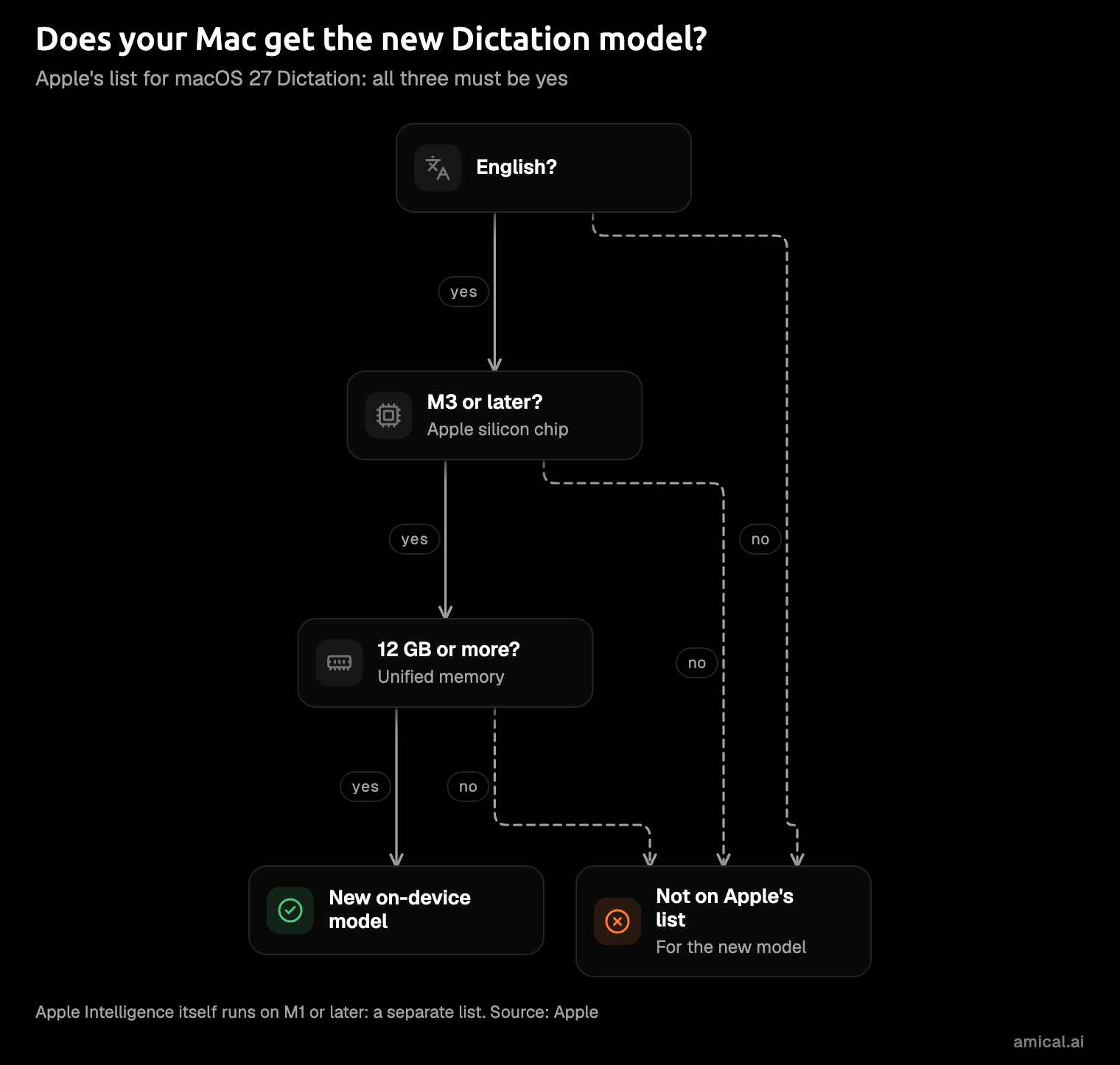
Only if three things are true: you dictate in English, your Mac has M3 or later, and it has at least 12 GB of unified memory. The Apple newsroom list says the same for Mac (M3 or later with 12 GB or more).
M1 and M2 Macs, and any Mac with less than 12 GB, don't get the new model. Apple doesn't say what those Macs run instead.
This is where people get caught. Apple Intelligence itself runs on Macs with M1 and later, so having Apple Intelligence does not mean you have the new Dictation model. Say you have an M2 MacBook Air: Apple Intelligence is on, Writing Tools work, and you assume Dictation got the upgrade too. Nothing's broken; the Mac just isn't on the second list.
To check yours, open the Apple menu and choose About This Mac. The chip and the memory are the two lines you need.
The hardware cutoff is the biggest catch in this release. If your Mac misses it, the section on dictation apps further down is the part that matters to you.
How to turn it on
Setup is one switch and one prompt, and then the Mic key does the rest.
- Open System Settings > Keyboard, find Dictation, and turn it on. Click Enable when your Mac asks.
- Make sure Apple Intelligence is on and your Siri and device language is a supported one, such as English.
- Click in any text field and press the Microphone key, use the Dictation shortcut, or choose Edit > Start Dictation.
- Leave Auto-punctuation on in the same pane, unless you enjoy saying every comma yourself.
Apple describes no separate switch for the new model. On an eligible Mac, you turn on Dictation and that's it. The Mic key on the top row is the shortcut you'll actually remember, because it has a picture of a microphone on it.
What it still doesn't do
Apple documents a few limits, and they haven't gone away. Dictation has no length limit, but it stops after 30 seconds without speech. It doesn't work in search boxes or while Voice Control is on. And it isn't available in every language or region, with features that vary by place. You can still say commands like "new line" and "new paragraph".
Then there's what the Dictation help leaves out. It is silent on custom vocabulary, on shaping the text for the app you're in, and on drafting from an instruction like "reply that Thursday works". So there's no documented way to teach it the surname it keeps mangling, or the name of your product.
Writing Tools can rewrite, proofread, or summarize text afterwards, but only as a separate step on text you select, not as you dictate.
So the gap has moved.
Apple now says it handles punctuation and formatting as you speak. What's left is vocabulary and context: the client's name that comes out wrong every single time, and the reply that should read one way in an email and another way in a chat. We go deeper on this in AI dictation vs Mac dictation.
And on iPhone and iPad (iOS 27)
iPhone and iPad follow the same rule: only newer, high-memory devices get the upgrade. The newsroom footnote names iPhone Duo, iPhone 18 Pro and 18 Pro Max, iPhone Air, and iPhone 17 Pro and 17 Pro Max, plus iPad with M4 or later and 12 GB or more. If your phone isn't on that list, Apple doesn't name it for the new model, however hard you squint at the footnote.
When built-in Dictation is enough
Built-in Dictation is the right choice for plenty of people, and it costs nothing extra. It's enough if most of these fit you:
- Your Mac has M3 or later with 12 GB or more, and you dictate in English.
- You write plain notes and short messages, and you're happy to fix the shape yourself.
- You want no extra app, account, or setting to think about.
- You dictate long stretches in one go: Apple sets no length limit, as long as you never pause for 30 seconds.
If that's your day, keep the Mic key and skip the rest. Nobody needs a second app to jot down a grocery list.
When a dictation app like Amical is better
Amical is the pick if you dictate for work. On top of a clean transcript, it adds the steps Apple doesn't document.
Here is how that plays out, as an illustration rather than a measured result. You're in WhatsApp and you say, "hey can you push the review to after lunch, I'm stuck on a call". Amical types it as a chat message. Say the same thing in Gmail and it comes out as a tidy email instead. A short reply stays short, and since you didn't say a greeting, Amical doesn't invent one.
- Text written for the app you're in. AI formatting rewrites the transcript for the focused app: an email in your mail app, a chat message in WhatsApp, a note in your notes app.
- Your words, spelled right. Custom vocabulary is on the free plan, so names and jargon come out the way you spell them.
- Draft from an instruction. With Amical Cloud, you can speak an instruction ("reply that Thursday works") and review the draft before it's inserted.
- Macs the new model skips. Amical runs on Apple Silicon and Intel Macs, including the M1 and M2 models that miss the new Dictation. On Intel, local mode is slower with Whisper, which runs there without the GPU. Parakeet, the other local model, and Amical Cloud both work on Intel Macs too.
- More languages than the new model. Apple documents its new model for English; Amical Cloud handles 100+ languages, and local mode covers 99.
- The same app on your other devices. Amical is on Windows, iPhone, iPad, and Android too.
- Speed. By our own figures, Amical Cloud returns formatted text in under 300 ms for short dictations and under 500 ms for longer ones.
Our opinion: if you dictate for work, that formatting step is the reason to switch. We can't tell you which tool is more accurate, because neither has a public test. What you can compare yourself is the shape of the message.
The honest trade-offs, each with its answer:
- Built-in is free. As of October 2026, the Amical free plan includes unlimited local dictation, 2,000 cloud words a week, AI formatting, and custom vocabulary. Premium is $10 a month or $84 a year for unlimited cloud words.
- Apple's model runs on your Mac. So does Amical in local mode: your audio is transcribed on your computer, it works offline once a model is downloaded, and it needs no account. Text leaves only if you pick a cloud provider for formatting. With Amical Cloud, your audio and some formatting context (like the app name and text near your cursor) are sent, under a "No data retention" policy.
- Amical Cloud and the phone apps need sign-in. Local mode on the desktop doesn't.
- Apple has no length limit. An Amical session runs up to 2 hours, and paid plans are unlimited.
For a feature-by-feature view, see Amical vs Apple Dictation.
FAQ
Is macOS 27 Dictation offline? Apple describes the new model as on-device. Its help doesn't promise that every part of Dictation works offline, so check the note Apple shows under Keyboard > Dictation on your own Mac.
Why didn't my Dictation improve after the update? Your Mac probably misses the hardware cutoff. The new model needs English, M3 or later, and at least 12 GB of unified memory.
Can macOS 27 Dictation learn my words? Apple's Dictation help doesn't mention custom vocabulary. Amical has it on the free plan, so you can add names, acronyms, and product terms once.
Try it on one real message
Download Amical and dictate one real email or chat message you'd otherwise type today. Then do the same with the Mic key and compare the two. It's a fairer test than any blog post, this one included. The free plan is enough for it, and the quick start gets you set up.