TL;DR
-
A raw recording is not easy to revisit particularly in long-meetings. In the absence of notes, it would be time-consuming to locate action items or decisions in the future. The structured notes are clear and show important results and can be used as a credible source. Amical makes sure that your meetings will result in valuable knowledge.
-
Listening, typing implies a combination of two activities. Listening to audio clips, taking breaks and listening to each word can take hours. Even at that moment, crucial information is usually overlooked or misinterpreted. Amical does away with this bottleneck through automated and real-time transcription.
-
It is quite straightforward: record your Google Meet, transcribe the conversation automatically and create a clean and concise summary. Notes can also be searched and later one can easily find a decision or a quote. This process makes all meetings into working records with little effort.
-
Amical is a free open source AI-driven transcription and note taking software which provides both local and cloud models. Local mode ensures that all processing is done on your computer, which has sensitive data. Cloud mode enhances transcription speed among users who want to speed up transcription. You remain in charge of the location and the manner in which your information is processed.
-
Amical maintains a record of transcripts and they are automatically categorized by the workflow, meaning that the meeting notes are always arranged. Its open-source makes it transparent to allow teams to audit, self-host, or add features, which is unavailable to closed tools such as Otter or Fathom.
Why You Must Turn Google Meet Recordings into Notes
The Problem: Talking and Missing Key Points
Every person, who has spent hours on Google Meet, understands the dilemma: having been actively engaged in the discussion, one can hardly record every crucial detail. It could be a presentation of slides or a question and answer session or just going through the slides but important lessons are lost in the shuffle. The act of taking notes by hand splits your mind and normally results in partial or broken information.
The Manual Approach: Pause, Play, Repeat
In the absence of a specific tool, a significant number of professionals use the recording option in Google Meet or a screen recorder. They also replay the session after the call, interrupt often and type out summaries or quotes manually. This is not only not efficient but also a time-consuming process:
- A 60 minute meeting can easily consume 2-3 hours to review and transcribe manually.
- Context is often lost when switching between video, audio, and written notes.
- Important moments like decisions or deadlines may still get overlooked.
The Smarter Alternative: AI-Powered Transcription and Notes
We need smarter alternatives because manual note-taking is inefficient, error-prone, and distracting. Writing while listening forces people to multitask, which often leads to missed details or incomplete records. Replaying recordings later takes even more time and still risks overlooking action items. In fast-paced environments like standups, client meetings, or research interviews, this slows teams down.
Here, AI-driven transcription and note taking software like Amical, Fathom, Otter.ai, can make a significant impact. They do not need to balance the playback controls and text editors, they simply transcribe the conversation as it unfolds. It differentiates speakers, recognizes action items and creates structured notes with context-aware features. The result is:
- Saving Time, meetings are transcribed and summarized instantly.
- Better precision, no more missed quotes or misunderstood points.
- Consistency notes are structured in the same format every time, reducing post-processing work.
Real-World Use Cases
The ability to convert Google meet recordings into notes is not only a convenience that has a direct effect on productivity in various workflows:
1. Developer standup
This automatically records the updates, blockers and next steps of each team member without having to have someone manually record the notes. The transcripts of Amical can be then exported into a task tracker (e.g., Jira, Trello) with the purpose of making the progress visible and ensuring that action items are not lost.
2. Client calls
Prepare detailed summaries with decisions, due dates and responsibilities identified. This makes sure that there is no follow-up work ignored and teams can share the recap with the clients fast to make sure that there is no misalignment or lack of responsibility.
3. Research interviews
Emphasize the replies of the participants, technicalities or recurring patterns. Having transcripts that can be searched, it is easy to filter insights, compare responses across interviews and avoid the possibility of losing important information in the process of qualitative analysis.
4. Sprint Planning and Agile Sessions
Agile rituals such as the sprint planning and retrospectives create a continuous stream of ideas, priorities and choices. As an alternative, instead of watching the long recordings of meetings, teams are able to scan narrow transcripts of Amical, which captures the entire stream of thought. Highlighting and shortlisting actionable recommendations, backlog items, and sprint goals can also be made with the goal of preventing the forgetting of important discussions. Amical allows agile teams to stay focused and go into execution with clarity and alignment by eliminating the duplication of topic and continuity between sessions.
Concisely, the process of recording Google Meet does not end with this step. By moving those recordings into a structured and searchable set of notes, it is also possible to make sure that the conversation does get converted into actionable knowledge without hours of working on manual transcription.
In this Reddit thread, people share their experiences with how they could use AI to transform recorded meetings into notes. The discussion identifies processes like recording videos, automatically generating scripts and polishing them into brief summaries. Several users note that it saves time than when taking notes manually and the advantage of having shareable and searchable transcripts.
How Recording and Notes Fit Into Your Workflow
Recording a Google Meet is a straightforward process that captures both video and audio, making it ideal for documentation, onboarding, and reviewing lengthy discussions. Here’s how to do it:
- Once your meeting begins, navigate to the bottom-right corner of your screen and click on the Activities icon (the one with a triangle, square, and circle).
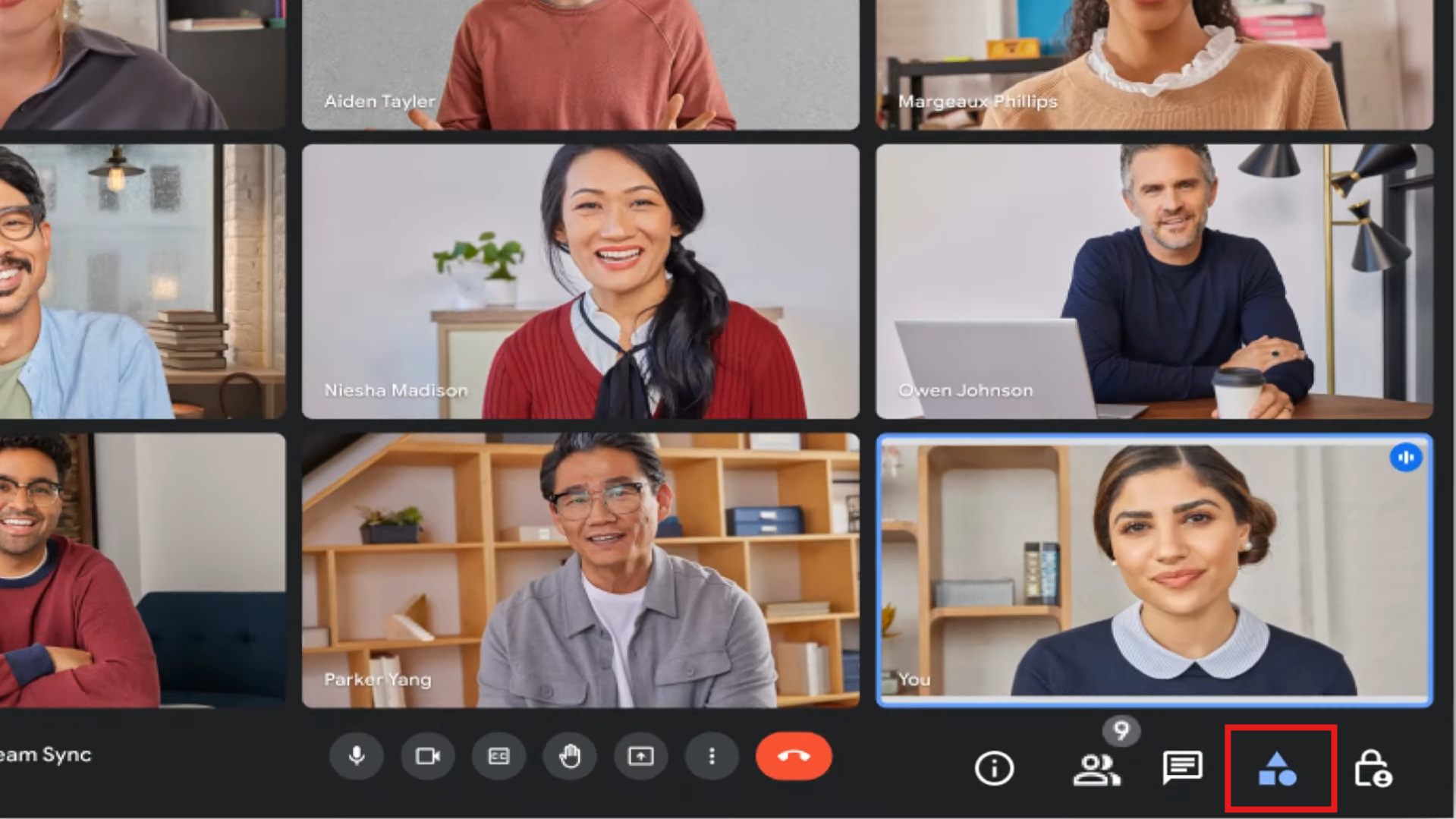
- From the menu that opens, select Recording.

- A final confirmation window will appear. Click the Start button to begin. All participants will be notified that a recording has started, and a "REC" icon will appear in the top-left corner.

However, while Google Meet makes recording easy, it does not make reviewing efficient. Watching or scrubbing through long recordings to locate a decision or follow-up is time-consuming and cognitively draining. While Google has introduced separate transcript files and AI-powered summaries on certain premium plans, these features are often disconnected from the video file, lacking an integrated keyword search within the recording itself. This means that teams must still manually rewatch, cross-reference documents, pause, and type notes, often losing important context in the process. A one-hour meeting can easily consume two or three hours to process afterward.
This is where Amical steps in to close the loop between recording and retention. Instead of leaving recordings as static files, Amical automatically converts them into structured, searchable notes as the meeting unfolds. The entire conversation is captured, transcribed, and categorized into a shareable format that highlights decisions, action items, and deadlines. It removes the need to manually revisit recordings, giving every discussion a tangible outcome that can be referenced instantly.
Why Automated Note-Taking Beats Manual Note-Taking
- Less overhead: A one-hour call does not need two more hours of documenting the call. The meeting occurs and the transcript and notes are produced.
- Greater accuracy: All verbal information is recorded, and all inclusive information is lost in cases of multitasking.
- Standardized format: Notes take a standardized template and therefore the action items, decisions and deadlines can be easily found on more than one meeting.
Why Searchable Transcripts Matter
Once discussions are turned into a searchable text they become a part of your long-term knowledge body of your team. You can find the keywords or the project names or even the tags of the speakers in the transcript within a few seconds, as opposed to the question What did we decide last week? This enhances memory, minimizes repetitive discussions and makes decisions traceable.
Example Workflows in Action
1. Developer Standups
Standups should be brief each day, yet significant information such as blockers and subsequent actions tend to pass through the loopholes. Using Amical, such updates may be automatically logged instantly, and no task or dependency is forgotten. After capture it is possible to directly export the notes into either Jira or GitHub Issues and provide a smooth progress tracking mechanism to the developers and the project managers. This will minimize the tasks of taking notes manually and teams can concentrate on finding blockers and not on their records.
2. Client Meetings
Critical commitments are usually involved in the interaction of the client like deliverables, timelines, and next steps. Amical creates summaries created in structure following the call, and it emphasizes these key points since nothing should be forgotten. The recap can be shared immediately on Slack or email, and the teams keep the clients informed and in the same direction as soon as possible. This does not only save time in following up emails, but also forms a clear record of agreements, which is a prerequisite in professional relationships.
3. Research Interviews
In the research context, no detail counts. The tagging and highlighting of responses by participants of the transcript via Amical allows one to isolate recurrent themes and insights with ease. Researchers can also compare responses in more than one interview, quickly, without necessarily transcribing or relying on a recording of the hours. This will expedite the qualitative analysis, provide accuracy, and save time so that more insight can be available to interpret findings instead of administrative tasks.
4. Internal Planning Sessions
The brainstorming sessions are rich in ideas, and unless these ideas are documented, there are chances of losing their value. Amical records these discussions and converts them into a concise outline which can be used as the basis of documentation of the project. The teams are able to go back to the transcript to refine strategies, allocate responsibilities and develop organized plans to the project. This transforms small talk into outputs that can be acted on and the planning sessions are made fruitful and result oriented.
In this manner, the process of recording a Google Meet is not only archival, but it is also a part of your productivity process. It is not only that you save what was said but convert it into practical knowledge that can be applied by your team in the present moment.
Getting Started with Amical for Google Meet
What is Amical?
Think of Amical as a smart little helper for your computer that joins your Google Meet calls. It's a free, open-source app that types out everything being said in real-time and helps you take notes without you having to do the typing.
Privacy is a really big deal for this app. It actually lets you choose: you can run the AI entirely on your own computer (so your data stays 100% private) or use the cloud if you need things to run a bit faster.
The main point is to give you an accurate, word-for-word copy of your meeting. But what's really cool is that it also helps you pull out smart notes and can even create a to-do list just from what people say. It records both your microphone and your computer's speakers at the same time, so it catches what everyone says, not just you.
Getting it set up is pretty simple. It works on macOS and Linux right now, and a Windows version is in the works. When you first install it, you'll have to give it permission to hear your mic and your system audio. If you forget one, you'll only get half the conversation.
You can find the app and all the info on Amical’s official website or its GitHub page.
How to Get Started
1. Grab the App : First, just go to the Amical official site and click "Download". That'll zip you over to their GitHub page. Scroll down a bit and find the installer that matches your computer (macOS or Linux).
2. Give it Permission to Listen : This part is super important. Amical needs to access both your microphone (to hear you) and your system audio (to hear everyone else). If you only allow one, your transcripts will be missing the other side of the call.
3. Check Your Specs : Just double-check that your computer can handle it. You don't need a powerhouse, but you should have:
- OS: macOS or Linux (Windows is on the way!)
- Memory (RAM): At least 8GB.
- Processor (CPU): An Intel i5 or a similar AMD chip.
- Storage: A little bit of free space for it to save the audio and notes.
Using Amical with Google Meet
1. Fire Them Both Up : Hop into your Google Meet call just like you always do. Then, open the Amical app on your desktop and choose "Meeting Transcription Mode."
2. Tweak Your Settings : Before you start, you can quickly:
- Choose what to record (you'll almost always want both your mic and the system audio).
- Pick your AI model. Go "local" if you want total privacy, or "cloud" if you want more speed.
- Set your language so the notes are accurate.
- Set up a keyboard shortcut (a hotkey) to start and stop recording. This saves you from having to switch windows mid-meeting.
3. Record the Meeting : When you're ready, just hit "Start Recording" or use your hotkey. For the best results, using a decent microphone and being in a quiet spot really helps. Oh, and a quick heads-up: It's always good practice to tell everyone on the call that you're recording. As it records, Amical is smart enough to tell when different people are talking. You can also tap a button to mark important moments in the conversation as they happen.
4. After the Meeting Check Your Notes : Once the call is over, Amical saves the full transcript for you. You can then go into your history and :
- Use a template to whip up a quick summary.
- Clean up the text to fix any mistakes or add any specific company terms.
- Ask the AI to pull out a clean, short summary or a list of "to-do" items from the chat.
How Amical Overcomes The Limitations Of Google Meet
Google Meet is a solid tool for video calls, but its built-in recording and transcription features are limited. This is a problem if you need detailed summaries, searchable notes, or just want to keep your notes private. Amical fixes these gaps by adding a smart AI layer on top of Google Meet.
- Better Recording for Everyone :
With Google Meet, you usually need a specific paid plan to record. Even then, the recordings just get saved to Google Drive, often without good transcription. Amical bypasses these limits by capturing all the audio from your computer. This lets anyone record and save their meetings, no matter what account type they have. - Get Live Notes as You Talk :
Google Meet doesn't offer a live transcript. Amical, however, writes down what everyone is saying while the meeting is happening. The AI can tell who is speaking and understands technical terms, so you can focus on the conversation instead of typing. - Keep Your Meeting Notes Private :
Google Meet saves your recordings on Google's servers, which might be a concern for sensitive talks. Amical has a "local mode" that does all the transcription and note-taking right on your own computer. This means your data stays completely private and never leaves your device. - Find To-Dos and Key Decisions :
Amical does more than just type out the conversation. It actually reads the text and pulls out the important stuff, like action items, decisions, and follow-up tasks. It turns a long chat into organized, useful notes, which is much more helpful than Meet's basic tools. - Use Your Notes Anywhere :
Amical lets you easily export, edit, or share your transcripts and notes, which is something Google Meet doesn't support well. You can save the files locally, back them up, or send them to your other productivity apps. - Choose How It Works :
Amical lets you pick between using AI on your own computer (for privacy) or in the cloud (for speed). This makes it much more flexible than Google Meet, which is a one-size-fits-all setup.
Amical vs Google Meet Recording
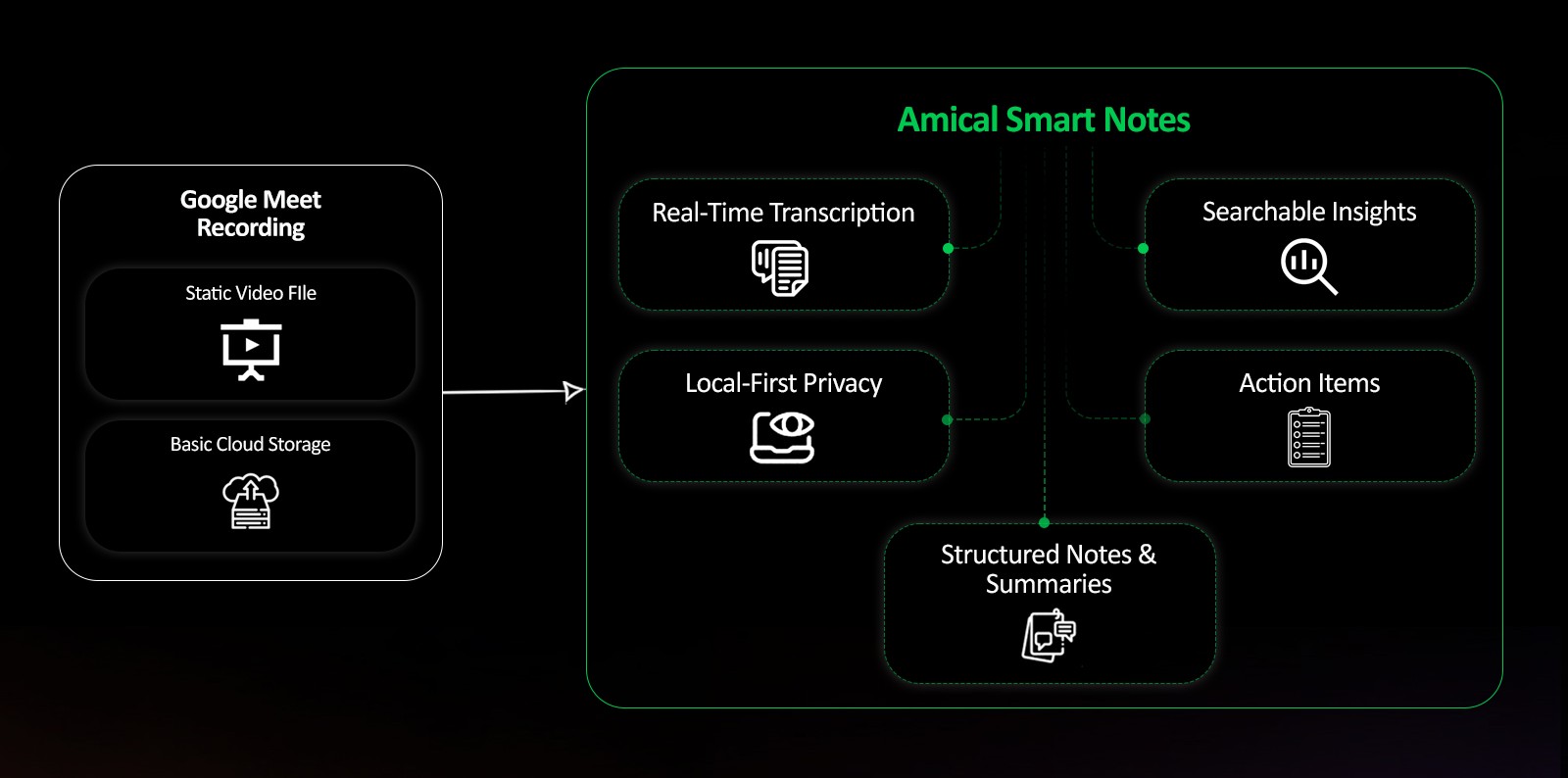
Google Meet’s built-in recording feature is functional but limited in scope. It captures audio and video of the meeting and stores the recording in the organizer’s Google Drive, which is useful for archival purposes. However, the file remains a static video, lacking transcription, speaker identification, summarization, or search capability. Reviewing a one-hour session can take just as long to replay, making it a manual, error-prone process to find specific quotes or action items. Moreover, Google Meet recordings cannot be directly converted into structured notes without using a separate tool.
Amical extends this capability far beyond simple recording. It captures the audio stream, transcribes the conversation in real-time, and transforms it into structured notes that highlight key points, decisions, and deadlines. Users can instantly search across transcripts, tag speakers, and extract context-specific insights without replaying the video. This means the focus shifts from recording the conversation to retaining the knowledge within it.
While Google Meet provides the foundation for recording, Amical acts as the intelligence layer on top of it, adding transcription accuracy, structured formatting, and privacy control through its local-first architecture. All processing can occur on your device, ensuring that confidential meeting content remains private. Teams can therefore maintain compliance and transparency while still enjoying the benefits of automated summarization and searchable notes.
Strengths of Amical
- The greatest strength of Amical is its local implementation feature so that privacy sensitive workflows can be executed completely on your own machine. Amical, in contrast to most of its competitors who use cloud servers extensively, enables transcription and note-taking to take place on your machine, meaning that confidential conversations remain on your machine.
- It is also fully open source software, being transparently developed in GitHub. This allows users to examine the code, add functionality, or check what is happening to data - which would not be possible with closed source tools such as Otter.ai or Fathom.
- Amical context aware dictation and transcription is yet another strength as it is not just capturing raw text. The system is formatted to suit the common workflows and out of the box, the notes are better structured and actionable. As an example, changes in the action items and the speaker are simple to track and it saves cleanup time.
- Finally, Amical has granular privacy controls. It also gathers only a bare minimum of telemetry, but allows users to opt out entirely. Such transparency and control make it especially effective in research, healthcare, or corporate settings where compliance and data sovereignty is a requirement not to be negotiated.
Limitations to Keep in Mind
- Amical is a promising company, but it still has areas to work on. Active development is underway of meeting transcription and automatic summaries. This implies that users are not yet provided with the well-crafted ready-to-share summaries that established tools such as Otter.ai offer as a default feature.
- The other limitation is integration support. Other competing products can contain dozens of integrations that come out-of-the-box (Zoom, Slack, HubSpot, Salesforce, Notion, etc.). As a community-based company, Amical is still developing this ecosystem. Nowadays, it is possible to export notes in the standard formats, such as text or Markdown, but fewer out-of-the-box integrations are available.
- Lastly, Amical is mostly desktop-based and offers Windows, macOS, and Linux applications. The lack of an official mobile application is an advantage it might not have, as the user might wish to take notes and check them simultaneously. Otter.ai and Fathom cloud tools, in their turn, provide powerful mobile applications.
Conclusion
Taping a Google Meet is a good idea, and the process of converting the recording into coherent and organized notes is where the productivity gains can be achieved. You do not have to waste hours re-watching and typing your notes with Amical, it becomes a single seamless process of transcription, summarization and note-generation.
Still, you have not tried it yet, go ahead and install Amical prior to your next Google Meet and see the difference with your own eyes. It allows you to record, transcribe, and take intelligent notes to ensure that you remain active in the discussion and get accurate and actionable notes to walk away with.
Since Amical is open source, you are not just a user you can take part in its development. You can leave feedback, make some improvements, or even contribute some code to make the tool better to everyone.
Explore further:
Amical Documentation
Amical GitHub Repository
FAQs
1. How accurate is Amical’s transcription?
Amical uses advanced AI models to deliver highly accurate transcripts, though clarity depends on audio quality and background noise.
2. Can Amical record both mic and system audio in Google Meet?
Yes, Amical captures both microphone input and system audio, ensuring full meeting coverage.
3. Can I edit transcripts or add custom terms?
Yes, transcripts are editable, and you can add custom vocabulary for improved accuracy in future sessions.
4. Is there a free AI note taker for Google Meet?
Yes. Amical is a free, open-source tool that records and transcribes Google Meet sessions into notes, unlike most paid alternatives.