TL;DR
- Microsoft Teams allows easy recording of meetings, capturing audio, video, and shared content for future review and collaboration.
- Recorded meetings enhance accessibility for absent team members and enable detailed review, improving knowledge retention and follow-ups.
- Team recordings support compliance, security, and documentation for regulated industries, with secure storage and sharing.
- AI transcription tools like Amical add value by converting recordings into searchable, structured, and context-aware text, enhancing usability and productivity.
- Amical’s privacy-first features (local processing), technical jargon customization, and noise filtering address limitations
Meetings are an essential part of teamwork and decision-making in organizations like AI companies, consulting firms, schools, and government departments. They bring people together to share ideas, solve problems, and stay aligned on goals, making clear communication vital.
Imagine a development team holds a 2-hour sprint planning meeting to discuss release priorities and feature allocations. The meeting is recorded, but a backend engineer who missed it needs to know the final decision about integrating a new authentication API. Without transcription or indexing, they must rewatch long video portions to find that detail, which is time-consuming and inefficient. Meanwhile, manual notes may have missed technical decisions, causing confusion during implementation.
This is where Amical, an open-source AI dictation and note-taking app, adds value. Amical provides fast, accurate, and context-aware transcription, turning raw audio into searchable text and structured notes. Combining Microsoft Teams meeting recordings with Amical’s transcription helps teams capture every important detail effortlessly, turning static recordings into actionable insights for better collaboration and efficient follow-ups.
Why Raw Capture Isn’t Enough: Indexing, Transcripts, and Contextual Layers
Meeting recordings seem helpful, but they create several time wasting problems that make it harder to actually use the information you've captured:
The Reality of Working with Raw Recordings
The Time Trap:
A 60-minute strategy meeting creates a 60-minute video file. To extract key decisions, team members must replay sections repeatedly, often spending 2-3 hours to review what took 1 hour to discuss. Most people give up and just ask colleagues "What did we decide about the budget?"
The Search Problem:
Need to find when Sarah mentioned the client feedback? You'll scrub through the entire timeline hoping to catch that 30-second discussion. Video and audio files can't be searched like text documents.
The Context Loss:
Recordings capture everything equally important decisions get buried between small talk and technical difficulties. Without structured notes, crucial action items disappear into hours of casual conversation.
The Accessibility Barrier:
Team members with hearing difficulties, non-native speakers, or anyone in noisy environments struggle with audio-only content. Recordings exclude people who need visual text to fully participate.
The AI Solution: How Technology Transforms Meeting Documentation
In contrast, AI-powered transcription tools like Amical provide:
- Real-time transcription as meetings unfold (no replay needed)
- Instant summaries generated automatically (no manual review)
- Auto-detected speakers and action items for clarity (no missed details)
- Consistent, clean note formatting that saves post-processing time (no cleanup required)
- Searchable text that makes finding information effortless (no more scrubbing through videos)
- Context-aware formatting that adapts to your workflow (professional emails vs. casual updates)
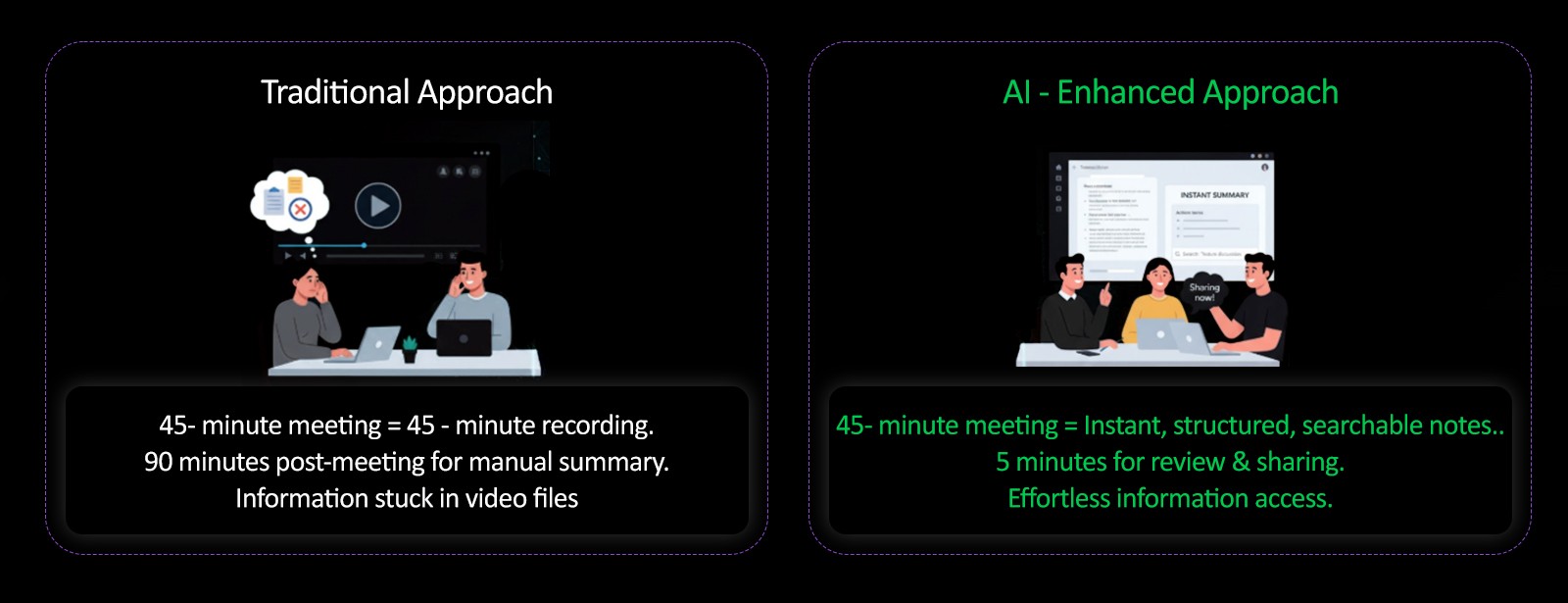
A product team holds their weekly standup meeting. Traditional approach: 45-minute meeting generates a 45-minute recording. The team lead spends 90 minutes afterward creating a summary for stakeholders.
AI-enhanced approach: Same 45-minute meeting, but structured notes with action items, blockers, and next steps are ready immediately. The team lead spends 5 minutes reviewing and sharing. Stakeholders can search for specific feature discussions or team member updates instantly.
Importance of Transcription and Organized Notes
Transcriptions convert spoken words into written text, making meeting content searchable and easier to digest. Organized notes highlight action items, decisions, and key discussion points, enabling quick reference and shared understanding among team members.
Boosted Productivity: From Hours to Minutes
A software development team at a tech startup holds weekly sprint planning meetings that last 90 minutes. Previously, the project manager would spend 2-3 hours after each meeting manually reviewing recordings and typing up action items for the team's task board.
With AI transcription, the same process takes 15 minutes. The transcription automatically identifies when team members say phrases like "I'll take that," "due by Friday," or "blocking issue," making it easy to extract assignments and deadlines. Instead of replaying video sections repeatedly, the project manager can search for keywords like "backend API" or "user testing" to quickly find relevant discussions.
Teams spend less time searching for information and more time acting on insights.
Improved Collaboration: Breaking Down Communication Barriers
A marketing agency works with clients across different time zones. When the London team holds strategy meetings at 2 PM GMT, their colleagues in San Francisco are asleep. Previously, the SF team would receive a brief email summary that often missed crucial context.
Now, with detailed transcripts, the San Francisco team can read exactly what was discussed about budget allocation, creative direction changes, and client feedback. They can search for specific campaign names or client concerns, understanding not just what decisions were made, but the reasoning behind them. This has reduced follow-up emails by 60% and eliminated confusion about project directions.
Clear, accessible notes facilitate better communication and alignment across dispersed teams.
Better Accountability: Creating a Trail of Commitments
During a monthly board meeting, the CEO mentions they'll "look into the Q4 budget concerns" while the CFO says they'll "have numbers ready by next week." In traditional note-taking, these commitments might be summarized vaguely as "team to review budget."
AI transcription captures exact quotes and timestamps: "CEO (14:23): I'll personally review the Q4 budget concerns Sarah raised and get back to everyone by Thursday." This precision creates clear accountability. When Thursday arrives, there's no ambiguity about who committed to what or when.
Documented action items and decisions ensure ownership and follow-through.
Supports Regulatory Compliance: Meeting Legal Requirements
A pharmaceutical company must document all decisions related to drug development for FDA compliance. During clinical trial review meetings, every discussion about dosage adjustments, safety protocols, or timeline changes must be precisely recorded.
Manual note-taking risks missing critical details that could later be scrutinized by regulators. AI transcription ensures complete, searchable records that can quickly surface specific discussions about safety decisions or protocol changes. When auditors ask, "What was discussed about Patient Group B's response rates on March 15th?" The team can instantly search transcripts and provide exact quotes with timestamps.
Text records of meetings provide audit trails important in regulated industries.
How AI Transcription Works: From Audio to Actionable Insights
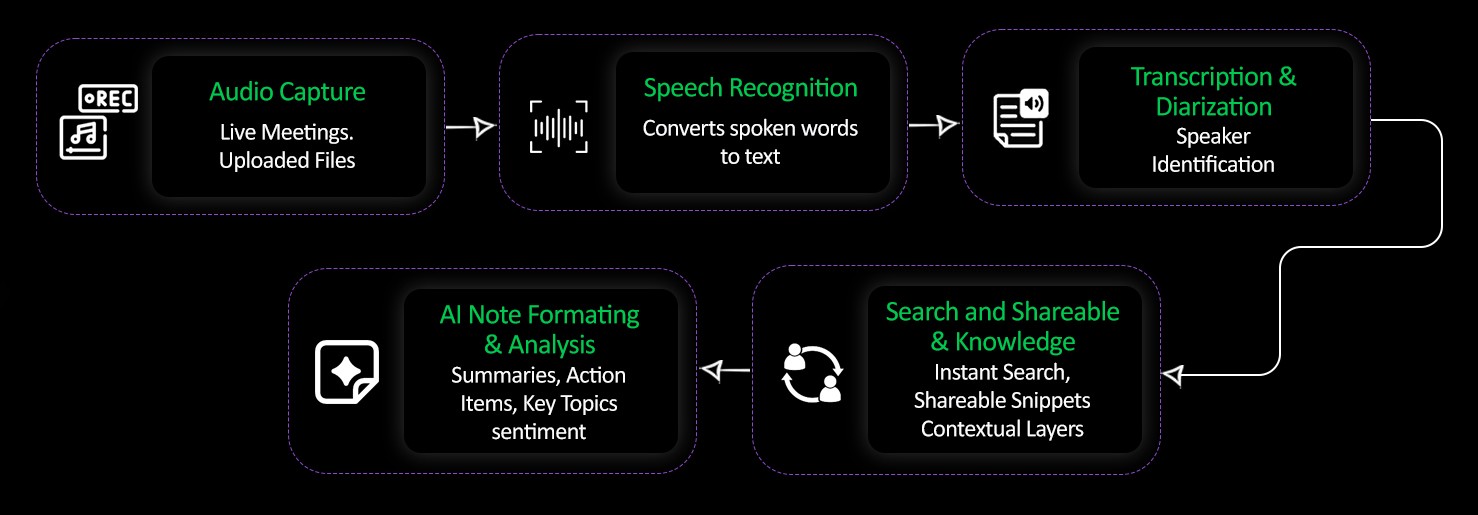
AI transcription converts meeting audio into usable, structured information through several key steps:
- Audio Capture: The process begins with capturing audio either from live meetings or uploaded recordings. This raw audio serves as the foundation for transcription.
- AI Speech Recognition: Advanced machine learning models analyze the audio to recognize and convert spoken words into text with high accuracy.
- Transcription & Diarization: The system identifies different speakers and separates their contributions, producing diarized transcripts that clearly label who said what, enhancing clarity.
- AI Note Formatting & Analysis: The raw transcript is then refined using context-aware AI to generate structured notes, including summaries, action items, key discussion topics, and sentiment analysis—turning text into meaningful insights.
- Search, Sharing & Knowledge Management: The final output is a searchable, shareable knowledge base with contextual snippets and highlights, enabling quick retrieval of important information and improved collaboration.
This workflow transforms static audio or video recordings into dynamic resources that save time, reduce errors, and boost team productivity.
How AI Transcription Tools Help
AI-powered transcription apps like Amical can automatically generate accurate, context-aware transcripts and notes. They reduce manual effort, enhance accessibility, and transform static recordings into actionable resources that integrate seamlessly with workflows.
Beyond Basic Transcription: Intelligence That Understands Context
During a client presentation, a marketing manager says:
"We should launch the campaign next Tuesday, but if the creative team needs more time, we can push to Thursday. The budget approval depends on final asset review."
Generic transcription tools produce:
"We should launch the campaign next Tuesday but if the creative team needs more time we can push to Thursday the budget approval depends on final asset review"
Amical's context-aware AI produces:
- Launch Date Options: Tuesday (preferred) or Thursday (if creative needs more time)
- Dependencies: Creative team timeline, final asset review
- Next Steps: Confirm creative team capacity, schedule asset review
Real-Time Processing That Saves Hours
Instead of the traditional workflow—record meeting → manually review → type notes → distribute
AI transcription works simultaneously with your meeting. By the time participants say goodbye, organized notes with action items, decisions, and key quotes are already available for immediate distribution.
This immediate availability means faster decision implementation, reduced miscommunication, and team members who can act on insights while they're still fresh rather than waiting days for meeting minutes to be distributed.
How to Record a Microsoft Teams Meeting: A Practical Walkthrough for Seamless Collaboration
Recording meetings in Microsoft Teams is a powerful way to capture important discussions, decisions, and shared content for future reference. This walkthrough will guide you step-by-step through the recording process to ensure smooth collaboration and easy access to meeting records.
Suppose you are the organizer and want to record your screen while presenting a slide deck in Microsoft Teams. Here’s a hands-on walkthrough to ensure both your presentation and meeting discussion are properly captured:
Step 1: Start the Meeting and Prepare Your Presentation
- Launch Microsoft Teams and join the meeting as the organizer.
- Ensure your presentation file (e.g., PowerPoint or PDF) is ready to share.
- If you plan to share your entire screen, prepare the required application or desktop in advance..
Step 2: Begin Presenting Your Slides
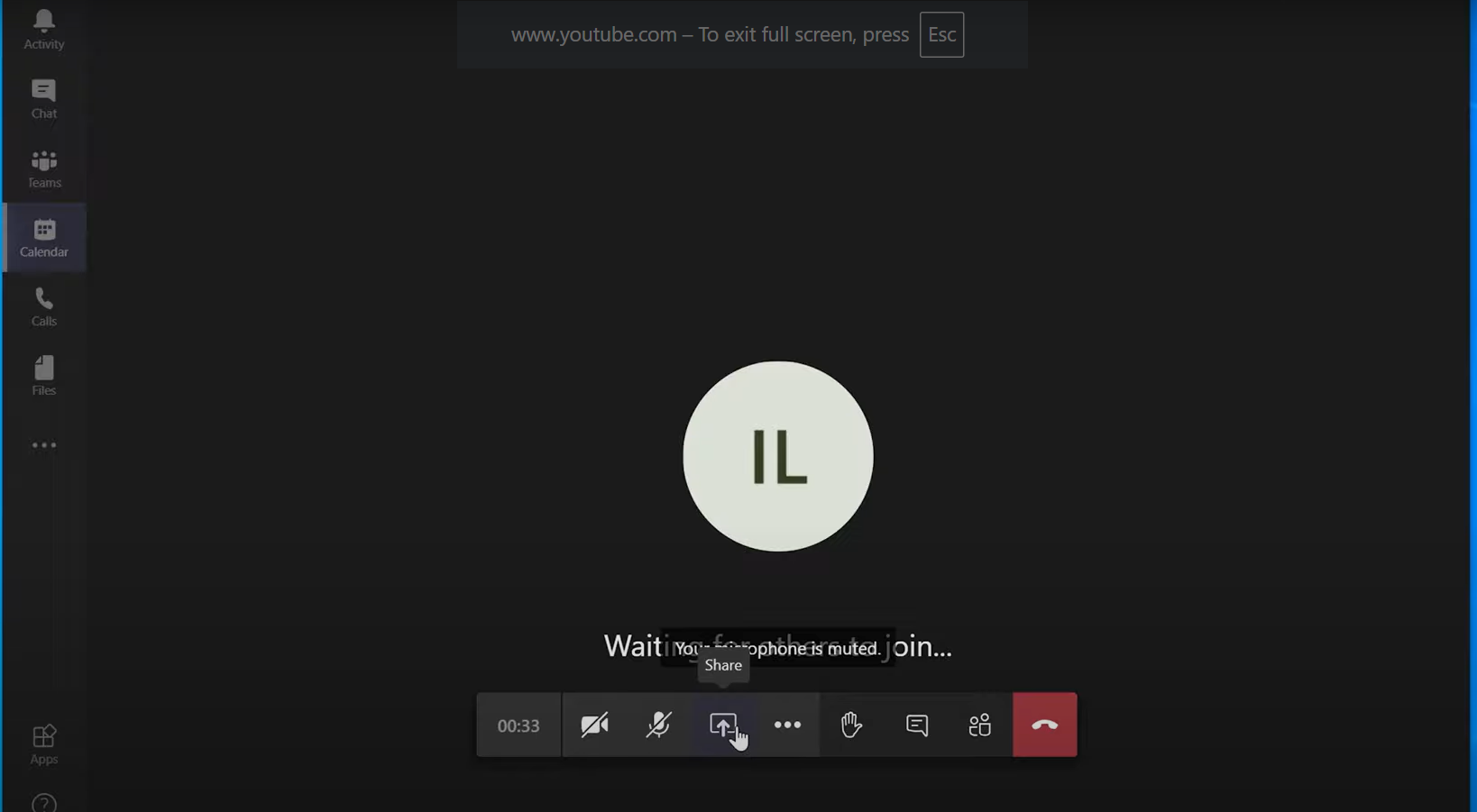
- Click the Share button in Microsoft Teams to start sharing your presentation.
- Choose to share either your entire desktop/screen or a specific window/application to display your slides.
Step 3: Locate and Click the “More Actions” Button

While actively presenting, look for the meeting toolbar (it may be at the top or bottom of your window). Find the More actions (three horizontal dots) button this gives access to recording features
Step 4: Select “Start Recording”
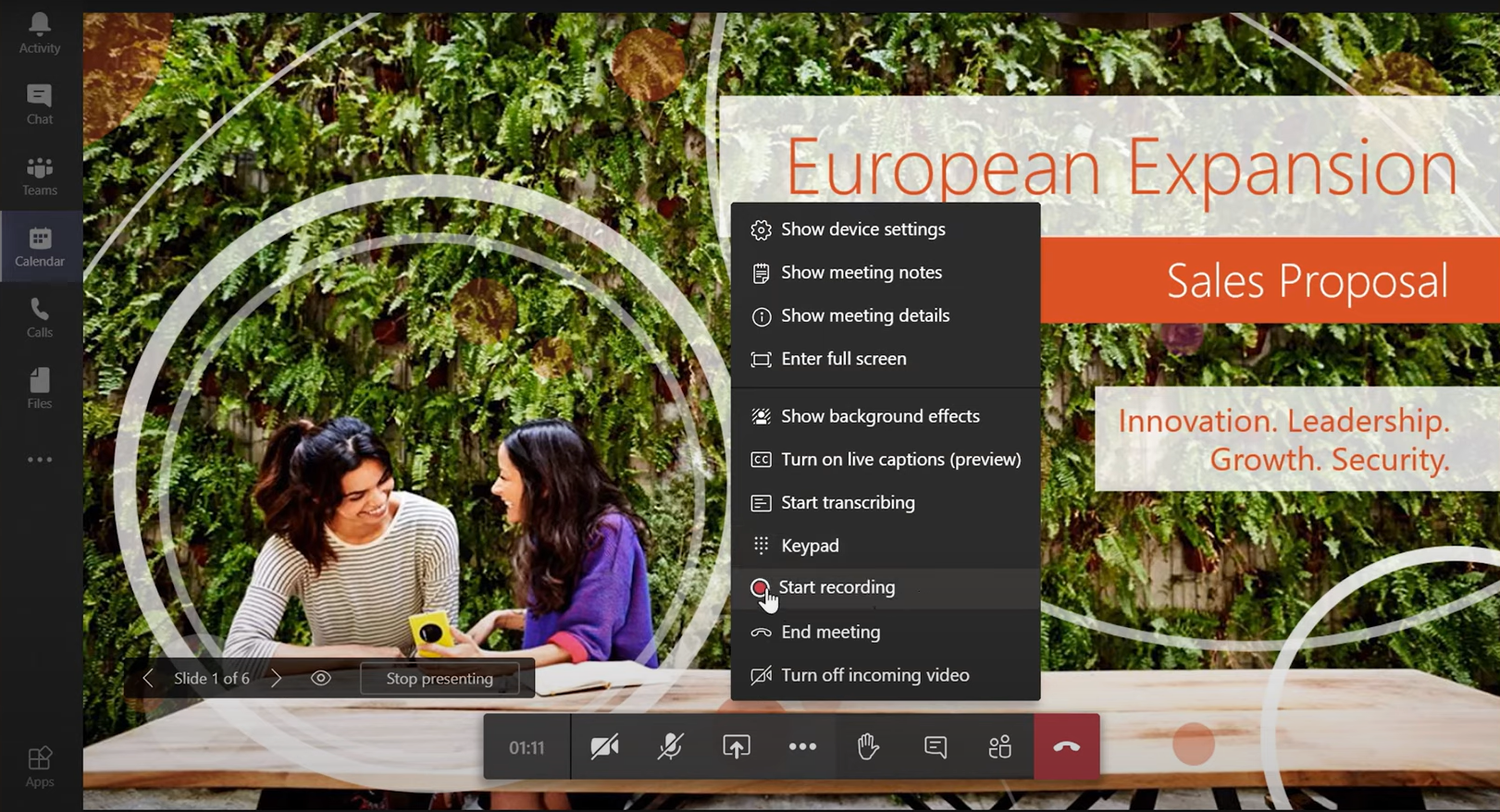
- Click on More actions, then select Start recording
Teams will notify all participants that the recording has started, and it will capture everything on screen including your slides, voice, and any discussion
Step 4: Conduct Your Meeting as Usual
- Microsoft Teams will automatically record
- Audio (everything spoken)
- Video (participants and shared visuals)
- Any screen content you share (like slides or documents)
Step 5: Stop Recording When Done
- When the meeting is ending or you want to stop recording, click More actions again.
- From the menu, choose Stop recording.
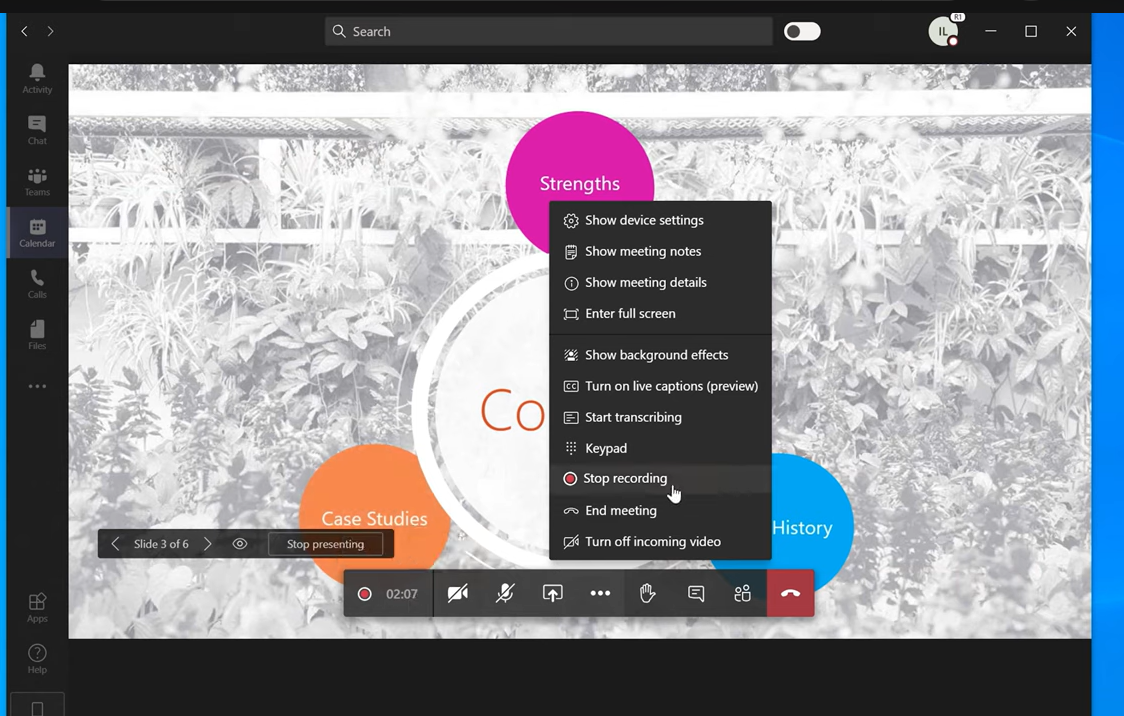
- The recording will then be automatically processed.
- Once processing is complete, it will be saved automatically.
Step 6: Access the Recording
- After the meeting, the recording link appears in the meeting chat or channel conversation
- For private meetings, recordings are saved to the recorder’s OneDrive under the “Recordings” folder; for channel meetings, recordings are saved to the associated SharePoint site
This is not the end of the journey for Teams meeting recordings. To truly judge if your recorded video is beneficial, it's important to understand how to enhance your video and utilize the features Microsoft Teams provides for recorded videos to make them efficient and impactful
How to Enhance Your Recorded Video and Key Features Provided by Microsoft Teams:
-
High-Quality Capture: Teams capture audio, video, and screen sharing, ensuring all meeting content including slides and discussions is recorded clearly.
-
Live Transcription and Captions: Automatically generated transcripts and captions help make recordings searchable and accessible, improving comprehension and review.
-
Playback Controls: Users can easily navigate the recording with play, pause, rewind, and fast-forward functions to focus on important parts.
-
Secure Storage and Sharing: Recordings are securely stored on OneDrive or SharePoint with permission controls, allowing safe sharing within your organization.
-
Meeting Recap and Highlights: Available for Teams Premium users, this provides summarized meeting recaps with key points and action items, making videos easier to digest.
-
Download Option: You can download recordings to use them for training, documentation, or offline viewing.
While Microsoft Teams offers powerful features to capture, store, and review meeting recordings, it also has some inherent transcription limitations. These include challenges around accuracy, speaker identification, transcript availability, privacy consent, editing, storage controls, and advanced AI integrations.
Limitations of Microsoft Teams Transcription
-
Accuracy Issues: Speech recognition can struggle with accents, dialects, overlapping conversations, non-native speakers, or background noise, leading to transcription errors and misinterpretations.
-
Speaker Identification: While speaker attribution is available during live transcription, it can be inaccurate or missing in the post-meeting transcript.
-
Transcription Availability: Transcription is available only if enabled by the meeting organizer or admin, and only supported for certain meeting types within the organization.
-
Privacy and Consent: Participants must consent to recording and transcription, and some organizations restrict or disable these features for privacy reasons.
-
Limited Editing and Summarization: Post-meeting transcripts cannot be significantly edited or summarized natively in Teams; third-party tools are needed for enhanced features.
-
Storage and Access Controls: Transcripts are stored in OneDrive or SharePoint with permissions tied to organizational policies, which may limit sharing flexibility.
-
File Size and Duration Limit: Teams meetings have a maximum duration (up to 30 hours), and large recordings may face limitations in storage or eDiscovery handling.
-
Policy and Compliance Controls: Admins can block or restrict downloading and transcription based on policy, which can affect access and usability.
-
Integration Limitations: Advanced transcription features like language translation, detailed analytics, and sentiment analysis are not built into Teams and require external tools.
while Microsoft Teams transcription is convenient, it may not always be fully accurate or feature-rich, and organizational policies or technical constraints can limit its use or accessibility
Overcoming Microsoft Teams Limitations with Amical AI: Features and Examples
Imagine a software development team conducts a remote daily standup on Microsoft Teams. During the meeting, some developers speak with heavy regional accents, often using technical jargon like "API endpoints," "microservices," and "CI/CD pipelines." Additionally, background noise from a dog barking occasionally interrupts the conversation. The meeting is recorded and Microsoft Teams generates a transcription.
Microsoft Teams Transcription Limitations in This Scenario
-
Accuracy Problems: Due to accents and technical terms, Teams’ built-in transcription frequently mishears words like "API" as "apple," "microservices" as "microservices," and "CI/CD" as "see see dee," leading to confusing transcripts.
-
Speaker Identification Issues: Some speakers are not properly tagged, so it's unclear who said what.
-
Background Noise Interference: The barking dog causes transcription gaps or errors.
-
Limited Post-Processing: Users have to manually find action items and summarize points from a raw text transcript.
-
Privacy Concerns: Transcription is cloud-based, raising privacy considerations in sensitive discussions.
How Amical Resolves These Issues
-
Custom Vocabulary: Amical allows developers to add terms like "API," "microservices," and "CI/CD" to its specialized vocabulary. This context-aware learning drastically improves accurate recognition of technical jargon.
-
Noise Filtering: Amical uses advanced noise reduction AI to filter out background sounds like the barking dog, improving transcription clarity.
-
Accurate Speaker Attribution: Thanks to better voice separation and identification models, Amical correctly tags who is speaking even with overlapping voices or accents.
-
Multi-Source Audio Capture: Amical captures both system audio and individual microphones, ensuring that shared content (e.g., demo videos) is fully transcribed.
-
Automated Note-Taking: Amical generates detailed meeting notes automatically, capturing key points and saving users from manual note taking
-
Auto Summary Generation: After the meeting, Amical produces well-structured summaries highlighting decisions and key points, reducing manual summarization effort.
-
Local Processing Option: Amical supports local transcription for sensitive internal meetings, ensuring privacy without sending data to the cloud.
Developer Takeaway
By integrating Amical with Microsoft Teams, developers get transcription that understands their language, reduces errors from noise and accents, and saves time with automatic meeting summaries. This eliminates many manual post-meeting tasks, helping teams stay productive and focused.
Getting Started with Amical for Microsoft Teams
What is Amical?
Amical is a free, open-source AI-powered desktop application designed to run alongside communication tools like Microsoft Teams to capture and transcribe spoken dialogue in real-time. With a strong focus on privacy and user control, Amical offers both local and cloud AI processing options, allowing users to choose between maximum data security or faster, scalable transcription.
Its core purpose is to convert live meeting audio into accurate transcripts while enabling seamless note-taking and voice-driven task delegation. Amical integrates deeply with your workflow by capturing audio from both microphone and system speakers simultaneously, ensuring comprehensive meeting documentation.
Installation is straightforward and supported across major operating systems, with ongoing development expanding compatibility. Permissions for microphone and system audio access permit reliable transcription coverage during all meetings.
For downloads and more details, visit Amical’s official website or its GitHub repository.
How to Start with Amical:
- Download and install the Amical desktop app from the official source
- Grant microphone and system audio permissions to allow Amical to capture both sides of the conversation in Teams meetings.
- Ensure your system meets the minimum requirements for smooth real-time transcription and note generation
Using Amical with Microsoft Teams:
- Launch Microsoft Teams and join or start your meeting. You can learn about Teams meeting recording and transcription features here.
- Open the Amical app in parallel and activate the transcription mode.
- Amical will capture all meeting audio, transcribe discussions in real time, and intelligently generate detailed notes.
- It can recognize speaker changes, technical jargon, and automatically extract action items.
- Voice delegation features allow you to assign tasks directly from the meeting transcript, streamlining follow-ups and accountability.
This setup enhances your Microsoft Teams meetings by transforming recorded audio into accurate, actionable meeting documentation with privacy options via local or cloud AI models.
How Amical Simplifies Note-Taking: Features, Strengths, and Real-World Use Cases
Amical goes beyond basic transcription by blending advanced AI-driven features that streamline note-taking and meeting management:
Key Features and Strengths
-
Real-Time Dictation & Transcription:
Amical offers live speech-to-text dictation that automatically punctuates and formats text, reducing the need for heavy editing. Unlike many cloud-only alternatives, Amical supports local processing to keep sensitive conversations private.
-
Context-Aware Formatting:
It adapts transcription style and formatting depending on the application in use—for example, applying professional tone in emails or a casual style in chat apps, enabling smoother workflows and cleaner notes.
-
Custom Vocabulary:
Users can add industry-specific jargon, names, or acronyms to improve transcription accuracy for specialized fields like healthcare, legal, and technology.
-
Privacy & Transparency:
Being fully open-source, Amical allows anyone to audit data processing. Telemetry is minimal, optional, and excludes meeting content, giving users confidence and control. Local AI models can be used for offline transcription when privacy is paramount.
-
Voice Commands & Shortcuts:
Workflow automation through customizable voice commands and hotkeys streamlines productivity and provides hands-free control.
-
Multi-Language Support:
Supports transcription in over 50 languages, including mixed-language conversations, catering to multilingual teams and learners.
-
Seamless Integration:
Supports app control and automation protocols to fit into complex enterprise environments smoothly.
Real-World Use Cases
-
Healthcare:
Amical’s local-first transcription safeguards sensitive patient consultations. Custom medical vocabulary ensures precise clinical notes, reducing administrative burdens and accelerating patient care.
-
Legal:
Enables accurate recording of confidential meetings with customizable vocabulary and local data processing, preserving attorney-client privilege and creating searchable, reliable records.
-
Enterprise Collaboration:
Facilitates real-time transcription of multi-party meetings, capturing decisions and action items with context-aware summaries, improving productivity and alignment.
-
Education:
Provides accessible lecture transcriptions in 50+ languages with adaptive formatting, enhancing learning for diverse and multilingual student populations.
Open Source vs Closed Source AI Transcription Tools:Amical Compared to Microsoft Teams
To understand the core differences in deployment, privacy, customization, and integration, here’s a side-by-side comparison of Amical and Microsoft Teams as AI transcription solutions.
| Feature / Tool | Amical | Microsoft Teams |
|---|---|---|
| Deployment | Local-first (runs on device), with cloud option | Cloud-based, integrated with Microsoft 365 |
| Open Source | Yes (active GitHub, community-driven) | No (proprietary, enterprise-managed) |
| Context Awareness | Detects active app, context-aware formatting | Meeting + participant context, live captions |
| Privacy | Local processing possible, user-controlled | Data encrypted, tenant-controlled, cloud storage |
| Custom Vocabulary | User can add technical jargon, acronyms | Limited, via 365 admin configuration |
| Meeting Summaries | In progress (template-based notes roadmap) | Built-in AI-generated summaries (Premium) |
| Integrations | Custom APIs, local file, CLI tools | Deep integration with Microsoft 365 (Outlook, Word) |
| Platform Support | Desktop: Windows, macOS, Linux | Desktop, Web, Mobile (Teams apps, Outlook add-in) |
| Cost | Free (open source) | Included in Teams, AI features in Premium add-on |
Key Differences
- Amical offers unmatched user privacy and flexibility since transcription happens locally by default, with optional cloud usage for those who need it.
- Microsoft Teams provides mature, enterprise-grade compliance, management, and seamless integration with Microsoft 365, but all transcription is cloud-processed and centrally managed.
- Customization and platform openness are Amical’s strong suit, while Teams excels in usability, corporate IT support, and organizational reporting features.
Choose Amical for transparency, control, and local processing; select Microsoft Teams for deep integration in business environments, especially if AI summaries and compliance are top priorities.
Amical’s local-first and open-source model offers unmatched privacy and flexibility, enabling users to process data on their own devices without sacrificing speed, thanks to optional cloud support. By contrast, Otter.ai and Fathom rely entirely on cloud processing, which entails sharing data with third parties but provides rich integrations and mature meeting-specific features.
When privacy, transparency, and control are paramount, Amical stands out as the preferred choice. For users who prioritize extensive integrations and out-of-the-box meeting-focused features, Otter.ai and Fathom remain strong contenders.
Areas of Active Development and Growth
Amical is a rapidly evolving platform, showing great promise in AI-powered transcription and note-taking. Currently, the company is actively enhancing features like meeting transcription and automatic summaries. While users today might not yet have access to polished, ready-to-share summaries similar to what established tools like Otter.ai provide by default, these capabilities are under active development and expected to roll out in upcoming releases.
Integration support is another area of ongoing growth. Unlike some competitors offering dozens of out-of-the-box integrations with popular apps such as Zoom, Slack, HubSpot, Salesforce, and Notion, Amical is steadily building its ecosystem. Meanwhile, users can already export notes in common formats such as text and Markdown, with more integrations planned to expand workflow compatibility.
Currently, Amical focuses on desktop applications across Windows, macOS, and Linux platforms, providing robust functionality for these environments. While a dedicated mobile app is not yet available, its development is anticipated, aligning with user needs to access and manage notes conveniently from mobile devices. In the meantime, cloud-based tools like Otter.ai and Fathom offer mobile options that complement desktop workflows.
This trajectory of continuous improvement reflects Amical's commitment to delivering a versatile, privacy-first, and community-backed AI transcription and productivity tool that evolves according to user feedback and technological advances.
Community and Support
Join the vibrant Amical Discord community to get help, share tips, and connect with other users. Whether you're troubleshooting or looking for best practices, the community offers valuable support and regular updates.
For direct access to the software, visit the Amical GitHub releases page to download the latest versions. Comprehensive user documentation is available on the Amical docs site to guide you through setup and advanced features.
Engage with the community and developers to maximize your experience with Amical and stay informed about new features and improvements.
Conclusion
Recording meetings along with using AI transcription helps teams work more efficiently. While recordings capture everything that is said, AI transcription like Amical turns that information into organized, searchable text that is easier to use.
Amical works with Google Meet , Microsoft Teams platforms by making recorded meetings simple to review, easy to share, and secure. It helps teams access the information they need quickly while keeping sensitive data private.
Try Amical today to make your meetings more productive. Download the open-source app for free from their GitHub releases page and see how AI transcription can improve your team’s workflow.
FAQs
How to use AI to transcribe a meeting recording?
Upload your meeting audio or video to an AI transcription tool like Amical. The AI converts speech into text quickly and accurately. After transcription, you can search, review, and share the meeting notes easily.
What key features are necessary to make a meeting recording effective?
Effective meeting recordings should have clear audio and video, automatic cloud saving, participant recording notifications, built-in transcription and captions, easy access and sharing, and strong privacy controls.
How does Amical address privacy concerns differently?
Amical processes transcription locally on the user’s device by default, minimizing cloud data exposure. It offers full telemetry opt-out and is open source, giving users complete control and transparency over their data and maximizing privacy.
Can AI transcription tools like Amical work with multiple meeting platforms?
Yes, Amical is designed to be platform-agnostic and works seamlessly with popular meeting platforms such as Google Meet, Microsoft Teams, and Zoom, allowing users to transcribe and take notes across different virtual collaboration tools with ease.