TL;DR
- AI note-taking apps use ASR and LLMs to automatically transcribe, summarize, and structure conversations. The market is growing rapidly, projected at USD 11.02 billion by 2025, as users seek relief from manual typing and missed action items. These tools shift note-taking from passive capture to active assistance.
- Traditional apps act as blank notebooks where users must create structure manually. AI apps, by contrast, auto-tag, summarize, and even build knowledge graphs that link topics across meetings. This makes retrieval faster and transforms notes into dynamic knowledge systems.
- AI tools reduce cognitive load and turn dialogue into action items, but they face accuracy issues in noisy environments and risks of “hallucinations.” Privacy is a key concern with cloud-based processing, while adoption hurdles include costs and loss of comprehension from not summarizing manually.
- AI note-taking runs in layers: audio capture, ASR transcription, LLM summarization, and entity tagging. Semantic embeddings build links across notes, while integrations with Slack, Trello, or Notion turn outputs into workflow triggers. The result is actionable, searchable knowledge.
- Amical AI is open-source and privacy-first, while Granola AI offers both local and cloud options for structured recaps. Google NotebookLM excels in research with semantic clustering, Notion AI enhances team collaboration, and Otter.ai leads real-time transcription with collaboration tools.
- Choose based on workflow: Amical for privacy, Otter for fast-paced meetings, NotebookLM for research, and Notion AI for team hubs. Each has trade-offs in accuracy, pricing, and compliance. The trend is clear, note-taking is evolving into active knowledge management.
Introduction
If you’ve ever come out of a long meeting with a notebook full of half-scribbled thoughts that make little sense the next day, you’re not alone. On Reddit, one user in r/ProductivityApps shared how they tested five AI note-taking tools just to stop missing action items from in-person conversations. They explained how traditional note apps left them juggling between typing, tagging, and reorganizing, while the AI-powered one quietly recorded in the background, transcribed, and produced a usable summary without extra effort. That kind of relief is what’s drawing people toward this new wave of tools.
And it’s not just anecdotal. The global note-taking app market is projected to grow from USD 9.54 billion in 2024 to USD 11.02 billion in 2025 (The Business Research Company). A big part of this momentum comes from apps that aren’t just passive notebooks anymore but active assistants powered by large language models (LLMs) and automatic speech recognition (ASR).
In this blog, we’ll explore what makes AI note-taking apps different from the ones we’ve used for years, how they capture and structure information, what problems they solve, and where they still fall short. By the end, you’ll have a clearer picture of whether these tools deserve a place in your workflow, or if they’re still too early to rely on fully.
What are AI Note Taking Apps
At the simplest level, an AI note-taking app is like having a personal stenographer who not only writes down everything you say but also highlights the key ideas, organizes them neatly, and reminds you later where they fit in your broader knowledge. These apps rely on two core technologies: Automatic Speech Recognition (ASR), which turns spoken words into text, and Large Language Models (LLMs), which take that raw transcript and summarize, tag, and sometimes even generate action points. Instead of typing line after line yourself, you speak or let the app record, and the system does the heavy lifting of transcription and distillation.
Traditional note-taking apps, on the other hand, act more like blank notebooks. They provide a space and a few tools, typing, formatting, tagging, maybe even handwriting recognition, but the responsibility for capturing, organizing, and extracting meaning rests entirely on the user. If you think of a lecture hall, the old-school approach is like furiously typing or scribbling during class, while the AI-powered approach is like handing the job to a digital assistant who not only writes everything down but also gives you a one-page summary of what’s important.
AI-Powered Structure vs Manual Effort
One of the key differences between AI-driven and traditional apps is how structure emerges. In a manual system, you impose the structure yourself: deciding whether to create folders, add tags, use markdown headings, or keep multiple notebooks. Forget to tag properly, and your notes become hard to retrieve. Miss a summary, and you end up scrolling through walls of text weeks later.
By contrast, AI apps impose structure automatically. They transcribe speech in real time, auto-tag keywords like “budget”, “roadmap”, or “next steps”, and can generate summaries in various formats depending on your preference, a bulleted action list, a narrative recap, or even a “decision log.” This is the equivalent of writing an email where someone else fills in the subject line, categories, and follow-ups without you asking. It reduces friction and saves cognitive load, letting you focus on the conversation instead of the mechanics of note-taking.
Unified Knowledge Graphs vs Isolated Notes
Another feature that sets AI apps apart is their ability to build knowledge graphs, interconnected webs of information that surface links between ideas, meetings, and documents. Suppose you’ve discussed “Q3 Sales Targets” across five different meetings. Instead of living in five separate note files, an AI note-taking app can cross-reference them, showing you every mention of that topic, related documents, and even which colleagues were involved. This transforms notes from being static records into dynamic networks of knowledge.
Traditional apps typically keep notes siloed. You can use search or tags, but the effort is manual, and connections are only as good as the effort you put in upfront. In practice, this often means notes about related projects are scattered, with little visibility across them unless you meticulously maintain your own taxonomy. AI bridges this gap by creating semantic links, making retrieval and synthesis much easier.
Challenges and Limitations
-
Accuracy concerns:
-
ASR often struggles with strong accents, overlapping voices, or background noise, leading to transcripts that require manual cleanup.
-
LLM-powered summaries can misinterpret nuance or generate misleading “hallucinated” content, which is risky in legal, medical, or other high-stakes settings.
-
-
Privacy and security:
-
Most AI note-taking apps rely on cloud processing, which raises compliance concerns with GDPR, HIPAA, or company data policies.
-
Sensitive conversations (e.g., HR reviews, financial strategy) may not be safe unless the platform supports strong encryption or local processing, usually offered only on premium tiers.
-
-
Human factor and adoption hurdles:
-
Over-reliance on automation reduces the cognitive benefit of manually summarizing, which often reinforces comprehension.
-
A learning curve exists: tuning AI models to user preferences, managing app settings, or correcting mistakes adds friction.
-
Pricing is another barrier, since key features like advanced transcription, multilingual support, and knowledge graph integration are locked behind paid subscriptions.
-
How do AI Note Taking Apps Work
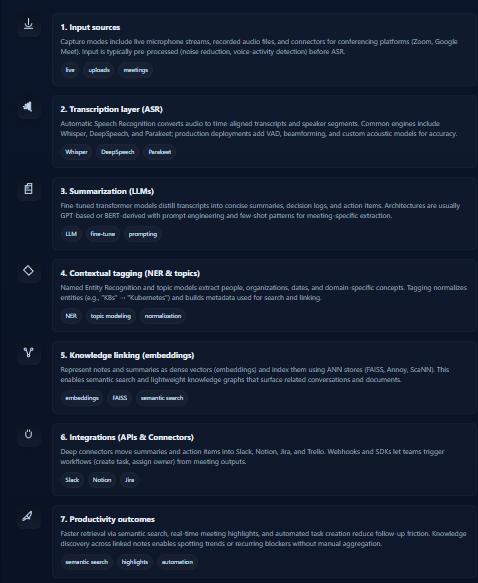
AI note-taking systems don’t operate as a single “black box.” They’re pipelines made up of distinct layers that process speech, transform it into text, extract meaning, and connect knowledge across platforms. Let’s walk through the core stages.
Input Sources
These apps ingest spoken content either directly through microphones or via integrations with conferencing platforms like Zoom and Google Meet. Some support uploading recorded audio files for post-processing, making them useful for both live and asynchronous workflows.
Transcription Layer
The first stage is Automatic Speech Recognition (ASR), where audio is converted into text. Models like Mozilla’s DeepSpeech, OpenAI’s Whisper, and NVIDIA’s Parakeet dominate here. They’re trained on massive multilingual datasets and optimized for real-time decoding, even in noisy environments. The output is typically a transcript with timestamps and speaker segmentation.
Summarization Models
Raw transcripts are mostly verbose. This is where Large Language Models (LLMs) step in, compressing the text into concise summaries. Instead of giving you 10,000 tokens of meeting chatter, they extract decisions, blockers, and follow-ups. Many platforms fine-tune GPT- or BERT-based transformers specifically for meeting and knowledge-work scenarios.
Contextual Tagging
Next comes entity recognition and topic modeling. Using NER, the system detects people, organizations, and topics (“budget”, “Kubernetes cluster”, “release date”). These tags turn notes into structured records rather than plain text, making later retrieval significantly faster.
Knowledge Linking
To avoid notes living in silos, embeddings are used to compute semantic similarity between documents. This enables cross-note connections, effectively building a lightweight knowledge graph. Search for “Q3 sales targets,” and the system also surfaces related mentions like “revenue forecast” or “pipeline growth.”
Integrations
Finally, the output must tie back into the tools people already use. AI note-taking platforms integrate with Slack, Trello, Notion, and Jira, automatically pushing summaries, tasks, or highlights into the right channels. This turns notes from static text into workflow triggers.
Productivity Outcomes
The result is faster meeting highlights, semantic search that retrieves context instead of exact words, and the ability to discover insights hidden across multiple sessions. In practice, this means fewer forgotten action items, less time spent digging for information, and a smoother knowledge flow across teams.
Tools for AI Note Taking (2025 Comparison)
Below are the list of top 5 tools for AI Note Taking:
1. Amical AI
Overview
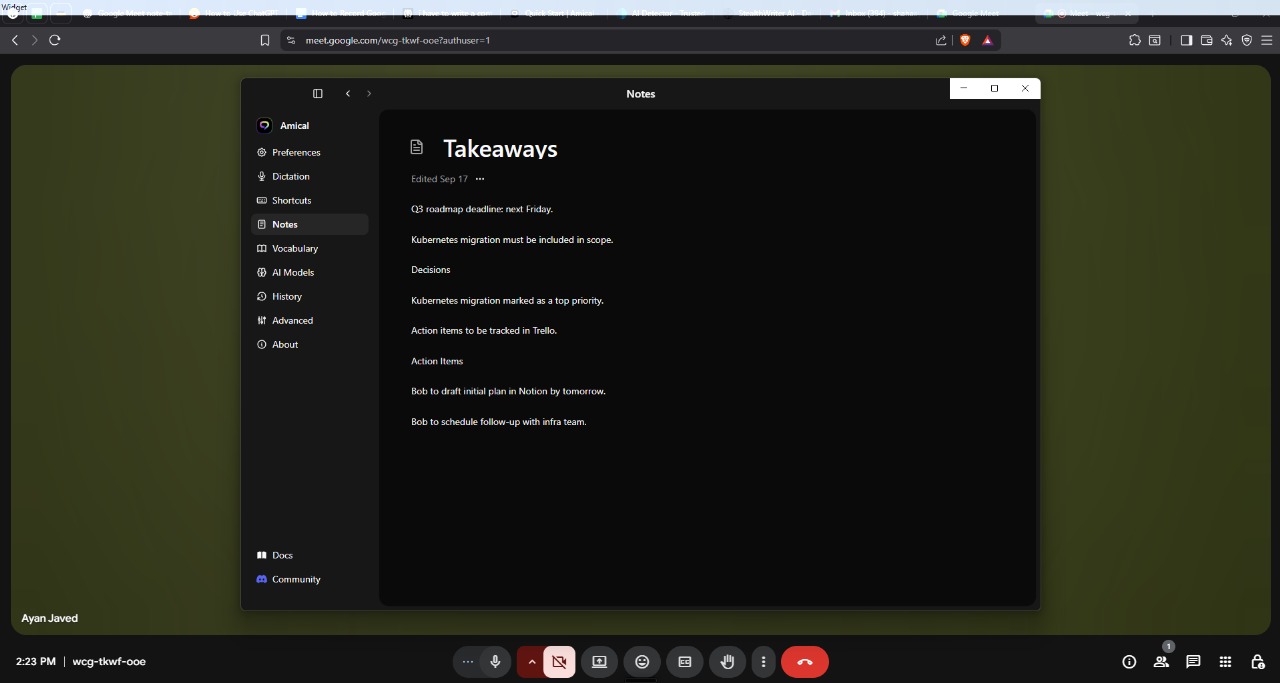
Amical AI stands out in the 2025 landscape because it doesn’t just transcribe conversations, it structures them. Instead of dumping a raw transcript, the app identifies decisions, action items, and key takeaways. It behaves less like a recorder and more like a silent participant in the meeting, capturing the flow and organizing it into something you can actually use later.
Where many AI note-taking apps push data to the cloud, Amical runs directly on your desktop. This means your conversations, interviews, or internal calls remain private, processed locally without third-party servers. For researchers and teams working in sensitive domains, legal, healthcare, enterprise strategy, this approach reduces compliance concerns while still delivering AI-driven summarization. In practice, it functions as a lightweight assistant that quietly follows along while you stay focused on the discussion.
Key Features
-
Open-source and privacy-first: Instead of relying on cloud servers, Amical processes everything locally on your machine. This ensures conversations never leave your desktop, which is crucial for researchers, legal professionals, or teams working with sensitive client data. Developers also benefit from the transparency and flexibility of its open-source codebase.
-
Full local meeting capture: Unlike cloud-based competitors, Amical records and transcribes directly on your computer, meaning you can take notes even when offline. This reduces the risk of data leaks while maintaining real-time performance.
-
Offline usage support: Because the engine doesn’t require a live internet connection, you can use it on flights, during field research, or in secure office environments where network access is restricted.
-
External integrations: Amical lets you export structured notes into other tools like Notion or Obsidian, bridging the gap between raw capture and long-term knowledge management.
-
Voice note support: Beyond meetings, Amical supports dictation and quick voice memos, turning spontaneous ideas into structured notes you can organize later.
Hands-on Example
Step 1: Install the Amical Desktop App
The transcription and note taking abilities of Amical can be accessed via their desktop application. You have to install it and download it in advance before a meeting starts to be able to launch the recording mode as quickly as possible. The desktop app is combined with your system audio layer that will capture your microphone and speakers audio.
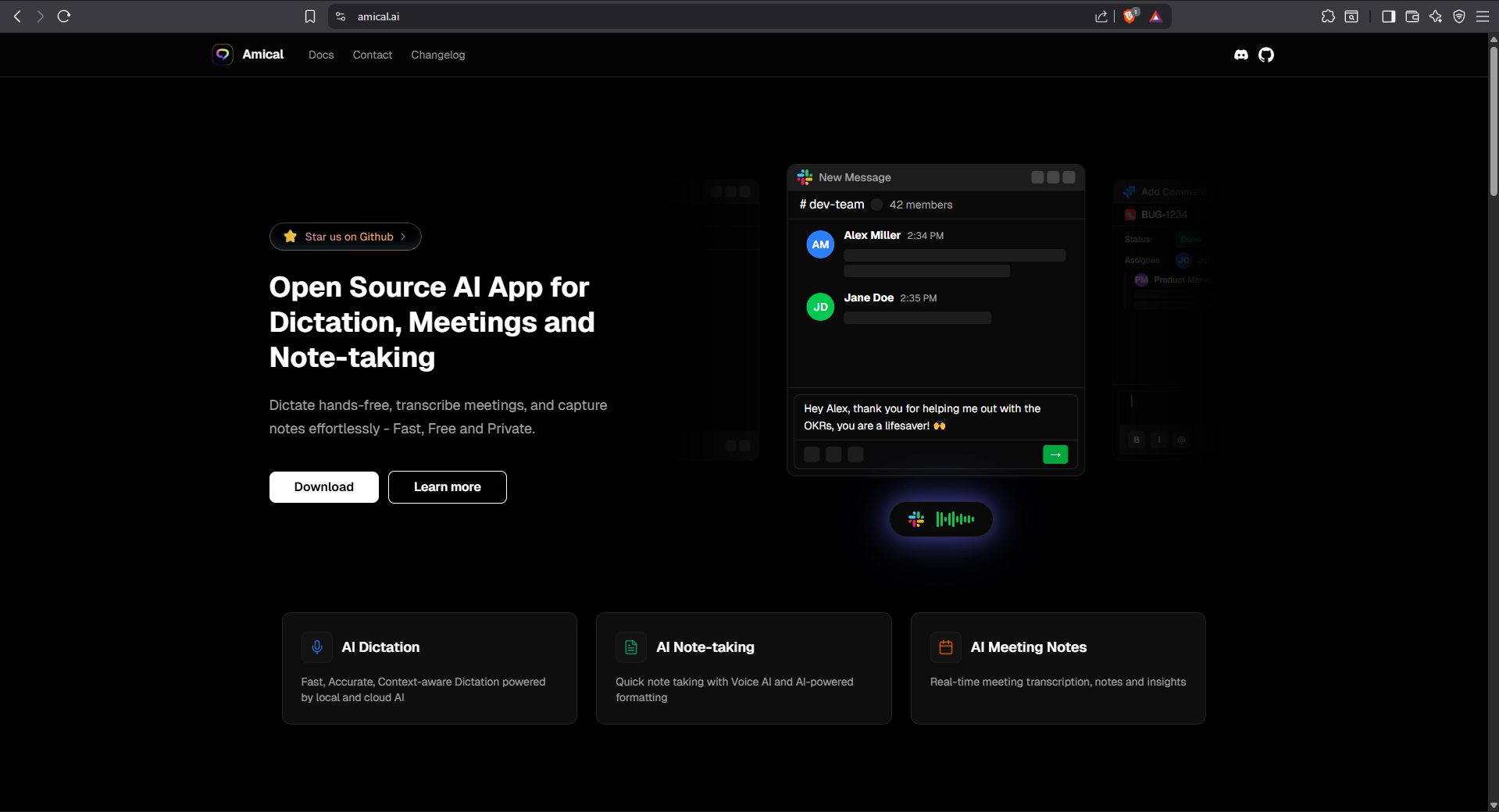
Step 1 : Visit Amical’s official page and click on the download button.
Step 2 : You will be re-directed to Amical’s github page.
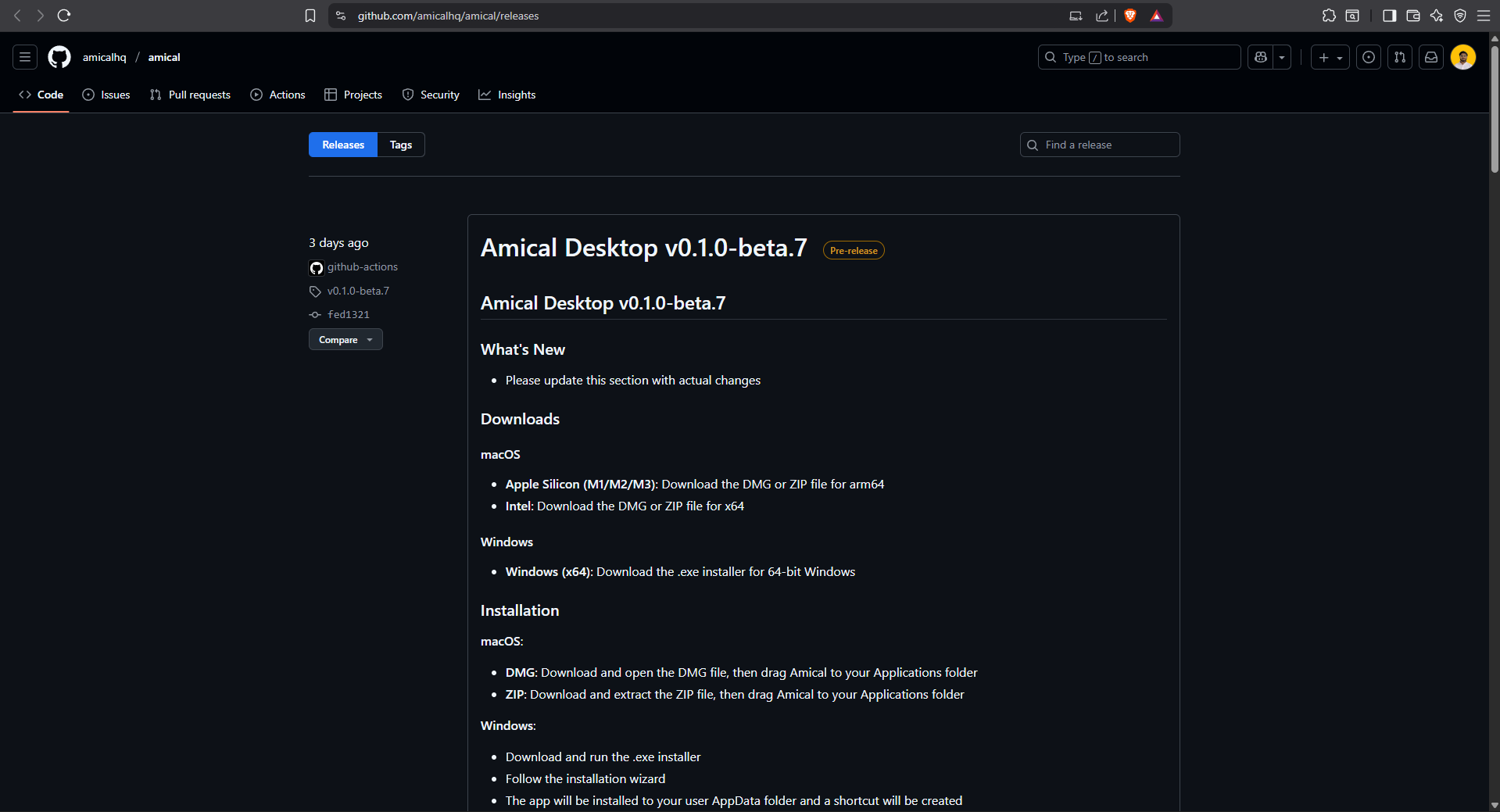
Step 3 : Scroll down and find a compatible version according to your OS.
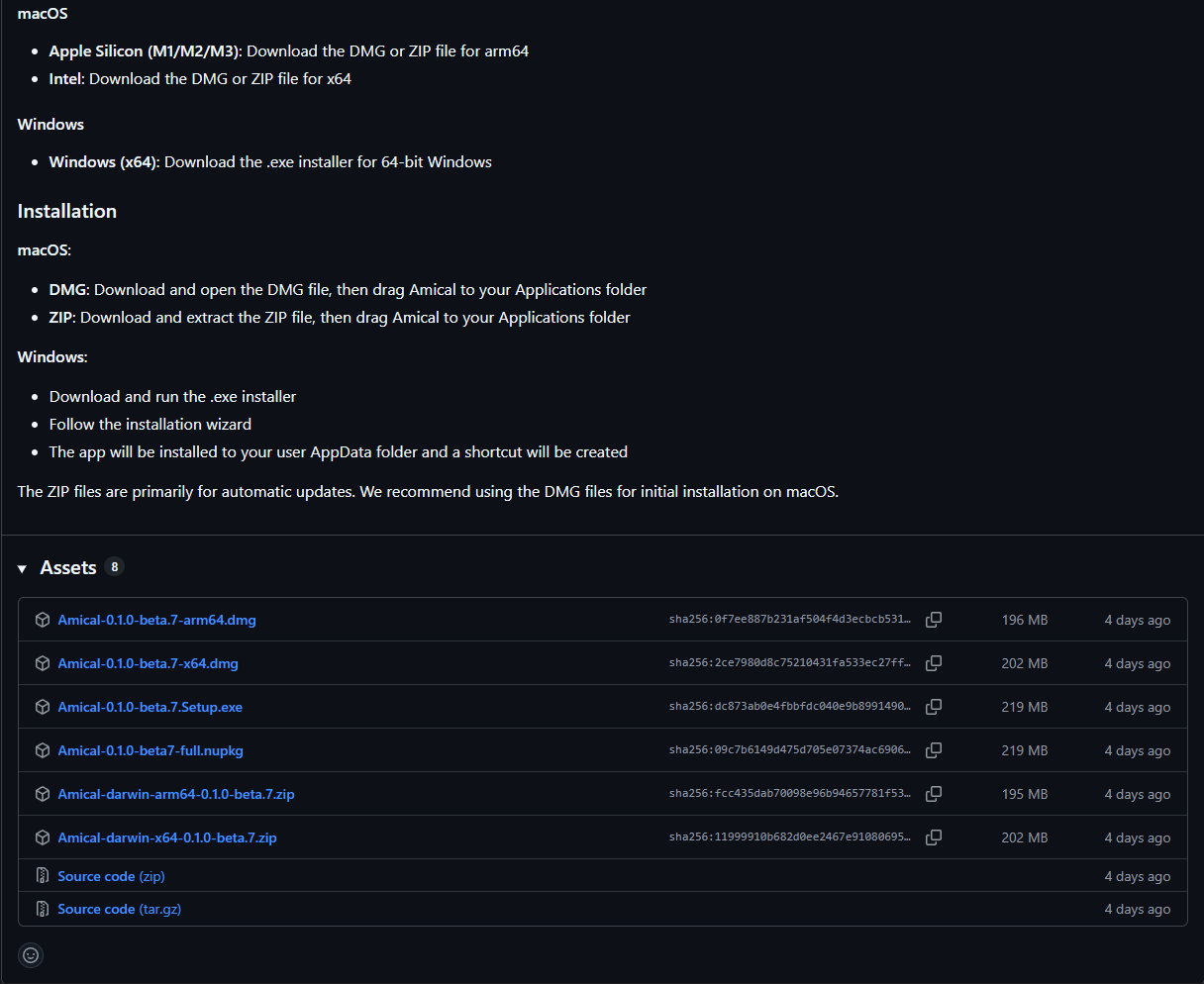
Step 4: Permissions: Microphone and System Audio
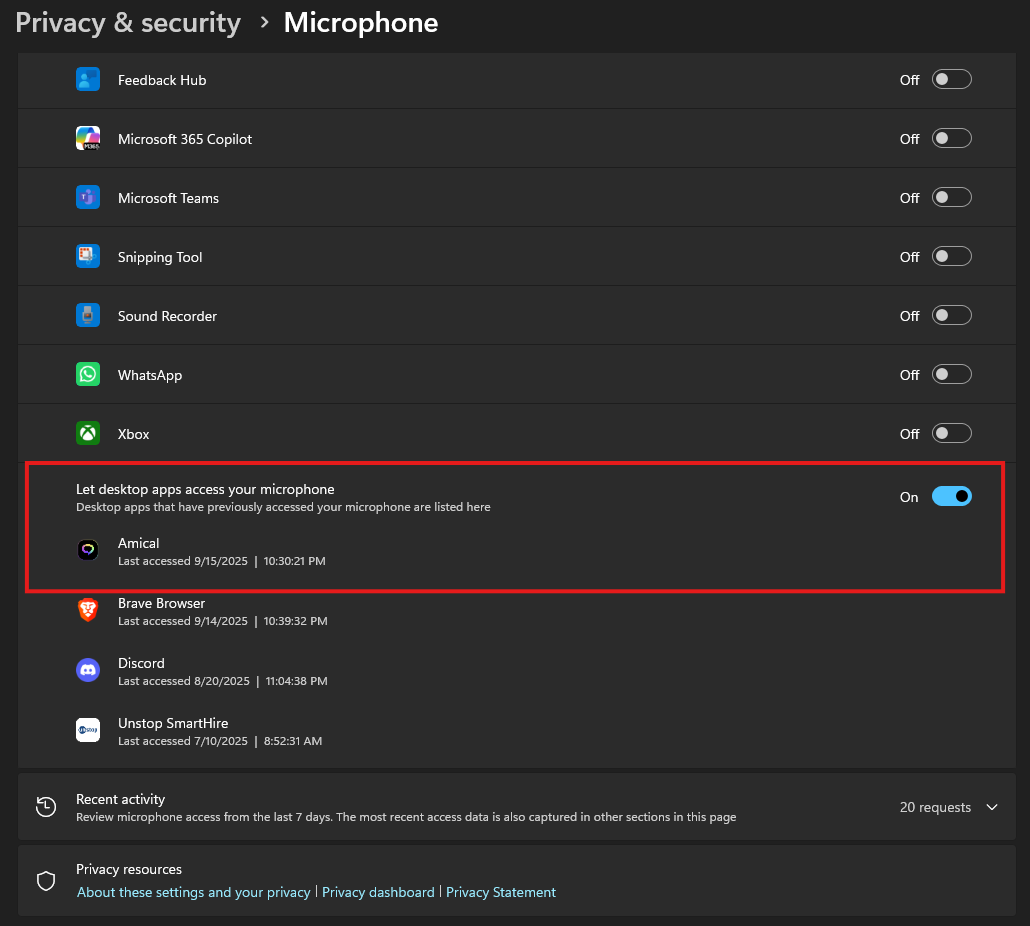
Amical needs to access your microphone and the audio of your system to be able to record both sides of your conversation.
-
Microphone access gives the tool the ability to record your voice in the course of the meeting.
-
System audio access is used to be sure that the voices of other participants are also represented in the transcript.
You are likely to have undone notes without the other, one that will just capture half of the discussion.
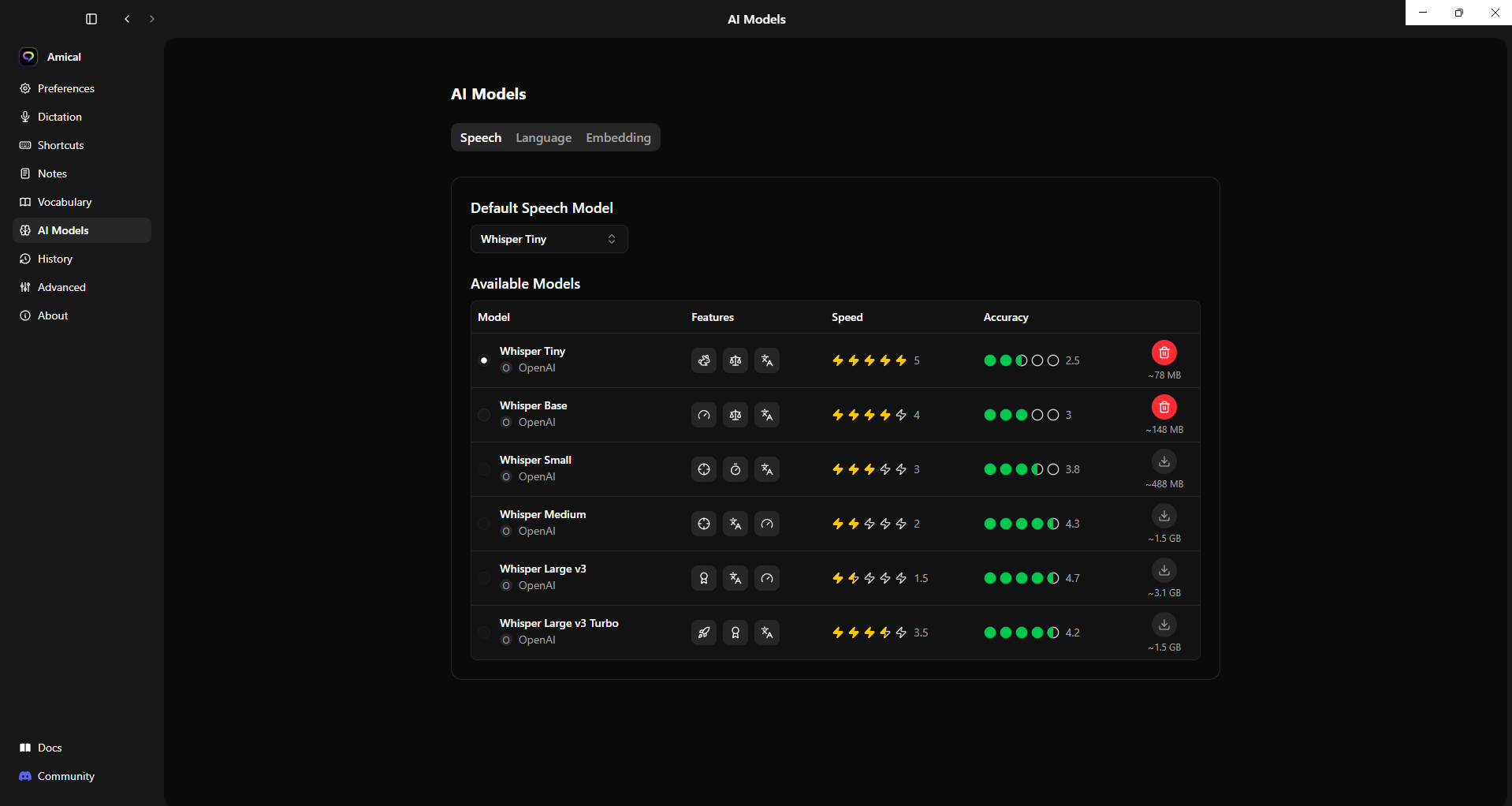
Step 5: Open any app where you want to type - Notes, Slack, Email, etc.
- Choose between models.
- Hold the fn key and start speaking.
- Release the fn key when you're done speaking.
- Amical will convert your speech to text and automatically paste it into the active app.
Pros
-
Free and open-source under a permissive license.
-
Strong emphasis on privacy and local processing.
-
Lightweight performance that runs smoothly on desktops without heavy GPU demands.
-
Includes AI dictation and voice commands, useful for hands-free typing or accessibility.
Cons
-
Fewer advanced AI features (like multi-speaker diarization or auto-knowledge graphs) compared to cloud-based proprietary tools.
-
Manual setup may be required for certain integrations, which could feel cumbersome for non-technical users.
Pricing
Amical AI is completely free and open-source, with a permissive license that makes it easy for developers and teams to adopt or extend without vendor lock-in.
2. Granola AI
Overview
Granola AI is positioned squarely as a meeting productivity assistant, making it a strong competitor to Amical AI. Its primary use case is capturing conversations and generating AI-driven summaries that highlight decisions, next steps, and action points. Unlike traditional note-taking tools, Granola isn’t about jotting down ideas manually, it’s optimized for structured meeting recaps that professionals can use immediately after the session.
One of its biggest advantages is flexibility: users can choose between cloud recording for convenience or local capture when privacy is a concern. This hybrid model lets teams balance speed and security depending on the sensitivity of the conversation. For distributed teams, the cloud option ensures easy syncing, while local recording gives individuals more control over their data.
Key Features
-
Structured meeting note summaries: Granola doesn’t stop at transcription, it organizes meeting outcomes into summaries that distinguish between context, decisions, and action items, reducing post-meeting cleanup.
-
Cloud and local recording options: Users can select between convenient cloud recording for automatic syncing across devices, or local mode for higher privacy. This flexibility makes it practical for both enterprise teams and solo professionals.
-
AI-powered action items and decisions: The app automatically detects commitments and assignments from the conversation, formatting them into task-ready outputs. This feature turns dialogue into accountability tools.
-
Productivity integrations: With built-in connectors to project management apps, notes flow directly into team workflows. Instead of copying and pasting from transcripts, your next sprint tasks or follow-ups are automatically populated in tools like Trello or Asana.
Hands-On Example
Here’s how you can get started with Granola:
Step 1: Download and install
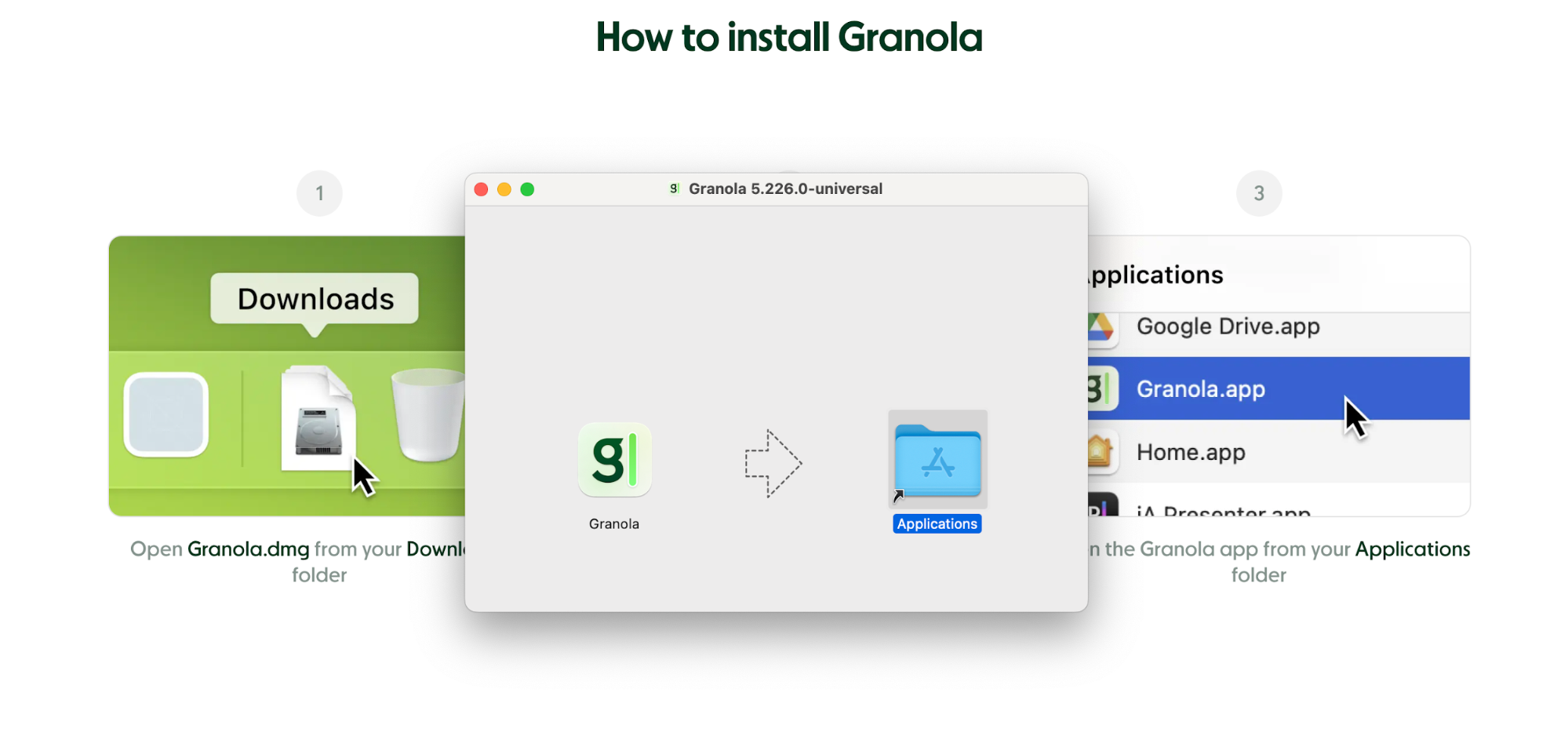
- Go to the Granola website
Click Download Granola for Mac. - Open the Granola.dmg
In your Downloads folder, double-click Granola.dmg. You’ll see a new window with the Granola icon and the Applications folder. - Drag to Applications
Drag the Granola icon into your Applications folder.
Step 2: Launch Granola
Open Granola from Applications. You may see a warning:
“Granola is from the internet. Are you sure you want to open it?”
Click Open. Then follow any prompts to grant microphone or screen permissions if requested.
Step 3: Sign in & connect calendar
Granola will prompt you to Sign in with Google.
- Accept terms & privacy policy.
- Choose the Google account you’ll use for your meeting notes.
- Grant Granola the requested permissions so it can read your calendar and prep your notes.
We currently only fully support Google Workspace for frictionless calendar integration. If you’ve got multiple calendars you want to connect with, head over to our calendar integration guide.
Step 4: Test it out
- Check your system audio settings to make sure your default microphone/speakers match the call software that you’re using, and that mic input is set to max volume.
- Open Granola and choose the meeting (or click on the notification that pops up before it starts)
- Wait for Granola’s live transcript to appear (you might get a pop-up asking for microphone permissions).
- See your transcript appear line by line in Granola’s interface or note editor.
Step 5: Explore the key features
- Taking Notes: You can type notes in the editor while the transcript runs.
- Enhance: When the meeting ends, Granola automatically generates a polished set of notes.
- Share: Generate a shareable link or copy to Slack/Email.
- Ask Granola: Catch up on what you’ve missed during live meetings, or generate summaries, action items, or follow-up emails from your transcript once the meeting is over.
Pros
-
Delivers some of the most polished structured notes among AI note-taking tools.
-
Saves significant time by removing the need for manual note-taking.
-
Translates conversations into clear, actionable insights, useful for project tracking and accountability.
Cons
-
Relies on internet connectivity for its advanced AI features.
-
Privacy levels depend on whether cloud recording is enabled, which may not satisfy strict compliance environments.
Pricing
Granola AI follows a freemium model, with a solid free tier. Paid plans begin at $10/month, unlocking advanced features like extended storage, multi-platform integrations, and priority support.
3. Google NotebookLM
Overview
Google’s NotebookLM is one of the newer entrants in AI note-taking, and it’s clearly designed for research-heavy use cases. Instead of just giving you transcripts or meeting recaps, it focuses on building connections across information sources. NotebookLM automatically organizes imported notes, documents, and references into thematic clusters, surfacing relationships between them in ways that feel closer to a knowledge graph than a notebook.
The platform is tightly tied to the Google Workspace ecosystem. That means Gmail, Docs, and Drive content flows directly into NotebookLM, and insights drawn from these sources retain attribution back to the original files. For researchers, academics, or professionals analyzing large volumes of material, this saves time and provides transparency into where an insight came from.
Key Features
-
AI-powered note clustering: Rather than leaving you with dozens of unorganized pages, NotebookLM groups notes and documents into thematic clusters. This makes it easier to see relationships and reduces the friction of manual categorization.
-
Semantic linking across documents: Using embeddings and context detection, the app can connect related ideas across different files. For example, research on “renewable energy policy” in a PDF might link to meeting notes mentioning “carbon credits” in Drive.
-
Source attribution: When NotebookLM generates a summary or answers a query, it provides references back to the original source material. This transparency is especially valuable in academic or research workflows where citations matter.
-
Tight Workspace integration: Because it’s part of Google Workspace, NotebookLM natively connects to Docs, Drive, and Gmail. This eliminates the need for manual imports or third-party connectors.
Hands-on Example
Here’s how you can get started with NotebookLM:
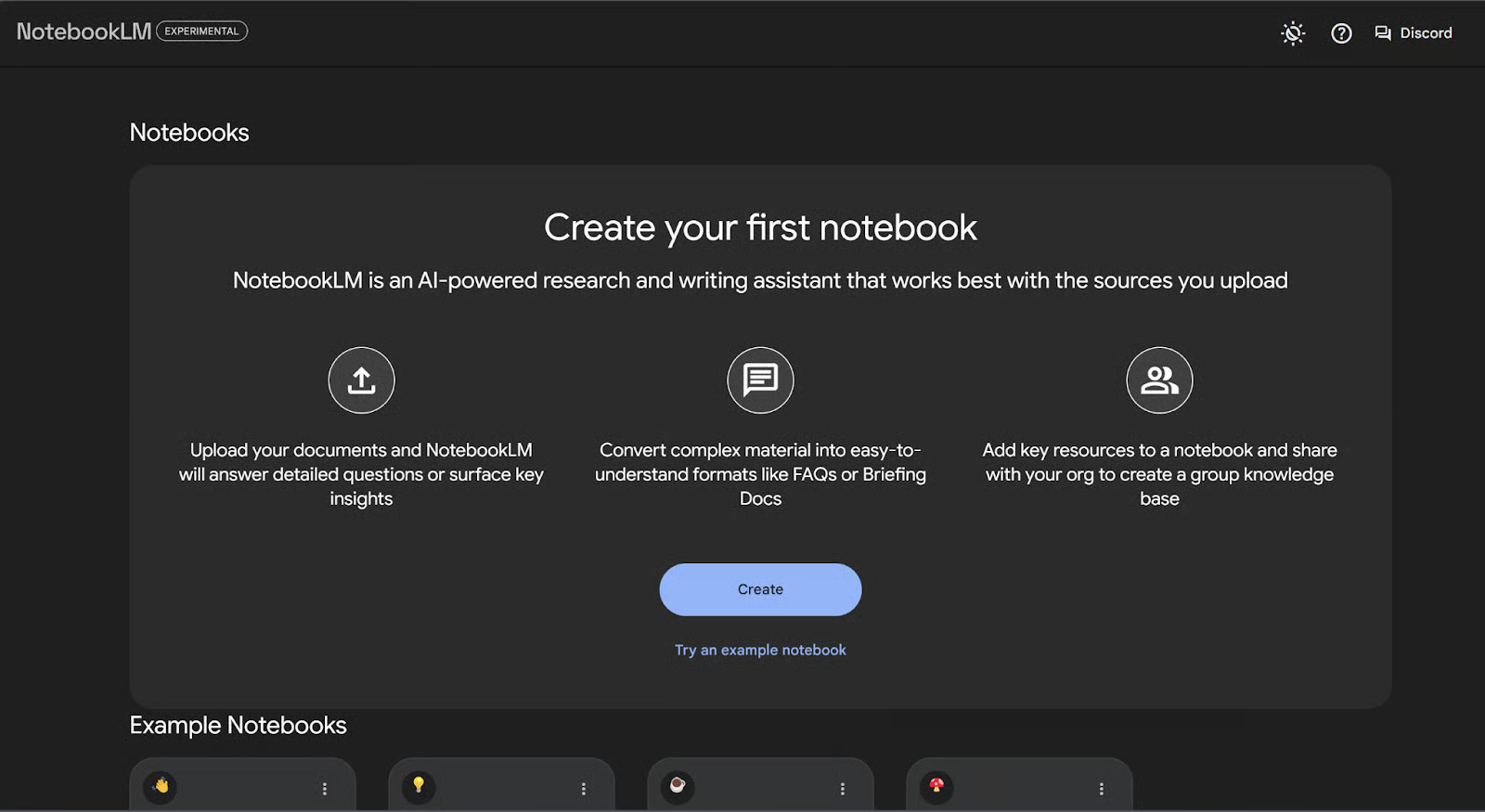
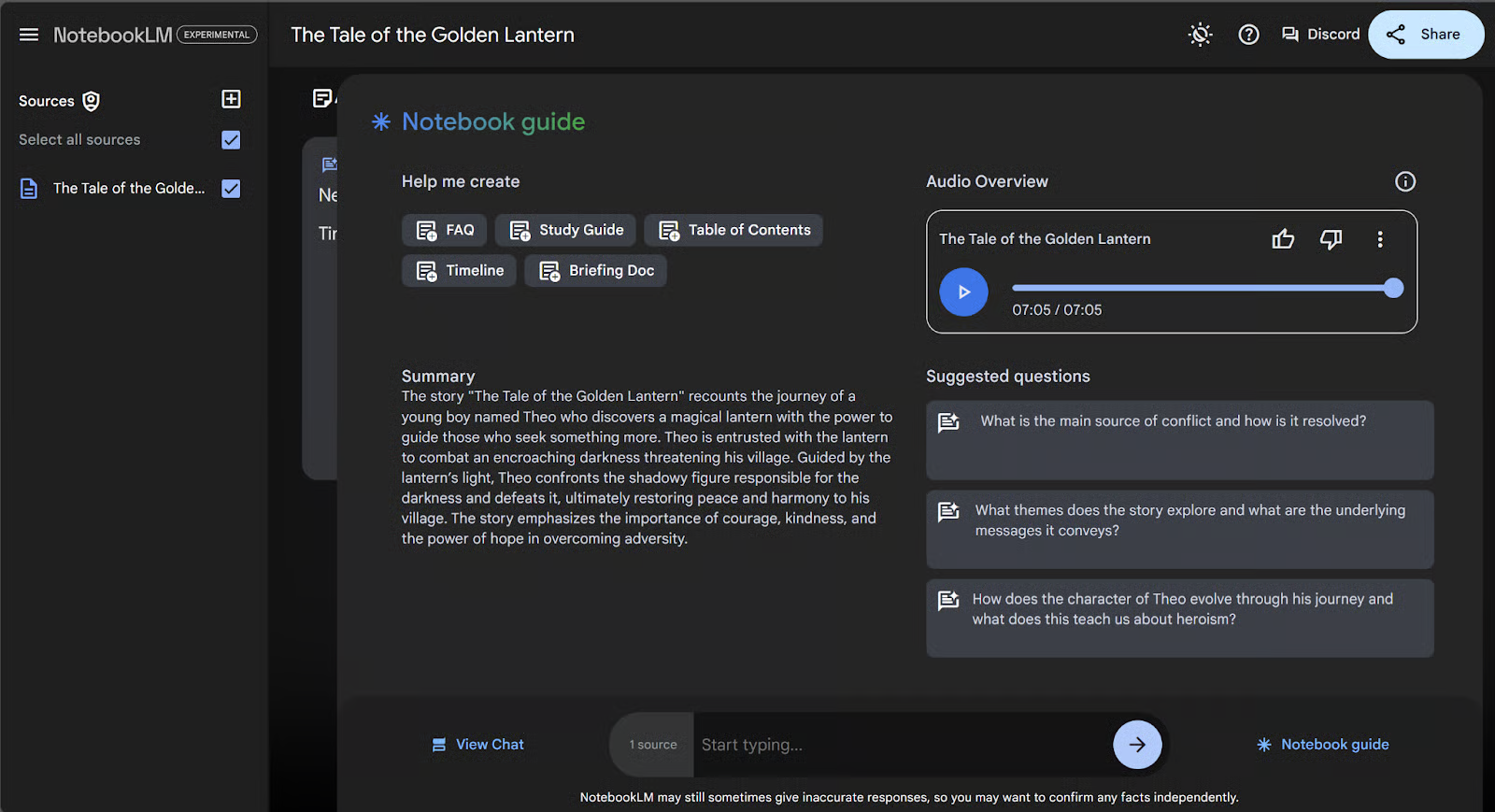
Step 1: Sign in and create a new Notebook
Open Google Labs and launch NotebookLM with your Google account (Chrome works best). Create a new Notebook or open an existing one where you want the transcript to live. NotebookLM operates inside your Google account, so make sure you’re signed into the correct Google Workspace or personal account before proceeding.
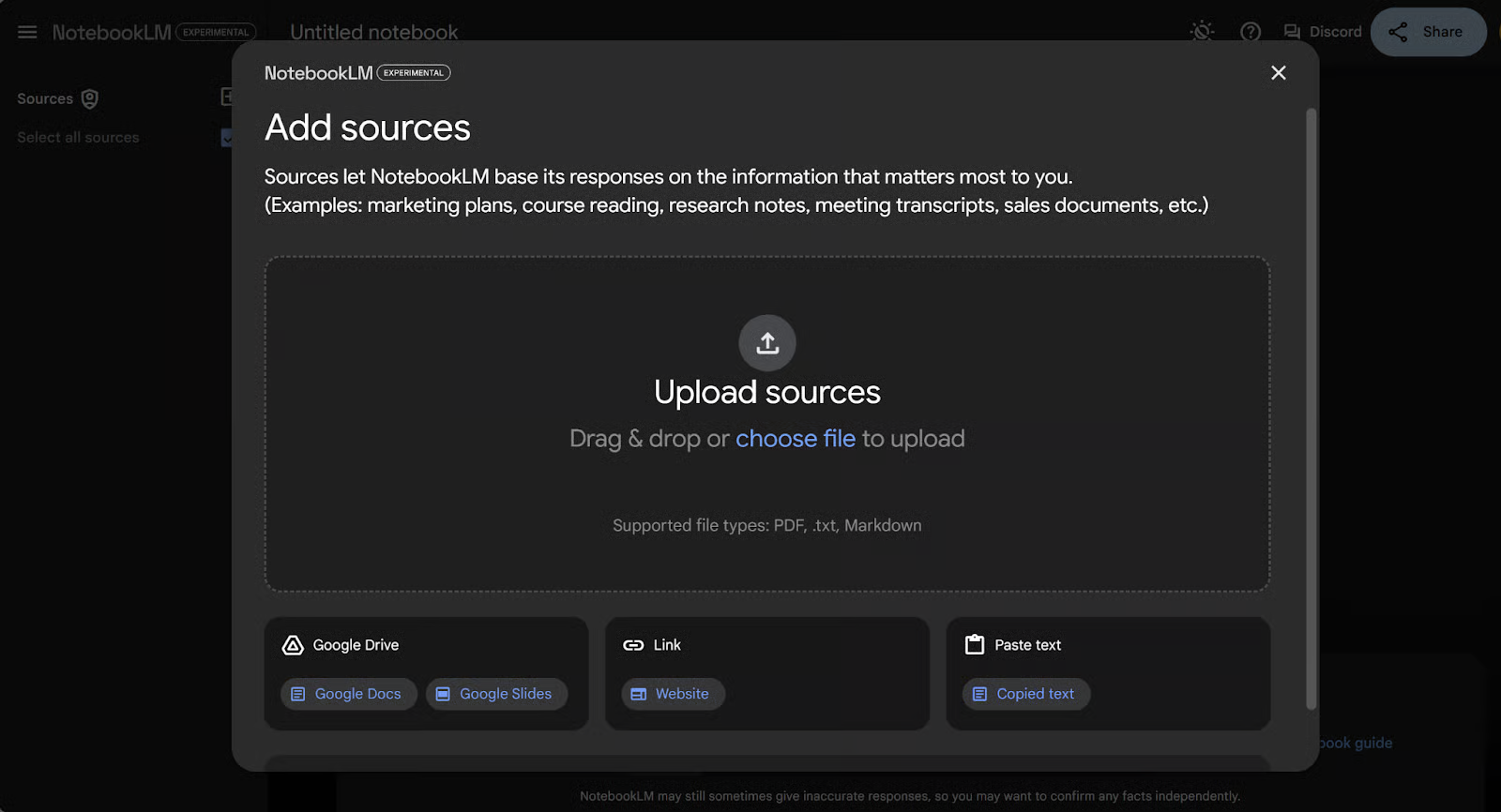
Step 2: Upload the audio file as a source
Inside the Notebook, choose the upload/import option and pick your audio file (common formats: MP3, WAV, M4A, convert if needed). NotebookLM accepts uploaded audio alongside PDFs, Markdown, and Docs; note the workspace resource limits (the blog notes a 50-item cap on uploads), so keep your project tidy. Let the file finish uploading before moving on.
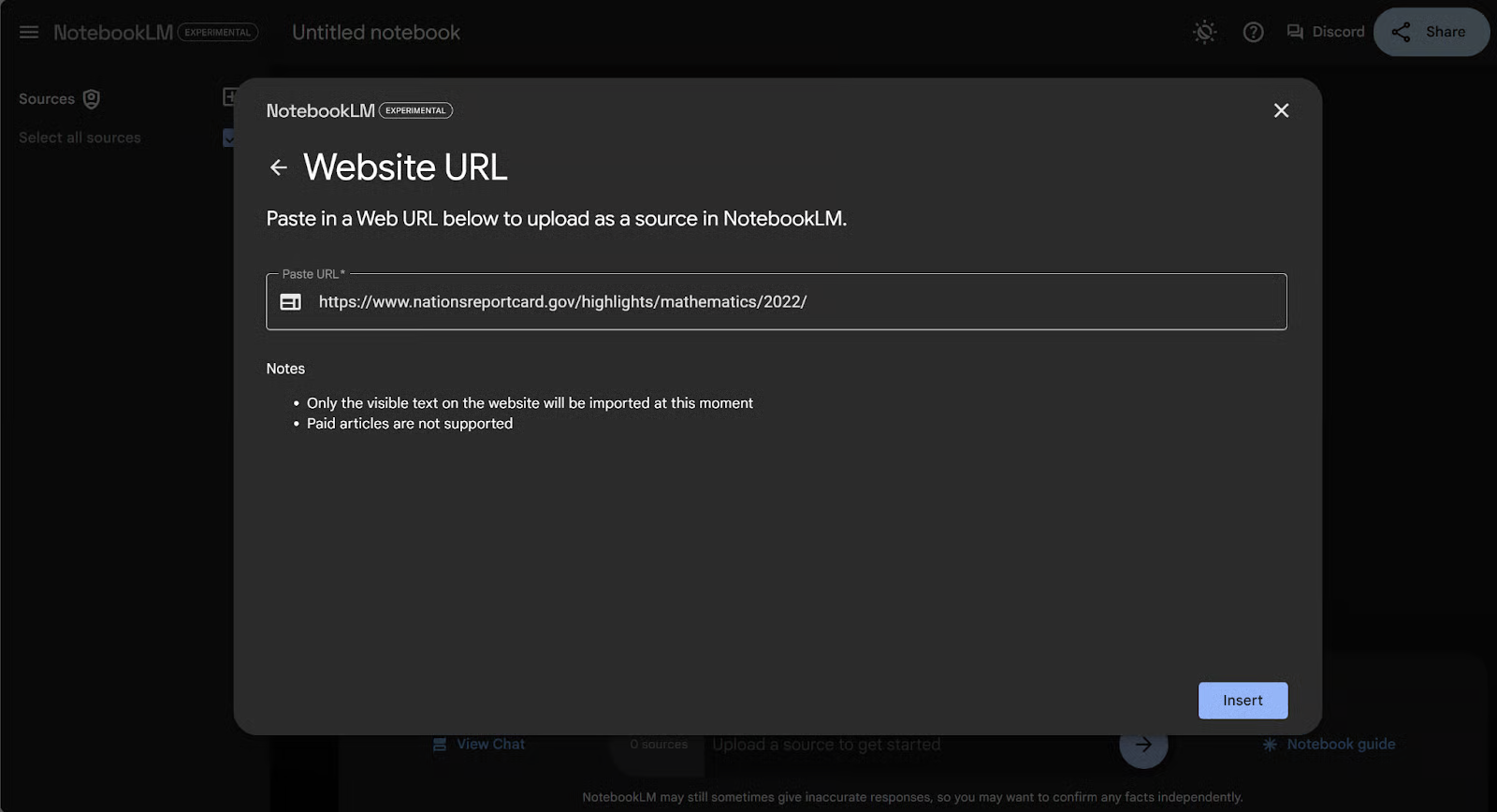
Step 3: Allow NotebookLM to process and index the file
After upload, NotebookLM will analyze the audio and create internal artifacts (transcript + derived embeddings). Wait for the processing step to complete, processing time scales with file length. You’ll see the uploaded item listed in the Notebook’s sources once indexing is done.
Step 4: Open the uploaded audio and request the transcript (or use the built-in transcript view)
Select the uploaded audio resource inside your Notebook and use the chat or action buttons to request a verbatim transcript or a summarized transcript. NotebookLM provides transcript output and also offers follow-up controls (summaries, highlights, or an audio-style “podcast” rendering). If you need timestamps or speaker cues, prompt NotebookLM explicitly (for example: “Give me a full transcript with timestamps” or “List speakers and provide the spoken text with minute markers”).
Pros
-
Excellent choice for academic and research-driven tasks.
-
Seamless synchronization across all Google devices.
-
Strong integration into the wider Google Workspace environment.
Cons
-
Offline access is limited, making it less practical for field work or areas with poor connectivity.
-
Many advanced features only work if your workflow already lives inside the Google ecosystem.
Pricing
NotebookLM is included within paid Google Workspace plans, making it an added benefit rather than a standalone subscription.
4. Notion AI
Overview
Notion AI isn’t a standalone app but an extension of the Notion workspace, which makes it especially appealing for teams already using Notion as their central hub. The AI layer transforms static notes and documents into dynamic knowledge objects. Instead of scrolling through long pages or databases, you can request instant summaries, generate brainstorming outlines, or reformat text on the fly.
This shift turns Notion from a flexible workspace into something closer to an intelligent assistant. Notes don’t just sit in databases, they become searchable, interconnected, and context-aware, making Notion AI a natural choice for teams who want collaboration and AI-powered structure in the same place.
Key Features
-
Automated document summaries: Long pages in Notion can be condensed into short, readable overviews. This helps teams quickly review meeting minutes, research notes, or brainstorming sessions without reading the entire document.
-
AI-assisted brainstorming and drafting: Users can prompt Notion AI to generate outlines, ideas, or even entire drafts within the workspace. This reduces the time spent on blank-page problem solving and accelerates content creation.
-
Database and workspace integrations: Notion AI works seamlessly with Notion’s relational database system, meaning it can interact with tasks, tables, and linked pages. For instance, you can ask it to rewrite tasks in a backlog or suggest priorities for a sprint board.
Hands-on Example
Let’s discuss how to use Notion in detail:
Step 1: Ensure that Notion can access your microphone
Notion needs to access your microphone to record your voice before transcribing it. To grant access, open the ‘System Settings’ screen in your device and look for the microphone.
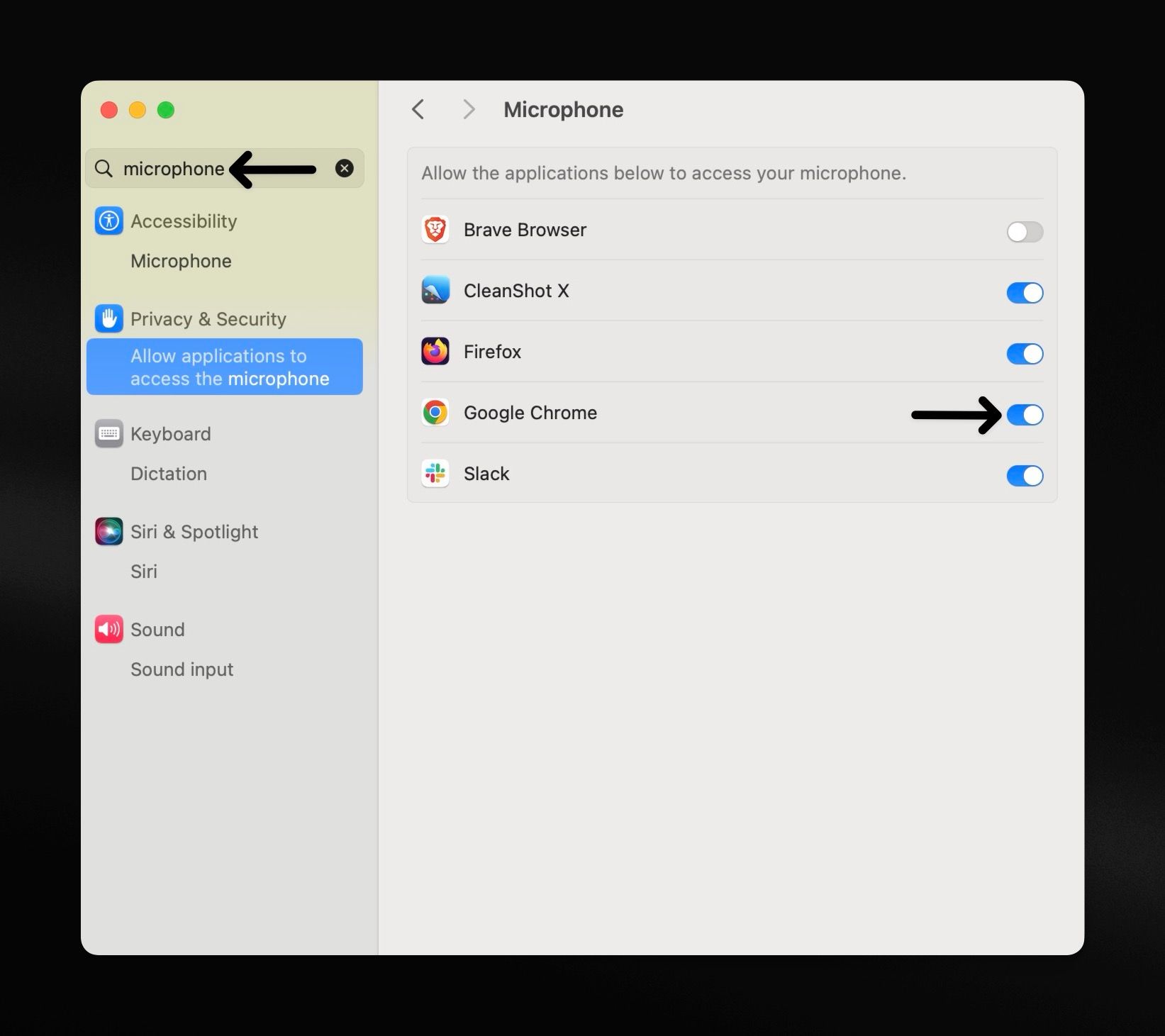
Turn on the toggle for the pertinent browser or app to grant it access. In our example, we turned the toggle on for ‘Google Chrome’ as we are using Notion in that browser.
If you are unable to see the Notion app or the preferred browser in your list of apps, simply proceed to the next steps. Notion will send a request for microphone access when you access the speech to text option. You can approve access right from the browser screen.
But if you rejected the access prompt by mistake, go back to the settings screen and turn on the toggle.
Step 2: Create a new Notion page or open an existing one
We created a new Notion page for demonstration purposes but you can use the voice notes feature in existing pages as well.
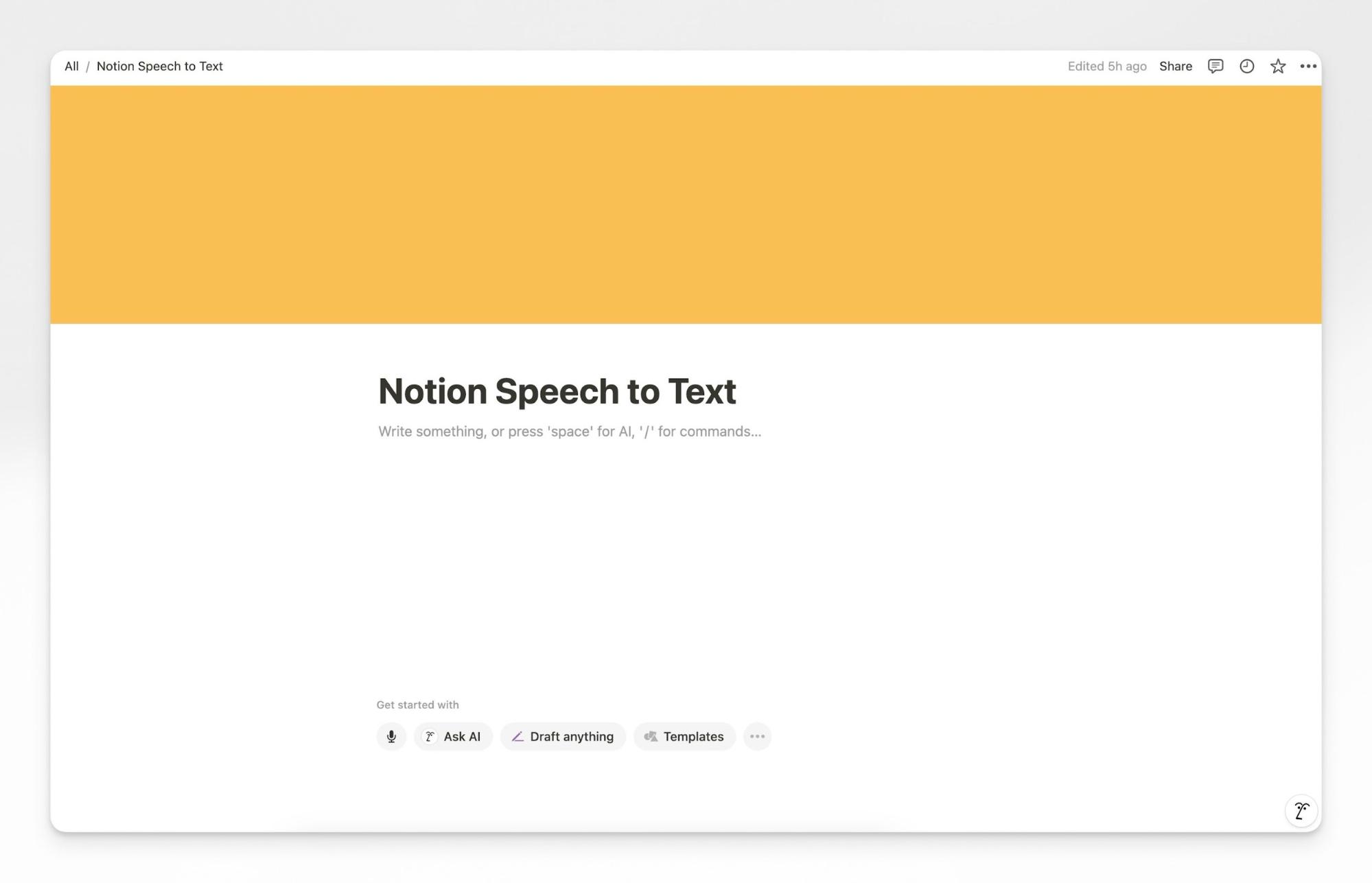
If you’re working with an existing page, remember that unless you reposition your cursor, Notion will start inserting dictated text towards the end of the page.
Step 3: Start Notion dictation
Use any of these three methods to start taking voice notes in Notion:
1. Click the ‘Microphone’ icon towards the bottom of your new Notion page. This icon won’t appear if there is already text on your page.
2. Click the three-dots icon at the top-right of your Notion page and click the ‘Dictate’ option
3. Use the CMD/CTRL + O keyboard shortcut to dictate text in Notion
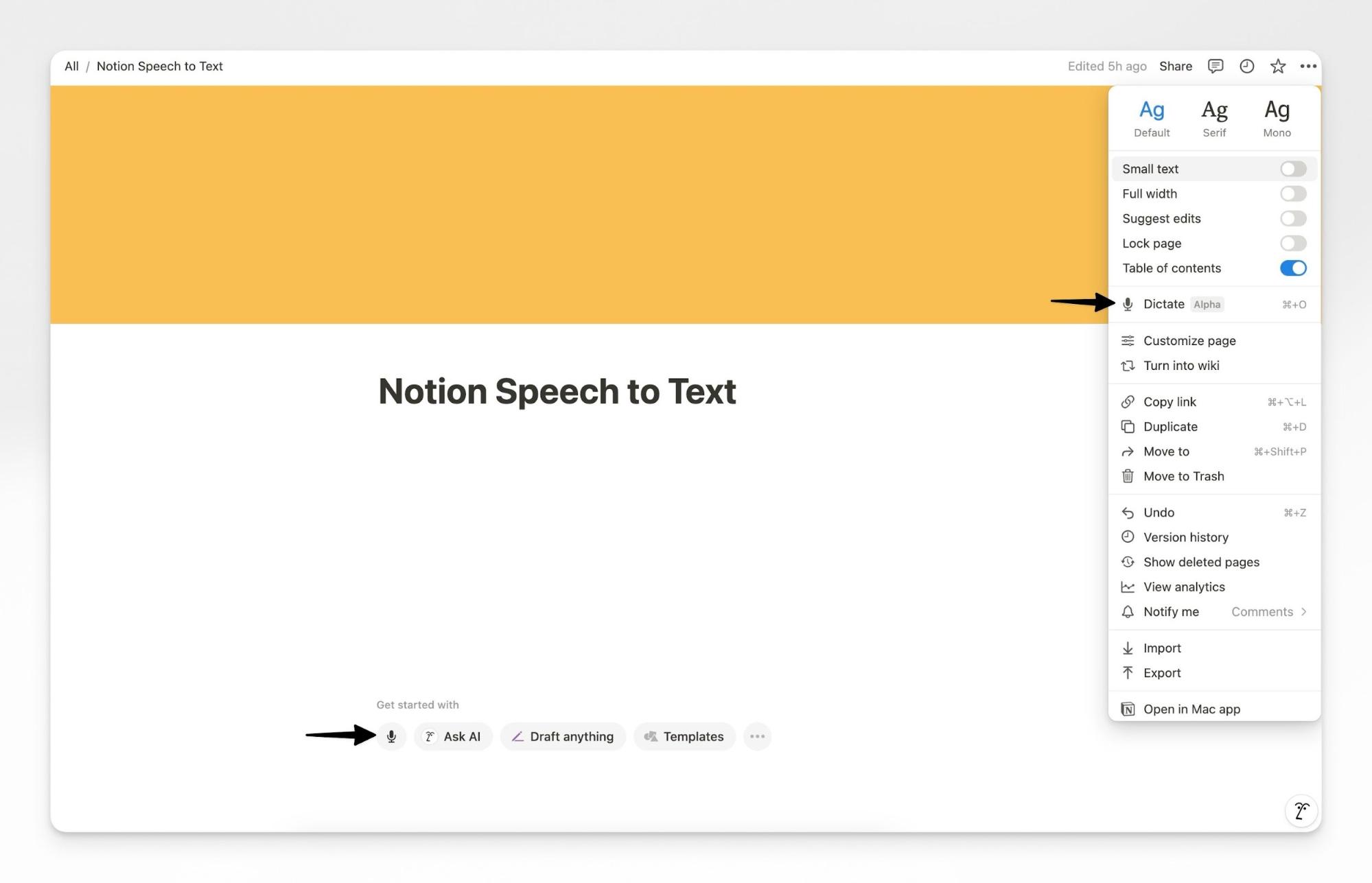
Selecting any of the three methods will turn on the microphone and Notion will start listening to what you say, ready to turn your speech into text.
Here are some tell-tale signs of Notion voice recording in progress.

You will notice:
1. A blue ‘Microphone’ icon next to your address bar. Clicking on it reveals the fact that the device’s default microphone is in use by the browser.
2. A red stop button with an audio graph next to it that undulates as you speak based on your voice’s volume and pitch.
3. The Notion AI icon appears in place of the cursor on the page
Step 4: Select a microphone
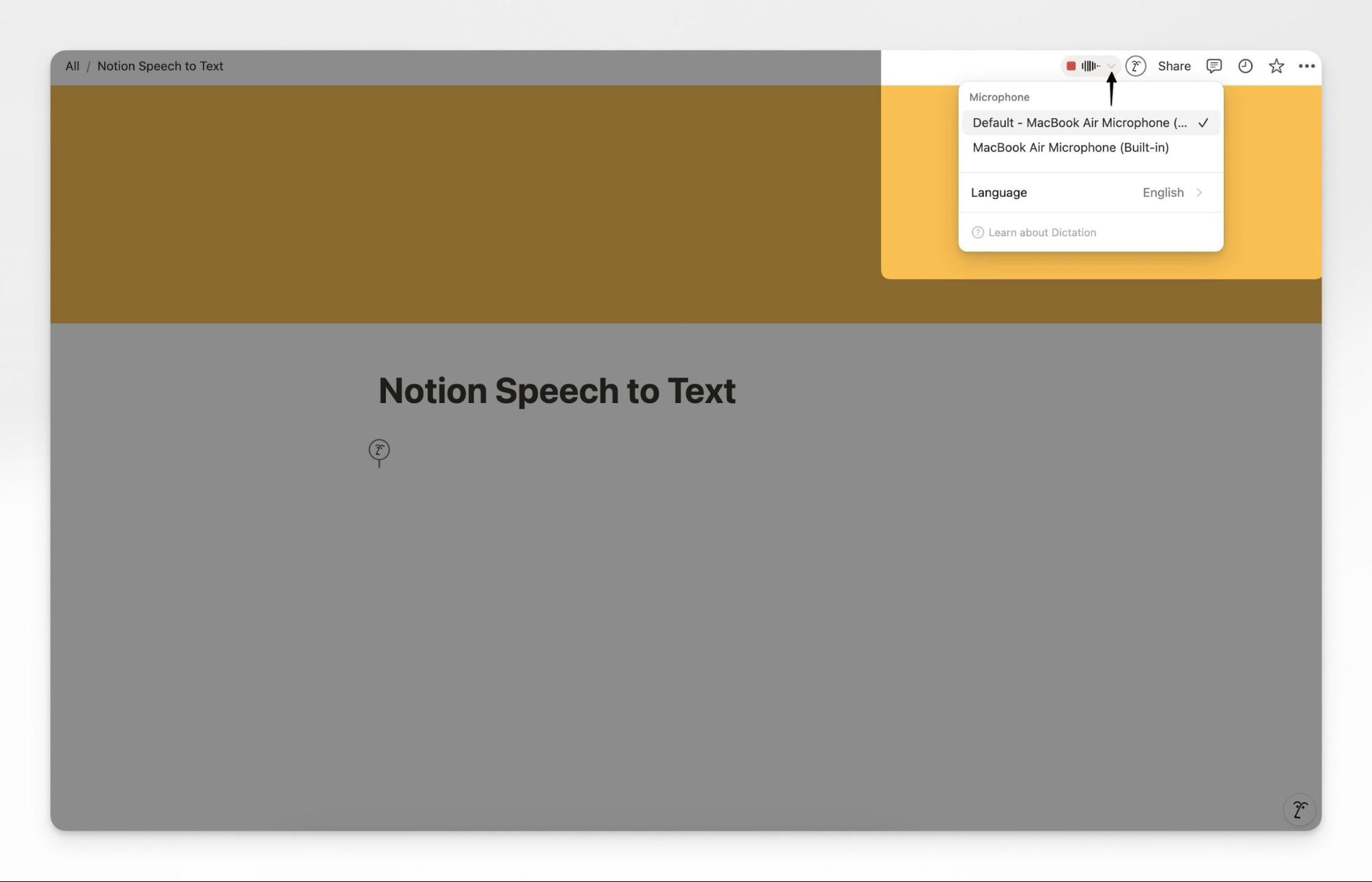
To switch to an external mic, click the tiny arrow next to the audio graph, and select the preferred microphone.
Step 5: Choose your language
Notion supports 16 languages. You can choose your language by clicking the current default language, English, in our example, and selecting another one from the list.
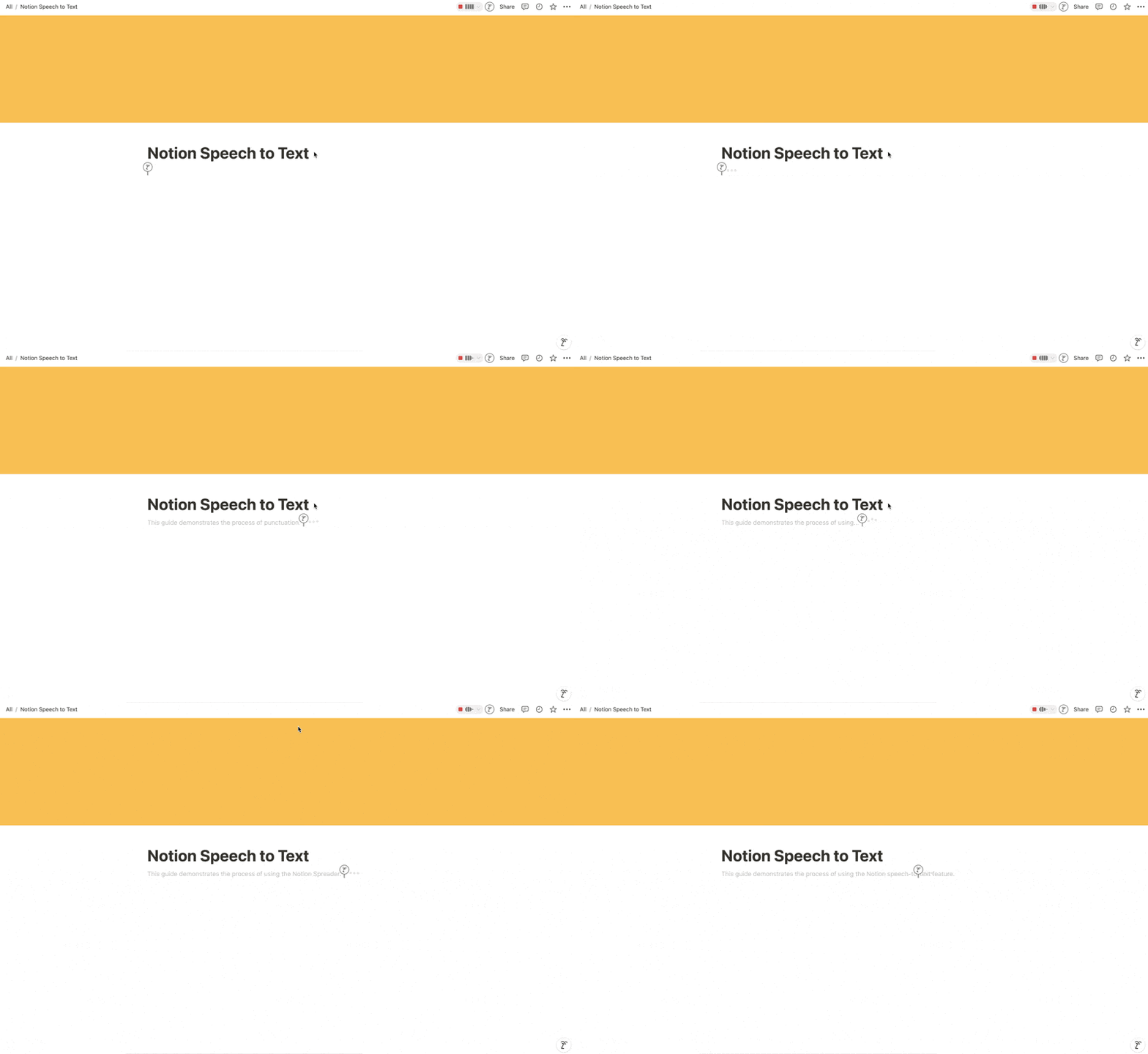
This is an important step if you plan to write in the non-default language because Notion auto-translates everything to the default language.
Now with your mic set and language selected, you are all set to turn voice to text in Notion.
Step 6: Use Notion speech to text
Start speaking into your microphone. Notion will turn your words into text in real time. While you may experience a slight lag, Notion does a great job at adjusting misheard text based on context.
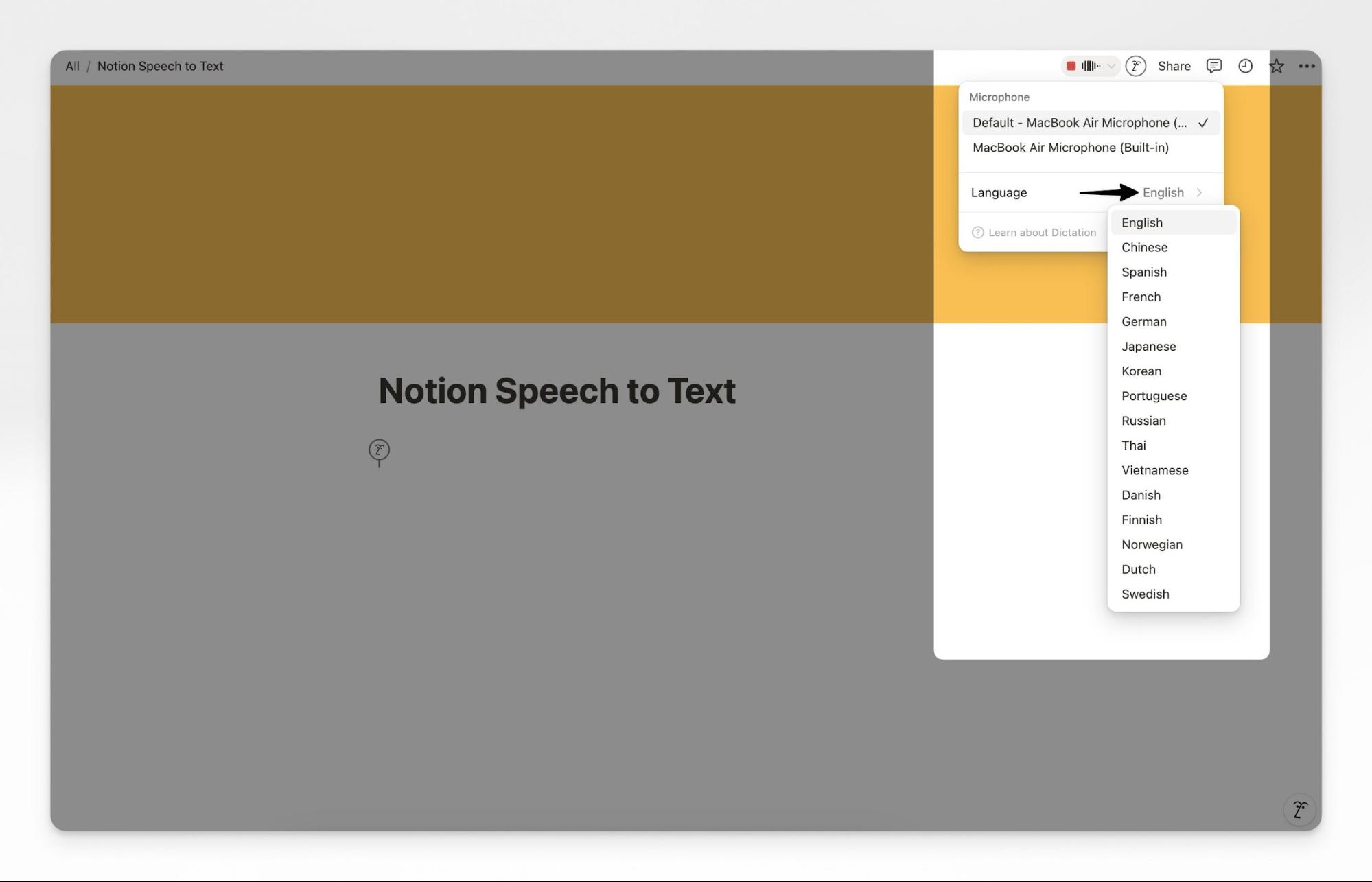
Step 7: Stop recording and edit the text
Click the red-colored record button to stop recording your voice. Notion now has transcribed text available to edit.
You might need to get in an fix some misheard words and fine-tune content to make it tighter.
Pros
-
Ideal for teams who already rely on Notion as their central collaboration tool.
-
Minimizes manual overhead in organizing, summarizing, and drafting content.
Cons
-
Requires a paid subscription for AI functionality.
-
Does not support offline voice capture or dictation, limiting use as a pure note-taking assistant.
Pricing
AI functionality in Notion begins at $10 per month, billed as an add-on to the core Notion subscription.
5. Otter.ai
Overview
Otter.ai has been one of the most recognized names in AI note-taking, with a strong focus on real-time meeting transcription. Its strength lies in turning conversations into live text streams, which makes it ideal for teams who want immediate visibility into what’s being said and decided. Beyond transcription, Otter.ai adds layers of collaboration by generating action items, highlighting speakers, and enabling teams to work together directly inside the app.
For professionals who spend much of their day in meetings, Otter functions as both a recorder and a shared workspace. Colleagues can watch the transcript unfold in real time, add annotations, or flag key points without waiting for the meeting to end. This immediacy sets it apart from tools that only process audio after upload.
Key Features
-
Live voice-to-text transcription: Otter processes spoken words into text in real time, allowing participants to follow along as if they were reading live captions. This feature supports immediate corrections and note-taking during fast-paced discussions.
-
Speaker diarization: The system distinguishes between different speakers automatically, tagging contributions by name (after an initial training step). This makes meeting notes more useful by tying ideas or decisions to the people who said them.
-
AI-generated action items: Otter extracts follow-ups, tasks, and deadlines from the transcript, turning raw conversation into structured outputs that can be tracked later.
-
Collaboration tools: Team members can comment on or highlight sections of the live transcript. This allows asynchronous participants to catch up quickly and reduces the burden of sending out separate meeting notes.
Hands-on Example
Otter AI video transcription is simple and efficient. Follow these step-by-step guide to get started:
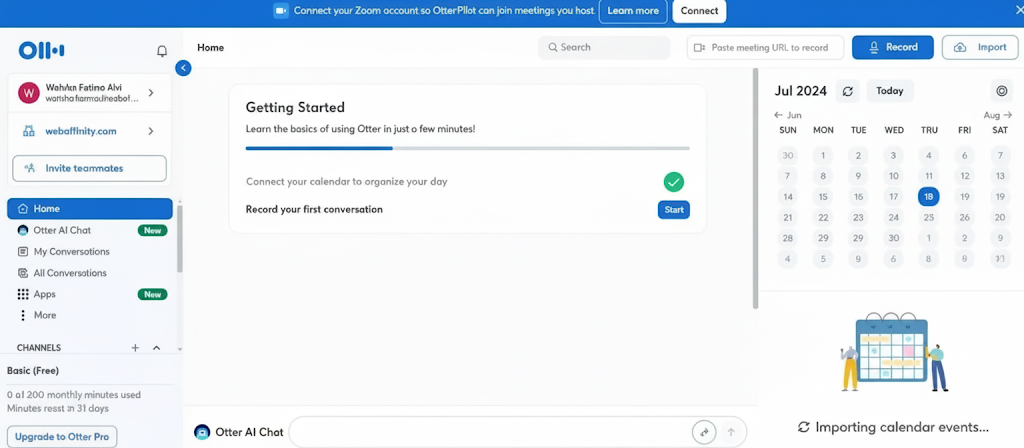
Step 1: Sign Up
Go to the Otter.ai login and sign up page and create an account using your email, Google, or Microsoft account.
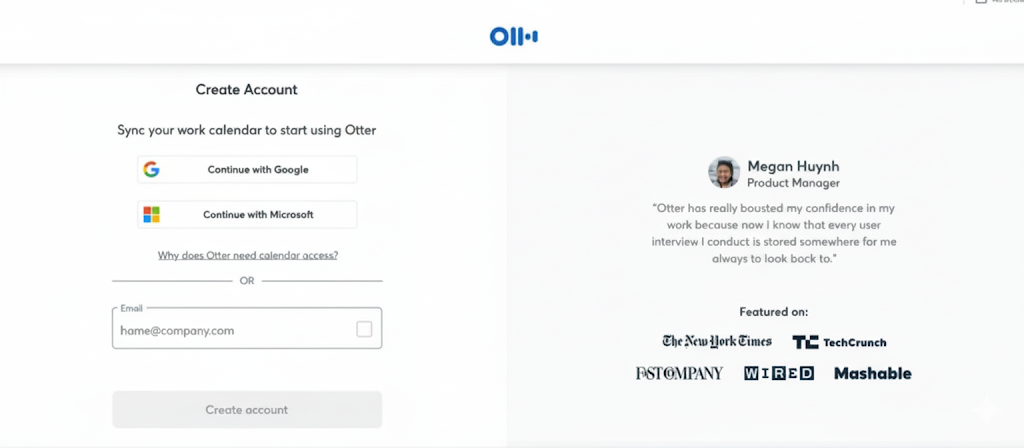
Follow the onboarding steps and grant access to your Google or Microsoft calendar. You’ll then be directed to the Otter dashboard.
Step 2: Download the Mobile App
Download the Otter app from the Google Play Store (Android) or Apple App Store (iOS) to use Otter’s features on your mobile device.
Step 3: Record or Import Files
Click the record button to start capturing audio. Allow Otter to use your microphone.
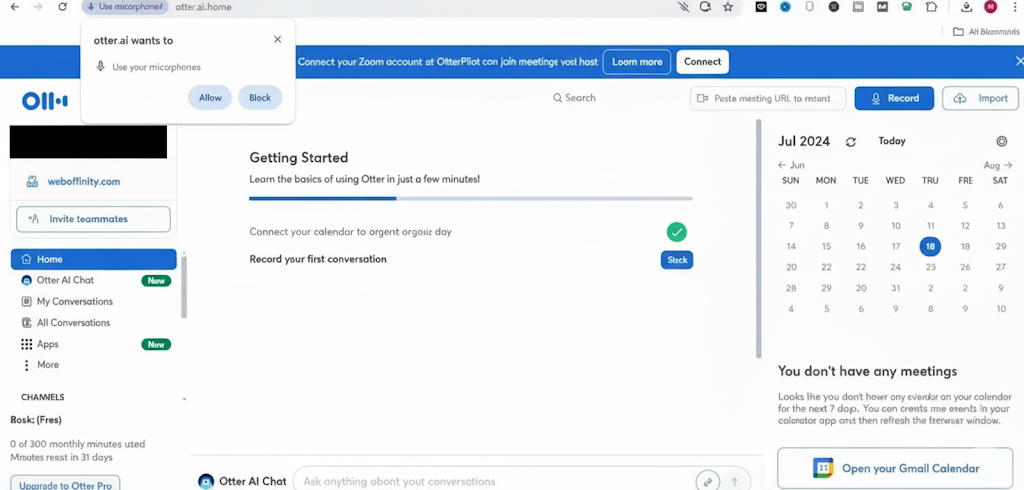
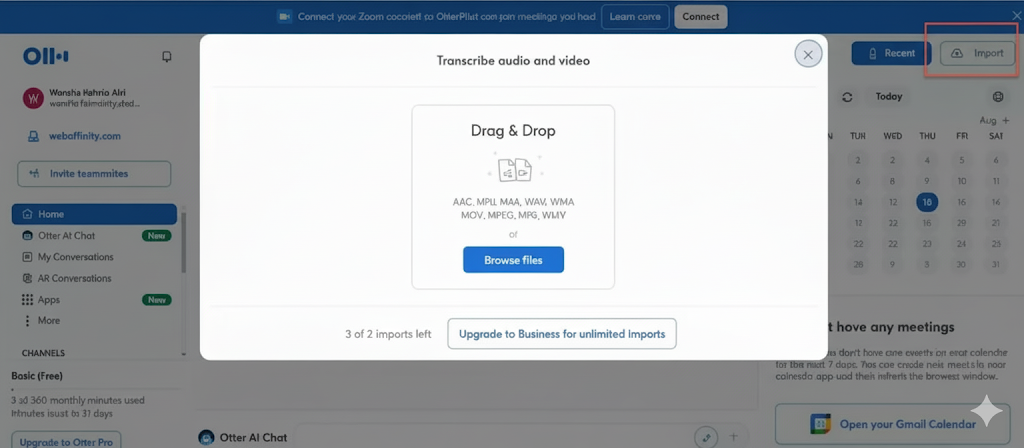
To import files, click the Import button on the dashboard, then select a file from your computer. Otter will automatically transcribe the file.
Step 4: Review and Edit Transcripts
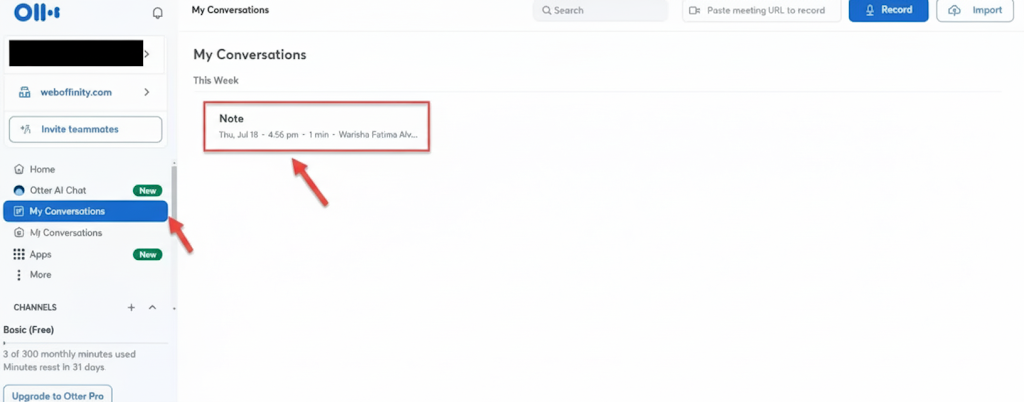
Go to the My Conversations tab, select a transcript, and click Edit to correct errors and make changes. Your edits are saved automatically.
Step 5: Share Transcripts
Click the blue Share button on the transcript page.
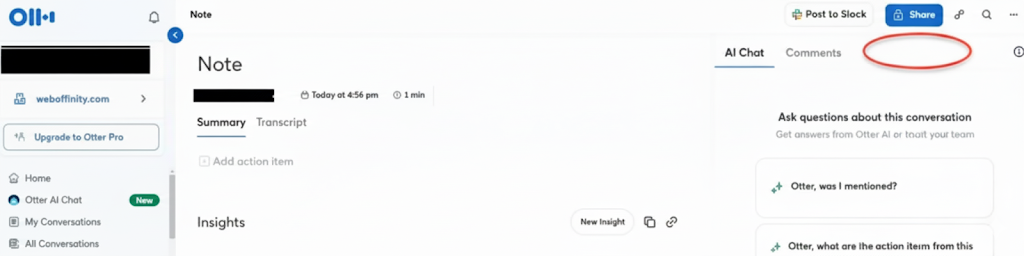
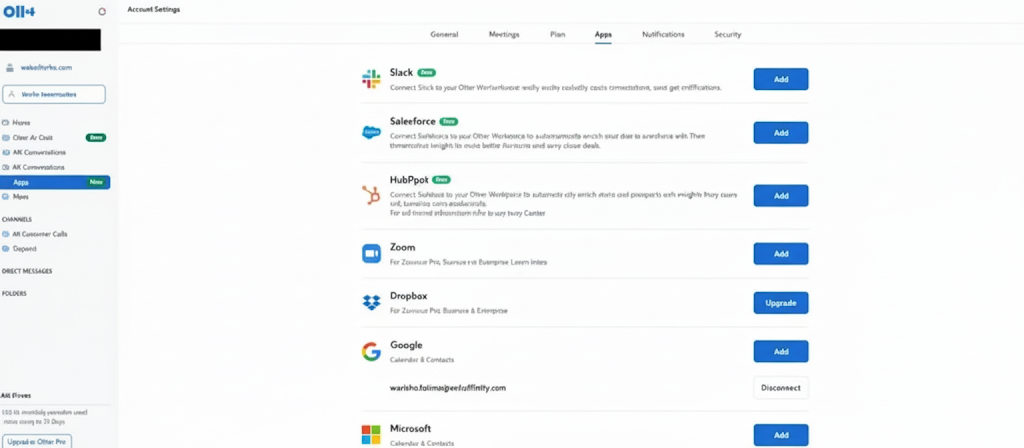
Add the names or emails of people to share with, assigning permissions as needed. Alternatively, generate a public link and share it via email, Slack, or other integration apps.
Pros
-
High transcription accuracy compared to most competitors, even in real-time scenarios.
-
Built-in collaboration features make it ideal for distributed or hybrid teams.
Cons
-
Requires constant internet connectivity for its transcription engine to work.
-
Less suitable for individual users who want offline or private note-taking.
Pricing
Otter.ai offers a free plan with limited transcription hours. Paid plans start at $10 per month, unlocking more transcription minutes, advanced collaboration features, and integration with conferencing tools.
Which AI Note-Taking Tool Fits You Best? (2025 Comparison)
| Tool | Best For | Integrations | Security / Compliance | Technical Strength |
|---|---|---|---|---|
| Amical AI | Privacy-first research, offline use | Desktop export to Notion, Obsidian | Local-first, user-controlled | Local AI, multi-language transcription, dictation & voice notes |
| Granola AI | Structured meeting recaps for professionals | Zoom, Google Meet, project tools (Trello, Asana) | Cloud or local options (user choice) | AI-generated decisions & action items, hybrid recording (cloud + local) |
| Google NotebookLM | Research-heavy, document analysis | Google Docs, Drive, Gmail | Workspace-grade compliance | Semantic clustering, cross-document linking, source attribution |
| Notion AI | Knowledge management, drafting, PKM | Slack, Trello, Notion databases & APIs | SOC2 | Automated summarization, AI-assisted brainstorming, database interaction |
| Otter.ai | Meetings, enterprise collaboration | Zoom, Google Meet, MS Teams | SOC2, GDPR, HIPAA | Real-time diarization, live transcription, AI task extraction |
Why Choose Amical AI Over Other Note-Taking Tools
Local-first and open-source advantage
Amical AI takes a different path from most note-taking apps by being both local-first and open-source under an MIT license. This means you can see exactly how it works, extend it if needed, and run everything directly on your device without sending conversations to the cloud. For teams handling sensitive discussions, this gives a level of transparency and control that closed tools like Otter.ai or Notion AI can’t match. You decide when to use local models for privacy, or switch to cloud models when you need scale or speed.
Smart, context-aware dictation
Most dictation apps simply turn voice into raw text. Amical’s dictation engine adds a layer of context awareness, shaping output to match the app you’re working in. Drafting an email? The tone comes out polished and professional. Posting in Slack? The phrasing shifts to conversational. Writing inside Notion? The text is neatly structured. This saves users from reformatting or editing after dictation, the output is usable right away.
Voice-activated workflows and app control
Amical isn’t limited to note-taking. With its Macro Control Protocol (MCP) integration, voice commands can control apps directly. A phrase like “say hi to Jane on WhatsApp” doesn’t just generate text, it actually triggers the action in WhatsApp. This automation layer effectively merges dictation, note-taking, and task execution, giving users a voice-driven way to interact with their broader workspace.
Fast and evolving development
Amical’s pace of innovation is also a major draw. Launched in July 2025, its first release already included integrations with Whisper, Ollama, and OpenRouter. Since then, updates have been frequent, adding performance improvements and expanding functionality. For developers and early adopters, this rapid growth signals a project with momentum and a strong trajectory, rather than a stagnant tool.
Conclusion
AI note-taking apps in 2025 are no longer simple transcription utilities; they’re evolving into full-fledged knowledge companions. Tools like Amical AI push the boundaries of privacy and offline-first workflows, while Otter.ai dominates real-time meeting transcription and enterprise use. Granola AI caters to structured recaps, NotebookLM shines for research-driven clusters, and Notion AI integrates intelligence directly into team knowledge hubs.
Each comes with trade-offs: accuracy varies by environment, pricing models differ, and privacy remains a dividing line between local-first and cloud-first systems. Choosing the right tool depends on your workflow. If security is non-negotiable, Amical’s local-first model may fit. For fast-paced teams juggling meetings, Otter remains a strong contender. Researchers will find NotebookLM compelling, while teams already embedded in Notion can add AI without changing tools.
The shift we’re seeing is clear: note-taking has moved from passive capture to active knowledge structuring. The right app doesn’t just save time; it can change how individuals and teams retain, connect, and act on information.
FAQs
1. Which AI note-taking app is best for students?
Students often need affordable, versatile solutions. Amical AI is appealing because it’s free, open-source, and works offline, making it great for lectures or study sessions. However, if collaboration with classmates is essential, Otter.ai’s free plan with live transcripts is also a solid choice.
2. Do AI note-taking apps work offline?
Not all of them. Amical AI is designed with offline usage in mind since it runs locally on your device. Most others, like Otter.ai or Granola AI, require internet connectivity for their advanced features, as the heavy lifting happens on cloud servers.
3. Are AI-generated notes accurate?
Accuracy depends on both the speech recognition engine and the summarization model. In quiet environments, modern ASR engines like Whisper or Parakeet can achieve high accuracy. But background noise, overlapping voices, or technical jargon can reduce reliability. Summaries from LLMs are usually good at distilling the essence, but may sometimes miss nuance.
4. How secure are these apps for enterprise use?
Enterprise-grade tools like Otter.ai advertise compliance with standards such as SOC2, GDPR, and HIPAA. Still, companies concerned about sensitive data may prefer local-first tools like Amical AI, where recordings and transcripts never leave the device. Security often comes down to whether processing happens in the cloud or on your hardware.
5. Can they integrate with productivity tools?
Yes, integration is a major selling point. Otter.ai syncs with Zoom and Google Meet, Granola AI pushes summaries into Trello or Asana, Notion AI interacts with its database system, and Amical AI allows exports into Notion or Obsidian. NotebookLM connects tightly with Google Workspace, making it powerful for research-driven workflows.